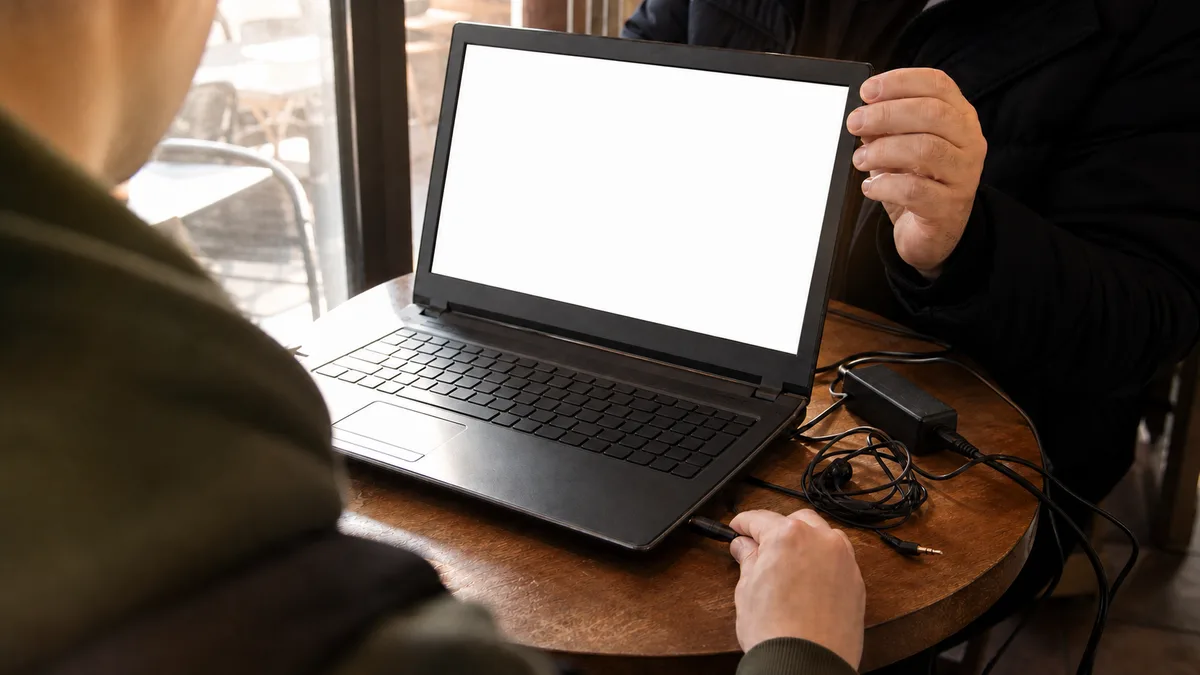
You are sitting in a café with a laptop on the table and the person who wants to sell it sitting opposite you. The photos in the listing looked good, and the price is a few thousand Czech crowns below the usual level. You have about fifteen minutes before it starts to feel awkward to keep the seller waiting—and those fifteen minutes will determine whether you are buying a bargain or someone else’s problem, along with the cost of fixing it.
The good news is that fifteen minutes is enough to uncover many common faults that can make a used laptop much more expensive than it first appears. It will not reveal everything, but if you know what to inspect and in which order, a few small items from your desk drawer are all you need.
The short answer: Ask for the exact model designation in advance and tell the seller that you will need about 15 minutes. At the meeting, work through the highest risks first: compare the model and serial number with the listing, make sure the BIOS is not protected by an unknown password, check “Access work or school” in Settings, then inspect the hinges and chassis, test the display with solid-colour images, check the keyboard and ports, generate a battery report with
powercfg /batteryreport, and finally inspect the drive’s SMART data in CrystalDiskInfo. A swollen battery, a BIOS protected by an unknown password, unresolved registration with another organisation or critical SMART errors are reasons to walk away regardless of the price. If you are unsure, you can have the laptop inspected by a repair shop before buying it.
What fifteen minutes can reveal—and what it cannot
In fifteen minutes, you can find a cracked chassis, broken hinge mounts, a worn-out battery, dead ports, defective pixels and a drive with recorded SMART errors. These are common faults that can be detected without taking the laptop apart.
What you will not find is a motherboard fault that appears only after the laptop warms up, residue from an old spill hidden beneath the keyboard, or an intermittent memory error. The last of these requires an hour-long test, not five minutes over coffee. A fifteen-minute inspection therefore does not eliminate the risk; it simply moves you from “I know nothing about this machine” to “I know what I am buying”.
One rule takes precedence over all the others: perform the inspection before handing over the money. If the seller refuses to turn the laptop on, connect the charger or wait for Windows to start, the inspection has effectively done its job—you have just learned the most important fact.
What to bring
Ask for the exact model designation in advance. “Lenovo ThinkPad” or “Dell Latitude” is nowhere near specific enough: the same product family can include machines with different processors, displays and port configurations. You need the full model name, such as ThinkPad T14 Gen 3, Latitude 5430 or EliteBook 840 G8. You can then look up the intended specifications at home and simply verify them in person.
Bring the following:
- a USB flash drive without company data or passwords—you do not know the condition of the seller’s system,
- headphones with a connector supported by the laptop,
- a phone with a hotspot for testing Wi-Fi,
- several solid-colour images in your phone gallery or on the flash drive (white, black, red, green and blue),
- a portable version of CrystalDiskInfo on the same flash drive,
- a list of the ports and accessories exactly as stated in the listing.
Tell the seller in advance that you will need about fifteen minutes to inspect the laptop. Anyone selling an honest machine should expect this. “The battery is flat, so we cannot turn it on now” prevents you from checking almost everything that matters—and it is not an excuse worth accepting.
The order of inspection
There is a reason for the order: begin with defects that cannot be repaired or would be expensive to resolve, then move on to items whose cost you can factor into the price.
| Time | What to check | Warning sign |
|---|---|---|
| 0–2 min | Model, serial number, BIOS, corporate management | Details do not match the listing, BIOS asks for an unknown password, machine is registered with another organisation |
| 2–5 min | Chassis, hinges, signs of disassembly and liquid damage | Widening gaps, creaking hinge, corrosion in ports, sticky keys |
| 5–7 min | Display, keyboard, camera, sound, ports | Patches or flickering, unresponsive keys, loose connectors |
| 7–10 min | Battery and power supply | Capacity far below its design value, intermittent charging, bulging touchpad |
| 10–13 min | Drive and SMART data | Reallocated or pending sectors, critical NVMe warning |
| 13–15 min | Brief load test, cooling, Wi-Fi | Crashes, freezes, rattling fan, network dropouts |
If you find a serious problem within the first five minutes, there is no point continuing. A laptop with an unknown BIOS password or a swollen battery is not a good purchase simply because it is cheap.
The first 120 seconds: is this even the laptop from the listing?
In Windows, open Settings → System → About; the msinfo32 tool provides more detailed information. Check the processor, RAM capacity, Windows edition and exact model designation. Then restart the machine and enter the BIOS—this is usually F1 or Enter on Lenovo, F2 on Dell, F10 on HP, and F12 or Delete on some other machines. Compare the model and serial number in the BIOS with the label on the bottom cover.
For business ranges such as Lenovo ThinkPad, Dell Latitude, HP EliteBook and ProBook, you can enter the serial number on the manufacturer’s support website to check the original configuration and warranty status. If someone has since added RAM or replaced the SSD, the current configuration will differ from the original record, which is perfectly acceptable. The model range and serial number must still match.
Two things determine whether you should accept the machine at all:
A BIOS protected by a password the seller does not know. A supervisor password protects the BIOS settings, and exactly what it locks depends on the machine’s configuration. It may prevent changes to the boot order, booting from USB or disabling Secure Boot. In other cases, the laptop will boot using the existing order, but you cannot change its security or boot settings. Password storage and removal procedures also vary. On business ranges, removing the battery or shorting contacts as suggested by online guides will usually not help. The legitimate route normally involves the manufacturer and proof of purchase or a professional repair. An unknown password is therefore a reason not to buy until the seller resolves it.
Registration with another organisation’s management system. Large-scale hardware replacements following the end of Windows 10 support have put many retired corporate laptops on the second-hand market. On business machines, this issue is now just as important as inspecting the hinges. Open Settings → Accounts → Access work or school. If another organisation appears there, the device may be under corporate management. A connected account alone does not prove this, and in some cases simply disconnecting the account is enough. If the machine remains registered with Autopilot, however, a clean Windows installation may ask for credentials from the original organisation during initial setup. Only that organisation can remove it from management. Ask the seller to confirm that the device has been removed. Without that assurance, you risk buying a laptop you can never fully take control of.
Chassis, hinges and signs of liquid damage
Place the laptop on a flat table. It should not rock, and its base should not be twisted. Run a finger along the gaps between the bottom cover, palm rest and display bezel. They should be continuous and even, without raised edges or steps.
Slowly open and close the lid several times. Resistance should remain smooth throughout its travel. Creaking, movement of the hinge inside the chassis or plastic lifting near the hinge indicates torn mounting points. This is a common fault on ThinkPad L-series models and cheaper consumer laptops. The hinge itself may cost only a few hundred Czech crowns, but a broken lid often requires replacement of the entire frame.
Inspect the screws in the bottom cover. Stripped heads, missing screws or broken clips show that someone has opened the machine. That is not necessarily a deal-breaker—SSDs and RAM are commonly replaced—but the seller should be able to explain what was done and why.
You are more likely to recognise liquid damage from the laptop’s behaviour than its appearance:
- sticky keys or keys with inconsistent travel,
- keys that type two characters or do not respond at all,
- green, white or rust-coloured deposits in USB and audio ports,
- intermittent keyboard, touchpad or charging failures.
An old spill cannot be reliably ruled out without taking the laptop apart. Corrosion beneath the keyboard may develop for months before causing visible symptoms, so a clean surface proves nothing. The article laptop after a spill: what to do immediately explains what happens inside such a machine and why the speed of the initial response matters.
One problem is visible to the naked eye: if the touchpad rises above the surrounding surface, the bottom cover is separating or the laptop no longer sits flat on the table, there is very likely a swollen battery inside. Do not continue charging such a machine or carry it in a backpack. The article swollen laptop battery explains why and what to do about it. When buying, the decision is simple: either deduct the cost of a new battery from the price or walk away.
The display, keyboard and only the ports you will actually use
Display white, black, red, green and blue images in full-screen mode one after another. Solid colours reveal dead pixels, bright pressure marks caused by the closed lid and uneven backlighting—none of which will show up in the listing photos.
Move the brightness from minimum to maximum while slowly moving the lid. The image must not flicker, change colour or disappear. A failure at a particular lid angle suggests a worn display cable in the hinge, typically on machines that have been opened by one corner for years.
Open Notepad and type every character, including Enter, Space, Backspace, the arrow keys and combinations using Fn. Test both touchpad buttons, two-finger scrolling, the camera, microphone and speakers. If a key produces the wrong character, the cause is not always mechanical. The article laptop keyboard not working or typing the wrong characters examines the possible causes.
Test ports according to what you will actually use. “It has USB-C” tells you nothing: one port may support only data and charging, another may also carry video through DisplayPort Alt Mode, while a third may provide Thunderbolt with support for a dock and two monitors. The icon beside the port can offer a clue—a lightning bolt usually indicates Thunderbolt and a display symbol suggests video output—but manufacturers do not use these markings consistently. The exact model documentation and a test with the relevant dock or monitor are what matter. If you are buying the laptop for a particular dock, compatibility remains an open question unless you test it.
Even in a café, you can insert a flash drive into every USB port, connect headphones to the audio jack and join your phone’s hotspot. A port that works only when you push the plug in a particular direction suggests mechanical damage to the connector or its connection to the motherboard.
Judge the battery by its report, not its icon
The claim that a battery “lasts a few hours” is meaningless without knowing what the laptop was doing during that time. In Windows, open Terminal or Command Prompt and enter:
powercfg /batteryreport
Windows saves an HTML report and displays its location in the window. Look for two figures shown together: Design Capacity is the battery’s original rated capacity, while Full Charge Capacity is what it can hold today. The ratio between them provides an estimate of the battery’s remaining health.
Around 80% of the original capacity is perfectly acceptable for a used laptop. Below roughly 60%, the difference becomes noticeable every time you work away from a power socket, and it is sensible to factor a replacement into the price. Treat these figures as a guide rather than a precise measurement. They are reported by the battery electronics, which can be inaccurate when the cells are worn.
Cycle Count is not available on every model and is not enough on its own. Heat also damages batteries. A laptop that spent years in a dock beneath a desk may have remained charged and warm, degrading faster than a machine that was regularly discharged. The age of the cells matters too: a six-year-old battery will be tired even if it has completed few cycles.
Finally, unplug the charger and use the laptop for a few minutes. A sudden drop in the percentage, a shutdown despite an apparently adequate charge or an immediate reduction in performance are warning signs. Move the power connector gently and watch for interruptions in charging. Check the adapter too: a 65W charger used with a machine that requires 90W may limit performance under heavier loads or be unable to power the laptop and charge its battery at the same time. If you experience similar behaviour after buying the machine, see laptop not charging or not holding a charge.
SMART: the only thing you truly know about the drive
You can find the storage type and model in Task Manager under the Performance tab. For more detailed information, run CrystalDiskInfo from your flash drive. It reads SMART diagnostic data directly from the drive controller.
For SATA drives—traditional HDDs and older SSDs—check:
- Reallocated Sector Count—sectors that the drive has retired and replaced with spare ones,
- Current Pending Sector Count—sectors that could not be read and are awaiting a decision; if this figure is increasing, the drive is actively failing,
- Uncorrectable Sector Count—errors that could not be corrected,
- Power On Hours—the drive’s operating time,
- the total amount of data written, if reported by the drive.
NVMe SSDs use different metrics: Critical Warning must be zero, Available Spare should remain well above its threshold (manufacturers typically set the warning level at 10%), Percentage Used indicates how much of the drive’s write endurance has been consumed, and Media and Data Integrity Errors should be zero. A non-zero critical warning is not something a Windows reinstall will fix—the drive has recorded that something is wrong.
Power-on hours describe the drive, not the laptop. A replacement SSD with one hundred hours of use in a six-year-old machine is entirely plausible. Conversely, clean SMART data does not guarantee that the drive will last another year. It merely means that it has not yet recorded a problem. The article SSD failing: warning signs describes the early symptoms of SSD failure and what to do before it happens.
If the laptop still uses a mechanical HDD, budget for replacing it with an SSD if it will be a work machine. This is the greatest improvement in responsiveness that a few thousand Czech crowns can buy. The article an SSD for an old laptop discusses whether it is worthwhile for a particular machine. Choose the specific drive only after checking the laptop documentation: M.2 describes the connector’s form factor, not its interface. Both M.2 SATA and M.2 NVMe modules exist, their connector notches differ, and not every slot supports both. Module length matters as well. The common size is 2280, but compact machines may support only 2242.
The final two minutes: a brief load test
Play a high-resolution video, open several applications at once and leave Task Manager visible. The laptop must not freeze, restart or display graphical artefacts.
It is normal for the fan to speed up under load. Different symptoms are cause for concern: rattling or grinding instead of a steady airflow, or maximum fan speed immediately after startup while the machine is nearly idle. This can indicate a clogged cooling system, a worn fan bearing or a background process. The procedure in laptop fan constantly running loudly helps distinguish between them.
Fifteen minutes is still only fifteen minutes. This test will not reveal a fault that appears after half an hour of heating or an intermittent memory error.
Calculate what the machine will really cost
The purchase price is the first item, not the last. Before reaching for your wallet, add up:
laptop price
+ new battery if the capacity is low
+ the correct adapter with adequate power
+ SSD or RAM upgrade
+ hinge, keyboard or port repair
+ clean installation and setup
= true purchase cost
For a company, include the cost of downtime when the machine eventually fails. Once repairs are included, a laptop without proof of purchase, with a worn battery and an uncertain drive can easily cost more than a professionally refurbished machine with a warranty. The article refurbished laptop: when it makes sense compares the two options.
For business use, verify Windows 11 compatibility with the PC Health Check application. TPM 2.0 alone is not enough. Microsoft also requires a processor from its list of supported models, so an older machine may have TPM and still be ineligible. The dividing line is approximately the eighth generation of Intel Core processors and the AMD Ryzen 2000 series. Older hardware is generally not listed, but the test on the specific machine provides the final answer.
Today, this boundary matters more than the price difference between two otherwise similar listings. A machine above it has years of updates ahead. A machine below it remains on Windows 10, whose standard support ended on 14 October 2025. Consumer Extended Security Updates (ESU) remain available until 12 October 2027—Microsoft extended the programme by one year on 25 June 2026. In the EEA, they are available at no extra charge when you sign in with a Microsoft account; otherwise updates stop within 60 days. With a local account, they cost a one-time fee of USD 30. The terms are listed on Microsoft’s Extended Security Updates page. Businesses can purchase extensions for longer, but the programme is paid and renewed annually. Buying an unsupported laptop as your main work machine therefore makes little sense, although it may still serve as a second home computer or run Linux. The article Windows 10 support is ending summarises the practical implications.
Check the Windows edition as well. Windows Home cannot join a domain or provide centrally managed BitLocker encryption. If a company needs these features, include the upgrade to Pro in your budget. A Windows activation message is not proof of the laptop’s origin or the legality of its licence; those are separate issues.
When the symptoms do not reveal the cause, start with measurements—fault diagnostics in Brno, not blind replacement of parts. A related service is custom computer purchasing.
When to walk away
Do not buy the laptop if:
- the serial number does not match the listing or has been removed from the case,
- the seller cannot provide credible evidence of the origin of an expensive business laptop,
- the BIOS is locked with an unknown password and the seller will not remove it,
- Settings shows a connection to another organisation and the seller cannot prove that the machine has been removed from management,
- the battery is swollen and is forcing the case apart,
- the display cuts out when the lid moves,
- SMART reports a critical warning or pending or reallocated sectors,
- the machine crashes, freezes or shuts down during the test,
- the seller obstructs a routine inspection or claims not to have time for it.
If you are unsure about the machine’s condition—which is entirely reasonable with a more expensive business laptop—we can inspect it before purchase at Servis PC Brno as a paid diagnostic service. We check the battery, SMART data, temperatures under load, chassis condition and the available RAM and SSD upgrade options. Standard diagnostics start at CZK 600; we will confirm the exact price in advance according to the required scope. That is considerably cheaper than buying a machine that ultimately needs a new motherboard.
What to do immediately after buying
Do not treat the existing Windows installation as trustworthy. You do not know what remains on it, from forgotten remote-access software to applications that should not be there.
For business use, the sensible order is: perform a clean Windows installation, update the BIOS and drivers from the manufacturer’s website, verify activation, enable drive encryption and only then sign in to company accounts. Before retiring your old machine, transfer its data by following how to transfer data to a new computer.
Buying a used laptop is not a gamble. It is a purchase where fifteen minutes of careful inspection can save thousands of Czech crowns.
Order online: Fault diagnostics—tell us the model and what is happening, and we will contact you with the next steps.
Rather not deal with it yourself?
Book a diagnosis in Brno — you get the price up front and we start only once you agree.
Where to find us
We are a PC and laptop repair shop in Brno-Židenice: diagnostics and repairs of computers and laptops, data recovery from drives, and out-of-warranty Apple repairs (iPhone 12 and newer, MacBook, iPad).
Viniční 3587/216, 615 00 Brno-Židenice, Czech Republic Mon–Fri 10:00–16:00
Call +420 774 777 774 Computer repair and laptop service in Brno
We put the repair price in writing after diagnostics and carry on only once you agree.