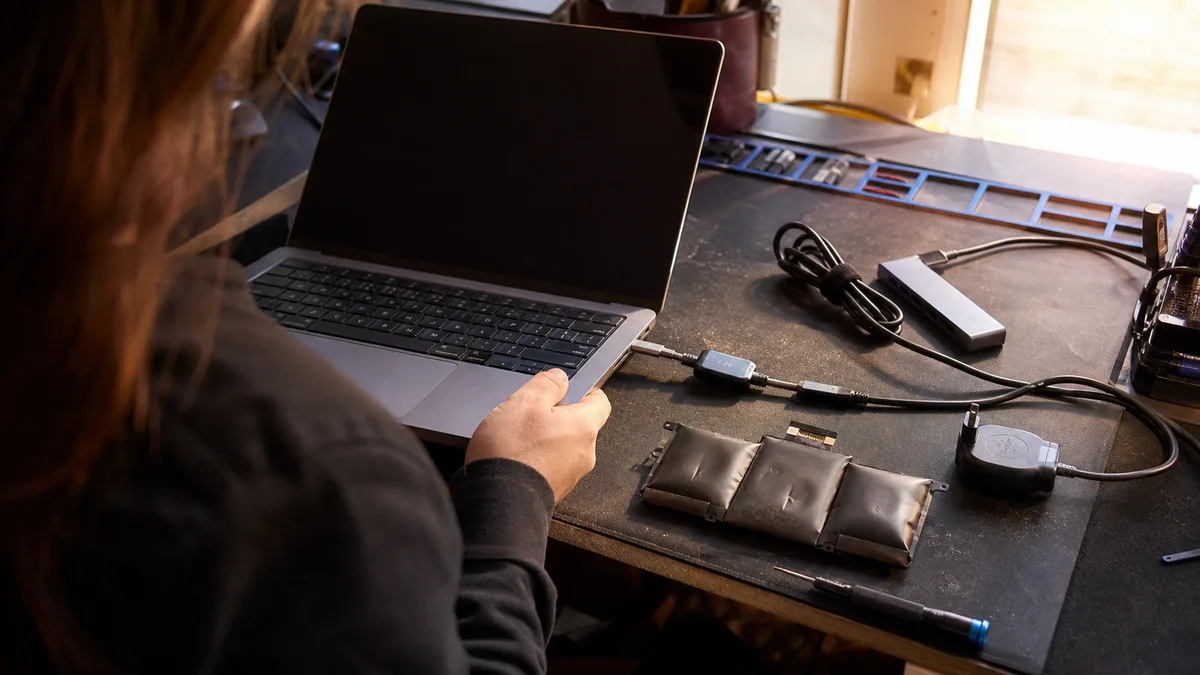
The laptop sits on the desk, the adapter light is on, but the battery indicator won’t budge. Or it moves the wrong way: the percentage drops even with the cable plugged in. Or perhaps everything looks fine until you pull the cable — and the machine dies instantly.
People describe all three situations with the same phrase: “the laptop isn’t charging.” Yet they stem from three different faults, and only one of them is fixed with a new battery.
Quick answer: Before you order a battery, figure out exactly what’s happening. Shutting down immediately after unplugging the adapter points to the battery. A dropping percentage with the cable plugged in points to a weak or unrecognized adapter, a USB-C dock, or excessive power consumption. Charging that cuts in and out when you move the cable points to the connector. The “Plugged in, not charging” message is often just an enabled protective limit in the manufacturer’s app. And if the battery is swollen — the touchpad is lifting, the case isn’t closing flush, the laptop wobbles — turn it off and stop charging it immediately.
First, identify exactly what the laptop is doing
Connect the adapter and observe the machine for a while. Its behavior can narrow down the search before you buy anything.
| Symptom | Where to look for the cause |
|---|---|
| Works on AC power, shuts off immediately when unplugged | Worn-out, disconnected, or faulty battery |
| Percentage drops even with the adapter connected | Weak or unrecognized adapter, cable, dock, high load |
| Charging cuts in and out when the cable is moved | Damaged cable or power connector |
| Windows says “Plugged in, not charging” | Charging limit, hot battery, unrecognized adapter, charging circuit |
| Only charges from one of two USB-C ports | The other ports may not support power delivery, or the port is damaged |
| No response even with the adapter, no LED light | Fault beyond the battery — start with power diagnostics |
The last row is a different story. If the laptop shows no signs of life, start with the article laptop won’t turn on. Here, we’re talking about a machine that at least starts up or blinks when the adapter is connected.
If the fault survives these checks, or the damage is mechanical, laptop repair in Brno takes over. A related step is MacBook repair in Brno.
When to disconnect the laptop immediately and stop charging
A swollen battery isn’t a cosmetic defect. As lithium-polymer cells age or get damaged, they generate gas internally, and the soft casing expands — in a laptop where the battery is wedged between the keyboard and the bottom cover, that pressure has nowhere to go and starts deforming the chassis.
You’ll recognize it by specific signs:
- the touchpad is lifting, feels stiff, or protrudes above the surrounding plastic,
- a gap has opened between the bottom cover and the body, the cover “isn’t sitting flush,”
- the keyboard is bending or a bump has appeared in it,
- the laptop no longer sits flat and wobbles on the desk,
- the battery is unusually hot, or there’s a sweet, chemical smell.
In such a case, turn the laptop off, unplug the adapter, and stop charging it. Do not press on the case, never puncture the battery, and don’t try to “straighten” it — a damaged lithium cell reacts to mechanical damage with fire. For models with an internal battery, don’t start prying it open if you’re not familiar with the design: the battery is often glued to the chassis, and prying with a flathead screwdriver will puncture it more easily than you’d expect.
What you can safely check without opening the device
Before reaching for a screwdriver, rule out the basics. All you need is the laptop, its adapter, and a known-good outlet.
- Try a different outlet and plug the adapter directly into it. No extension cord, no surge protector with a switch nobody checks.
- Run your hand along the entire cable. Breaks are most common right at the adapter and at the connector tip — wherever the cable constantly bends. Look for cracked insulation, a hard spot, a loose connector, or bent contacts.
- Bypass the docking station. A USB-C dock can give the laptop a monitor and network but might not supply enough power — especially when an external display is running through it simultaneously. Plug the adapter directly into the laptop.
- Make sure you’re charging through the correct port. Not every USB-C connector supports power delivery. Look for a power or battery symbol near the port, or check the manual for your specific model.
- Perform a hard power reset. Turn off the laptop, disconnect the adapter and all peripherals, and hold the power button for about 20 seconds. Then connect the adapter and turn it on.
Don’t stick a needle or anything metal into the connector. After shutting down and disconnecting, blow out any visible dust dry, with no liquids. And if the laptop is noisy, overheating, and shutting down under load along with all this, it’s more likely a case for cleaning and thermal paste replacement rather than the battery.
Faulty battery or charger?
The battery is the prime suspect when the machine works normally on AC power but shuts down or only lasts a few minutes after unplugging. Add sudden jumps in the indicator — from 40% straight to a few percent and shutdown — and the picture is pretty clear. The cells have lost capacity, and the controller electronics correct their estimate with a jump as soon as the voltage drops.
The adapter behaves more deceptively. It powers the laptop, so it seems fine, but it doesn’t charge the battery. Or it only charges when idle, and as soon as the processor and graphics kick in, the battery level starts dropping even with the cable plugged in.
The deciding factor is the specific model’s power requirement, not just a matching connector. Thin ultrabooks usually live with adapters in the roughly 45–65 W range; more powerful work and gaming machines require 90 W, 130 W, and beyond. A weaker adapter typically sustains the laptop at idle, but under load, it can’t cover consumption and charging simultaneously.
With USB-C, the entire chain must handle the required wattage — adapter, cable, and laptop. A cheap USB-C cable lacking the electronics for higher currents will limit how much the dock can deliver, even if both the adapter and laptop could handle more. And a phone charger with a USB-C connector generally won’t power a workstation-class laptop.
Adapter identification is a special chapter. Dell laptops, along with many HP and Lenovo models, use a signal wire in the power connector to verify the power source. If that contact is damaged or the adapter is a third-party one without proper identification, a message appears at startup saying the adapter cannot be recognized — and the laptop then runs in a limited mode: it won’t charge the battery and sometimes throttles the processor clocks. Yet it “works” from the wall outlet, so it’s easy to blame the battery.
So, only test a different adapter if the voltage, wattage, and connector match, and the power source can communicate with the laptop. “Compatible with laptops” is not a specification.
Damaged power connector
The connector is suspect when charging cuts in and out depending on how you move the cable. Other signals: the plug is noticeably loose in the socket, only stays in one position, or the area around the connector is heating up.
The design varies from model to model. The power connector can be:
- a separate part on a short cable leading to a jack on the motherboard — the cheapest repair option,
- mounted on a small daughterboard that gets replaced as a whole,
- soldered directly to the motherboard,
- integrated into a USB-C port that also carries data and video.
That’s why you can’t estimate repair costs by brand alone. Replacing a cable module is entirely different from re-soldering a ripped-out USB-C port, where the solder pads are usually torn off and need to be rebuilt. And every time you “charge at the right angle” makes the difference worse — a wobbly connection progressively rips the soldered contacts from the board. If it turns out the board is damaged, we’re at a motherboard fault, and the economics of the repair look different.
Why the battery sometimes intentionally won’t charge to 100%
The indicator is stuck at 60% or 80% and won’t move? It might not be a fault. Laptops that spend most of their time docked often have a charging limit enabled — a permanently fully charged lithium cell ages faster than one held around 60–80%, so manufacturers offer a ceiling for just that kind of use.
You’ll find this setting in the manufacturer’s app: Lenovo Vantage, MyASUS, Dell Power Manager or Dell Optimizer, and usually in the BIOS for HP. The feature goes by different names — Conservation Mode, Battery Health Charging, Battery Care, custom charging threshold.
Telling them apart is easy. If charging consistently stops at the same value and the laptop functions normally when unplugged, it’s a limit. Conversely, irregular jumps, shutting down at a reported thirty percent, or zero runtime point to wear or a fault.
One more thing: don’t update the BIOS when the power supply is unreliable. Many laptops won’t even start the update without a sufficiently charged battery, and that’s a good thing — an interruption mid-write turns a charging problem into a significantly more expensive problem.
How to check battery health in Windows
Windows can generate a report without installing anything. Open Terminal or Command Prompt and enter:
powercfg /batteryreport
Windows will display where it saved the HTML file. Open it in your browser and look mainly at:
- Design Capacity — the capacity the battery was designed with by the manufacturer,
- Full Charge Capacity — how much the system can cram into it today,
- Cycle Count — the number of charge cycles, if reported by the firmware,
- Recent Usage and Battery Usage — how the machine discharged and charged in recent days.
When the full charge capacity is significantly lower than the design capacity, wear is confirmed. But the number alone isn’t the deciding factor. What matters is whether the laptop lasts for the work you need from it and whether it shuts down without warning.
The report also has its blind spots: it can’t detect a broken cell within the pack, a faulty controller board, or swelling. The Cycle Count is missing entirely on some laptops because the battery firmware doesn’t provide it. If the machine behaves erratically, only a practical load test can replace the report.
When replacing the battery makes sense
Replace the battery when it limits your work or poses a risk:
- the laptop shuts down immediately after unplugging the adapter,
- the runtime isn’t enough for even a meeting or moving between offices,
- the percentage drops in large, sudden jumps,
- the machine shuts down even when Windows reports remaining capacity,
- diagnostics flag the battery as faulty,
- the battery is swollen or already deforming the chassis.
For an older laptop, weigh the cost of the battery and labor against the condition of the entire device. Replacement is worth it if the machine still performs adequately, the display and hinges hold up, and the drive is healthy — if the drive seems uncertain, it’s best to first read about the signs of a dying SSD. If the laptop simultaneously needs a new display, hinge repair, and a battery, it might be wiser to move your data elsewhere.
How much it costs
At Servis PC Brno, the labor for a battery replacement starts at approximately 600 CZK. The battery is billed separately based on the specific model, design, and availability — in one laptop, you reach the battery by removing the bottom cover; in another, it’s glued in, and the keyboard or motherboard has to come out.
Diagnostics without a completed repair start at approximately 600 CZK. Before ordering the part, you will receive the price in writing, and we only proceed after your approval.
For a more precise quote, send the brand and the full model number from the bottom label, ideally including the serial number or the original battery’s part number. Just “Lenovo ThinkPad” or “HP ProBook” isn’t enough — one product line can use several different batteries across its configurations, differing in capacity and connector.
Replacing the battery itself won’t erase data or Windows. Still: before handing over your work laptop, verify your backup and have your BitLocker recovery key handy. Disconnecting the battery and power on an encrypted machine can trigger a key request on the next startup, and you can’t get any further without it.
How to identify a good replacement battery
The safest choice is an original part for the specific model. When it’s no longer available or is disproportionately expensive, a proven compatible battery can be used — but it must match in connector, voltage, electronics, dimensions, and mounting.
Ask about:
- the exact designation of the offered part,
- the battery’s origin and warranty,
- the final price for both the part and labor,
- a charging check after replacement,
- operational testing on battery and on AC power,
- environmentally safe disposal of the old battery.
A suspiciously cheap battery from an untraceable manufacturer with no warranty only reveals itself in use: the actual capacity is often significantly lower than what the label claims, and the protection circuitry may not do its job. The quality of a repair isn’t proven by Windows showing 100%. The laptop should leave the workshop tested while charging, after unplugging the adapter, and under a normal workload.
Quick Answer
If a laptop isn’t charging, the battery might not be faulty. Just as common are a weak or unrecognized adapter, a damaged cable, a USB-C dock that can’t deliver enough power, or a broken power connector. It makes sense to replace the battery when the laptop can’t last for the needed work without the adapter, shuts down while showing remaining percentage, or is swollen — that’s a safety issue regardless of runtime.
Order online: Laptop repair — tell us the model and what happens, and we will come back with the next step.
Rather not deal with it yourself?
Book a diagnosis in Brno — you get the price up front and we start only once you agree.
Where to find us
We are a PC and laptop repair shop in Brno-Židenice: diagnostics and repairs of computers and laptops, data recovery from drives, and out-of-warranty Apple repairs (iPhone 12 and newer, MacBook, iPad).
Viniční 3587/216, 615 00 Brno-Židenice, Czech Republic Mon–Fri 10:00–16:00
Call +420 774 777 774 Computer repair and laptop service in Brno
We put the repair price in writing after diagnostics and carry on only once you agree.


