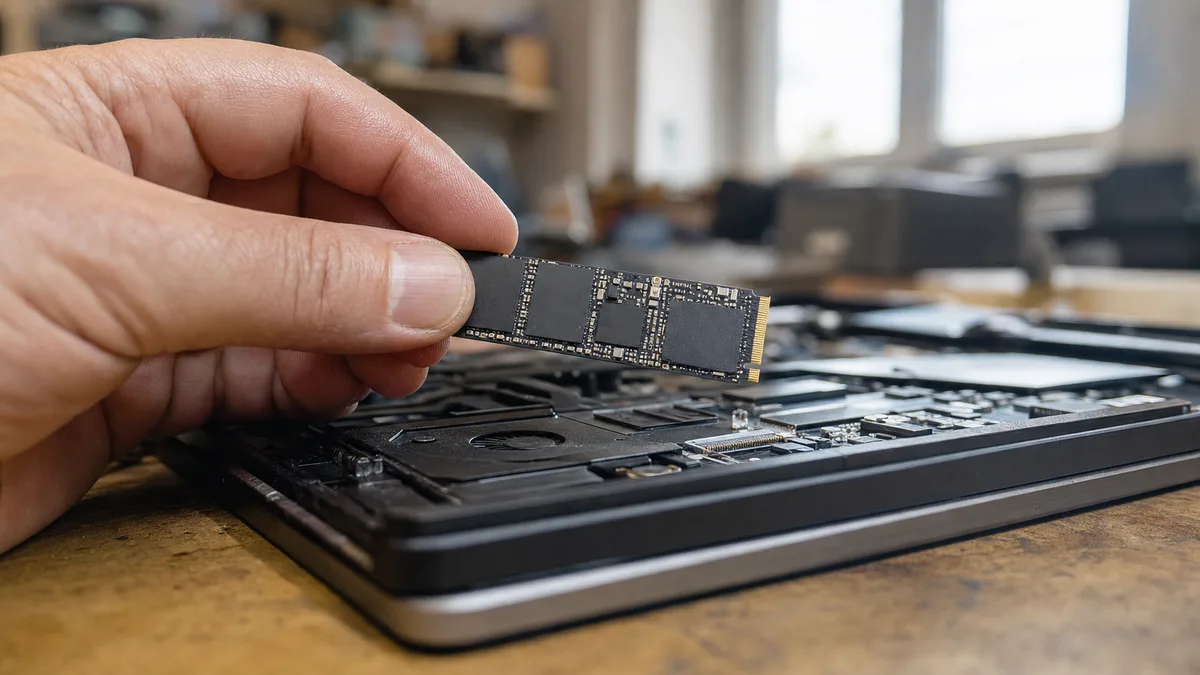
A hard drive warns you of its death with sound. An SSD has nothing to click — no platters, no heads, no motor. When it begins to break down, it announces itself differently: the computer freezes for three seconds in the middle of your work, copying always gets stuck on the same file, or one morning the drive simply doesn’t appear in the BIOS.
The tricky part is that a loose SATA cable, an improperly tightened M.2 SSD, faulty RAM, or a corrupted file system after a power outage behave exactly the same way. Before you start ordering a new drive, it’s worth reading the symptoms properly — and most importantly, getting your data somewhere else first.
The short answer: A failing SSD is identified by a combination of symptoms, not just one: repeated read and copy errors, brief freezes, corrupted files, the disk vanishing from the BIOS, or critical values in SMART. If the disk holds the only copy of important data, stop using the computer and secure a backup first — only then test, repair, or replace.
One symptom is not enough
The most common mistake is to declare an SSD dead based on a single slowdown. It’s about a combination and evolution over time:
- the same error repeats even after a restart,
- problems arise specifically when reading or writing data,
- diagnostics report media errors or a critical warning,
- the disk disconnects irregularly and is no longer recognized,
- the number of errors increases between individual checks.
When an SSD holds accounting data, an ongoing project, or a company database, don’t wait for definitive confirmation. First, copy the data, then run diagnostics.
The most common signs of a failing SSD
| Symptom | What it might mean | How to react |
|---|---|---|
| Computer freezes for a few seconds during work | The controller is retrying reads and dealing with a memory cell error | Backup and check the disk’s condition |
| Copying ends with an error always at the same file | Data lies in a problematic part of the storage, or the file system is corrupted | Don’t keep retrying; save first what can still be read |
| Files corrupt themselves or have a zero size | Write error, corrupted file system, or possibly an application | Verify another copy of the file and the SSD status |
| Windows repeatedly runs a disk check at startup | The system found a file system inconsistency | Backup first; automatic repair is not media diagnostics |
| System crashes and startup errors | Windows can’t load necessary data — but the cause can also be RAM or a driver | Test both the SSD and the system memory |
| Disk occasionally disappears from BIOS/UEFI | Controller, power supply, SATA cable, contact in the M.2 slot, or motherboard | Shut down the computer and have the disk and connections checked |
| Disk switched to read-only mode | A protective state triggered by exhausted spare cells or an internal error | Immediately copy what you can — it won’t switch back |
| SMART reports a Critical Warning or media errors | The disk itself has reported a problem in memory management | Consider it unreliable and prepare for replacement |
Slowness alone does not confirm a failing SSD. A nearly full disk, running updates, antivirus, faulty RAM, or an overheated NVMe module can all slow it down. Generally, a slow computer has different causes than a dying disk.
What to do immediately when you need data from an SSD
Windows constantly writes to the system disk — temporary files, logs, paging file, updates. Every write to a damaged disk can overwrite exactly what might still be readable. Therefore, on a suspicious computer, do not install diagnostic programs, download updates, or delete files in an attempt to “ease the load” on the drive.
- Stop working on the computer normally. The less it runs, the better.
- Copy irreplaceable data first. Accounting, contracts, ongoing projects, database exports, email archives. Not the entire disk from top to bottom.
- Save the copy to a different physical drive or company storage. Another folder on the same SSD is not a backup.
- Verify a few copied files — check that they actually open, not just that they have the right size.
- Only then deal with system migration or replacement.
Don’t run a benchmark, a full surface test, or chkdsk /f until you have your data elsewhere — they stress the disk and change its content. With an unstable SSD, it’s safer to make a technical copy outside of the running Windows OS; we describe cloning and transitioning to a new drive in our guide on how to switch to a new SSD without reinstalling.
When a disk is disappearing, disconnecting during copying, or holds the only copy of crucial data, it’s better to stop DIY attempts.
How to safely check an SSD
CrystalDiskInfo is sufficient for a basic check. Manufacturers have their own tools for this — Samsung Magician, Kingston SSD Manager, Crucial Storage Executive, WD/SanDisk Dashboard. Install them on a drive other than the suspicious one.
For NVMe SSDs, read mainly these items:
- Critical Warning — a non-zero value means the disk itself is reporting a problem;
- Available Spare — the remaining reserve of spare cells; falling below the
Available Spare Thresholdis serious; - Percentage Used — an estimate of lifetime consumed based on the volume of writes;
- Media and Data Integrity Errors — errors of media and data integrity; a rising number is a serious signal;
- Unsafe Shutdowns — the number of improper shutdowns (not a fault by itself, but explains a corrupted file system).
Percentage Used around 100% doesn’t mean the disk will stop working at that moment — it means it has reached the manufacturer’s estimated wear limit and has nothing left to offer for important data. The reverse isn’t true, though: a green status is not a guarantee. An SSD’s controller or power circuitry can fail suddenly without SMART reporting anything beforehand.
With SATA SSDs, it’s trickier. The meaning of many SMART attributes is determined by each manufacturer individually, so don’t compare numbers between brands — the same attribute means different things for each one. The result from the manufacturer’s tool, specific reported errors, and especially their progression between checks are more reliable.
Watch out for USB bridges and external enclosures. Many SATA/NVMe–USB controllers don’t pass SMART commands through, and the program will then show incomplete or empty data. A disk that looks healthy over USB might be visibly faulty when connected directly to the motherboard.
When the SSD itself might not be faulty
Before ordering a new drive, rule out cheaper faults:
- a faulty or loose SATA data cable,
- a power connector issue,
- a poorly seated or insufficiently tightened M.2 module,
- a fault in the specific M.2 slot (motherboards often have multiple slots — trying another takes five minutes),
- overheating of an NVMe drive without a heatsink,
- a faulty or replaced storage driver,
- faulty system memory,
- a corrupted file system after a power outage.
An overheated NVMe disk will throttle its performance for protection — so a slowdown during long copying doesn’t by itself mean disk death. It becomes suspicious when errors, disconnections, or corrupted files start to appear. And if the computer still crashes with a replaced drive, look elsewhere — perhaps at a motherboard failure.
Update the SSD firmware only after backing up. An update can solve a known bug of a specific model, but it shouldn’t be the first step on a disk holding the only copy of data — the firmware writing process is an unnecessary risk for an already unstable drive.
Replace it, or salvage the data?
| Situation | Reasonable course of action |
|---|---|
| Data is verified as backed up, SSD reports an error | Replace the disk and restore from backup |
| Disk still works, but errors are piling up | Make a verified copy as soon as possible and replace the disk |
| SSD switched to read-only mode | Copy what you can, and do not use the disk further |
| Disk disconnects or disappears from BIOS | Limit attempts and hand it over for diagnostics |
| SSD is not recognized anywhere | DIY software won’t help; decide based on the value of the data |
| Data is still on a server or in a verified backup | Don’t pay for recovery, just get a new disk and restore |
Data recovery from an SSD is a completely different discipline than from a spinning drive. The controller manages where data is physically stored itself — due to wear leveling and internal block management, the file doesn’t sit where the operating system sees it. On top of that, many drives internally encode or encrypt data. After a controller failure, simply “reading the memory chips” isn’t enough: without the key and mapping, it’s just random data. And deleted files are further destroyed by the TRIM function, which gradually erases freed cells — more on the chances and process in our article on data recovery.
The possibility and cost of recovery are determined by the specific fault, the drive’s construction, and the condition of the memory chips — not by the size of the folder you want back. A serious assessment therefore always starts with diagnostics.
What an SSD replacement involves
First, you need to match the interface. The label “M.2” only describes the module’s form factor — not how it’s connected. Under the same connector, you can have M.2 SATA or M.2 NVMe, and one slot might not support both. A computer might support 2.5” SATA, M.2 SATA, or M.2 NVMe; modules differ in length (2280 is the most common), and in desktops and more powerful laptops, a heatsink matters.
A replacement typically includes:
- diagnostics of the original SSD and ruling out other causes,
- supply of a compatible drive,
- cloning of the running system, or a clean installation,
- transfer of documents and settings,
- verification of Windows boot,
- checking activation, encryption, and backup.
The Windows license is usually tied to the computer, not the original SSD, so it typically activates automatically after replacement. However, for devices with BitLocker, prepare your recovery key in advance — encrypted data cannot be bypassed without it, and the system is likely to ask for it after the disk has been touched; what it is and where to find it is described in our article on what BitLocker is.
A consumer SSD itself theoretically starts from a few hundred crowns, with larger capacities and more durable series costing several thousand. The final price is determined by the type of drive, the labor, the old SSD’s condition, and the data transfer method. A reasonable quote will separate the cost of the media, replacement, migration, and any potential data recovery — so you’ll know what you’re paying for.
How to recognize a job well done
Having Windows start up is not proof of a completed job. Ask to be shown:
- the correctly recognized SSD and its capacity,
- the diagnostic status of the new drive,
- the opening of important documents and applications,
- functioning accounting, email, and network drives,
- Windows and possibly BitLocker activation,
- a new, separate backup.
For a business computer, ask for an explanation of what was only transferred and what is actually backed up. A synchronized OneDrive folder is not an independent backup — a deleted or encrypted file propagates to the cloud just the same. After a replacement, it makes sense to implement the 3-2-1 rule, so the next dying disk is just a matter of money, not nerves.
Do you suspect a failing SSD?
At our Brno service center, we diagnose SSDs, including ruling out cables, slot issues, memory, and overheating — and when a disk is suspicious, we start with a backup, not a test. We handle replacements, system cloning, and data migration with a verification that after the intervention, everything that worked before really does work. We’ll tell you the estimated price after diagnostics and won’t proceed with anything without your consent.
Rather not deal with it yourself?
Book a diagnosis in Brno — you get the price up front and we start only once you agree.
Where to find us
We are a PC and laptop repair shop in Brno-Židenice: diagnostics and repairs of computers and laptops, data recovery from drives, and out-of-warranty Apple repairs (iPhone 12 and newer, MacBook, iPad).
Viniční 3587/216, 615 00 Brno-Židenice, Czech Republic Mon–Fri 10:00–16:00
Call +420 774 777 774 Computer repair and laptop service in Brno
We put the repair price in writing after diagnostics and carry on only once you agree.


