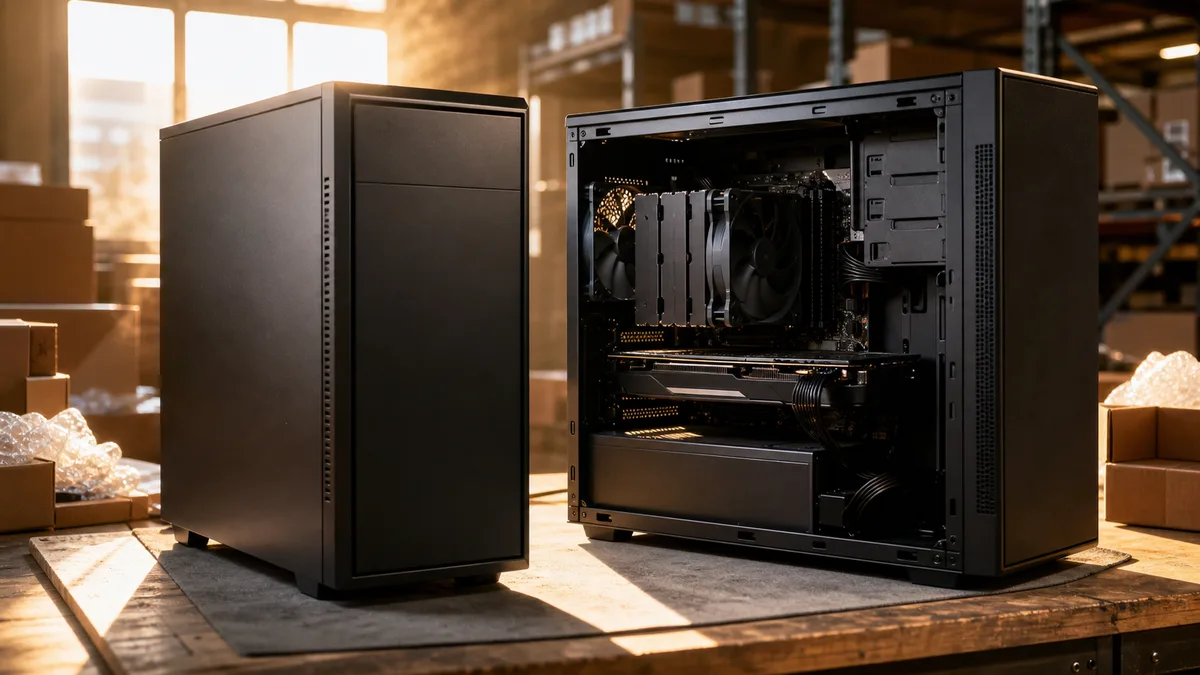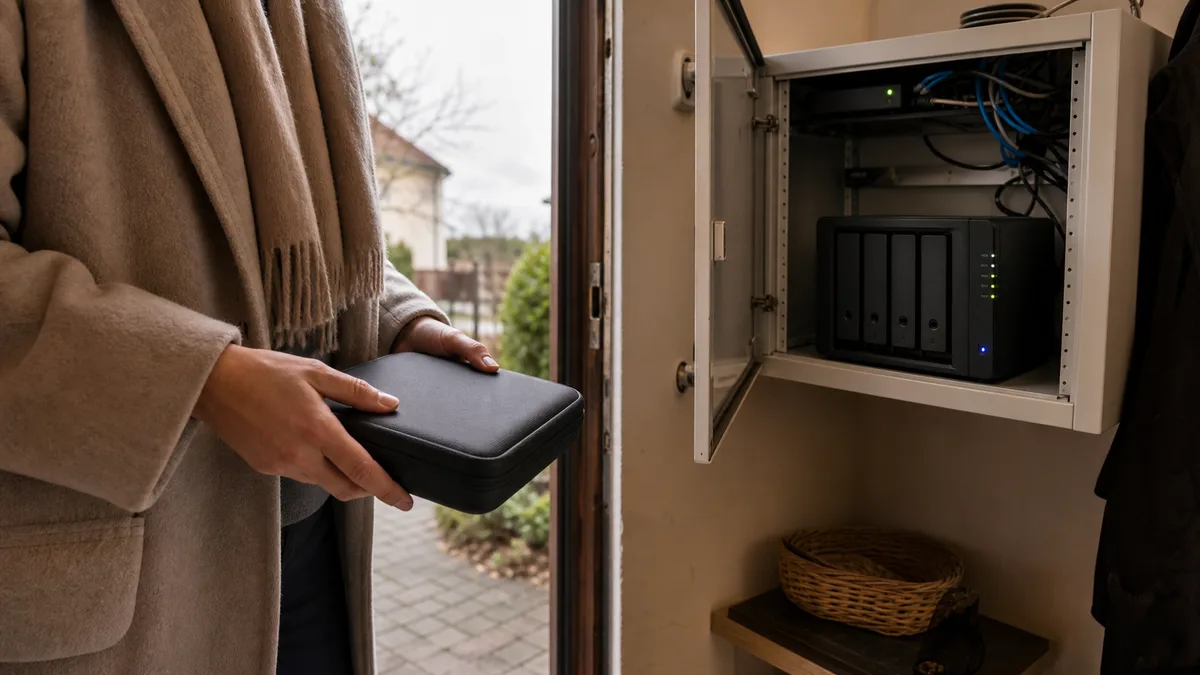
Your phone says its storage is full, three external drives are lying in a drawer, and nobody knows which holiday is stored on which one. That is often the moment when someone decides: let’s buy a NAS. Then comes the first question at the online store — two bays or four?
It is immediately followed by a very expensive misconception: that buying four drives takes care of backups as well. It does not. These are two different things, and it is worth separating them before you spend any money.
The short answer: RAID keeps your system running when a drive fails. A backup is a second copy stored outside the NAS — RAID cannot protect against deletion, overwriting, ransomware, theft, or flooding because these affect the entire array at once. Two bays are usually enough for photos, documents, and backups from a few computers; you buy four for future growth and greater usable capacity, not for safety. Choose 3.5-inch NAS drives using CMR and check the model number rather than the label color. Include a backup drive in your budget from the outset — four drives without a backup are a worse purchase than two drives with one.
First, Be Clear About What You Are Protecting Against
A home NAS is usually expected to handle two completely different situations, yet people often treat them as one.
The first: hardware failure. A drive stops responding, starts reporting bad sectors, and the NAS beeps. You want your photos to remain intact and the system to keep working. This is what RAID addresses.
The second: data disappears even though the hardware still works. Someone deletes a folder, synchronization replaces a good version with a bad one, ransomware encrypts a shared directory, someone steals the NAS, or a power surge destroys it. RAID does nothing to address these risks — only a separate backup does.
This leads to a rule you will not find in an online store: a cheaper two-bay NAS with a backup that can be disconnected protects your data better than a four-bay NAS holding every copy under the same cover.
How Much Space Do You Really Need — and How Much Will Be Left?
Add up everything you have today: photos, videos, work data, and computer backups. Allow for three to five years of growth and keep 20–30% of the volume free for new files, backup versions, snapshots, and sensible storage management.
Then account for two reductions that often surprise people:
- Advertised versus actual units. A manufacturer sells an 8 TB drive as eight trillion bytes, while the system displays the same drive as roughly 7.3 TiB. Nothing has disappeared; the units are simply calculated differently. The file system and metadata consume a little more space.
- Redundancy. RAID capacities do not simply add up in full. Two mirrored 8TB drives provide roughly the capacity of one drive. Four identical drives in RAID 5 or SHR provide roughly the capacity of three.
Two or Four Bays: What Do You Get for Your Money?
| Option | Typical configuration | Usable capacity (equal-sized drives) | What it survives | Main limitation |
|---|---|---|---|---|
| 2 bays | RAID 1 or SHR | capacity of 1 drive | failure of 1 drive | growth usually means replacing both drives one after the other |
| 4 bays | RAID 5 or SHR | capacity of 3 drives | failure of 1 drive | higher price, more noise, and greater power consumption |
| 4 bays | RAID 6 or SHR-2 | capacity of 2 drives | failure of 2 drives | half the raw capacity is used for redundancy |
You do not have to fill all four bays immediately. With Synology, you can start with two identical drives in SHR and add more later: two 8TB drives give you roughly 8 TB, three give you roughly 16 TB, and four give you roughly 24 TB.
Just be aware of what expanding an array actually entails. It is not a simple file copy — for hours or even more than a day, the NAS reads every original drive under full load and recalculates parity. That is precisely when a second drive, worn down over years of service, may fail. An up-to-date backup must exist elsewhere before you add or replace any drive. Not afterward. Beforehand.
Why Mirroring Is Not a Backup
RAID 1 writes the same data to both drives. If one fails mechanically, the NAS keeps running from the other — and that is the full extent of its protection. Deletion, overwriting, and encryption are immediately propagated to the second drive because both belong to the same live volume. RAID 5 and SHR are no different in this respect: parity distributed across the drives adds capacity, not a second independent copy.
| What happens | Does RAID help? | What you actually need |
|---|---|---|
| One drive fails | yes, depending on the RAID type | a compatible replacement drive and supervision of the rebuild |
| You accidentally delete a folder | no | a versioned backup or snapshot |
| Ransomware encrypts shared folders | no | a separate, versioned, ideally offline copy |
| The NAS is stolen, flooded, or destroyed by a power surge | no | a copy stored elsewhere |
| The volume or file system becomes corrupted | not always | a backup tested by restoring it outside the NAS |
Btrfs snapshots are excellent for quickly rolling back a few hours and work well against ordinary ransomware — but they are still stored on the same device. Synology addresses this with Snapshot Replication for quick rollback or replication to a second device, and Hyper Backup for versioned copies stored elsewhere. Newer DSM versions also let you enable WORM mode for a shared folder, preventing written data from being modified or deleted, even by an administrator, for a defined period. QNAP offers HBS 3 and snapshots on block-based volumes, which require sufficient RAM — a limitation of the cheapest models that buyers often discover only after purchase.
At least one copy must be stored outside the NAS: on USB drives that are alternated and disconnected, on another device at a different location, or in versioned storage. Our article on the 3‑2‑1 backup rule explains how to arrange this, while ransomware in the home shows why the offline copy matters so much.
Which Drives to Buy: Check the Model Number, Not the Color
A home array should use 3.5-inch drives from a NAS product line with CMR technology. In practice, that means WD Red Plus, Seagate IronWolf, or Toshiba N300, with WD Red Pro and IronWolf Pro in the higher-end ranges. Synology also sells its own HAT3300 and HAT5300 drives.
Why the emphasis on CMR? With CMR, tracks sit side by side and each can be overwritten independently. With SMR, tracks partially overlap like roof shingles, so rewriting one area requires the drive to rearrange an entire block. The drive can hide this in its cache during short writes, but sustained writes — precisely what happens during a backup or RAID rebuild — cause performance to collapse to a fraction of normal speed. The array then takes an unbearable amount of time to rebuild, and in worse cases the controller may drop the drive as faulty.
WD demonstrated in 2020 why the product-family name alone is not enough: the company introduced EFAX models using SMR into the WD Red range, while older EFRX models used CMR. Neither the label nor the family name made the difference clear, and the drives caused array rebuilds to fail. Following widespread criticism, WD split the branding, and its CMR NAS drives are now called Red Plus. The same trap exists in inexpensive desktop ranges such as WD Blue, Seagate Barracuda, and Toshiba P300, where some capacities also use SMR. Therefore: look up the full drive code, including its suffix, and verify the technology in the manufacturer’s data sheet.
Two more points: WD Purple and Seagate SkyHawk are designed for continuous recording from cameras, not for photo archives in RAID — choose a product line intended for NAS use. With Synology, check compatibility for the specific NAS model and exact drive designation. For its 2025 model range, the manufacturer initially required verified drives, which in practice largely meant its own products. DSM 7.3 once again allowed volumes to be created on unverified third-party HDDs in DiskStation models, but Synology still guarantees full functionality and support only for drives on its compatibility list. Separate rules apply to NVMe SSDs. Check the same details for QNAP.
For a backup that works without you, there is setting up data backup.
How Much Does It Cost?
A check of Czech price lists in the second half of August 2026 produced the following figures — treat them as rough guidance, not as a quotation:
| Configuration | Approximate starting price |
|---|---|
| Synology DS225+ (2 bays, without drives) | 9,000 Kč |
| Synology DS425+ (4 bays, without drives) | 14,000 Kč |
| QNAP TS-264 (2 bays, without drives) | 13,000 Kč |
| QNAP TS-464 (4 bays, without drives) | 17,000 Kč |
| 8TB CMR drive for NAS (each) | 7,500 Kč |
As an example, a DS225+ with two 8TB drives started at roughly 24,000 Kč and provided around 8 TB of usable space. A DS425+ with four such drives cost approximately 44,000 Kč and provided around 24 TB in SHR or RAID 5.
Prices change from week to week, so check them again using the exact model number on the day you order. Your budget must also include what configurators leave out: a backup drive or remote storage, and possibly a UPS. If you cannot afford both, buy a smaller NAS and a backup.
Networking, iPhone Photos, and Movie Playback
Networking. In practice, Gigabit Ethernet handles roughly 100–115 MB/s. That is more than enough for movie playback; its limits become noticeable only during large backups or when several people use the NAS simultaneously. Under good conditions, 2.5GbE delivers around 250–280 MB/s, but the NAS, switch, and computer must all support it — otherwise you are paying for speed you will never see.
Photos. Synology Photos and QNAP QuMagie both support automatic transfers from phones, albums, and separate accounts for family members. During the return period, however, test what actually matters: previews of HEIC files from an iPhone and RAW files from a camera, and especially restoration of the original file at its original quality. Because of codec licensing, Synology moved some HEIC and HEVC processing to client devices. As a result, files uploaded through the web interface or SMB may occasionally lack previews even though the photos themselves are stored correctly. It can look like data loss, but it is not — still, it is useful to know in advance.
Movies. If your television or app cannot play the original codec, audio, or subtitles directly, the NAS must transcode the video in real time. This depends on the processor, not the number of bays — and hardware transcoding cannot be taken for granted. Models with embedded AMD Ryzen processors, such as the DS923+ series, have no integrated graphics and therefore cannot perform it at all, whereas less expensive Intel-based models can. Plex also reserves hardware transcoding for paid Plex Pass subscriptions. Before buying, check your own formats and playback devices rather than relying on general reviews.
Security: A NAS Should Not Be Exposed Directly to the Internet
The fastest way to lose a family archive is not a failed drive — it is exposing a NAS on a public IP address “so I can access it from work.” Ransomware families such as DeadBolt and eCh0raix have thrived on exactly this for years: they scan the internet for accessible storage devices, exploit known vulnerabilities or weak passwords, and encrypt everything they can reach. RAID offers no protection against this, and snapshots on the same device help only sometimes.
In practice, use the manufacturer’s supported secure service or a VPN for remote access, disable unused services, do not use the default administrator account for everyday work, enable two-factor authentication, and do not leave updates unapplied for months.
How to Recognize a Well-Designed Solution
A sound setup describes the recovery process, not merely a list of components. Before putting it into production, check:
- Where the second copy of your data will be stored and whether it can be physically disconnected or isolated from the NAS through access controls.
- Whether the device supports Btrfs, snapshots, and scheduled drive tests (SMART).
- Where alerts about bad sectors, temperature, and degraded arrays are sent — and whether anyone actually reads them.
- Whether the UPS can shut the NAS down properly during an extended outage rather than merely keeping it alive for a few extra minutes.
- Who manages updates, two-factor authentication, and remote access.
- How and how often you will test the restoration of a few files. An untested backup is merely the impression that you are backing up.
What I Would Choose for a Household or Small Business
Two bays if you know how quickly your data is growing, the capacity of one sufficiently large drive will last for several years, and your budget also includes an independent backup. For photos, documents, and backups from a few computers, RAID 1 or SHR is straightforward, quiet, and affordable.
Four bays if your video collection is growing quickly, you back up more computers, or you simply do not want to replace both drives whenever you need more capacity. What you are primarily buying is room for growth. If continued operation after two simultaneous drive failures is a priority, RAID 6 or SHR-2 may be appropriate — but it does not reduce the need for backups in any way.
One final point, and the reason people most often come to us too late: with an older NAS that has started behaving erratically, its current condition determines the correct next step. If you hear clicking, drives keep disappearing from their bays, the volume will not mount at all, or you have no backup elsewhere, stop putting the device under load — shut it down, record the order of the drives in their bays, and have its condition assessed before anything is written to the array. If the array is merely running in a degraded state, remains stable, and the data is readable normally, the order is different: first verify that your backup is current, or copy the irreplaceable data elsewhere, and only then replace the drive and rebuild the array. Both situations have one rule in common — do not initialize the volume or run repeated rebuilds or “repairs” blindly. Either way, we provide RAID and NAS data recovery in Brno, and the price can only be determined after diagnosis, not estimated over the phone. The same applies to an external drive that has started clicking, cannot be opened, or asks to be formatted: the number of times you power it on again is the only thing still under your control.
Before you buy, we can also help with the more pleasant side of the process — capacity planning, checking drive compatibility with a specific model, transferring your existing data, and designing a backup plan — so your NAS does not become merely a more expensive place to keep the only copy of everything.
Order online: Data backup — tell us the model and what happens, and we will come back with the next step.
Rather not deal with it yourself?
Book a diagnosis in Brno — you get the price up front and we start only once you agree.
Where to find us
We are a PC and laptop repair shop in Brno-Židenice: diagnostics and repairs of computers and laptops, data recovery from drives, and out-of-warranty Apple repairs (iPhone 12 and newer, MacBook, iPad).
Viniční 3587/216, 615 00 Brno-Židenice, Czech Republic Mon–Fri 10:00–16:00
Call +420 774 777 774 Computer repair and laptop service in Brno
We put the repair price in writing after diagnostics and carry on only once you agree.