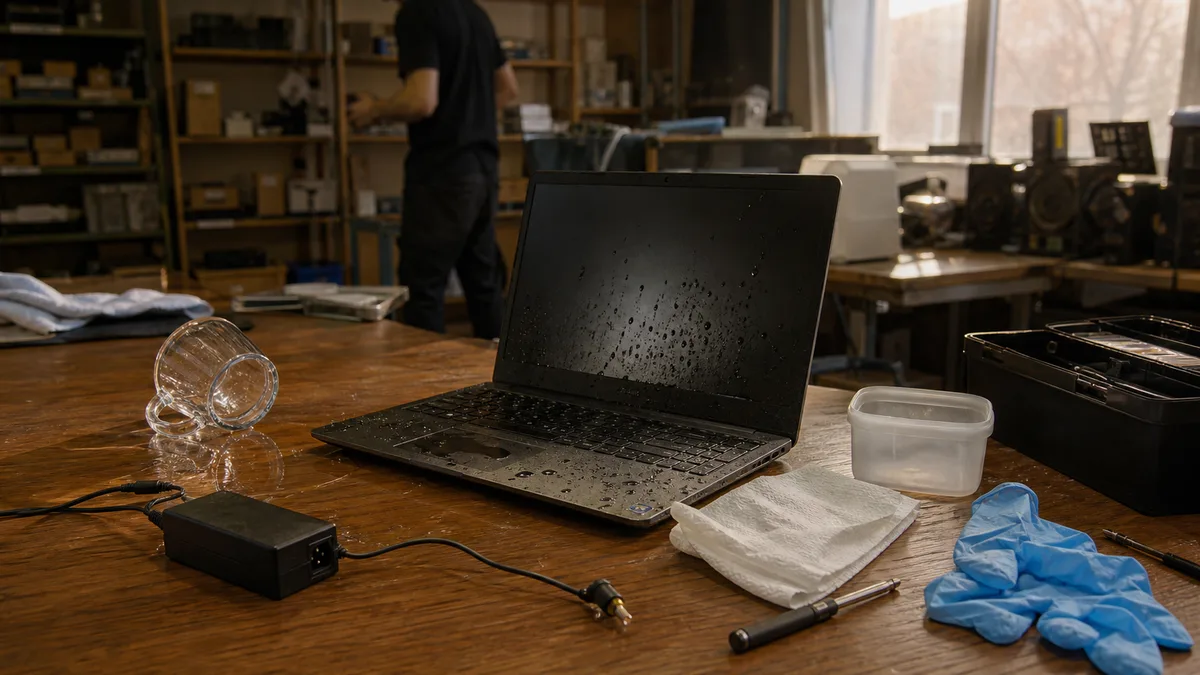
A glass tips over and it’s the matter of a second. The laptop usually keeps running, the screen stays lit, the keys type — and at exactly that moment almost everyone does the same thing: they want to confirm that nothing happened. But a laptop that runs after a spill isn’t a laptop that survived the spill. It’s a laptop with current running through liquid right now.
The damage isn’t done by moisture. It’s done by electricity, which finds a path through the spilled drink to places it doesn’t belong — and then by corrosion, which keeps at it for weeks afterward.
The short answer: Hold down the power button until the laptop shuts off — don’t wait for the system to shut down properly. Unplug the charger from the wall and from the laptop, disconnect the docking station and peripherals, and if the battery is removable, take it out. Wipe the liquid off the surface with an absorbent cloth and leave the laptop open, keyboard side down, so it drains out. Do not turn it back on — not even “just to check,” not even “once it dries.” No rice, no hairdryer, no compressed air. Cleaning after a spill costs roughly from CZK 1,500 up; the rest is priced after disassembly.
The first five minutes
The order of the steps matters more than how fast you do them. The goal is to cut the power before the liquid bridges things that shouldn’t be bridged.
- Force the laptop off. Hold the power button for 5–10 seconds until it goes dark. Don’t wait for “Shut down” in the Start menu — every second under power is a second in which something can burn out.
- Unplug the charger — first from the laptop, then from the wall.
- Disconnect everything else: the docking station, external monitor, USB sticks, network cable, mouse.
- Remove the battery if it can be removed from the outside. On older ThinkPads, Latitudes, and the ProBook line it’s a matter of two latches.
- Wipe the liquid off the surface with an absorbent cloth. Don’t press on the keys — that would only push the liquid deeper inside.
- Stand the open laptop keyboard side down so the rest drains out. Don’t shake it, don’t tip it from side to side.
Shutting the system down isn’t enough on its own. A laptop can wake up when you open the lid, press a key, or plug in power, and the built-in battery stays electrically connected even after shutdown — which is why it always has to be dealt with after a spill too.
Only disconnect the built-in battery yourself if you know how the specific model opens up. On thin machines — MacBook Air and Pro, ThinkPad X and T, HP EliteBook, Dell Latitude — it sits under the bottom cover, and the way in leads through clips that the wrong tool will snap. If you’re not sure, leave it to a repair shop and don’t touch the laptop in the meantime.
What not to do, even if everyone tells you to
Almost every needlessly ruined board has the same story: the liquid itself could have been washed off, but in the meantime someone tried to see whether it still ran.
- Don’t turn it on to test it. Not after an hour, not after a week.
- Don’t plug in the charger. The power circuits are right next to the places where the liquid runs down.
- Don’t rush to copy your data off. One extra boot can turn a repairable fault into a dead board and a dead drive.
- Don’t dry it with a hairdryer, on a radiator, or in the oven. Hot air drives the liquid deeper, melts clips and plastics, and bakes sugar into a sticky varnish.
- Don’t blow compressed air. You’ll push the liquid from the keyboard exactly where you don’t want it — under the chips.
- Leave the rice for cooking. It absorbs airborne moisture, not minerals from the board, and its dust ends up in the connectors and fan.
- Don’t pour spirits or isopropyl alcohol inside without disassembling it first. You’ll just flush an unaffected area and spread the dissolved dirt around.
- Don’t wait a few days for it to “dry out.” The water dries. The rest stays.
This is the heart of the whole problem: the water evaporates, but the dissolved substances don’t. They stay on the board as a thin conductive layer between contacts that are supposed to be separated. That’s why a laptop often boots up after drying and works for a while — then fails three weeks later, when nobody connects the spill anymore with the fact that the battery stopped charging.
The type of liquid matters more than you’d think
Tap water isn’t clean as far as electronics are concerned — it contains minerals that stay behind once it dries. But even so, it’s the better case. Sugar, salt, milk, and acids are a different league.
| Liquid | What it does inside |
|---|---|
| Tap water, mineral water | Conductive mineral deposits, corrosion of contacts |
| Coffee or tea without sugar | Deposits, but relatively tolerable |
| Sweetened coffee, milk | Sticky film under the keys, a breeding ground for corrosion |
| Cola and soft drinks | Sugar plus acids — the worst combination for a keyboard |
| Beer, wine | Organic residues, sugars, acidic pH |
| Soup, salt water | Salt speeds up corrosion dramatically |
| Cleaning product | Unknown composition, attacks the plastics and the board’s coating too |
So don’t tell the repair shop “it was a bit of liquid.” Tell them what it was. The difference between water and sweetened cola is the difference between a rinse and stripping it down to the last connector.
What gets damaged inside
Liquid most often gets inside through the keyboard, and gravity leads it straight down — onto the board, onto the battery, into the connectors. The keyboard is therefore the cheapest thing that can fail, not the only one.
Typical signs of spill damage:
- keys don’t type, type twice, or produce characters other than the ones printed on them;
- the touchpad clicks on its own or stops responding entirely;
- the laptop won’t charge or doesn’t see the battery at all;
- a USB port, sound, Wi-Fi, the camera, or the monitor output stops working;
- the fan spins up to full but the screen stays black;
- the machine turns itself on, off, or wakes from sleep on its own;
- it runs on battery but shuts off when the adapter is plugged in;
- there’s a burnt or chemical smell coming from the laptop.
A black screen after a spill doesn’t have to mean a dead board — it can be a disconnected or corroded data connector. But similar symptoms have other causes too, which we cover in the article laptop won’t turn on; after a spill the order of steps is different, and powering on isn’t part of it. When a machine stops charging after a spill, it’s usually not a faulty battery — it’s a connector or a power circuit, and there’s more on that in the article laptop won’t charge or won’t hold a battery.
One exception to the calm approach: if the battery is heating up, hissing, smelling, swelling, or there’s smoke coming from the laptop, stop handling it. Don’t carry it in your hands. Move flammable items away from it if you can do so safely, and in case of smoke or fire call 150, or 112. A lithium battery after a short circuit is a different category of problem than spilled coffee.
What the repair shop should do
Drying a laptop out isn’t a repair. You can tell which one you’re dealing with by what they say when you drop it off — whether they ask about the liquid and want to take it apart, or talk about “leaving it to dry.”
A sensible procedure looks like this:
- disassembly and disconnecting the battery as the first step, not the last;
- figuring out where the liquid flowed and how far it got;
- checking both sides of the motherboard and all connectors — the underside is often worse than the top;
- removing the deposits and corrosion, not just drying it off;
- checking the keyboard, touchpad, battery, and power circuits;
- measuring the board before power is connected for the first time;
- a functional test of charging, keys, ports, Wi-Fi, sound, and display at the very end.
An ultrasonic or chemical bath is a tool, not a miracle. On its own it guarantees nothing — what decides the outcome is the disassembly beforehand, removing the residue under covers and connectors, thorough drying, and measurement. A board that goes through the bath and is then powered straight on can end up worse than before it.
How much it costs
It can’t be priced from a photo. What decides it is the liquid, the area affected, how long the machine was under power, the extent of the corrosion, and whether the part can even be sourced.
| Task | Approximate price |
|---|---|
| Diagnostics if no repair is carried out | roughly from CZK 500 |
| Disassembly and cleaning after a spill | roughly from CZK 1,500 |
| Keyboard replacement — labour only | roughly from CZK 850 |
| Basic recovery of accessible data | roughly from CZK 1,000 |
| Connector or motherboard repair | individually, after diagnostics |
With the keyboard, the part is added on top, and this is where the spread is greatest. On one laptop you replace a standalone keyboard for a few hundred crowns; on another — one that looks almost identical — the keyboard is riveted into the top cover together with the touchpad and palm rest, so the whole part has to be swapped. The price difference is severalfold, and you only find out once you know the specific model.
Before you hand it over, ask about four things: how much diagnostics costs if you decline the repair; whether the price includes parts and VAT; whether you’ll get a quote to approve in advance; and whether specific components on the board are being repaired or a whole-board replacement is being proposed. That last one is two completely different repairs with completely different prices.
When the drive holds data you can’t afford to lose
Invoices, accounting, a job in progress — these are exactly where the temptation to “just turn it on for a moment and copy it off” is greatest. And exactly where it’s most costly. One extra power-on can move the situation from “clean the board” to “pull the drive and read it elsewhere,” or even beyond that.
When you hand it in, state your priority to the repair shop out loud, because it changes the procedure:
- keep both the laptop and the data;
- data first, repair afterward;
- repair only up to a set limit, no higher.
Also check whether the drive is encrypted with BitLocker or FileVault. After a motherboard replacement, BitLocker will ask for a recovery key, because the hardware fingerprint that holds it has changed — where to look for that key, we cover in the article BitLocker wants a recovery key. Send the key only once it’s been agreed, not packed in with the laptop. If the data is the main priority, read data recovery in Brno too — the procedure for critical data has its own rules.
Repair, or buy a new one?
Cleaning is worth it even when you don’t yet know whether you’ll go ahead with a repair. Cleaning is what stops the corrosion — and only the diagnostics afterward separate a cheap keyboard swap from board damage.
Then compare the cost of the repair with the value of a working laptop: the age of the machine, the state of the battery, the availability of parts. For a company device, add to the cost of a new one the software installation, restoring settings, and the downtime when no work gets done.
Take the laptop to the repair shop switched off, without the charger, and in as stable a position as possible. Bring the charger separately — it’ll be needed for the final test. And don’t seal a wet laptop tightly in a plastic bag; moisture with nowhere to go only extends the time during which corrosion works.
When you pick it up, have them demonstrate the keyboard, touchpad, charging, and ports. Ask whether any signs of corrosion were found and whether the repair was just cleaning or included replacing components. A repair shop that answers these questions specifically really did take the laptop apart.
Rather not deal with it yourself?
Book a diagnosis in Brno — you get the price up front and we start only once you agree.
Where to find us
We are a PC and laptop repair shop in Brno-Židenice: diagnostics and repairs of computers and laptops, data recovery from drives, and out-of-warranty Apple repairs (iPhone 12 and newer, MacBook, iPad).
Viniční 3587/216, 615 00 Brno-Židenice, Czech Republic Mon–Fri 10:00–16:00
Call +420 774 777 774 Computer repair and laptop service in Brno
We put the repair price in writing after diagnostics and carry on only once you agree.


