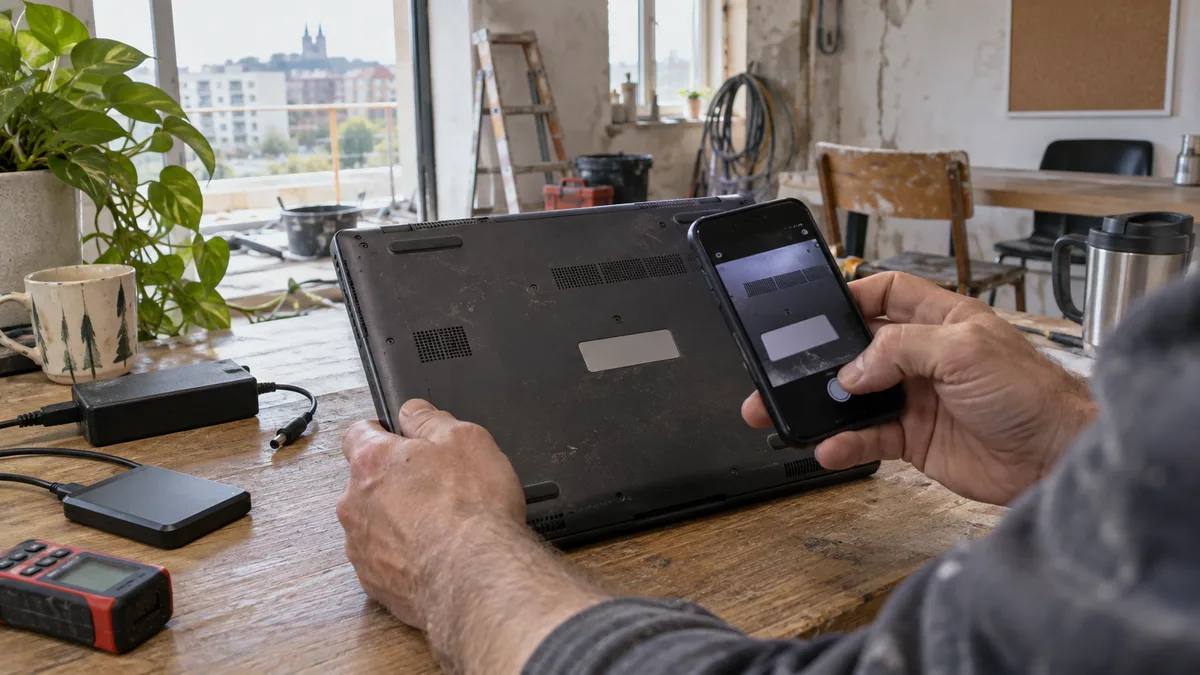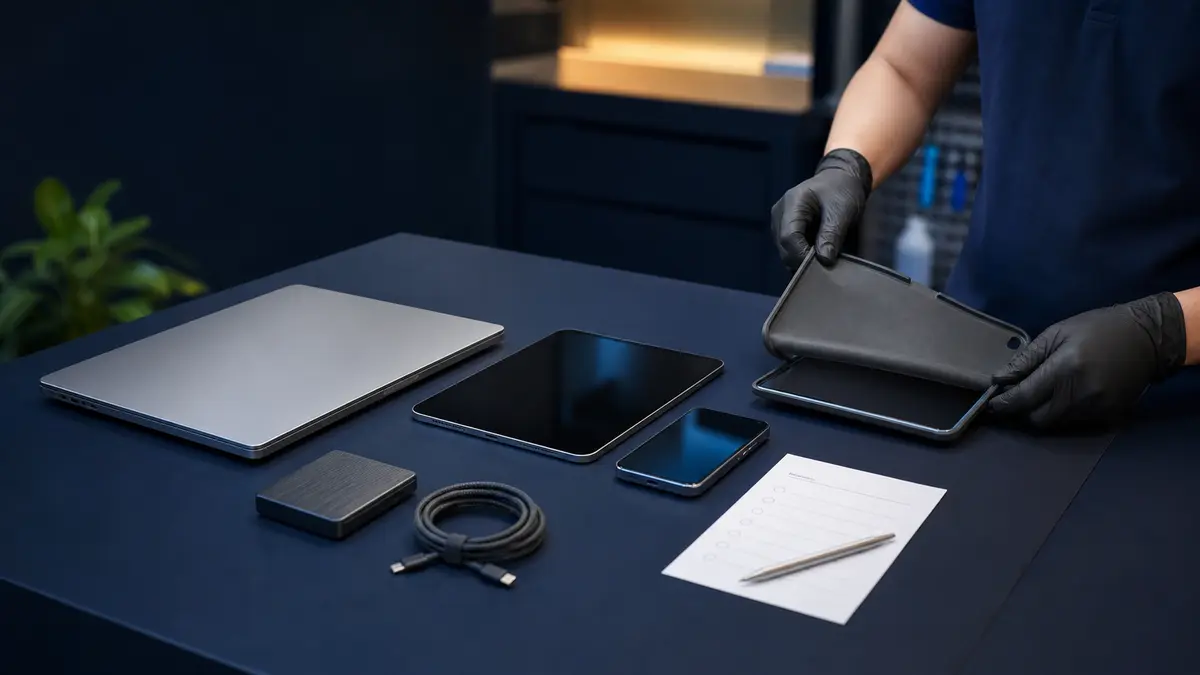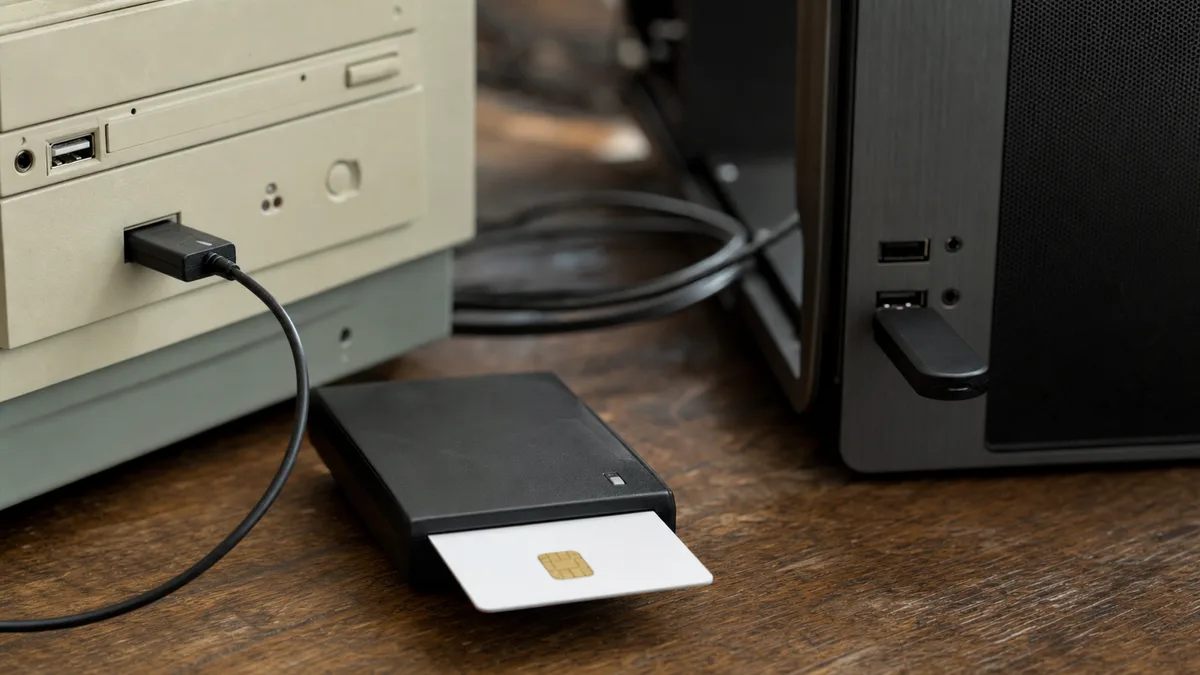
The new computer is on the desk and the old one is heading to the kids, to a second-hand shop or into a drawer. This year that situation is especially common — support for Windows 10 has ended and plenty of older machines will never officially reach Windows 11; we cover that in Windows 10 is ending: what now. Almost everyone keeps an eye on documents and photos during the move. What gets lost is the things you cannot see: passwords saved in the browser, mail downloaded over POP3, licences tied to the old machine, an electronic signature certificate or the backup codes for two-factor authentication.
The short answer: Before you wipe or hand over the old computer, move and verify: documents including the Desktop and Downloads, photos, browser passwords and bookmarks, email (watch out for POP3 accounts — the messages may exist only on the old machine), licences for paid programs, certificates for signing and online banking, and two-factor backup codes. Do not wipe or sell the old computer until you have worked normally on the new one for at least two weeks and have actually opened everything that matters.
The main rule: the old computer gets wiped last
The worst disasters that reach our repair shop do not happen during the copying. They happen during the tidying up. The old laptop is sold right after the transfer, “cleaned” by a factory reset, or the disk is pulled out into a drawer with no label — and three weeks later it turns out it held the only copy of the invoices, a thesis or the holiday photos.
Hence one rule that outranks every checklist: leave the old computer working for another two to four weeks. Work normally on the new one and switch the old one on only when something is missing. Every one of those moments is an item that would otherwise have been forgotten.
And a second thing: an old disk in a drawer is not a backup. Drives left without power die too, and above all — it is a single copy in a single place. Once the move is finished, make a proper backup of the important data following the 3-2-1 rule: three copies, two types of media, one off-site.
If you are only heading towards a new computer and wondering whether the old machine could be rescued more cheaply, first have a look at reinstall, upgrade, or straight to a new computer.
Checklist: everything that has to move
Documents, Desktop and Downloads
Everyone copies the Documents folder. What gets forgotten is the Desktop — for a lot of people it is the main workspace full of half-finished files — and Downloads, where the installers, email attachments and contracts “for later” live. Also go through the root of drive C:, where programs and people create their own folders (C:\invoices, C:\scans), and the folder your printer scans into.
If Windows has more than one user account (partner, children), each account has its own Desktop, Documents and Downloads. Move them all, not just yours.
Photos and videos
Besides the Pictures and Videos folders, check where imports from your phone and camera were saved — often it is a subfolder inside Pictures that cloud sync never saw. On family computers photos tend to be scattered across the Desktop and Documents as well. Sort the contents of the disk by size; the large files will lead you to the forgotten videos.
Passwords, bookmarks and passkeys
The easiest route is synchronisation: on the new computer sign in to Chrome with your Google account, to Edge with your Microsoft account, to Firefox with your Firefox account — passwords, bookmarks and extensions download by themselves.
If you do not use sync, there is export. In Chrome: Settings → Autofill and passwords → Google Password Manager → Settings → Export passwords. That produces a CSV file — readable text with no encryption — so delete it immediately after importing on the new computer and empty the recycle bin too. Bookmarks export to an HTML file from the bookmark manager.
What export cannot handle: passkeys. Access keys stored in Windows Hello are tied to the chip in that particular computer and cannot be copied. On the new machine you create them again for each service (Google, Microsoft…) — expect that, and do not disable your other sign-in methods just yet.
Email: IMAP survives, POP3 does not
With IMAP accounts (today’s standard at Gmail, Seznam and company mailboxes) the mail stays on the server — you add the account on the new computer and everything downloads by itself. But with older accounts set up as POP3, the client may have deleted messages from the server after downloading them. The only copy of twenty years of correspondence then sits on the old computer.
How to tell: in the account settings in the old mail program, look at the incoming server type. If you see POP3, export the mail before wiping the disk — in classic Outlook via File → Open & Export → Import/Export → Export to a file → Outlook Data File (.pst), in Thunderbird by moving the profile folder. The new Outlook in Windows 11 cannot export to PST, but with pure IMAP accounts that does not matter.
Licences and paid programs
Programs do not move across — they are installed again on the new computer. Copying the Program Files folder does not work. So before you switch the old machine off, do three things:
- Write down what you have installed and pay for. Go through Settings → Apps → Installed apps and list the paid items.
- Track down the licences. With a Microsoft 365 subscription, signing in to the account is enough; with a one-off Office purchase the licence has to be linked to your Microsoft account, otherwise start looking for the email or the box with the key. A Windows licence tied to the old computer (OEM) does not transfer to the new one — the new machine should have its own.
- Deactivate anything that counts installations. Plenty of paid programs (graphics, music, CAD) have a limited number of activations and a “Deactivate licence” option right in the menu. Do it after wiping the disk and you are in for a long exchange with the vendor’s support.
Accounting and invoicing software is a chapter of its own: its data usually does not live in Documents but in its own folder or in a database. Make the backup with the function inside the program, not by copying folders — and on the new computer check that the most recent document opens.
Certificates, signatures and two-factor authentication
This is what gets forgotten most of all, because none of it is visible:
- Electronic signatures and qualified certificates — these are kept in the Windows system store. To export: press the Windows key, type
certmgr.msc, open the Personal → Certificates folder, right-click → All Tasks → Export and choose to export including the private key (you get a password-protected .pfx file). Without the private key the export is useless. - Certificates and drivers for online banking, the datová schránka (Czech state data mailbox) and ISDS signatures — with smart cards and tokens it is enough to install the management software again; for file-based certificates the export above applies.
- Two-factor authentication — the app on your phone is not affected by the move, but people save their backup codes in a text file called “might_come_in_handy.txt” on the old computer. Find it and move it. If you use an authenticator program on the computer itself, transfer it according to the vendor’s instructions before the old machine disappears.
How to get the data onto the new computer
| Route | When it suits | What to watch out for |
|---|---|---|
| External drive | large volumes, slow internet | open a few files at random after the copy; then do not use the drive as your only backup |
| Cloud (OneDrive, Google Drive) | smaller volumes, topping up gradually | upload speed, free capacity; “files on demand” are not physically on the computer |
| Home network / both computers side by side | one big one-off move with no extra hardware | Windows folder sharing can be a headache, Wi-Fi speed fluctuates |
Windows 11 also offers the Windows Backup app, which moves files, settings and a list of apps via OneDrive. It helps, but do not expect miracles: it will not install classic programs, only remind you of them, and it cannot see files outside the standard folders. It is no substitute for the checklist above.
And if what is really driving you towards a “new computer” is how slow the old one is, there is a third option — have your data and system moved onto a fast drive, as described in switching to an SSD without reinstalling.
If you have read this far and are thinking you have neither the time nor the patience for this — that is exactly why we do data transfers as a service. You bring in both computers (or we come to you), we go through the checklist for you and nothing gets lost. Book online and we will confirm a date straight away.
Before you wipe the old disk: the final check
Only once you have gone through every point is it safe to wipe, sell or dismantle the old computer:
- You have been working normally on the new computer for at least two weeks and nothing was missing.
- You have opened documents and photos from various years at random — not just checked that the folders exist.
- Email works and you have an export for any former POP3 accounts.
- You have signed in to your bank, your datová schránka and the services that matter from the new machine.
- Paid programs are installed and activated, and the accounting software opens the most recent document.
- Certificates and backup codes have been moved.
- Your important data is in one more independent backup outside both computers.
When selling or giving the computer away, emptying the disk is not enough — use a factory reset with the option to fully erase the drive, so that no documents or passwords of yours end up in the second-hand shop.
When to leave it to us
Moving data is painstaking work, not rocket science — but you only get one clean shot at it. At the repair shop we deal with it most often in two situations: when you are buying a new computer, where we set the machine up, move the data and hand over a ready-to-use workstation (choosing and building to order roughly from 1,200 CZK, see buying a PC in Brno), and with a Windows reinstall including a data backup roughly from 2,400 CZK, when the old system moves on the same machine — more detail on the Windows reinstall in Brno page.
A full data backup up to 50 GB on its own works out at roughly from 1,200 CZK, larger volumes according to time. You will find all the rates in our price list and we confirm the price in advance — no surprises on the invoice. You can book online or call +420 774 777 774; we will also advise on what is even worth moving.
Rather not deal with it yourself?
Book a diagnosis in Brno — you get the price up front and we start only once you agree.
Where to find us
We are a PC and laptop repair shop in Brno-Židenice: diagnostics and repairs of computers and laptops, data recovery from drives, and out-of-warranty Apple repairs (iPhone 12 and newer, MacBook, iPad).
Viniční 3587/216, 615 00 Brno-Židenice, Czech Republic Mon–Fri 10:00–16:00
Call +420 774 777 774 Computer repair and laptop service in Brno
We put the repair price in writing after diagnostics and carry on only once you agree.