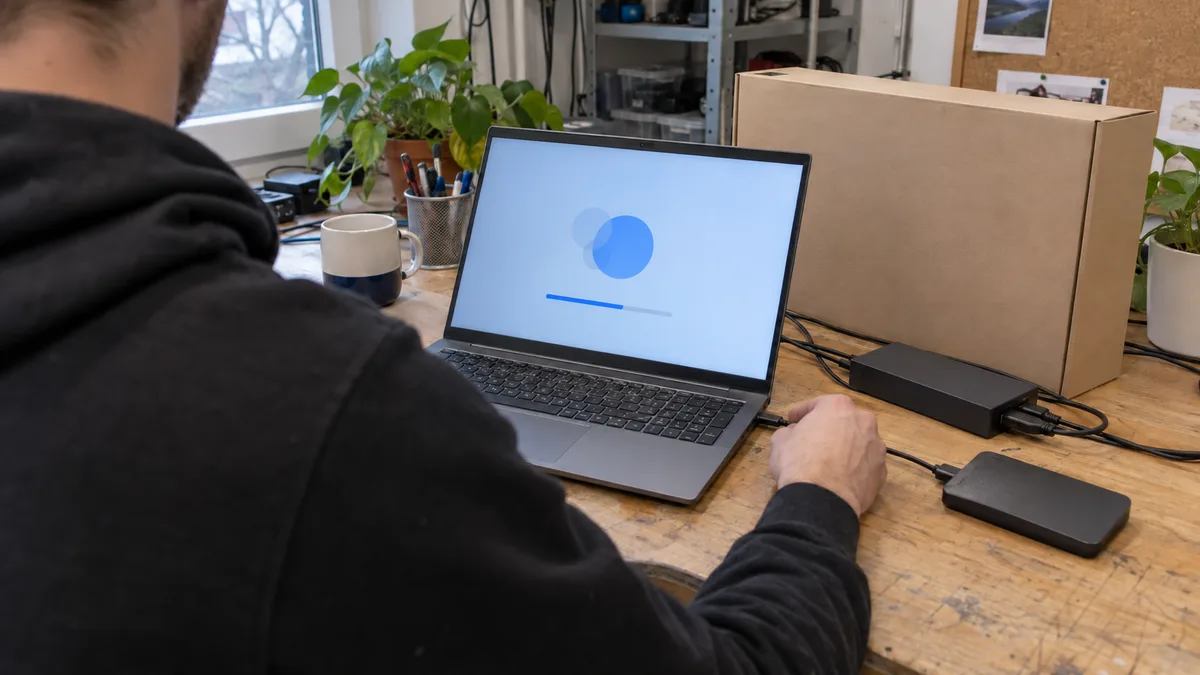
The computer turns on. The fan spins, the manufacturer’s logo appears — and then instead of the desktop, “Preparing Automatic Repair.” A spinning wheel for a moment, a restart, the logo again, automatic repair again. Sometimes a blue screen with a code that disappears faster than you can read it.
This is a different problem from a laptop that doesn’t respond to the power button and shows no lights — there, power and hardware issues are addressed before the system, and there is a separate procedure for that. Here, the hardware initiates the start, but Windows just can’t get to the login screen.
An immediate answer: Disconnect all USB drives, flash drives, and the docking station and try one normal restart. Take a photo of the error message with your phone, including the stop code. Then answer one question before clicking anything: is there a single copy of business data on the drive? If yes, the priority is not to get Windows running, but to get the data out intact. Reset or reinstallation won’t wait — but you can’t get your data back after them.
What exactly do you see at startup
The first screen tells you where the startup stopped. But it’s not a diagnosis — just a clue for where to look.
| Symptom | Possible Cause | First Safe Step |
|---|---|---|
| ”Automatic Repair couldn’t repair your PC” | corrupted bootloader, failed update, driver, or disk error | open Advanced options |
| Constant restarts before login | update, driver, corrupted system files, RAM, or disk | take a photo of the last message, disconnect peripherals |
| Blue screen with an error code | driver, storage, RAM, or corrupted system | write down the exact code and how often it repeats |
| ”No bootable device” or disk missing in UEFI | disk, connector, controller, or changed boot order | do not reinstall, first check the disk |
| BitLocker asks for the recovery key | firmware change, TPM, startup settings, or service intervention | find the 48-digit recovery key |
The last row deserves attention. BitLocker turns itself on silently on many Windows 11 devices, and the owner doesn’t know about it — the key is quietly saved to the Microsoft account. Then, when the computer asks for the recovery key after a firmware update or part replacement, it comes as a bolt from the blue. Where to find the key is described in the article BitLocker: Can’t Unlock Drive; why encryption turns on without asking is discussed in Silent BitLocker Activation.
And one exception above all: if a mechanical drive is clicking, beeping, or repeatedly spinning up and stopping, turn off the computer and don’t try starting it any further. Each additional attempt in the event of a physical fault reduces the chance of data recovery.
What to try before visiting a service center
Disconnect USB drives, flash drives, card readers, docking stations, printers — everything non-essential. A faulty peripheral or a flash drive that the computer is trying to boot from can block the startup all by itself.
Then one normal restart. If an error occurs, take a photo of the whole screen: the stop code, the file name below it, and the QR code. That photo is more valuable for the service technician than a description of “a blue screen with some text.”
It also helps to know what happened before. A Windows update. A driver or game installation. A power outage during shutdown. A laptop falling off a table. A full system disk — Windows needs free space on C: even for normal operation, and when it runs out, the system behaves unpredictably; we address how to free up space separately.
What not to do on the other hand: don’t force the recovery environment with a series of hard shutdowns. Every interruption of a write process can add another file system error — and in a worse case, you’ll break what was still working. If Windows Recovery Environment doesn’t open by itself, a cleaner path is an installation USB with Windows 11 and the Repair your computer option. Be careful not to slip onto “Install” — the setup program offers both side by side.
Procedure in the automatic repair loop
On the automatic repair screen, go through Advanced options → Troubleshoot → Advanced options. The menu varies slightly depending on the Windows version and manufacturer.
Proceed from the least invasive steps to the harsher ones:
-
Startup Repair — fixes the bootloader and some errors necessary for starting. It does not delete documents. However, it won’t solve a faulty SSD or bad RAM; it will just try in vain and report that it couldn’t do it.
-
Uninstall Updates — makes sense when the system stopped starting immediately after an update. Start with the latest quality update, then consider the feature one later.
-
System Restore — rolls back drivers, registry, and settings to a restore point. It usually leaves personal files but removes programs and drivers installed after the point was created. It assumes a usable point exists in the first place; on freshly deployed computers, there often isn’t one.
-
Startup Settings → Safe Mode — helps when a driver or program loading at boot blocks the startup. If Safe Mode loads, you have an open window: before launching anything else, back up important files.
Commands like bootrec, bcdboot, sfc, or chkdsk are not a universal set of magic spells from the internet. On computers with UEFI, you work with the EFI system partition, and drive letters are often different in the recovery environment than in Windows — a guide that blindly assumes C: can cause damage to an entirely different volume. And chkdsk /f writes. You don’t start with a write operation on a failing disk.
What common blue screen codes mean
A stop code is a clue, not a verdict. The same code can be produced by a driver as well as a dying SSD.
-
INACCESSIBLE_BOOT_DEVICE — Windows lost access to the system partition. Typically after changing the controller mode in UEFI (switching between AHCI and RAID/Intel RST without the corresponding driver), after an update, due to a controller driver, or simply because the drive is no longer responding.
-
UNMOUNTABLE_BOOT_VOLUME — the system volume can’t be mounted. Both the file system and the physical condition of the SSD or HDD need to be examined.
-
CRITICAL_PROCESS_DIED — a critical system process has crashed. Corrupted system files, the disk, drivers, and RAM are suspects.
-
BAD_SYSTEM_CONFIG_INFO — typically a corrupted registry or startup configuration, but it is also reported during hardware problems.
A distinguishing tool: if the code changes with every crash, suspicion grows towards RAM, the disk, or other hardware instability. If it’s the same every time and the problem started after installing a specific driver, a software cause is more likely. Both need to be verified by a test, not a guess — for an SSD, you look at SMART and NVMe data; for memory, a memory test. What a silently failing SSD looks like is described in the article about signs of SSD failure.
If you would rather not touch the settings yourself, we cover it under Windows reinstallation and setup. A related step is data recovery in Brno.
When to prioritize data recovery
For a business computer, it’s not enough to brush it off with “don’t I have it on OneDrive?” A lot of things don’t sync to the cloud. Go through it in your head: a local accounting database (like POHODA, Money S3), certificates, the desktop, the Downloads folder, local email archives, work-in-progress projects, and exports. It often turns out that “backed up” were the documents, but not what the invoicing relies on.
If the only copy of such data remained on the non-functional computer:
- do not launch a factory reset or a clean installation — these are irreversible steps;
- do not format the partition, even if the installation program marks it as unreadable;
- do not install a recovery program on the same disk — you will overwrite precisely what you want back;
- do not copy recovered files back to the original storage;
- have your BitLocker recovery key ready if the disk is encrypted. Without it, even a healthy disk is just a pile of random bytes.
For a healthy disk, data is copied from another system or after connecting to a service computer. For a faulty disk, an image is first created on another medium, and further work is done only with the copy — the original is not stressed. What can and cannot be recovered is discussed in data recovery from a disk with bad sectors.
And one thing that is often forgotten: the display of file names is not proof of a successful backup. Randomly open a few documents, an accounting database, and a mail archive. Only when they open is a backup truly a backup.
Startup repair, reset, or clean installation
The choice depends on the state of the disk and what caused the fault — not on what is faster.
| Solution | When it makes sense | What you risk |
|---|---|---|
| Bootloader repair, update removal | disk is healthy, error occurred after a system change | the problem will return if a faulty driver remains |
| System Restore | a usable restore point exists | newer programs and settings disappear |
| Reset – “Keep my files” | system is corrupted, but storage is healthy | applications and settings are gone; it’s not a backup replacement |
| Clean installation of Windows 11 | repair isn’t reliable, system is heavily damaged | without a backup, you lose the contents of the system partition |
| Disk replacement and installation | SSD/HDD reports errors or files disappear from the system | the price is increased by a new disk and potential data recovery |
If behind all this lies the question of whether an older computer is even worth fixing, the article reinstall, repair, or replace follows up. A non-starting Windows on its own doesn’t mean the machine is ready for scrap — it’s often just one faulty update on otherwise healthy hardware.
What a service center should check and the approximate cost
Diagnostics that ends with the sentence “Windows is broken” is not diagnostics. A technician should separate a software error from a fault in the SSD, RAM, or controller. In practice, this means: the disk condition including SMART and NVMe data, a memory test, the file system, the EFI bootloader and BCD, update history, and verification that data can be read safely.
According to the Brno PC Service price list, diagnostics for a non-realized repair comes to around 600 CZK. A clean Windows reinstallation including drivers and updates starts from around 1,500 CZK, a reinstallation with backup of common data from 2,400 CZK. A standalone backup of up to 50 GB starts around 1,200 CZK. Licenses, a new disk, and more complex data recovery are handled separately — we state the price only after diagnostics and won’t proceed without approval.
Before you approve the repair, ask:
- what probably caused the fault;
- if the disk is healthy (and how it was verified);
- which data will be backed up and where;
- if the price includes drivers, updates, and data recovery;
- which programs and licenses you will have to supply yourself;
- if you will receive a written quote before the repair begins.
Non-starting Windows are unpleasant but rarely unsolvable. The most expensive mistake is made in the first few minutes — when someone clicks reset in a panic and only then remembers that the accounting was only there.
Order online: Windows reinstallation — tell us the model and what happens, and we will come back with the next step.
Rather not deal with it yourself?
Book a diagnosis in Brno — you get the price up front and we start only once you agree.
Where to find us
We are a PC and laptop repair shop in Brno-Židenice: diagnostics and repairs of computers and laptops, data recovery from drives, and out-of-warranty Apple repairs (iPhone 12 and newer, MacBook, iPad).
Viniční 3587/216, 615 00 Brno-Židenice, Czech Republic Mon–Fri 10:00–16:00
Call +420 774 777 774 Computer repair and laptop service in Brno
We put the repair price in writing after diagnostics and carry on only once you agree.