The short answer: With a new computer, first decide who owns the user and administrator accounts. Then complete Windows and driver updates, verify BitLocker and its recovery key, configure backups, and only then install business software. Before handover, checking the desktop icons is not enough: test sign-in, printing, the camera, the docking station and access to work data.
A new computer is not yet ready for work
A laptop may appear ready to use straight out of the box. Windows starts, Wi-Fi works, and a browser and trial office suite are waiting on the desktop. Yet its system image may be several months old, updates may be incomplete, the docking station driver may be missing, or encryption may be linked to the wrong account.
The order matters for a company device:
| Order | What to address | Required outcome |
|---|---|---|
| 1 | Accounts and ownership | The company knows who controls the user, administrator and account recovery |
| 2 | Windows and drivers | The system is up to date and has no unknown hardware |
| 3 | BitLocker | The recovery key can be found outside the computer itself |
| 4 | Backup | It is clear what is backed up and how the data can be restored |
| 5 | Security | The approved antivirus, firewall and account protection are active |
| 6 | Software and peripherals | Applications are activated and the devices actually work |
| 7 | Handover | A brief record of accounts, licences and settings exists |
Transferring documents, email, browser profiles and licences is a separate task. You can find a checklist in Transferring data to a new computer.
First, decide who owns the accounts
Do not sign a company laptop into a technician’s private account or an employee’s personal account unless the company data, licences and recovery keys are intended to belong to that account.
| Account type | When it makes sense | Main risk |
|---|---|---|
| Microsoft account | A small company using Microsoft 365 or OneDrive without centralised device management | Account recovery may be controlled through a private phone number or email address |
| Work or school account | The organisation manages devices and identities through Microsoft 365, Microsoft Entra ID or Intune | An incorrect connection may enrol the device in another organisation |
| Local account | An isolated workstation, service computer or device without cloud synchronisation | Automatic settings synchronisation and cloud account recovery are unavailable |
On a shared computer, create a separate account for each user. Use standard permissions for everyday work and keep the administrator account separate. The company must know who is allowed to use it and how access will be restored if the responsible person leaves or forgets the password.
Also check which account was used to activate Microsoft 365, the accounting software, the VPN client or any other paid application. A trial version pre-installed by the manufacturer is not a company licence.
Install updates before business software
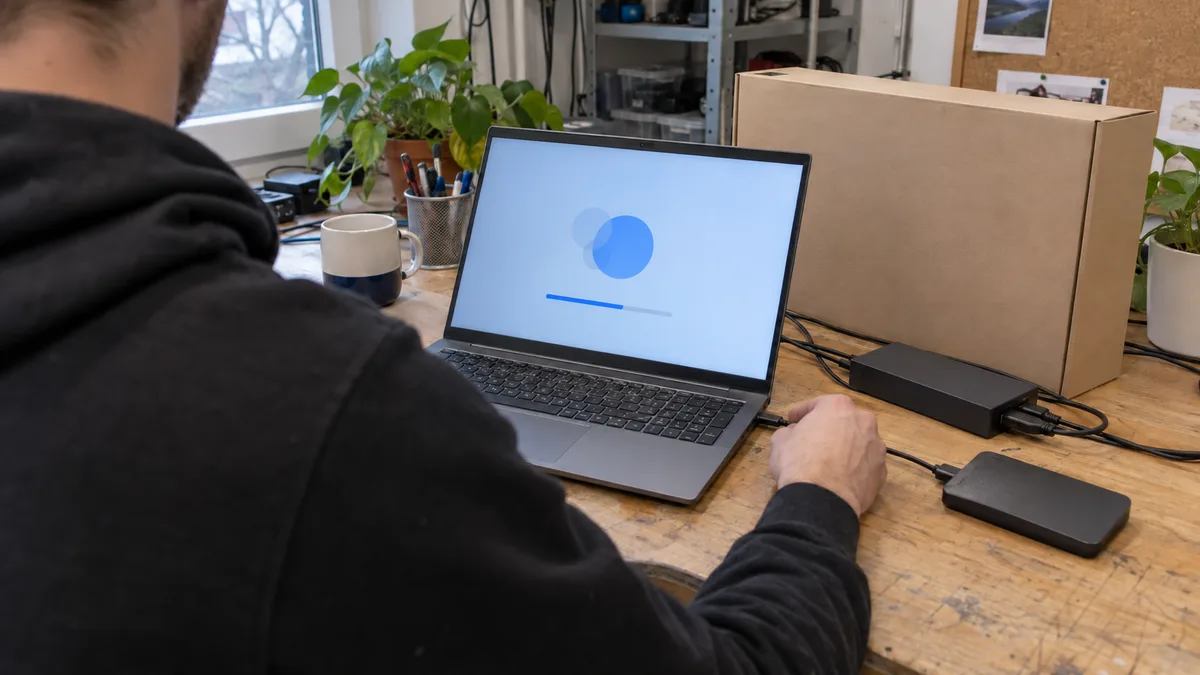
The computer may have been sitting in storage since the manufacturer created its installation image. First connect it to power and a stable network, then open Settings → Windows Update → Check for updates.
Install updates in batches and check again after each required restart. Clicking the button once may not be enough: additional fixes and drivers may only become available after the previous system version has been installed.
Then open Device Manager. A yellow exclamation mark, an Unknown device entry or a generic driver may not prevent the computer from starting, but it could disable the fingerprint reader, camera, audio, power management or part of the docking station.
Windows Update is the first safe source of drivers. If a particular device still does not work, use the manufacturer’s support:
- for business Lenovo ThinkPad and ThinkCentre devices, use Lenovo Commercial Vantage,
- for Dell Latitude, Precision and OptiPlex devices, use Dell Command Update,
- for HP ProBook, EliteBook and ZBook devices, use HP support and the tools intended for the specific model,
- for ASUS ExpertBook devices, use MyASUS or support for the exact device model.
Do not download drivers from anonymous catalogues or use a universal “driver updater”. The same laptop model may be sold with several different network adapters, fingerprint readers or storage controllers, and a similar name does not mean identical hardware.
If Windows Update keeps failing, do not blindly install more software over an incomplete system. The diagnostic procedure is described in Windows Update cannot be installed.
Update the BIOS only when recovery is ready
A BIOS or UEFI update may fix security vulnerabilities, USB-C docking stability, power management or hardware compatibility. However, do not install one merely because a higher version number is available.
First read the changelog for the exact model, connect the power adapter and verify the BitLocker recovery key. A firmware or TPM setting change may trigger the recovery key screen the next time the computer starts.
Do not switch off the computer or disconnect it from power during the update. If the manufacturer offers the update through its verified tool or Windows Update, prefer that method to manually running a file intended for a similar model.
Verify BitLocker before handover
Windows 11 may enable encryption on a supported device according to the account used and the company’s management settings. Seeing a padlock icon next to the drive is therefore not enough. You need to know the actual protection status and where the recovery key was stored.
Check:
- whether Device encryption or BitLocker is enabled,
- whether the system drive is actually protected,
- which account or organisation holds the recovery key,
- whether an authorised person can access it from another device,
- whether the stored key ID matches the key requested by this computer.
The BitLocker recovery key is a 48-digit number. Do not leave its only copy in a text file on the encrypted laptop. If the motherboard fails, the firmware changes or the TPM encounters a problem, the key would be unavailable precisely when it is needed.
For a company laptop, the key should be stored in a company-managed account or a secure register with restricted access. For more details, see Company laptop encryption: BitLocker and keys.
OneDrive is not a complete computer backup
OneDrive can synchronise Desktop, Documents and Pictures. However, it will not automatically include an accounting database in another folder, local data from specialised software or files stored under a different user profile.
During setup, check:
- which personal or work account is signed in,
- which folders are actually included in synchronisation,
- whether synchronisation completed without errors,
- which files are stored only in the cloud,
- whether important documents are also available without an internet connection.
Synchronisation also replicates changes and deletions. The recycle bin and version history can help, but they are not a substitute for a separate backup. Accounting records, contracts and working databases should have another copy outside the normal user account and the laptop itself. The difference between synchronisation and backups is explained in Why OneDrive is not a backup.
Remove trial software, not hardware controls
The manufacturer may include a trial antivirus, gaming services, advertising apps or a demo version of an office suite. Only uninstall items whose purpose you understand.
A manufacturer’s utility may manage:
- firmware updates,
- the battery charging limit,
- function keys,
- cooling profiles,
- display colour modes,
- the docking station or business support.
After removing a trial antivirus, restart the computer and open Windows Security. Check real-time protection, current security intelligence and the firewall for the network profile in use. Microsoft Defender is a reasonable starting point for a standard deployment; a paid solution may make sense for centralised management, shared policies and reporting across multiple devices.
Do not leave two antivirus programs with real-time scanning enabled at the same time. They may scan the same files, increase system load and complicate troubleshooting.
An icon is not proof that a program works
Install business applications only on an updated and tested system. For each one, verify not only that it starts, but also that it performs the task for which the user needs it.
For accounting software, open a test company file or a safe copy of the database. For a VPN, verify the connection to the required service. For an electronic signature, check that the certificate and reader are available. Print a test page on the printer and perform an actual scan with the scanner.
Hardware checks should be equally specific:
- connection to the Wi-Fi network that will be used,
- camera and microphone in the video conferencing application,
- audio through both speakers and headphones,
- a Bluetooth mouse or headset,
- an external monitor connected through the port or docking station that will be used,
- the network printer under a standard user account,
- waking from sleep and reconnecting peripherals.
Older software may require a particular database driver, network path, licence dongle or permissions for a company server. Identify these requirements before disposing of the old computer.
A restore point helps the system, not your documents
After installing updates and drivers, check System Protection. If it is enabled for the system drive, create a restore point before installing an older driver or a program that makes significant changes to Windows.
A restore point can revert system files, the registry and some drivers. It cannot recover deleted accounting records, a failed SSD or a lost laptop. It is therefore not a replacement for backing up work data.
What the handover check should include
A properly prepared computer can be handed over using a specific checklist:
- Windows is activated and has no important updates pending.
- No unknown hardware remains in Device Manager.
- The owners of the user and administrator accounts have been identified.
- BitLocker has been checked and the correct key can be found outside the computer.
- Synchronisation and the separate backup match the type of data being stored.
- The antivirus and firewall are active.
- Business applications are licensed, running and tested in practice.
- The required network, printer, camera, audio and docking station work.
- The company has received a record of the accounts, licences, backup and changes made.
Do not include plain-text passwords or the complete recovery key in the handover record unless the document has appropriate protection. It is enough to state who manages the credentials and where an authorised person can find them securely.
When to leave the setup to a professional service
You can set up a single computer with standard software yourself if you know who owns the accounts and licences and can verify both encryption and backup recovery.
Professional service makes sense when you are preparing several identical devices, connecting accounting software, a VPN, certificates, network drives or printers, do not know the status of BitLocker, or need to separate personal and company accounts. It is also advisable when Windows Update repeatedly fails or unknown hardware remains in Device Manager.
If you want to receive an updated and tested computer with a record of the completed configuration, we provide computer setup in Brno based on the actual scope of work. According to the price list, software installation including configuration starts at approximately CZK 600, service work costs CZK 600 for each commenced half-hour, and an on-site visit within Brno costs CZK 700 (prices include VAT). The exact price depends on the number of programs, accounts and licences, as well as data transfer and connected devices.
Before placing an order, specify whether you only need applications installed or also require account creation, updates, drivers, BitLocker, backups, data transfer, a printer and final testing. This turns a “new computer” into a genuinely work-ready device. You can describe the required scope directly through our contact page.
Rather not deal with it yourself?
Book a diagnosis in Brno — you get the price up front and we start only once you agree.
Where to find us
We are a PC and laptop repair shop in Brno-Židenice: diagnostics and repairs of computers and laptops, data recovery from drives, and out-of-warranty Apple repairs (iPhone 12 and newer, MacBook, iPad).
Viniční 3587/216, 615 00 Brno-Židenice, Czech Republic Mon–Fri 10:00–16:00
Call +420 774 777 774 Computer repair and laptop service in Brno
We put the repair price in writing after diagnostics and carry on only once you agree.