A bad sector rarely announces itself directly. First, copying stalls on a single file. Then Windows freezes for several seconds whenever you open a particular folder. Sometimes a faint clicking sound comes from the computer that was not there before. Then one morning, the accounting database will not open because the drive keeps spinning up and slowing down again.
A business may have invoices, project documentation, email or the only copy of customer files on that drive—and every attempt to “get it working somehow” can damage the very data you need. The good news is that many cases can be recovered if the drive is taken out of service in time and no unnecessary operations are performed on it.
The short answer: If the drive clicks, freezes or reports read errors, shut down the computer and stop using the drive. Do not run CHKDSK, any “sector regeneration” tool or formatting, and do not copy anything to it. First, create a sector-by-sector image on healthy storage and perform the recovery on that copy. It is best not to run
chkdsk /rat all on a failing drive.
This article concerns traditional hard disk drives (HDDs). The explanations of bad sectors, scratched surfaces, heads and mechanical components, as well as procedures involving CHKDSK, cloning and laboratory work, apply to HDDs. SSDs have no platters or heads—their “bad blocks” are associated with NAND flash wear, controller faults or firmware problems. The outward symptoms (a disappearing drive, read errors and freezing) and the first-aid steps (shut it down and do not write anything to it) are similar, but the causes and diagnostics are different. The condition of the NAND, controller and firmware is what matters, not the mechanics. If you have an SSD, treat it as an SSD data recovery case, rather than following the mechanical procedures below.
ITHOPE handles data recovery
Servis PC Brno does not perform data recovery. The sector-by-sector imaging of a failing drive and subsequent recovery are carried out by ITHOPE s.r.o., the laboratory that operates Servis PC Brno: HDD data recovery. Initial diagnostics for a standard HDD may be free; for more demanding cases, the laboratory will provide the price in advance.
Bad sectors cannot be fixed with a single command
A bad sector is an area of a drive from which the stored data can no longer be read reliably. On a traditional hard disk drive (HDD), the cause is often physical damage to the magnetic surface, worn read/write heads or a mechanical fault. Common triggers include impact, vibration, overheating and an unstable power supply.
A logical bad sector is different: the data or its checksum is corrupted, but the surface itself may still be intact. Without diagnostics, however, you cannot distinguish a physical fault from a logical one, and the outward symptoms are similar.
Modern drives continuously replace bad sectors with spare ones, so everything may appear to be fine for a while. Once values such as Reallocated Sector Count, Current Pending Sector Count or Offline Uncorrectable start rising in the SMART data, however, remapping has not solved the problem—it has merely postponed it.
For a business owner, one point is crucial: “repairing the drive” and recovering the files are two different objectives. If the data matters, recover it first. Only then should you deal with the drive, which will need to be replaced in most cases anyway.
If the data is already inaccessible, the drive belongs with a hard drive data recovery specialist, not in another round of experiments.
When to shut down the computer immediately
Shut down the computer or external drive as soon as any of these symptoms appear:
- The drive clicks, knocks, repeatedly spins up or makes scraping sounds.
- Windows freezes for several seconds when accessing the drive.
- Copying fails with a read error, stalls on a particular file or slows to almost zero.
- The drive sometimes appears in the BIOS and Windows, then disappears.
- The computer no longer boots and had previously displayed drive errors.
- Folders disappear, files cannot be opened or the system prompts you to “format the drive.”
- The drive was dropped, struck or exposed to liquid.
Current Pending Sector CountorOffline Uncorrectableincreases between checks.
Do not repeatedly power up a mechanically damaged drive “just to test it.” Every additional spin-up can worsen the condition of both the platter surface and the heads. Even ordinary folder browsing in File Explorer, an antivirus scan or backing up files one by one is risky. These operations subject the drive to random reads and repeatedly return to damaged areas.
If the drive contains accounting records, a database, email or the only copy of customer data, it is safer to shut the device down and have the fault identified. Diagnostics generally start at several hundred Czech crowns—but diagnostics alone cannot guarantee that all data will be recoverable.
What you can safely check yourself
If the drive is not making unusual sounds, has not suffered mechanical damage and the system is still responsive, you can perform a brief check without writing to the problematic drive.
First, rule out causes other than the drive itself:
- For an external drive, try a different USB cable and port.
- On a desktop computer, the SATA cable or power connector may be faulty.
- Check whether the drive is correctly detected in the BIOS or UEFI.
- Read the SMART data using CrystalDiskInfo or
smartctlfrom the smartmontools package. - On a NAS, check the drive status in Synology DSM or QNAP QTS, but do not start an automatic volume repair.
Reading the SMART data once is relatively gentle. A long surface test, by contrast, reads the entire drive and is unsuitable for a failing unit—as is a scan lasting several hours in which the software retries the same sector over and over after every read error.
SMART is not a definitive verdict either. A “Good” status does not mean the drive is healthy. Its electronics may report that everything is fine even when the drive freezes, has a head problem or cannot read a particular area reliably.
Can CHKDSK repair bad sectors?
CHKDSK checks the file system (NTFS, FAT or exFAT). It can find inconsistencies in directories, indexes and metadata. It cannot repair a scratched platter surface, a faulty read/write head or worn mechanical components—it is the wrong tool for those problems.
The switch you use makes a significant difference:
| Command | What it does | Risk to a failing drive |
|---|---|---|
chkdsk X: | Checks the file system without repairing it | Lower, but it still reads drive structures |
chkdsk X: /f | Repairs file-system errors it finds | Writes to the drive and modifies metadata |
chkdsk X: /r | Searches for unreadable sectors and attempts to recover readable data | Prolonged reading can finish off a failing drive |
chkdsk X: /scan | Checks an NTFS volume online while it is running | Not a substitute for data recovery |
The /r switch reads a large part or all of the volume’s used space. On a healthy drive, it can mark unreadable areas so that the system no longer uses them. On a drive that clicks, freezes or has a growing number of pending sectors, however, this prolonged reading can make the fault worse.
CHKDSK also works with the volume structure, not with the value of individual files. After it runs, damaged fragments may end up as recovered “file fragments” in the found.000 folder, and the original directory structure may become disorganised. That is why CHKDSK should not be the first step when you have only one copy of important data. The safe order is: diagnostics → sector-by-sector image on healthy storage → file-system repair performed on the copy.
Why a failing drive is imaged first
Ordinary system cloning—for example, when moving Windows to an SSD without reinstalling it—assumes that the source drive is readable. With a faulty drive, the objective is different: retrieve as many sectors as possible while placing the drive under as little strain as possible.
Recovery imaging usually:
- Reads the easily accessible areas first.
- Skips bad and slow areas and records them in a map.
- Returns to the problematic areas later.
- Limits the number of repeated attempts to read the same location.
- Recovers the file system from the copy, not the original.
Software tools such as GNU ddrescue or HDDSuperClone / OpenSuperClone are commonly used. It is not simply a matter of installing a program, however. Correctly identifying the source and target drives, preventing the damaged volume from being mounted automatically and configuring the reading order are critical. Mixing up the devices can overwrite the only source of the data. The target drive must also have at least the same actual capacity as the source. Relying solely on a “1 TB” label is not enough because the precise number of sectors varies between models.
What the laboratory does and what you pay for
The first step is to determine whether the problem lies in the cable, electronics, file system, platter surfaces or mechanical components. Diagnostics must distinguish a drive that can be safely read using software from one that requires a specialised laboratory.
For a readable drive, the laboratory will generally create a sector-by-sector image on healthy storage before reconstructing partitions, the directory structure and files from that image. The result is saved to a different drive—the original HDD should not be returned to service as storage for business data, even if it has been repaired.
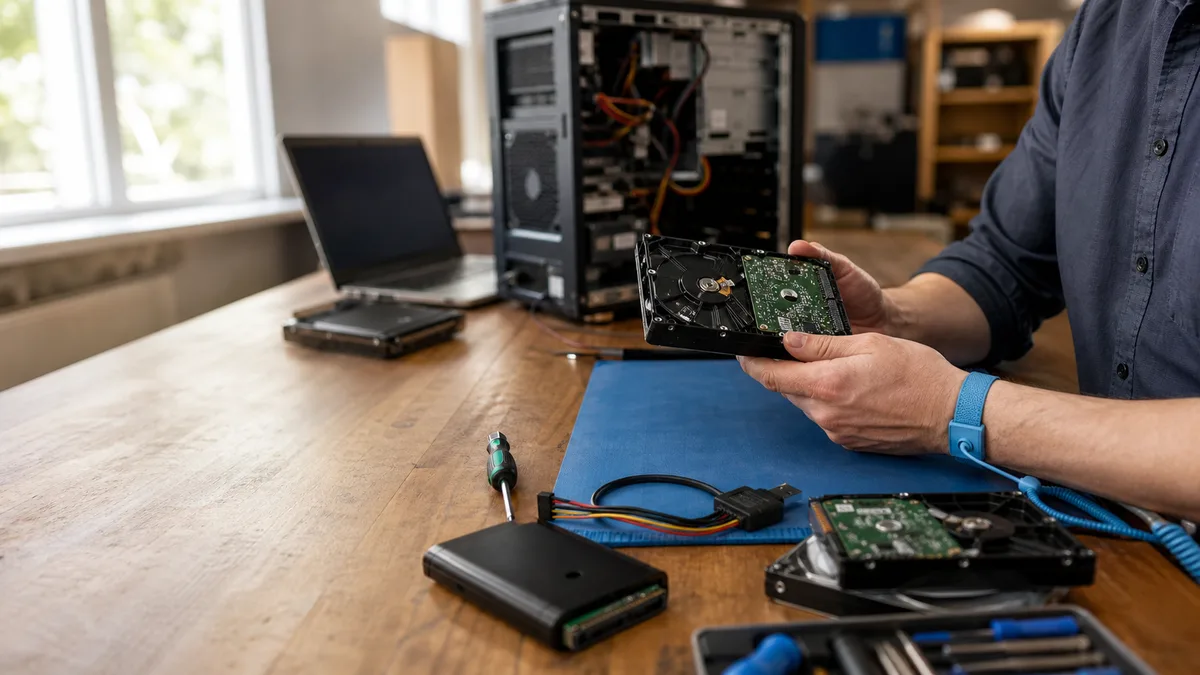
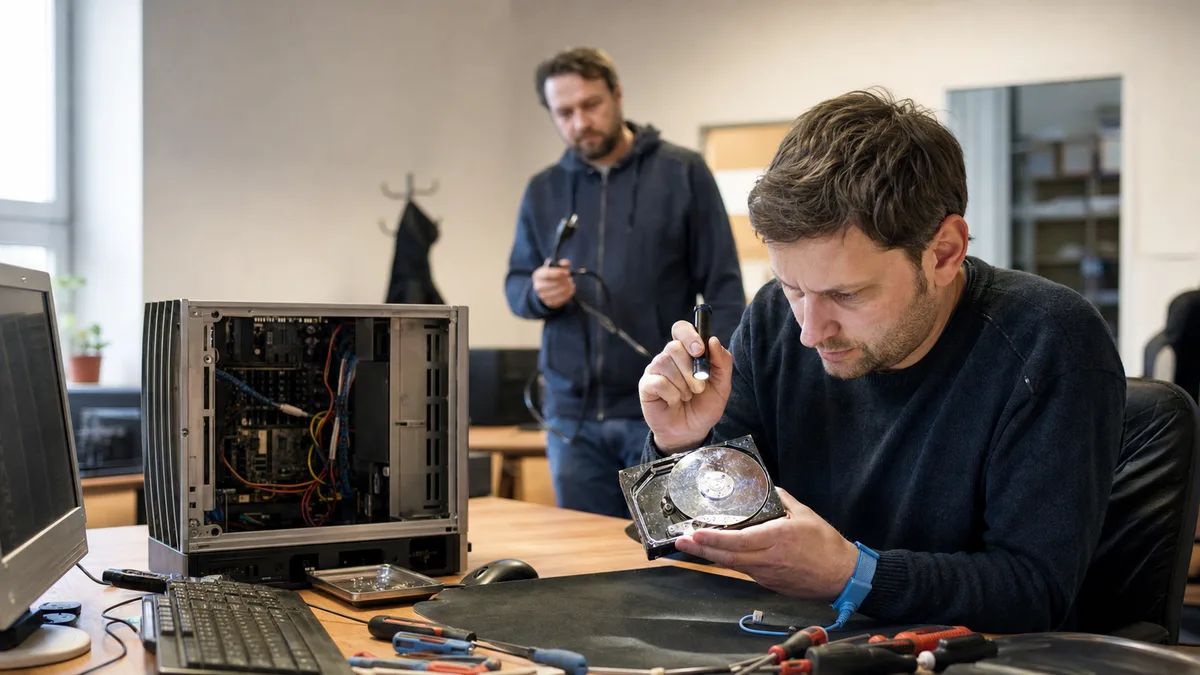
If the drive clicks, fails to spin correctly or has damaged heads, an ordinary computer repair shop should not open it. Opening a hard drive outside a dust-free environment practically guarantees its destruction: a single dust particle between a head and platter can be enough. Such cases require a specialist with the appropriate equipment and compatible donor parts. The same rules apply to a RAID array or NAS reporting a degraded state, with the additional need to determine the array parameters.
The price broadly depends on the type of work required:
- Software recovery from a readable drive: technically the simplest option, generally starting in the low thousands of Czech crowns.
- Laboratory work (head replacement, work in a dust-free enclosure and sourcing a donor): generally starts in the higher thousands and can be significantly more expensive depending on the fault.
- Capacity, BitLocker encryption, the condition of the heads and the number of read errors also increase the price—not merely the number of requested files.
A reputable laboratory performs diagnostics before starting any work and tells you the estimated price and realistic prospects in advance. It will not proceed without your approval.
How to recognise a reputable service
Before handing over the drive, ask specific questions:
- Will a sector-by-sector image be created before any recovery work begins?
- Will anything be written to the original drive during diagnostics?
- Will I receive a list or preview of the data found before the job is completed?
- Is there a charge for diagnostics, and what exactly does it include?
- Where will the recovered data be saved, and will the original drive be returned?
- What happens if laboratory recovery is required?
Automatically running CHKDSK, “regenerating sectors” or formatting the drive before creating an image is a warning sign. A promise of 100% recovery before diagnostics is also suspicious. The result always depends on the physical condition of the storage medium and whether the damaged areas contain parts of the required files.
What to do after recovering the data
Do not use a drive with confirmed bad sectors for accounting records, backups or normal operation. Even sector remapping cannot restore its original reliability. Replace it and restore the data only to verified storage.
For a standalone computer, a new SSD will usually make sense. For a NAS, choose drives designed for continuous operation, such as the WD Red Plus, Seagate IronWolf or Toshiba N300 ranges, and verify their compatibility with Synology or QNAP. Remember that RAID is not a backup. It primarily maintains availability when one drive fails; it does not protect against deletion, ransomware or damage to the entire device.
For future operation, set up regular backups according to the 3-2-1 rule. After every data recovery, verify not only that a backup exists, but—more importantly—that its files can actually be opened.
ITHOPE handles data recovery: HDD data recovery—instructions for delivering the drive and contact details for the laboratory.
Rather not deal with it yourself?
Book a diagnosis in Brno — you get the price up front and we start only once you agree.
Where to find us
We are a PC and laptop repair shop in Brno-Židenice: diagnostics and repairs of computers and laptops, data recovery from drives, and out-of-warranty Apple repairs (iPhone 12 and newer, MacBook, iPad).
Viniční 3587/216, 615 00 Brno-Židenice, Czech Republic Mon–Fri 10:00–16:00
Call +420 774 777 774 Computer repair and laptop service in Brno
We put the repair price in writing after diagnostics and carry on only once you agree.