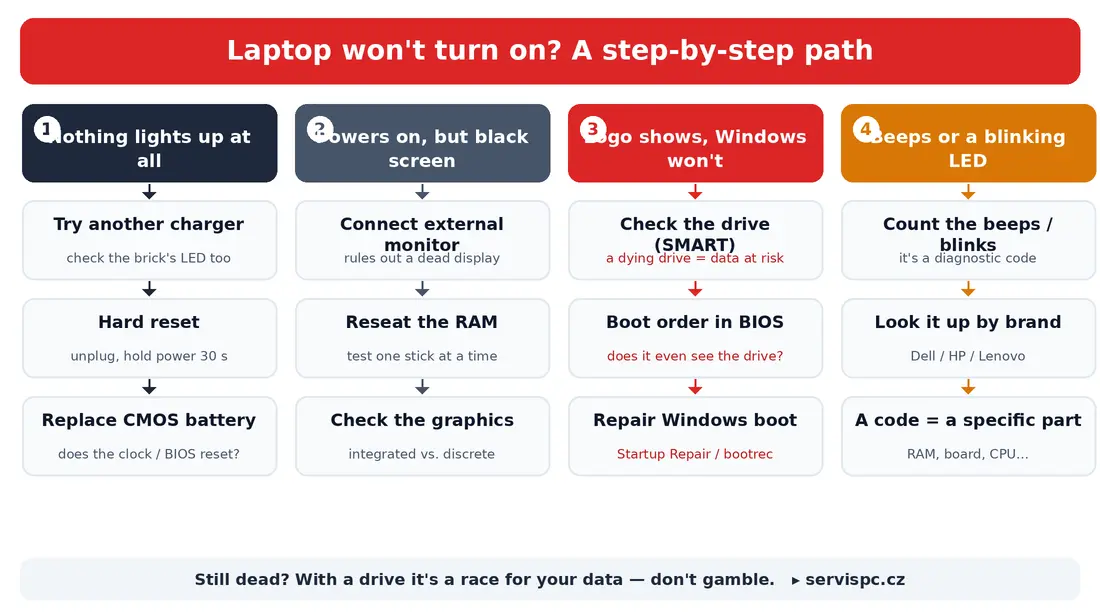
“My laptop won’t turn on and I’ve got everything on it.” We get this call almost every week, and the panic in the voice is always the same. Here’s the good news: most of the time, a laptop that “won’t turn on” is something trivial — a flat battery, a bad charger, latched-up electronics, a loose stick of RAM. You can usually fix it at home in five minutes, for free.
And then there’s the minority of cases where it genuinely matters: a dying drive. When that’s what you’re dealing with, stop experimenting and read carefully — because now it’s not the laptop on the line, it’s your photos and documents.
This guide walks you through the diagnosis the way we do it in the shop: by what the laptop does (or rather, doesn’t do). Find your symptom below and follow the steps.
Before you start: unplug everything you don’t need — USB drives, a second monitor, the dock, SD cards. More than once a “dead” laptop turned out to be a faulty flash drive or dock holding it hostage. And don’t worry, none of the steps below can break anything.
1. No reaction at all — no lights, no fan
You press the button and nothing. No light, no fan noise, just black. Nine times out of ten this is power, or stuck electronics.
- Check the charger and the outlet. Plug into a different, known-good outlet. Look for a light on the charger itself (on the brick, or near the USB-C connector). Inspect the whole cable — a nicked or kinked cable near the plug is a classic. The best test is to borrow another working charger with the right connector and wattage.
- Do a hard reset (drain the residual charge). This is the single most effective free trick, and it fixes a surprising number of cases. Unplug the charger, remove the battery if it’s the removable kind, then hold the power button for 15–30 seconds (some vendors say up to a full minute). That drains the capacitors and the leftover charge the electronics sometimes get “stuck” on. Only then plug the charger back in and try. iFixit describes the same procedure in its laptop-won’t-turn-on guide.
- Test the battery. If the battery is removable, try booting on the charger alone, with no battery. Most laptops will start that way — and if it does, you’ve found your culprit. On modern laptops with a sealed-in battery you can’t do this at home; leave it to a shop.
- The CMOS / RTC battery (the coin cell on the board). Watch out for a popular myth here. A dead coin cell (usually a CR2032, lasting roughly 3–5 years; Dell quotes 2–3) usually does not stop a laptop from powering on. What it does is reset the clock and BIOS settings after every shutdown, and the machine may pause at a “Press F1 to continue” prompt. On top of that, many newer laptops don’t have a coin cell at all and keep time from the main battery. So yes, it’s worth a mention — but it’s not the prime suspect for a completely dead machine.
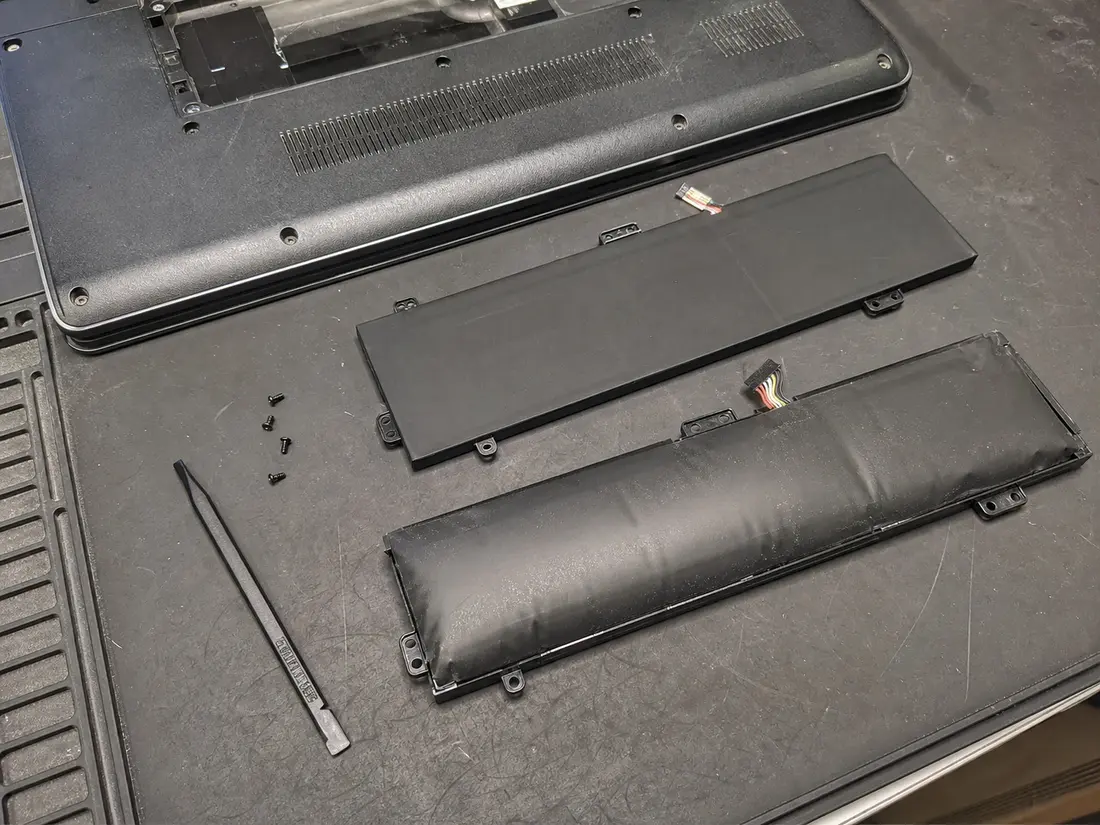
A swollen battery is a safety risk — don’t keep charging a laptop in this condition; have it replaced. (Component photos in this article are illustrative.)
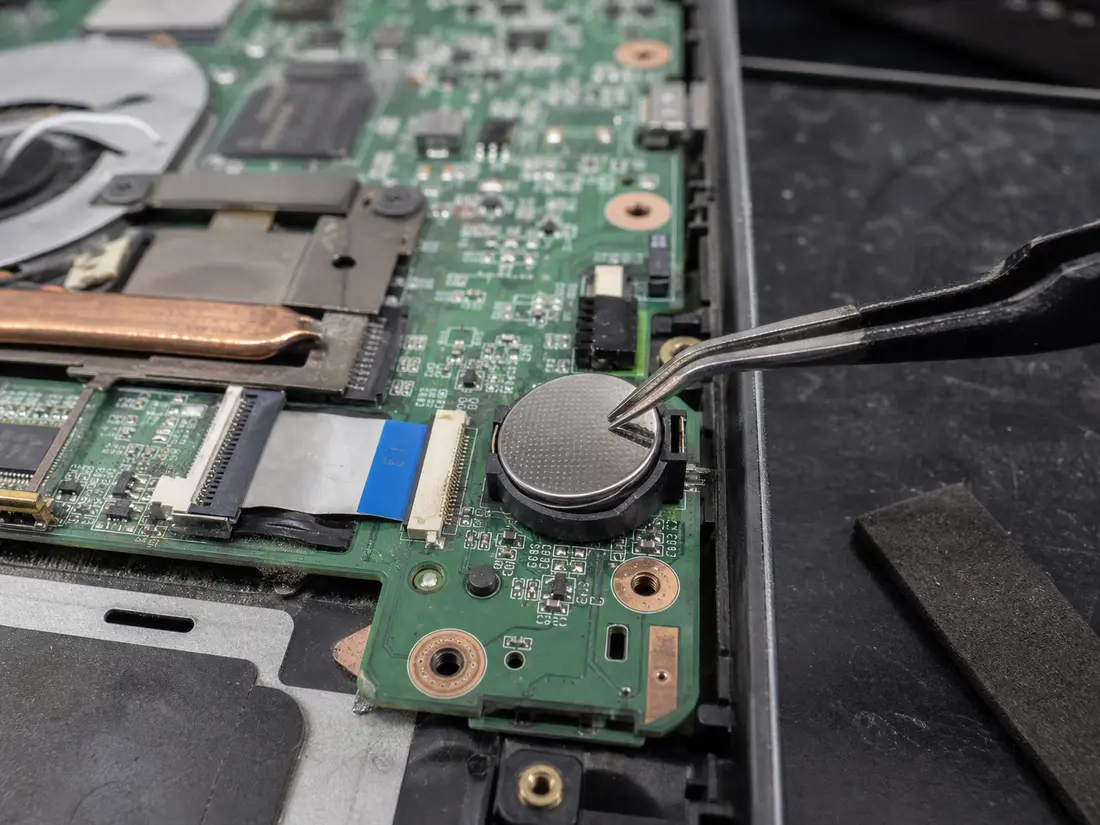
A CMOS/RTC battery usually doesn’t make a laptop completely dead, but it can reset the clock and BIOS settings.
If it shows no sign of life even after a hard reset and with a different charger, it’s time for the shop — usually it’s the power jack, the charging circuit, or the mainboard.
2. It powers on (lights, fan) but the screen stays black
This is a completely different situation from “nothing lights up.” The laptop clearly has power (you hear the fan, the lights are on), you just don’t see a picture. So the fault is “past the power stage” — either the display, or something that stops the picture right at startup (memory, graphics).
- Connect an external monitor (HDMI, USB-C or DisplayPort). This is the decisive test. Per Dell, an external monitor bypasses the built-in display and tells you where the problem is:
- You get a picture on the external monitor → the laptop, the board and the graphics are alive. The fault is the internal panel, its backlight, or the display cable (common after a drop, or years of opening the lid).
- The external monitor is black too → the problem is deeper (the computer never reaches a picture — memory, graphics, board).
- Try to wake the display. If Windows might be running but just not showing anything, press Win + Ctrl + Shift + B — it restarts the graphics driver, and the picture often comes back.
- Reseat the RAM. A loose or dirty memory stick is a classic cause of “fan spins, screen stays black.” Power the laptop off and unplug it, open the memory cover, take the stick out and click it firmly back in. If you have two sticks, test one at a time (and in different slots) — that isolates both a bad stick and a bad slot. The key is not to cause more damage with static: Crucial advises touching bare metal first (to discharge static) and holding the module by its edges, not the gold pins.
- Integrated vs discrete graphics. On gaming and workstation laptops, a dying discrete GPU can blank the screen. That one, though, is a workshop diagnosis — you won’t reliably isolate it at home.
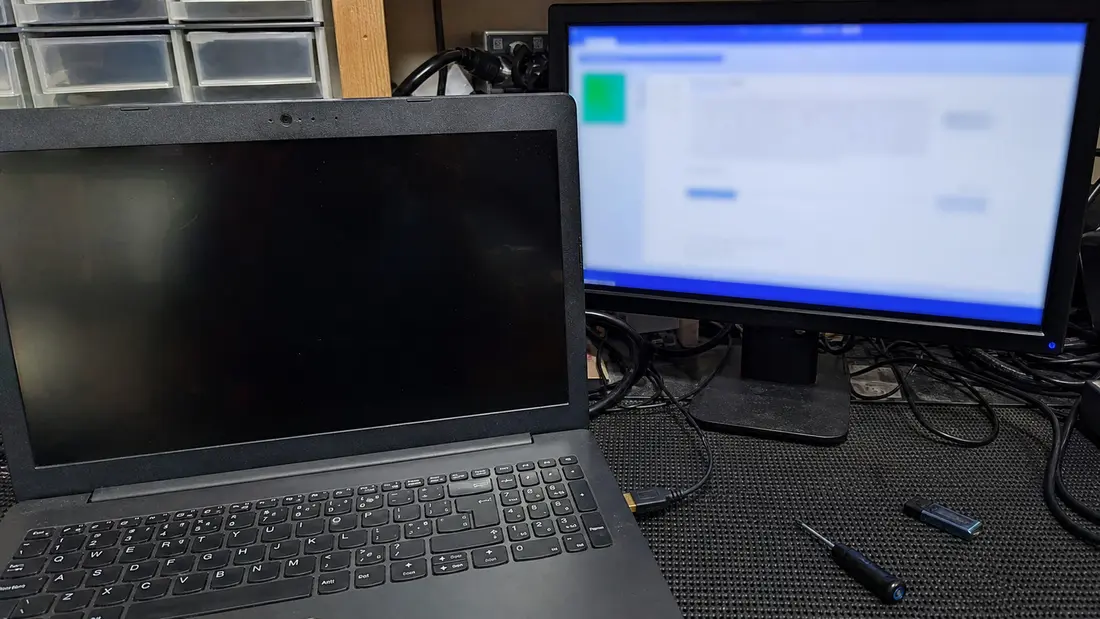
An external monitor test quickly separates a display fault from a deeper laptop problem.
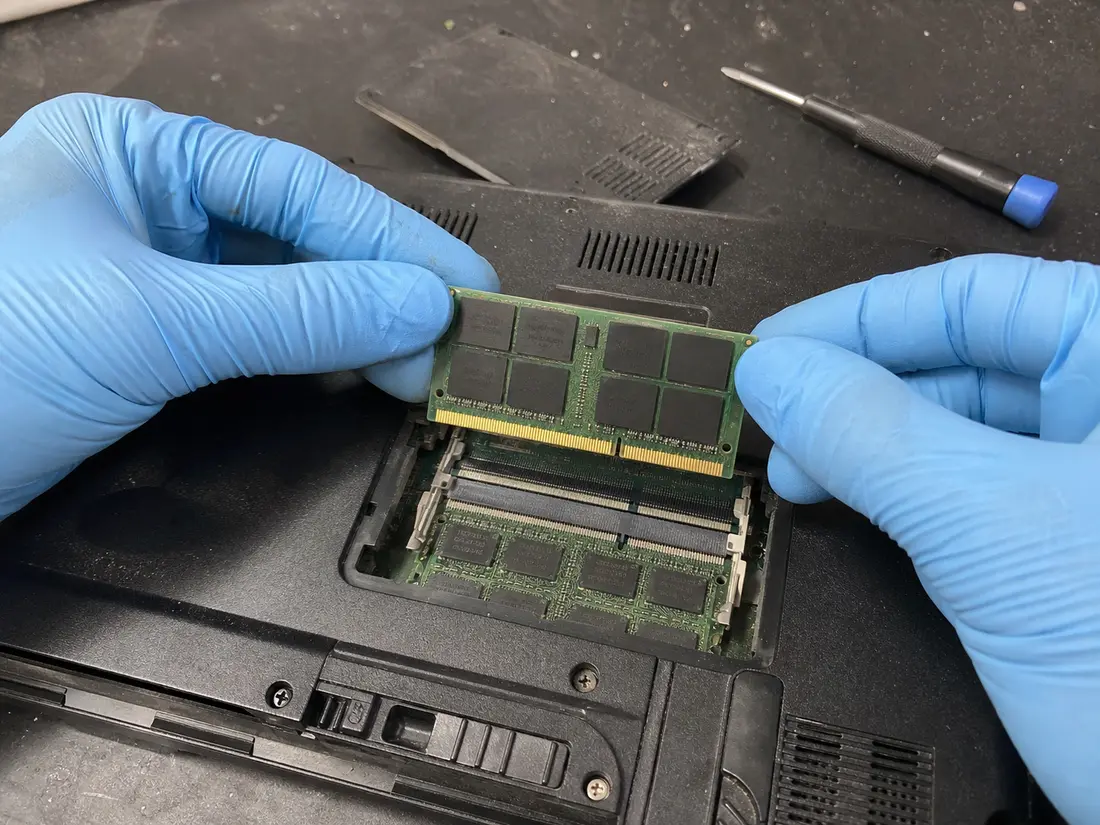
Hold memory by the edges, not the gold contacts. A loose RAM module can cause a black screen at startup.
3. The logo or BIOS shows, but Windows won’t load
If you see the maker’s logo or you can get into the BIOS, that’s good news: the hardware passed its basic test (POST) — power, memory, video and CPU are basically fine. The problem has moved to the boot process and the drive. Microsoft’s official guide to Windows startup issues splits this into phases (firmware → boot manager → OS loader → kernel), and the on-screen message tells you where it’s stuck.
- Read the error. Messages like “Bootmgr is missing,” “Boot Configuration Data (BCD) is missing or corrupted” or “Operating system missing” point to a damaged Windows bootloader — that’s usually fixable in software, with your files intact. “Inaccessible boot device,” or a freeze right after the logo, more often points to the drive.
- Check the boot order in the BIOS. Make sure the correct drive is first — and above all, whether the BIOS even sees it. If the drive is missing from the list, you have your suspect: storage (jump to step 4).
- Repair the Windows boot (this won’t wipe your files). Microsoft recommends trying Startup Repair first: boot from a Windows installation USB → Repair your computer → Troubleshoot → Advanced options → Startup Repair. If that doesn’t help, the command line and
BOOTREC /FIXMBR,/FIXBOOT,/ScanOSand/RebuildBcdare next. The step-by-step is in that Microsoft guide. Important: these tools fix software, not a dead drive. - And now the serious part — the drive. If the laptop freezes at startup, shows a SMART warning, makes odd noises (the classic clicking of a mechanical drive) or the system suddenly “isn’t there,” the storage may be dying. And here there’s one rule every tech will give you: stop trying over and over.
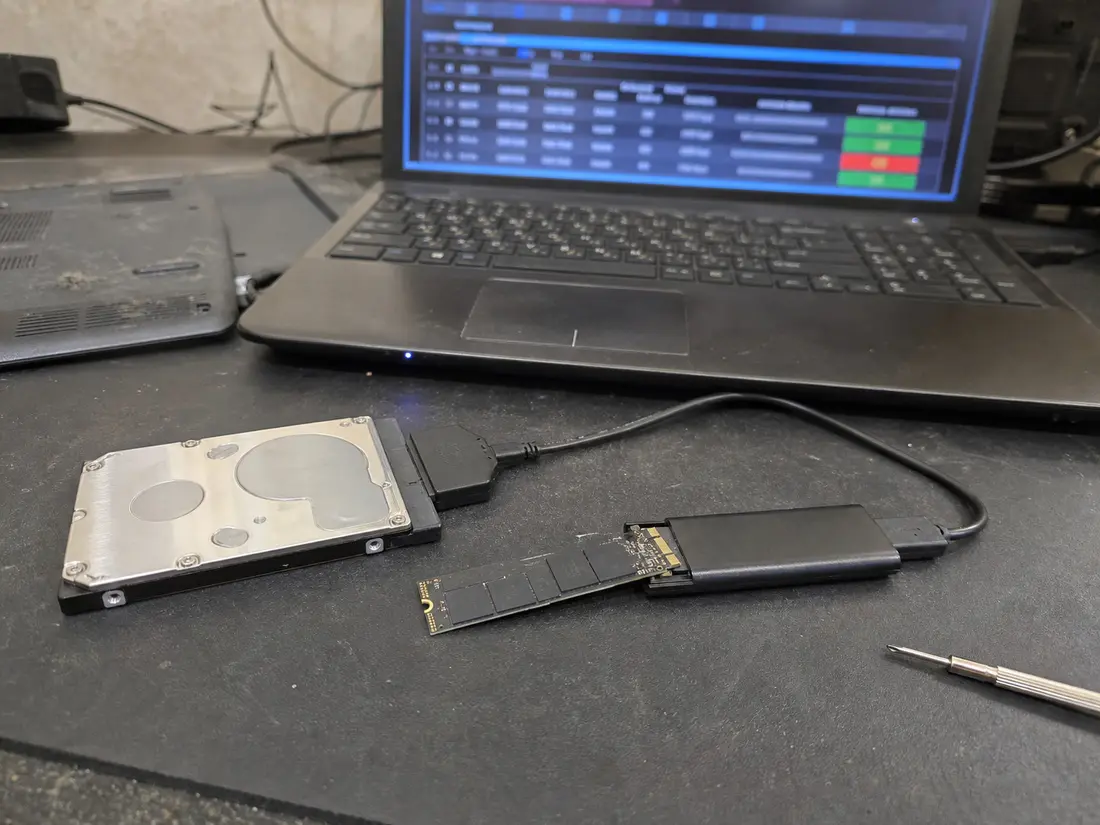
If the laptop reaches BIOS but Windows won’t boot, it’s time to check the drive and its SMART values.
⚠️ A dying drive is a race against your data. iFixit puts it bluntly: “A drive that kind of works may stop working entirely and forever if you restart the system.” Every extra power-on is a gamble. If there’s data on that drive you care about and the machine is behaving strangely, don’t gamble by rebooting it again and again — the sooner the drive is cloned (imaged bit by bit), the better the odds of recovering the data. Power down a clicking drive and leave it to professionals; home “repair” tools won’t fix a mechanical fault, and every attempt makes it worse.
4. The laptop beeps or a light blinks
A beep at power-on, or a blinking light (power, Caps Lock, battery) isn’t a malfunction — it’s a message. When the firmware can’t even reach a picture, it reports the fault by the number of beeps or the rhythm and colour of the blinks: “no memory detected,” “graphics fault,” “board problem.”
The catch is that the exact meaning varies by maker and model. There is no universal table, and anyone offering you one is guessing. Do this instead:
- Count the beeps, or note the rhythm and colour of the blinking (e.g. “2 amber, then 3 white”).
- Look up the code for your brand. Search for “<brand> <model> beep codes” or “LED diagnostic codes.” The official manufacturer pages:
- Dell: understanding beep codes on a Dell laptop — e.g. 2 beeps = no memory detected, 5 beeps = CMOS/RTC battery failure.
- HP: computer beeps or a light blinks during startup — long (red) blinks = the major category, short (white) = the detail.
- Lenovo / ThinkPad: PC diagnostics using beep codes — newer ThinkPads use “SmartBeep”: capture the beep with the Lenovo Support app.
- A code = a specific failed part (most often memory, the board or the CPU). That’s usually a job for the shop — but at least you’ll know where you stand.
What our own fleet showed (real data, not shop gossip)
Most guides online are written “from the desk.” We have something extra: we manage dozens of computers and servers over remote monitoring — and for this article we pulled read-only drive and battery health data from them (read-only meaning nothing was changed). Anonymously, as statistics only. Here’s what came out:
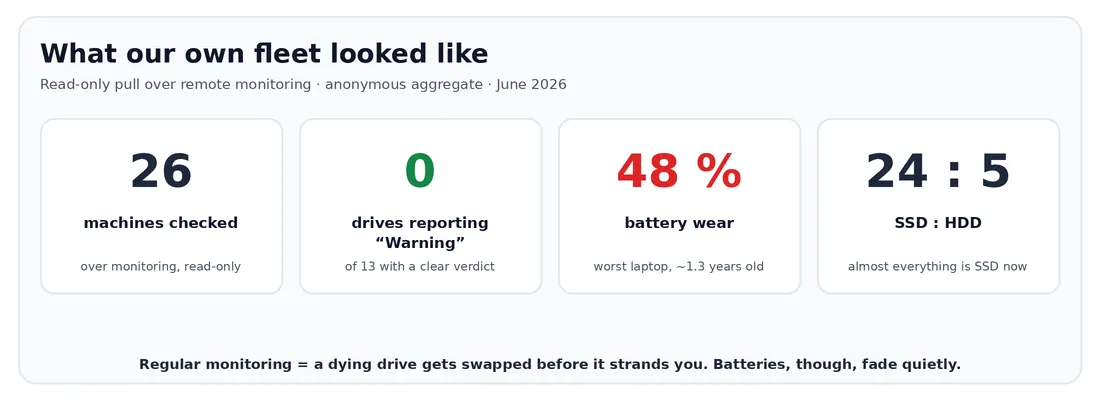
- Monitored drives are healthy almost without exception. Of the machines where the drive returns a clear health verdict, every single one reported Healthy — not one “Warning.” That’s not luck: it’s exactly the value of regular monitoring. A dying drive gets replaced before it strands anyone, so “won’t turn on” almost never arrives as a surprise.
- What quietly ages even on a well-kept machine isn’t the drive — it’s the battery. One laptop barely a year and a half old already had its real battery capacity down to about half (≈48% wear). That’s the textbook “runs on the charger, dead on battery.”
- Almost everything is SSD now (24 SSD to 5 HDD in our sample). Spinning drives survive mainly as data and backup disks. That’s a good thing — an SSD has nothing to click and boots better.
To be honest about it: this is a managed sample, so those rosy drive numbers don’t mean drives never die. They do — we just step in earlier. That drives are a wear item is clear from hard data too: Backblaze tracks nearly 300,000 drives and reports an annualized failure rate of 1.57%, which rises noticeably after the fifth year of service. (These are data-centre drives, not laptop drives, so take the trend rather than the exact figure.) The takeaway is the same: back up before the drive starts misbehaving.
What you can do at home, and when to call a shop
At home, calmly, you can: try another charger, do a hard reset, boot without the battery, connect an external monitor, reseat the RAM, and run Startup Repair. That covers most “won’t turn on” cases.
Call a professional when:
- the laptop shows no sign of life even after a hard reset and with a different charger,
- the screen is black on an external monitor too,
- it beeps or blinks a code that points to the board or the CPU,
- the drive clicks, shows a SMART warning or behaves strangely — and there’s data on it you don’t want to lose (don’t wait, and don’t keep trying).
At our Brno workshop we diagnose laptops every day, replace power jacks, batteries and drives, and recover data from the ones that are on their way out. If you’re stuck — or it’s about the data and you don’t want to risk it — take a look at our laptop repair in Brno, or just call and we’ll talk it through.
And if there’s one thing to take away from this whole article: on a healthy laptop, “won’t turn on” is almost always something you can fix at home. On the one with a dying drive, it’s a race against time — and your data.
Rather not deal with it yourself?
Book a diagnosis in Brno — you get the price up front and we start only once you agree.
Where to find us
We are a PC and laptop repair shop in Brno-Židenice: diagnostics and repairs of computers and laptops, data recovery from drives, and out-of-warranty Apple repairs (iPhone 12 and newer, MacBook, iPad).
Viniční 3587/216, 615 00 Brno-Židenice, Czech Republic Mon–Fri 10:00–16:00
Call +420 774 777 774 Computer repair and laptop service in Brno
We put the repair price in writing after diagnostics and carry on only once you agree.


