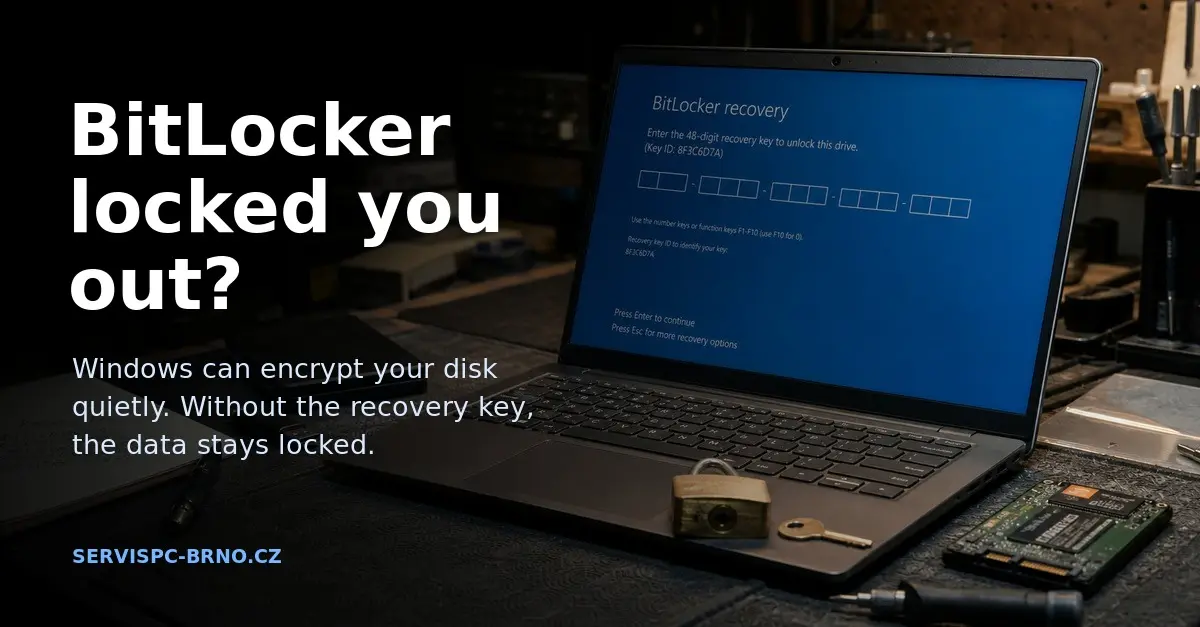
One of the most unpleasant data-recovery calls goes like this: “My laptop won’t start, some blue screen came up and it wants a long key I don’t have.” At that point I almost always know what happened — the disk is encrypted with BitLocker and after some change the computer is asking for a 48-digit recovery key the owner has never seen.
And here’s the key part: without that key, nobody gets the data back. Not us, not the drive maker, not Microsoft. That isn’t scaremongering — it’s the entire point of encryption.
The worst part is that the vast majority of people have no idea their disk is encrypted. Nobody turned it on. It happened by itself. Let’s walk through how it works, why it happens, how it can lock you out — and what to do about it. And because we don’t like writing “from the armchair”, we ran the whole scenario live on a test machine in the workshop.
About the screenshots: they’re from an English install of Windows 11 (version 24H2) on our test machine. The recovery key in the screenshots and examples is from our lab computer — it’s worthless to anyone else; we’re showing it on purpose so you can see exactly what such a key looks like.
What BitLocker and “Device Encryption” are
BitLocker is the built-in full-disk encryption in Windows. It doesn’t encrypt individual files but the whole volume — if someone pulls the disk out of a powered-off laptop and plugs it into another computer, all they see is unreadable noise. That’s good: it protects your data if the device is lost or stolen.
There’s a distinction that confuses a lot of people:
- BitLocker (with full management — drive selection, policies, key management) is only in Windows 11 Pro, Enterprise and Education.
- “Device Encryption” is a simplified, automatically enabled variant of the same thing and is in Windows 11 Home too. The user doesn’t configure it — it just runs.
Under the hood it’s the same engine. And that automatic variant is exactly why people are encrypted today without knowing it. (Microsoft documentation)
How it holds together (and why it matters)
You only need to remember a chain of three keys:
TPM → unlocks VMK → encrypts FVEK → encrypts DATA on disk
- FVEK is the key that actually encrypts the data on the disk.
- VMK is the “master” key that protects the FVEK.
- The TPM (a security chip on the board) keeps the VMK “sealed” and releases it only when the system measurements at startup match (that the firmware, Secure Boot, bootloader… haven’t changed).
The default cipher is XTS-AES 128-bit — modern and, in practice, unbreakable by brute force (more on that later). Just remember that the key is everything. Lose it, and the data is gone with it.
Silent encryption: why it turns itself on (24H2 and HP)
This is the core of the problem. Windows 11 version 24H2 (and laptops from HP and other makers) enable Device Encryption automatically after a clean install or reset, as soon as you sign in with a Microsoft account.
In 24H2 Microsoft also removed the earlier hardware prerequisites (DMA, HSTI/Modern Standby), so now practically every new computer qualifies: “Starting in Windows 11, version 24H2, the prerequisites of DMA and HSTI/Modern Standby are removed. As a result, more devices are eligible for automatic … device encryption.” (Microsoft Learn)
And here’s the trap — straight for the repair shop and for you:
- After a clean install or “Reset this PC” the disk gets encrypted. A laptop that was unencrypted before the repair is suddenly encrypted after a reinstall. (Tom’s Hardware)
- HP even documents it itself: BitLocker turns on automatically and “The recovery key is uploaded to the Microsoft account … automatically” — with the warning “It is vital that you back up your BitLocker recovery key.” (HP support)
On our test machine you could see it exactly. manage-bde -status showed the disk as fully encrypted (100%), yet with protection off — that’s the in-between state where the system is signed in with a local account and encryption is “waiting”:
Volume C: [Windows]
    Conversion Status:    Used Space Only Encrypted
    Percentage Encrypted: 100.0%
    Encryption Method:    XTS-AES 128
    Protection Status:    Protection Off       ← encrypted, but protection not "armed" yet
    Key Protectors:       None Found
Microsoft describes it the same way: as long as you only sign in with a local account, “it remains unprotected even though the data is encrypted”. The moment you sign in with a Microsoft account, protection is “armed”, a recovery key is generated and saved to your account — and you don’t know about it.
What BitLocker actually runs (under the hood)
Most articles skip this, but it’s useful — when you know what’s running in the system, you understand its behavior better. We “felt out” the individual components on the live system:
- The
BDESVCservice (BitLocker Drive Encryption Service) — manages the whole of BitLocker, runs insidesvchost.exe. - The kernel driver
fvevol.sys(Full Volume Encryption driver) — this is the workhorse: it sits in the storage stack below the file system and encrypts/decrypts every single write and read on the fly. That’s why data on the disk is never written in the clear and you don’t notice a thing. It starts right at boot. tpm.sys— the driver for the TPM security chip that holds the key.
From a real audit of the test machine:
SVC  BDESVC   = Running   (BitLocker Drive Encryption Service)
DRV  fvevol   = RUNNING   StartMode: Boot   C:\WINDOWS\system32\DRIVERS\fvevol.sys
DRV  tpm      = RUNNING   C:\WINDOWS\system32\drivers\tpm.sys
WMI  Win32_EncryptableVolume:  ProtectionStatus=1(On)  EncryptionMethod=6(XTS-AES128)
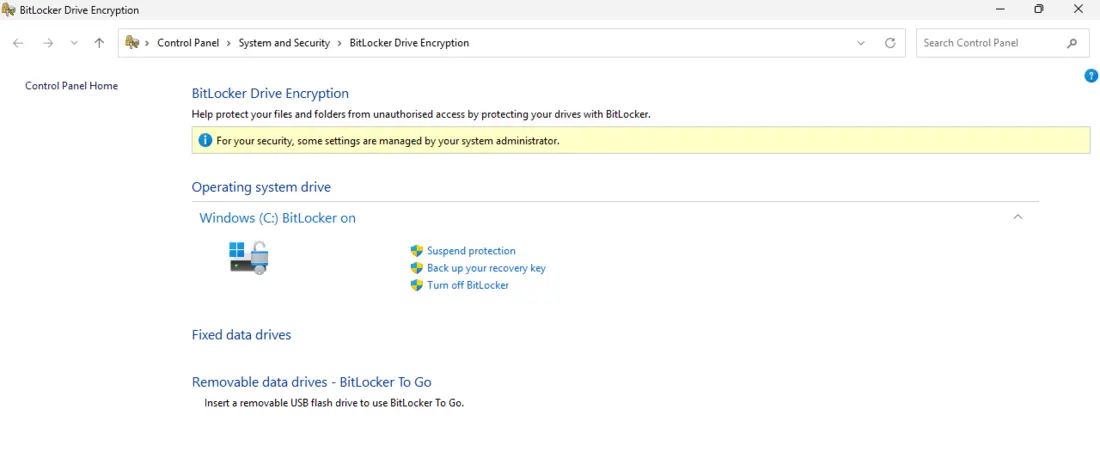
You can check the status any time too — either in the BitLocker Drive Encryption app in Control Panel, or from the command line with manage-bde -status.
The recovery key: what it looks like and where to find it
When protection is armed, Windows generates a recovery key — your last line of rescue. It looks like this: 48 digits in 8 groups of six (digits only, no letters). This is a real key from our lab computer:
Key ID: {524E3754-49E7-4020-A2FC-EDD55FA41AB5}
Key:    160743-618486-642796-137687-058773-205568-527890-414128
Every key has its own ID (the long string in braces). Careful — the ID is not the key; it’s just a “label” used to tell which of several keys belongs to this disk. The recovery screen shows you only that ID, not the key.
Where it’s stored (and therefore where to look):
- Your Microsoft account — the most common for home computers. Find it at account.microsoft.com/devices/recoverykey (shortcut
aka.ms/myrecoverykey). - Work/school account (Microsoft Entra / Azure AD) —
aka.ms/aadrecoverykey. - USB flash drive / text file.
- Printed on paper.
You have to look the key up from another device (a phone, another PC) — the locked computer is waiting on the recovery screen and you can’t do anything else on it.
How an ordinary update locks you out
Now the most common pain from practice. In its normal mode (TPM only, no PIN) BitLocker ties the key to the measurement of the computer’s startup — specifically to registers PCR 7 and PCR 11 (the state of Secure Boot and the bootloader). When that measurement changes, the TPM won’t release the key and you drop into the recovery screen.
And what causes such a change? Completely ordinary things:
- a BIOS / UEFI update or a TPM firmware update,
- some Windows updates that touch Secure Boot,
- changing the boot order, moving the disk to another computer.
That this isn’t just theory is shown by documented mass cases from the last two years:
- July 2024 — updates KB5040442 / KB5040427 sent a lot of computers (Windows 10, 11 22H2/23H2) into BitLocker recovery after a restart. Microsoft confirmed and fixed it. (BleepingComputer)
- October 2025 — update KB5066835 triggered recovery mainly on Intel machines, and on many of them the recovery environment wouldn’t accept a USB keyboard — people had the key but couldn’t type it. Microsoft shipped an emergency fix. (Tom’s Hardware)
- April 2026 — update KB5083769 triggered a one-time recovery prompt due to a Secure Boot certificate change (a change in PCR7 measurement). (BleepingComputer)
See the pattern? “Four times in four years.” This just keeps happening.
On the test machine we triggered the lockout on purpose (manage-bde -forcerecovery) and after the restart exactly this screen came up. Notice the Key ID (524E3754…) — it’s the same ID as the key we generated above. You use precisely this ID to find your 48-digit key in your Microsoft account:
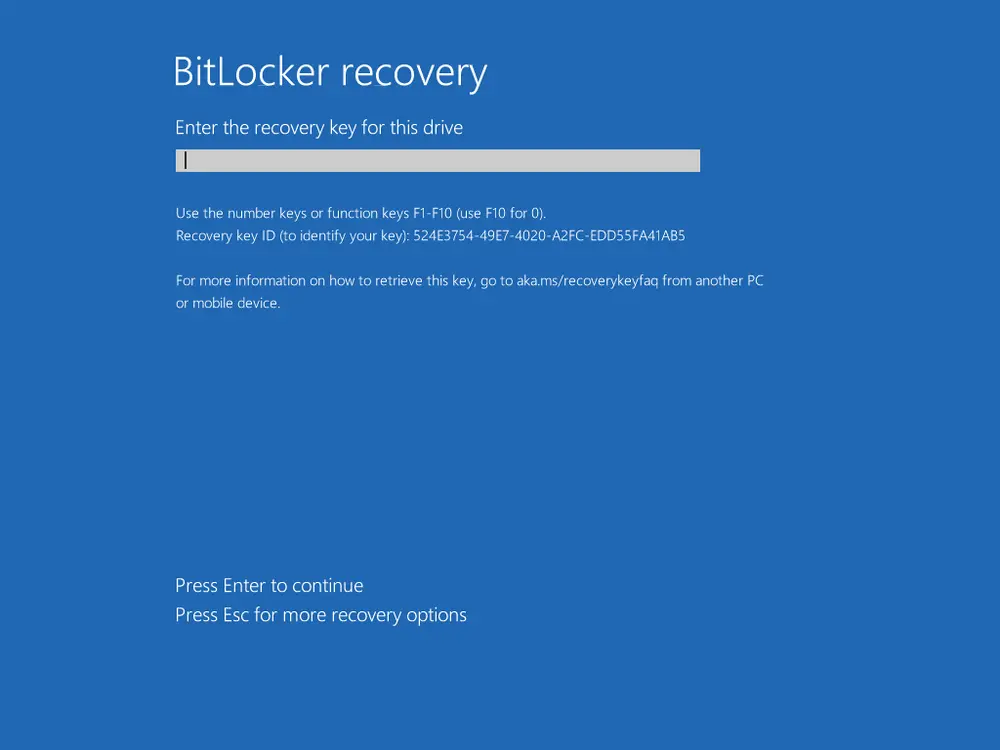
One thing worth knowing: during a normal start this screen never appears — the TPM unlocks the disk automatically and you go straight to sign-in. That’s why BitLocker is “invisible” and why people don’t know about it. It only asks for the key when something changes — and that tends to be the worst possible moment.
Pentest: can BitLocker be bypassed?
Short answer: the cipher itself, no, but under certain conditions the key can be stolen. This matters for understanding what BitLocker protects you against and what it doesn’t.
- Brute-forcing AES is pointless. Trying every key combination is physically impossible, no matter how much computing power you have. An encrypted disk without the key = random noise. Full stop.
- Attacks therefore target getting the key on a computer the attacker has physical access to, and almost all of them exploit the fact that in TPM-only mode (no PIN) the computer releases the key by itself at startup:
- “bitpixie” (CVE-2023-21563) — a software attack that pulls the key out of memory via a spoofed older bootloader. No screwdriver, a few minutes. Demonstrated live at the 38C3 conference (December 2024, Thomas Lambertz) on fully updated Windows 11. (neodyme.io)
- TPM bus sniffing — on computers with a separate (discrete) TPM chip the key travels across the board in unencrypted form and can be sniffed. Researcher “stacksmashing” (Thomas Roth) demonstrated this in 2024 on a ThinkPad in ~43 seconds using a Raspberry Pi Pico costing a few dollars. (Tom’s Hardware)
- Cold boot and DMA attacks (Thunderbolt/PCIe) — reading the key from RAM while it’s still there.
The common denominator: physical access + TPM only, no PIN. For an ordinary home user it isn’t a daily threat — but for a company laptop with sensitive data it definitely is. The defense is simple: add a startup PIN (TPM+PIN). Then the computer won’t release the key until you enter the PIN, and most of these attacks fall apart.
Data recovery: no key = data gone
This is the part we deal with most often in the workshop, and I want to be completely honest, because it’s about your data and money.
When you have an encrypted disk, the motherboard fails or the system gets damaged — and you don’t have the recovery key — the data is irrecoverably gone. Microsoft says it bluntly: “Microsoft Support doesn’t have the ability to retrieve, provide, or recreate a lost BitLocker recovery key.” (Microsoft)
What a data-recovery lab can and can’t do:
- Can: repair physically damaged media, pull a (still encrypted) image, recover unencrypted parts, help track down where the recovery key was saved.
- Can’t: decrypt the data without the key. Even if we read the memory chips directly, we get an encrypted blob that’s useless without the key. Data recovery is restoring the medium, not breaking the cipher.
And a warning: services promising to “bypass BitLocker” without the key are, in the vast majority of cases, a scam. The only way back in is through the key (manage-bde -unlock, or repair-bde for a damaged volume — but even that needs a valid key).
What to do so it doesn’t catch you out
Good news: protecting yourself against this scenario is free and takes five minutes.
- Find out whether you’re encrypted.
Settings → Privacy & security → Device encryption, or from the command line (as admin)manage-bde -status. If you see “Protection On”, you’re encrypted. - Back up your recovery key — to more than one place. Verify it’s in your Microsoft account, and additionally print it or save it to a USB stick you keep away from the computer. With a local account the key isn’t stored anywhere automatically — you have to export it yourself.
- Before a BIOS/firmware update, suspend BitLocker (Suspend → update → restart). It saves you the recovery prompt. Command:
Suspend-BitLocker -MountPoint "C:", after the updateResume-BitLocker. - On a company laptop, enable a startup PIN (TPM+PIN) — it makes the attacks above much harder.
- Encryption ≠ backup. BitLocker protects data from prying eyes, but it doesn’t replace a backup. When the disk dies, encrypted data is gone just like unencrypted data — only nobody can read it on top of that. Stick to the 3-2-1 rule.
When things have already gone wrong (and why to call sooner rather than later)
A few real situations people come to us with:
- “After an update it wants a key and I don’t have one.” — Sometimes we find the key in a Microsoft account the owner forgot about, or in a company’s domain. There’s a chance — as long as you don’t waste it on resets that wipe data.
- “The laptop died / won’t start and it has BitLocker on it.” — We can read the disk even from a non-booting machine, but decrypting it is only possible with the key. That’s why the first question is always: do you have that key somewhere?
- “I reinstalled Windows and now I can’t get to the old data on the disk.” — The classic 24H2 trap: the new install encrypted the disk again, with a different key.
When a computer behaves oddly, won’t start, or suddenly asks for a 48-digit key, don’t dive into experiments and resets — you often finish off the last chance of recovery that way. Better to write or call.
In our Brno workshop we handle data recovery from encrypted and damaged disks, we help track down the recovery key, and we set BitLocker up so it protects you rather than ambushes you. And if you just want advice on whether and how this affects you, get in touch — a few minutes on the phone saves a lot of nerves.
Rather not deal with it yourself?
Book a diagnosis in Brno — you get the price up front and we start only once you agree.
Where to find us
We are a PC and laptop repair shop in Brno-Židenice: diagnostics and repairs of computers and laptops, data recovery from drives, and out-of-warranty Apple repairs (iPhone 12 and newer, MacBook, iPad).
Viniční 3587/216, 615 00 Brno-Židenice, Czech Republic Mon–Fri 10:00–16:00
Call +420 774 777 774 Computer repair and laptop service in Brno
We put the repair price in writing after diagnostics and carry on only once you agree.