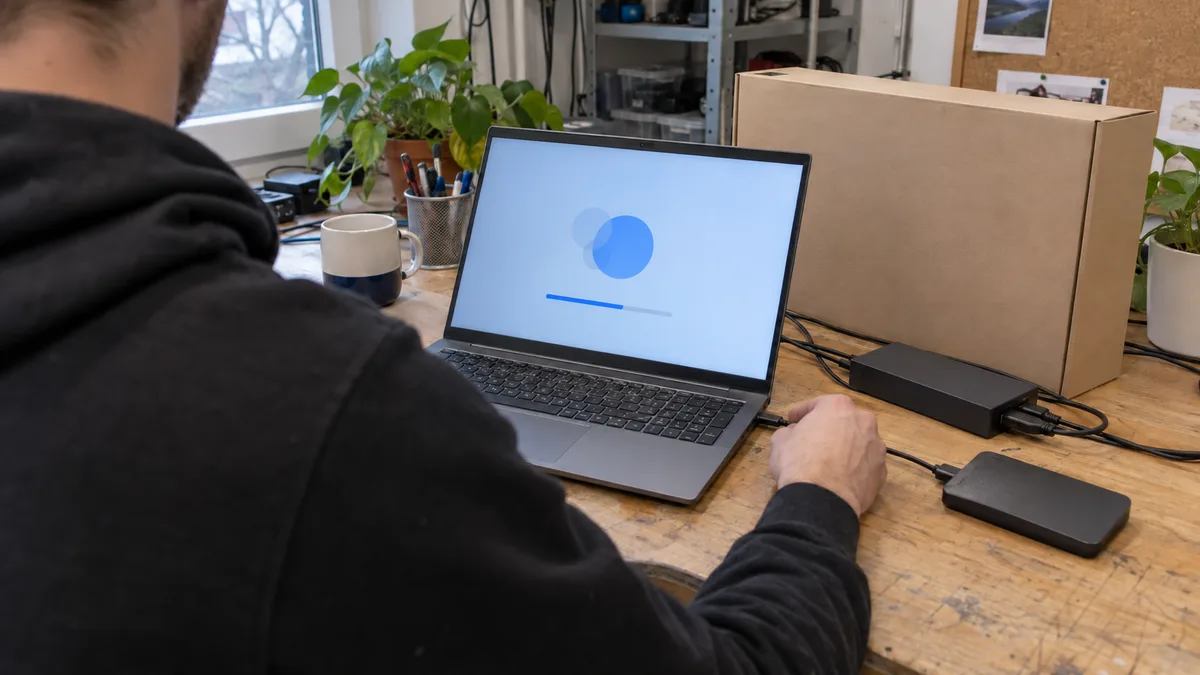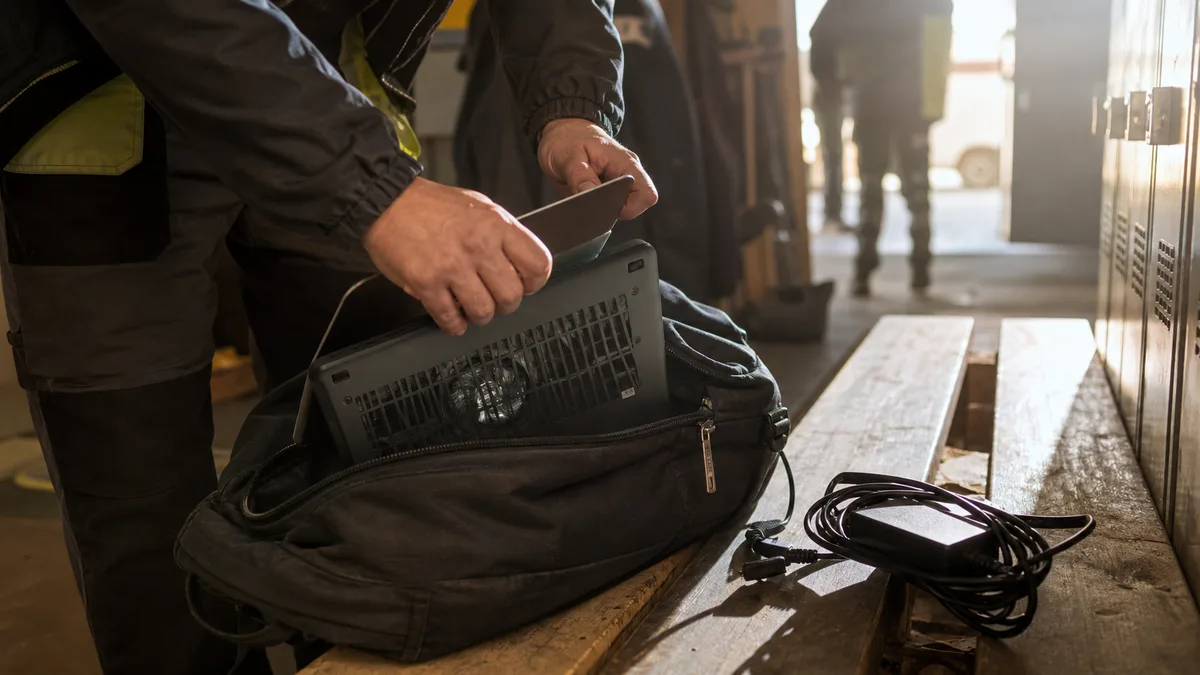
You close the lid, the screen goes dark, and the laptop goes into your backpack. In the evening you pull it out and the underside is burning hot, the fan is running flat out and the battery has dropped from eighty per cent to twenty. You didn’t turn anything on. The laptop woke up on its own — and spent several hours running inside a closed bag with no access to air.
It isn’t a faulty unit and it isn’t a virus. It’s a consequence of how Windows “sleeps” these days: the system is allowed to wake itself for updates, syncing and maintenance, and a mouse or a network card can wake it too. The good news is that you can find out exactly what’s waking your laptop and switch the individual wake sources off.
The short answer: Open Command Prompt as administrator and run
powercfg /lastwake— it prints what woke the laptop the last time.powercfg /waketimersshows scheduled wake-ups andpowercfg /devicequery wake_armedlists every device allowed to wake the system. Based on what you find, disable wake timers, a device’s permission to wake the computer, or the task in Task Scheduler. For carrying the machine in a bag, hibernation instead of sleep is the safest bet. And if you keep pulling a hot laptop out of your bag, stop putting it off — overheating in an enclosed space shortens the life of the battery and of the whole machine.
Why your laptop isn’t asleep even though you closed the lid
Older laptops used classic sleep, labelled S3: the system was saved to memory, almost everything switched off and the machine lay dead until you lifted the lid. Newer Windows 11 machines mostly run in Modern Standby (S0). It’s designed to work like a phone’s sleep — the computer looks switched off, but in the background it’s allowed to wake briefly: download mail, finish installing an update, run maintenance.
On a desk with the charger plugged in, that’s usually fine. The trouble starts in a backpack: a woken laptop has nowhere to dump its heat, the vents are covered, and a short maintenance run can stretch into hours at full tilt.
To find out which mode your machine uses, run powercfg /a. If the list of supported states includes an entry marked S0, you have Modern Standby; if S3, classic sleep. With Modern Standby, count on the fact that a “sleeping” system is never entirely idle.
The most common wake sources:
| What wakes the laptop | How it shows up |
|---|---|
| Windows Update and system maintenance | Wake-ups at night or shortly after you close the lid, fan running for a long time |
| Wake timers | Wake-ups at a regular time, powercfg /waketimers lists them |
| Scheduled tasks allowed to wake the machine | Manufacturer utilities, backups, third-party updaters |
| USB mouse, keyboard, receiver | Wake-up the moment the bag moves |
| Network adapter, Wake-on-LAN | Wake-up after network activity, typically in a dock or on a cable |
| Bluetooth devices | A paired mouse or headphones check in and the system gets up |
Find the culprit: three commands that tell you exactly
There’s no need to guess. Right-click Start, choose Terminal (Admin) and run these one by one:
powercfg /lastwake— what woke the system the last time. You’ll see either a specific device (a network adapter or a USB device, say) or a timer with the name of the task.powercfg /waketimers— which scheduled wake-ups currently exist and which task created them. Windows maintenance or some program’s updater often shows up here.powercfg /devicequery wake_armed— a list of devices allowed to wake the computer. Typically the mouse, keyboard, touchpad and network adapters.
Photograph or copy the output. You’ll use it to switch off the right thing, and it will come in handy if the problem persists and the machine goes in for service.
How to disable wake sources step by step
Don’t switch everything off at once. Disable what the commands above pointed to, then watch for a day or two to see whether things improved.
1. Wake timers
Open Control Panel → Power Options → Change plan settings → Change advanced power settings. Under Sleep find Allow wake timers and set it to Disable (definitely on battery, on mains as you see fit). On some Modern Standby machines this menu is stripped down — in that case concentrate on steps 2 and 3.
2. Devices allowed to wake the machine
Open Device Manager (right-click Start). For each device from the wake_armed list — typically the mouse under Mice and other pointing devices and the network card under Network adapters — open Properties, the Power Management tab, and clear the Allow this device to wake the computer checkbox.
For the network adapter there’s a middle ground: leave Only allow a magic packet to wake the computer ticked — waking over the network (Wake-on-LAN) then only works on a deliberate command, not on ordinary network traffic. If you don’t use Wake-on-LAN you can switch both off; on a company laptop, though, check with your administrator first in case updates are installed through it overnight.
Feel free to leave the keyboard’s permission to wake the machine on — otherwise the only way to wake the laptop on your desk is the power button.
3. Scheduled tasks
If powercfg /waketimers pointed to a specific task, open Task Scheduler, find the task, open its Properties and on the Conditions tab clear the option to wake the computer to run the task. Best not to touch the Windows system maintenance tasks — give them room instead: every now and then leave the laptop on and plugged in for an evening so updates and maintenance can finish on your desk rather than in your bag.
4. Windows Update and active hours
In Settings → Windows Update → Advanced options check your Active hours — outside them the system schedules restarts and maintenance. When big updates are pending, install them manually while the machine is on your desk. A detailed guide to everything Windows 11 does its own way and how to rein it in is in our article Windows 11: how to switch off the annoying features.
For travel, hibernation is the safest bet
Even after you’ve tuned the wake sources, one thing holds: sleep is standby, not shutdown. If you carry your laptop in a backpack every day, get into the habit of using hibernation. It saves all your work in progress to disk and switches the machine off completely — there’s nothing to wake it, the battery holds steady, and when you switch it back on you carry on where you left off. Opening up takes a few seconds longer than waking from sleep; in a bag, nothing can go wrong.
Windows 11 often doesn’t show hibernation in the shutdown menu. Here’s how to enable it:
- In the terminal, run
powercfg /hibernate on. - Open Control Panel → Power Options → Choose what the power buttons do.
- Click Change settings that are currently unavailable.
- Tick Hibernate and click Save changes.
From then on, Start → Shut down includes a Hibernate entry too. In the same place you can set closing the lid to hibernate straight away — for a machine that travels in a bag every day, that’s the most convenient safeguard of all. Hibernation is also related to “fast startup”, which Windows uses when shutting down; we cover how it works and when to turn it off in our article Windows 11 and a faster start.
A hot laptop out of the bag isn’t just an annoyance
A woken laptop in a backpack runs in conditions it was never built for: the fans suck at the lining fabric, the warm air has nowhere to go, and the temperature climbs markedly faster than it would on a desk. A one-off is usually handled by the machine itself — it throttles, or shuts down hard. Repeated, though, it’s a killer: a lithium battery ages faster with every overheating episode, and the drive and solder joints suffer too. We describe what overheating looks like and what to do about it in our article laptops and desktop PCs overheating and shutting down.
Two things love to team up here: the laptop wakes up in the bag and at the same time its cooling is clogged, so it heats up much sooner. If the fan is roaring even during ordinary work at your desk, deal with both — the wake sources by following this guide, and cleaning the dust out of your laptop at a repair shop. And if the battery has visibly lost stamina after these hot-bag episodes, have a look at the article laptop won’t charge or won’t hold a battery — you’ll learn how to measure the state of your battery with a powercfg /batteryreport report.
When the symptoms do not say what the cause is, the next step is measurement — fault diagnostics in Brno, not blind part swapping.
When the laptop keeps waking up — or you’d rather not deal with it
Sometimes the culprit slips away: powercfg /lastwake shows nothing but a generic “Unknown”, the machine is woken by a manufacturer’s service tool that reinstates itself after every update, or the power menu on a Modern Standby machine is so stripped down that there’s nothing left to switch off. And sometimes you simply don’t have the time to spend an evening in Device Manager and Task Scheduler — which is perfectly fine.
In either case, we’ll sort it out for you: we go through the wake sources, tune power and sleep settings, update drivers and firmware, and set hibernation on lid close so you can drop the laptop into your backpack without a second thought. Book online or give us a call — it can be done remotely too, with no trip to the shop. As a rough guide, expect service work from CZK 600 per half hour started; tuning power settings typically fits within an hour. If the check turns up a deeper fault and you decide not to go ahead with the repair, we only charge CZK 600 for the diagnostics. Clogged cooling is handled by a clean and repaste, roughly from CZK 1,800. You’ll find the full overview in our price list.
A closing checklist
powercfg /lastwake,/waketimersand/devicequery wake_armedwill tell you what’s waking the laptop.- Disable wake timers in the advanced power settings, and take away devices’ permission to wake the machine on the Power Management tab.
- Let big updates finish in the evening on mains power, not in your bag.
- For carrying it around, use hibernation — ideally straight on lid close.
- A hot laptop out of the bag, repeatedly, is a warning. Check the cooling and the battery before an annoyance turns into a repair.
Sleep on a computer is supposed to save you time — not bake your battery in a backpack. Half an hour of setup usually fixes it once and for all.
Order online: Fault diagnostics — tell us the model and what happens, and we will come back with the next step.
Rather not deal with it yourself?
Book a diagnosis in Brno — you get the price up front and we start only once you agree.
Where to find us
We are a PC and laptop repair shop in Brno-Židenice: diagnostics and repairs of computers and laptops, data recovery from drives, and out-of-warranty Apple repairs (iPhone 12 and newer, MacBook, iPad).
Viniční 3587/216, 615 00 Brno-Židenice, Czech Republic Mon–Fri 10:00–16:00
Call +420 774 777 774 Computer repair and laptop service in Brno
We put the repair price in writing after diagnostics and carry on only once you agree.