A laptop rarely starts acting up all at once. At first, its fan simply switches on more often. Then the underside becomes hot. Later, it slows down during a video call, a game or photo editing. Eventually, it may shut down under load.
The beginning of the heating season is when clogged cooling systems most commonly begin to cause noticeable problems. Dust inside the laptop combines with the higher temperature of a heated room, and the cooling system can no longer dissipate heat as effectively as before.
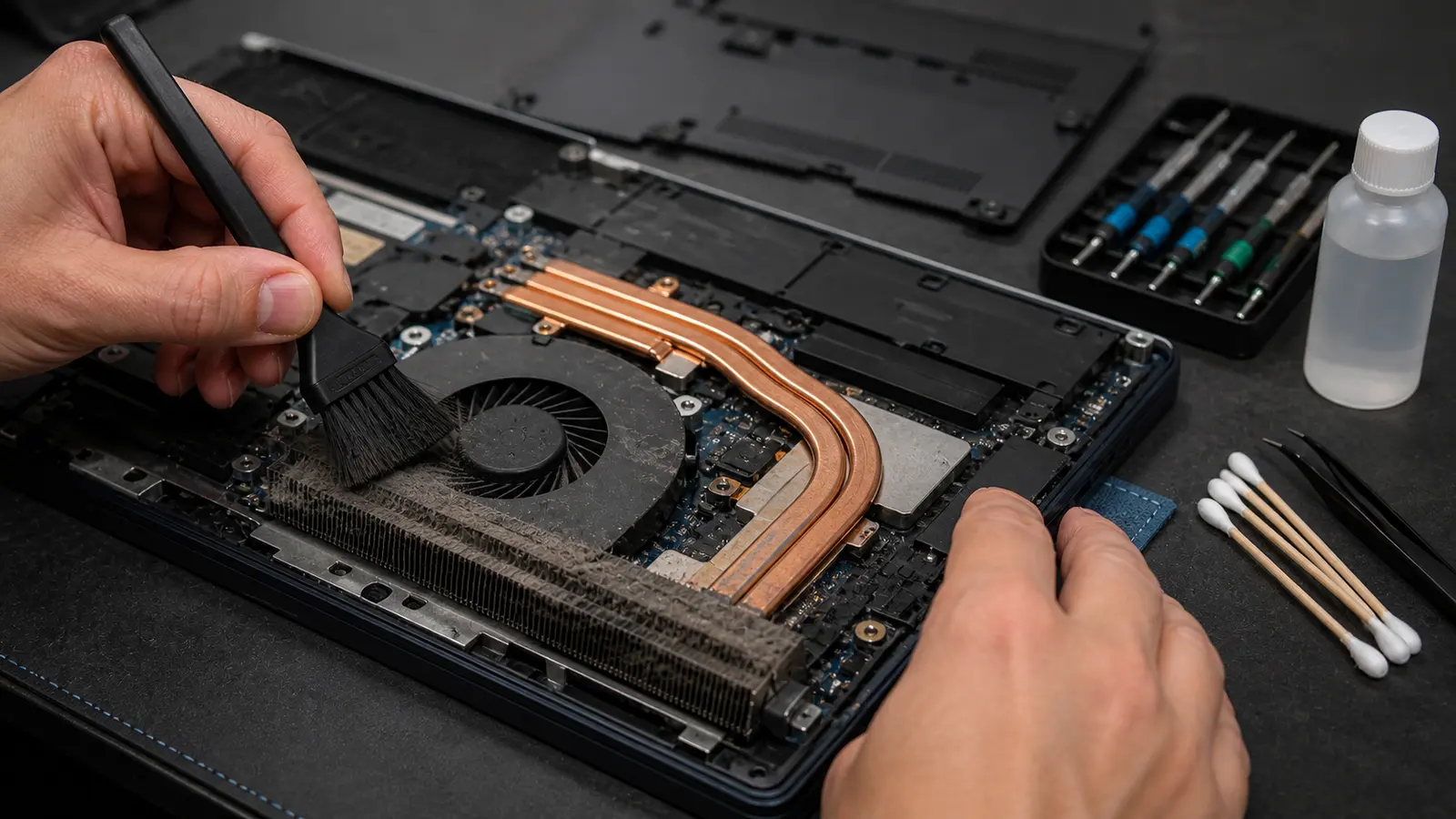
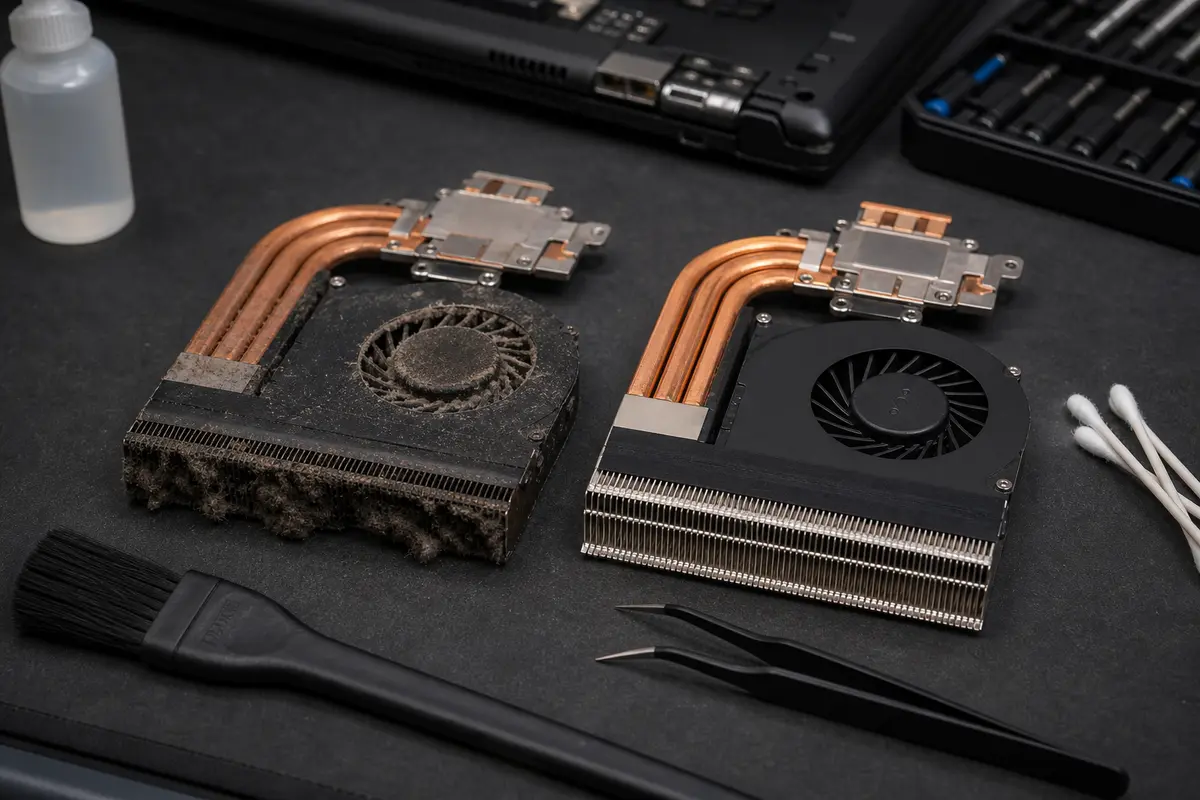
The cause is often not the “age of the laptop” but ordinary dust in the cooling system and dried-out thermal paste. Dust forms a felt-like layer on the heatsink fins, restricting airflow and forcing the laptop to protect itself by reducing performance. Cleaning is therefore not merely cosmetic. It is a maintenance procedure that protects performance, the fan and the motherboard.
The short answer: if your laptop is only blowing a little harder than usual, you can try cleaning the vents from the outside and using it on a firm surface. However, if it is hot to the touch, the fan is loud even during routine work, performance drops under load or the laptop shuts down, it is time to open it, clean the heatsink and replace the thermal paste.
How to Tell Whether Your Laptop Needs Cleaning
Clogged cooling is most noticeable from a change in the laptop’s behaviour. If it used to be quiet but the fan now speeds up after you open just a few browser tabs, something has changed.
The most common signs are:
- The fan is louder more often than before. The cooling system has to run faster because less air can pass through the dust.
- The underside of the laptop or the area above the keyboard is hot. Heat is not being dissipated properly and remains trapped inside the chassis.
- The laptop slows down under load. The processor or graphics chip reduces its performance to remain within a safe temperature range. This is known as thermal throttling.
- It shuts down while gaming, watching videos or during a long call. This is a warning sign. The laptop may shut itself down to prevent damage.
- Hardly any air comes out of the cooling vent. The fan is spinning, but the heatsink fins are blocked.
- The computer is slow even though the drive and Windows appear to be working properly. Overheating is one of the issues worth checking when dealing with a slow computer.
Noise alone does not necessarily indicate a serious problem. It could also be caused by a faulty fan, a demanding program running in the background or malware. With clogged cooling, however, the noise typically gets worse alongside rising temperatures and declining performance.
How Much Does Laptop Cleaning Cost in Brno?
The price mainly depends on the laptop’s design. An office model whose fan can be accessed by removing the bottom cover requires a different amount of work from a gaming laptop with two fans, a graphics chip and thermal pads.
According to the current IT Hope price list, laptop cleaning starts at approximately CZK 900, including thermal paste. The upgrade and cleaning package costs CZK 1,350, while the cleaning and reinstallation package costs CZK 1,550. The exact price depends on the laptop model and condition. You can also find more details about the service on the laptop repair in Brno page.
Treat these figures as a reasonable guide rather than a universal price for every model. Some ultrabooks have fragile plastic clips, glued components or cooling systems that are difficult to access. Gaming laptops may also require attention to the thermal pads around the graphics memory and power-delivery components.
A good answer from a repair shop is therefore not “one price for everything,” but rather: send us the model, describe the symptoms, and a technician will explain the likely cause, what needs to be tested and what might affect the final price.
What Proper Cleaning Includes
Proper laptop cleaning involves more than blowing air through the grille from the outside. That may help with light dust, but in a genuinely clogged cooling system, dust is usually trapped between the fan and the heatsink fins. Blowing from the outside often just pushes it further inside.
The service process usually looks like this:
- The laptop is switched off, disconnected and safely opened according to the model.
- The technician checks the fan, heatsink, battery and drive condition.
- Dust is removed from the fan, blades and heatsink fins.
- The old thermal paste is cleaned off and replaced.
- Thermal pads are also addressed on models where necessary.
- Once the laptop has been reassembled, its temperatures and behaviour under load are checked.
The combination of cleaning and fresh thermal paste is important. Over time, the paste between the processor and heatsink dries out, transfers heat less effectively and may prevent dust removal alone from solving the problem. Conversely, replacing the paste without cleaning the heatsink fins is also only half a job.
What You Can Try at Home
Before taking your laptop to a repair shop, there are a few safe steps you can take.
Use a firm surface. A blanket, sofa or duvet can easily block the laptop’s air intakes. The cooling system then has nowhere to draw air from.
Check the vents. If dust is visible on the grille, switch off the laptop and carefully remove it. In its support article on laptop overheating, Dell recommends inspecting and cleaning the vents as one of the basic steps when addressing temperature problems.
Use short bursts of compressed air. The laptop must be switched off. Blow carefully rather than using a continuous stream from close range. If the fan is allowed to spin freely at very high speed, its bearing may be damaged.
Check Task Manager. If the fan is running at full speed but the laptop is not clogged with dust, the processor may be under heavy load from a browser, updates, cloud synchronisation or malware. If you suspect an infection, see Does My Computer Have a Virus?.
Measure temperatures as a guide. Tools such as HWiNFO or HWMonitor display processor and graphics temperatures. Interpret the readings in the context of the laptop model and workload. A gaming laptop will behave differently from an office ultrabook.
What You Should Avoid Doing at Home
Some online advice may appear simple, but the risks outweigh the benefits.
- Do not disassemble a modern ultrabook without experience. A short ribbon cable, an incorrectly seated connector or a long screw inserted in the wrong place can damage the motherboard.
- Do not use a vacuum cleaner as your main servicing tool. The airflow may spin the fan, a plastic nozzle can generate static electricity, and dust often remains trapped in the fins.
- Do not use a compressor that may contain water or oil in its hose. An unfiltered workshop compressor is not the same as service-grade compressed air.
- Do not use a hair dryer. Hot air will not clean the heatsink and may damage plastic components.
- Do not apply thermal paste “just in case” without removing the heatsink and cleaning off the old layer. The correct amount of paste must be applied in the correct place.
If the laptop is under warranty, check the manufacturer’s terms. Some models allow you to clean the external vents, but opening the device could complicate a warranty claim.
When You Should Not Put Off Cleaning
Arrange cleaning promptly if the laptop shuts down, becomes hot during routine use or produces almost no airflow. The longer it runs at high temperatures, the more strain is placed on the fan, battery, graphics chip and motherboard.
Cleaning is particularly important for:
- gaming laptops,
- work laptops used every day,
- laptops used in homes with pets,
- devices used in workshops or dusty environments,
- laptops that have already shut down under load.
With gaming laptops, high temperatures do not just mean more noise. They also mean lower performance. Games and applications then run worse because the hardware protects itself by reducing its clock speed.
When to Combine Cleaning with Other Maintenance
Once the laptop is open, it makes sense to check a few other components as well. This is not about unnecessarily increasing the cost of the repair, but about addressing tasks that often require the same disassembly.
Typical combinations include:
- Replacing an HDD with an SSD. If the laptop still has a mechanical drive, upgrading to an SSD will make a greater difference than most software optimisation.
- Checking the battery. An older battery may be swollen or have significantly reduced capacity.
- Checking the drive. On a slow laptop, it is worth checking the SMART status so that a failing drive can be detected early.
- Cleaning up Windows. If the device is noisy, slow and full of adware, addressing the dust alone will not be enough.
- Replacing the fan. If the fan rattles or has play in its bearing, cleaning alone will not save it.
A complete repair of this kind falls under laptop servicing in Brno. If cooling is the only issue, book laptop cleaning directly.
Key Takeaways
A clogged cooling system is not a trivial issue, but it is also no reason to buy a new laptop immediately. When addressed in time, disassembly, dust removal, fresh thermal paste and a temperature check are often all that is needed. The laptop becomes quieter, stops unnecessarily throttling its performance and has a better chance of lasting through another season.
If you are in Brno and your laptop is noisy, uncomfortably hot or shutting down under load, arrange laptop cleaning in Brno or send us the model through the booking form. We can give you an initial idea of whether it is likely to need standard cleaning, special attention as a gaming model with thermal pads, or a replacement fan.
Frequently Asked Questions
How much does laptop dust cleaning cost in Brno?
According to the current IT Hope price list, laptop cleaning starts at approximately CZK 900, including thermal paste. The upgrade and cleaning package costs CZK 1,350, while the cleaning and reinstallation package costs CZK 1,550. The exact price depends on the laptop model and condition. You can also find more details on the laptop repair in Brno page.
How can I tell if my laptop needs cleaning?
Typical signs include a noisy fan even during routine use, a hot underside, slower performance under load, shutdowns while gaming or watching videos, and dust visible in the cooling vent.
Is blowing compressed air into a laptop from the outside enough?
It may provide short-term relief if the laptop is only lightly dusty. However, if dust is stuck to the heatsink fins, blowing air from the outside will often only push it further inside. Proper cleaning requires disassembly, dust removal and fresh thermal paste.
How often should a laptop be cleaned?
As a general guideline, an office laptop should be checked about once every two years. Gaming laptops and devices used in homes with pets or dusty environments may need more frequent attention. Temperatures, noise and performance under load are the most important indicators.
Can cleaning stop a laptop from shutting down while gaming?
Yes, if the shutdowns are caused by overheating due to clogged cooling or dried-out thermal paste. If the laptop continues to shut down after cleaning, the fan, power supply, graphics hardware or motherboard will need further diagnosis.
Sources and Further Reading
- Dell Support: Troubleshoot Dell Laptop Overheating Issues
- iFixit: HP Laptop Overheating troubleshooting
- Laptop Cleaning in Brno
Rather not deal with it yourself?
Book a diagnosis in Brno — you get the price up front and we start only once you agree.
Where to find us
We are a PC and laptop repair shop in Brno-Židenice: diagnostics and repairs of computers and laptops, data recovery from drives, and out-of-warranty Apple repairs (iPhone 12 and newer, MacBook, iPad).
Viniční 3587/216, 615 00 Brno-Židenice, Czech Republic Mon–Fri 10:00–16:00
Call +420 774 777 774 Computer repair and laptop service in Brno
We put the repair price in writing after diagnostics and carry on only once you agree.


