You start a Teams video call and share your screen, the fan begins roaring like a hair dryer—and five minutes later, everything goes black. It is not sleep mode or a blue screen. The computer simply dies, as though someone had pulled the plug. Ten minutes later, it starts again and behaves as if nothing happened.
That “nothing happened” is precisely the trap. The thermal protection did its job and saved the machine. But it is being triggered more and more often, and next time it may not happen in the middle of a call, but while you are working on an unfinished invoice.
The short answer: Shut the computer down and let it cool on a hard surface—not on a sofa or your lap. Back up your data; repeated hard shutdowns can corrupt an accounting database or Windows profile. Then download HWiNFO and monitor three things at once during normal use: CPU temperature, CPU clock speed, and whether any air is coming out of the exhaust. Overheating is indicated when the temperature shoots towards the limit, the clock speed collapses, and the machine shuts down. If it also shuts down while cold and idle, temperature is not the cause—check the adapter, battery, or power supply. Disconnect it immediately and do not turn it on again if you smell burning, the fan is scraping, or the machine shuts down within a few minutes even when idle.
What a genuine thermal shutdown looks like
Overheating follows a recognisable pattern that you can check yourself.
The fan speeds up gradually rather than all at once. After several minutes under load, the computer becomes noticeably slower—the cursor stutters and video during a call breaks up. Only then does it shut down. Once it has cooled, it starts and works normally for a while. That last sentence is crucial: a machine with faulty memory or a failing drive does not repair itself after cooling down. A cooling problem can temporarily disappear.
On laptops, the problem is reliably exposed by a Teams video call with the camera enabled, which requires continuous video encoding and keeps the CPU busy for minutes at a time. Other common triggers include exporting a large PDF, recalculating an Excel workbook with macros, installing a major Windows update, or connecting a second monitor through a USB-C dock. On desktop PCs, it is usually gaming, rendering in Photoshop or Blender, or compiling—anything that keeps the CPU and graphics card heavily loaded for an extended period.
The heating season from September to November typically makes overheating worse, as the dust in the cooling system is compounded by a higher ambient temperature.
Symptoms that point to the cooling system:
- the fan runs at full speed even when you are only using a browser or Word,
- performance drops after a few minutes and does not recover,
- the exhaust produces lukewarm air or almost no airflow even though you can hear the fan,
- the underside of the laptop or the area around the exhaust is painfully hot,
- the machine always shuts down during the same activity,
- everything returns to normal after it cools down.
Now for the most common source of confusion. A hard shutdown can also be caused by a faulty power adapter, a degraded battery, a desktop PC power supply, a cracked motherboard, or defective RAM. The difference is that these faults do not follow the pattern above—they can cause shutdowns while the machine is cold, immediately after startup, or entirely at random. If you see a blue screen with an error code instead of a black screen, temperature is almost certainly not the cause; the investigation needs to go in a different direction. See Windows 11 will not start and launches Automatic Repair. If coloured squares or lines also appear on the screen, troubleshoot the graphics system using the article on screen artefacts.
What to measure before calling anyone
On Windows, HWiNFO in Sensors-only mode, HWMonitor, or Core Temp will do the job. For the graphics card, use GPU-Z, NVIDIA App, or AMD Software: Adrenalin Edition.
Do not focus on a single number, though. A number means nothing on its own—you need context. Open the sensors on a second monitor or your phone, then run whatever normally causes the machine to shut down. Watch four readings:
- CPU temperature (for AMD Ryzen and newer Intel processors, also look for “hotspot” or “Tjunction”—this is always higher than the average core temperature, and the thermal limit applies to it).
- CPU clock speed in MHz—this reveals whether the machine is throttling.
- GPU temperature if the problem occurs during gaming or rendering.
- Fan speed in RPM—zero under load is a diagnosis in itself.
A high-performance laptop running at around 90 °C under load does not necessarily have a fault. Modern processors are designed to approach their thermal limit and remain there—it is an operating strategy, not a warning by itself. What happens around that reading is what matters.
The alarm should be raised when this combination occurs:
- the temperature shoots towards the limit within a few dozen seconds of the load starting,
- the clock speed simultaneously drops far below the base frequency and does not recover,
- the fan is roaring, but no air comes out of the exhaust,
- the machine shuts down or restarts,
- high temperatures also occur while writing emails.
There is no universal table of “safe temperatures.” The limit varies between processors and depends on the cooling capacity provided by the manufacturer—a thin ultrabook and a gaming laptop using the same chipset can behave very differently.
What you can do at home without a screwdriver
Start with the boring part. A laptop belongs on a hard desk, not on a duvet, sofa, or your lap—the air intake is located in the bottom cover on the vast majority of laptops, and a soft surface blocks it. A cooling pad can help a design that has limited airflow from the factory. It will not repair a clogged heatsink or a dead fan; it will only postpone the problem.
Open Task Manager and sort the Processes tab by CPU usage. Sometimes indexing, an active update, OneDrive synchronisation, or a stuck browser process keeps the CPU at 100% all day. Keep the logic straight: the workload may explain the noise and heat, but a properly cooled computer should not shut down because of an ordinary application. If it shuts down, there is a cooling problem even if the workload itself is legitimate.
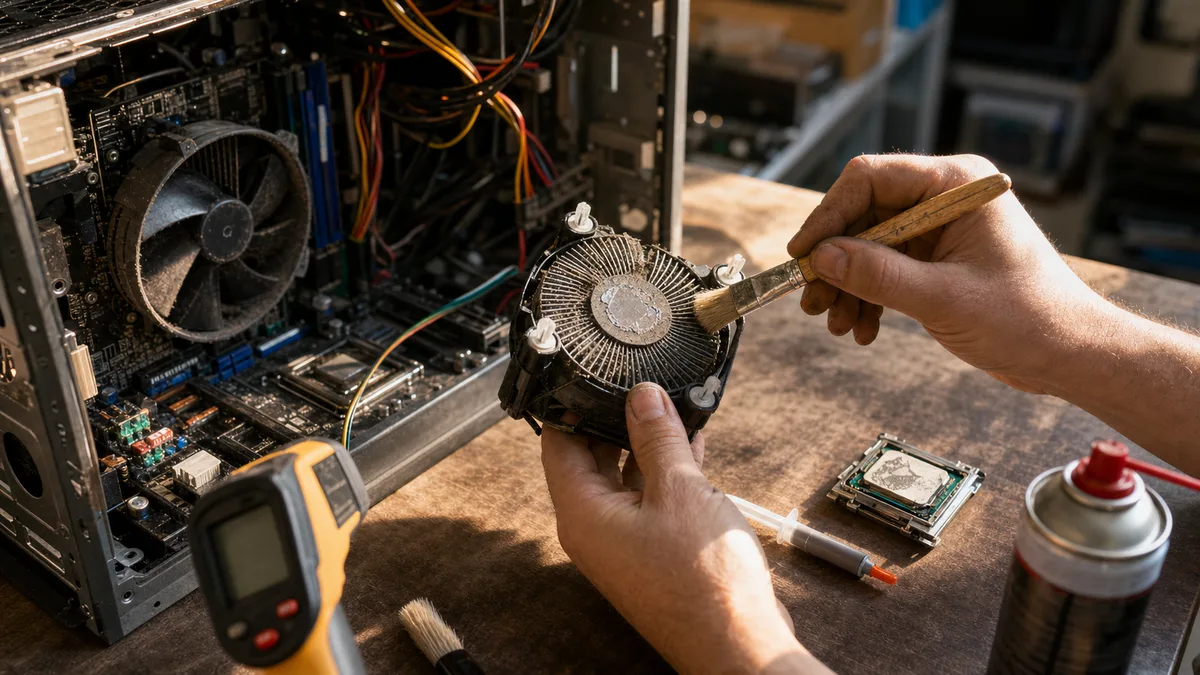
With a desktop PC unplugged from the wall, you can learn quite a lot by looking inside—check the dust filters, the CPU heatsink fins, and whether the fans rotate freely. Do not open the power supply. Its capacitors can retain dangerous voltages long after it has been disconnected, and opening it is not a job for an unqualified user.
Things to avoid at home:
- do not vacuum the motherboard with an ordinary vacuum cleaner, as the nozzle can generate static electricity,
- do not let compressed air spin the fans—unless you hold the blades still with a finger, you can drive them beyond their operating speed and damage the bearings,
- do not blow dust into the exhaust of a closed laptop, as this only pushes it deeper inside,
- do not remove the heatsink unless you have fresh thermal paste and know how to tighten it correctly,
- do not replace thermal pads with paste, which cannot bridge a millimetre-wide gap.
For detailed instructions, symptoms of a clogged cooling system, and guidance on whether you can handle the job yourself, see laptop dust cleaning in Brno.
Cleaning, repasting, or replacing the fan? Three different faults
These three services are often sold as a single package, but they address completely different causes—and you should only be charged for what the machine actually needs.
| Service | What it addresses | When it is not enough on its own |
|---|---|---|
| Cleaning the heatsink and exhaust | A mat of dust between the fan and heatsink fins | The fan has a worn bearing or does not spin |
| Repasting the CPU or GPU | Dried-out or poorly applied paste and impaired heat transfer | The heatsink is not seated correctly or the heatpipe is punctured |
| Replacing the fan | Scraping, fluctuating speed, noise, or complete failure | The heatsink fins remain clogged |
| Replacing thermal pads | Heat transfer from memory, VRMs, and other chips | The wrong pad thickness is used |
| Power diagnostics | A faulty adapter, battery, or PC power supply | Temperature really is causing the shutdowns |
“Repasting” means removing the heatsink, cleaning the old residue from both the chip and the copper contact plate, and applying a sensible amount of fresh paste. It is not a magical upgrade that should be performed preventively every year. It makes sense when the heatsink must be removed anyway, when measurements show a large difference between the chip and heatsink temperatures, or as part of a thorough service on an older machine. Repasting alone will not fix a clogged heatsink—and conversely, cleaning a heatsink and reinstalling it on dried-out paste is only half a job.
Laptops and desktop PCs are not the same
In a laptop, the fan, heatpipe, and tightly packed aluminium heatsink fins sit beneath the bottom cover. Dust accumulates in front of the fins as a solid mat that cannot be seen through the exhaust—so the exhaust may look clean while almost no air can pass through the heatsink. Disassembly varies significantly between models: on some, removing the bottom cover is enough; on others, the battery must be disconnected, the keyboard removed, or several ribbon cables detached. Prying blindly can result in broken clips or a torn display connector.
A desktop PC has more potential points of failure. In addition to the CPU cooler, you need to consider airflow through the case—whether the front and rear fans are working against each other—the graphics card with its own cooling system, and the power supply. In an AIO liquid cooler, the pump can fail. This is particularly deceptive because the radiator fans continue spinning happily, making the machine appear functional while the CPU reaches its thermal limit within seconds.
Then there is the power supply: it may shut down for protection because it has degraded or because someone installed a more powerful graphics card than it can support. Replacing it “just to see” with the cheapest unbranded unit is not diagnostics; it is a new problem. If the machine also freezes and behaves strangely with no relation to temperature, the motherboard may be at fault—see the article on motherboard failure.
Temperatures themselves are handled by laptop cleaning and repasting, thermal pads included.
When to take it to a repair shop
Professional service makes sense once shutdowns recur, the fan makes a mechanical noise, or cleaning the accessible filters does not help. With a work computer, do not wait until it happens three times a day—every hard shutdown puts open files at risk.
Prepare a specific description before handing over the machine. It will shorten the diagnostic process and save you money:
- how long after the workload starts the shutdown occurs,
- which application or activity triggers it,
- whether the machine shuts down completely or restarts,
- whether a blue screen appears and which code it shows,
- whether the behaviour differs on battery power and when plugged in,
- which temperatures and clock speeds you measured,
- whether anyone has previously disassembled the machine.
The result should not merely be a “blown-out laptop.” After the service, the technician should verify the fan speed, airflow, and temperatures under a controlled workload—and should be able to explain why the fan, paste, or pads were replaced.
How much it costs and what to ask
The price depends on the machine’s design, how extensively it must be disassembled, whether the heatsink must be removed, and which parts are needed. An office desktop is in a different league from a thin ultrabook that requires half of its internals to be removed just to reach the fan. Laptop cleaning generally starts at around CZK 1,800, but an exact quote requires the specific model—promising a final price without knowing the machine would be dishonest.
You can find an overview of services and estimated prices for cleaning or fan replacement on the laptop repair Brno page; the exact price is determined by the model.
Before booking the service, check:
- exactly what the basic price includes,
- whether it includes disassembly and a post-service stress test,
- whether repasting is charged separately,
- whether the repair shop will contact you before purchasing a new fan,
- how much diagnostics will cost if you decline the repair.
For an older machine, compare the repair cost with the computer’s value and the cost of downtime. Cleaning and repasting are routine maintenance and are almost always worthwhile. The situation changes if disassembly reveals a motherboard, graphics card, or power-supply fault—in that case, request a quote in advance and use the article reinstall or replace to guide your decision.
Keeping it from bringing your business to a halt
Back up work documents, accounting data, email, and access credentials before taking the machine anywhere—while its condition still allows you to do so. Cleaning itself does not require reinstalling Windows or deleting data, but making a backup before any hardware work is basic hygiene. The 3-2-1 rule explains a practical way to do it.
Prepare a spare machine as well, or at least make sure you can access cloud services from another device. Most importantly, do not assume that because the computer started again after cooling down, you still have weeks before it needs attention. Thermal protection is not an operating mode.
If your laptop or desktop PC in Brno repeatedly overheats and shuts down, bring it in for cleaning, repasting, or diagnostics according to what the measurements reveal. Remember to bring the power adapter—if temperature turns out not to be responsible, it will be the first suspect.
Order online: Laptop cleaning and repasting — tell us the model and what happens, and we will come back with the next step.
Rather not deal with it yourself?
Book a diagnosis in Brno — you get the price up front and we start only once you agree.
Where to find us
We are a PC and laptop repair shop in Brno-Židenice: diagnostics and repairs of computers and laptops, data recovery from drives, and out-of-warranty Apple repairs (iPhone 12 and newer, MacBook, iPad).
Viniční 3587/216, 615 00 Brno-Židenice, Czech Republic Mon–Fri 10:00–16:00
Call +420 774 777 774 Computer repair and laptop service in Brno
We put the repair price in writing after diagnostics and carry on only once you agree.


