A slow-booting Windows 11 usually doesn’t mean you have to reinstall right away. Often, it’s enough to disable startup programs, limit background apps, and check whether the system is bogged down by a full disk, an old HDD, too little RAM, or malware.
We see this daily in the shop: the desktop appears, but Windows still spends another 30 seconds to several minutes loading Teams, game launchers, the printer updater, cloud storage, and other programs that snuck their way into autostart during installation. Below, we’ll walk through a safe process — what to disable, what to keep, and when it makes more sense to get a computer diagnostics or an SSD disk upgrade.
About the screenshots: the images are from an English Windows 11 install (our test machine). The steps are identical — we include the English on-screen names, which Microsoft occasionally tweaks between versions.
Short answer: in Windows 11, the biggest effect comes from the Startup tab in Task Manager. Disable high-impact apps you don’t need right after login, and leave your antivirus, drivers, and laptop manufacturer utilities enabled. If boot remains slow even after that, check your free disk space, disk health, and RAM.
Quick steps if you want to start right away
Sometimes you don’t have the time or inclination to read the theory. You just want to quickly find out why Windows 11 is booting slowly and do some safe cleanup. Before you start, do a normal restart and roughly measure how many seconds it takes for the computer to become truly usable after logging in. You’ll have something to compare against after making adjustments.
- Press
Ctrl+Shift+Escto open Task Manager. Switch to the Startup apps tab. Right-click anything that shows High in the Startup impact column and that you don’t need for work right after boot, and select Disable. - Open Settings → Apps → Startup. Turn off the toggles next to any programs you see there and don’t want. Windows also shows an estimated startup impact right here.
- In Settings, go to Apps → Installed apps. For apps where Windows offers ⋮ → Advanced options, limit Background apps permissions to Never or Power optimized.
- What you definitely shouldn’t disable – skip your security software (antivirus), sound drivers, touchpad or hotkey drivers, and items from the computer manufacturer related to power management. If you hesitate over an unfamiliar item name, it’s better to leave it alone for now.
- Check free disk space. If your system drive has less than 10 to 15 percent free space, start by cleaning up temporary files and unused applications.
- Restart the computer via Start → Power → Restart. Simply shutting down and turning back on is not the same thing, because Fast startup interferes with that.
This alone usually shaves off a few seconds to tens of seconds from boot time. If that’s not enough, let’s break it down in more detail.
Why Windows boots slowly
When you turn on a computer, more happens than you might think. Windows has to load the system, drivers, the desktop, and simultaneously launches every program that either requested startup itself or was added by the manufacturer. Think of it like a highway twenty cars are trying to merge onto all at once — it takes a moment before traffic flows smoothly. Each of those applications needs its own memory and processor resources, and while the processor usually manages somehow, the disk becomes the bottleneck. If it’s also almost full or is a slow mechanical hard drive (HDD), it can barely handle the load. On top of that, many programs install background services that continuously drain system memory — which prolongs system startup even further. The result is that the computer “boots” relatively quickly, but for a good few tens of seconds after login, it still can’t respond snappily.
| What slows down boot | How to recognize it | What to try first |
|---|---|---|
| Startup programs | Many taskbar icons appear after login, the fan spins up, disk activity spikes | Task Manager → Startup apps, disable high-impact items |
| Background apps | You close the program, but notifications and processes keep running | Settings → Apps → Installed apps → Advanced options |
| Full system disk | Windows “thinks” for a long time, updates install slowly | Free up space, uninstall unused apps, clean temporary files |
| Old HDD instead of SSD | Boot, opening the browser, and the first minutes of work are slow | Consider switching to an SSD |
| Too little RAM | High memory usage right after boot, system offloads to the disk | Limit startup apps, consider adding more RAM |
| Failing disk or malware | Boot worsens gradually, errors appear, freezing, or suspicious processes | Data backup, SMART diagnostics, antivirus scan |
Task Manager → Startup: the main weapon
The most powerful tool in your hands is the Startup tab in Task Manager. Open it with the keyboard shortcut Ctrl+Shift+Esc (or right-click the Start button → Task Manager). In the left column of the new Windows 11 Task Manager, then select Startup apps.
Here you’ll see a list of programs that launch along with the system. The key column is Startup impact, where Windows itself has calculated how much a given item slows down boot. The scale is simple: Low, Medium, High, and Not measured. In practice, in the shop, I focus primarily on anything showing as High. Right-click the item → Disable. This action doesn’t uninstall the program; it just tells it: “don’t launch at boot next time”.
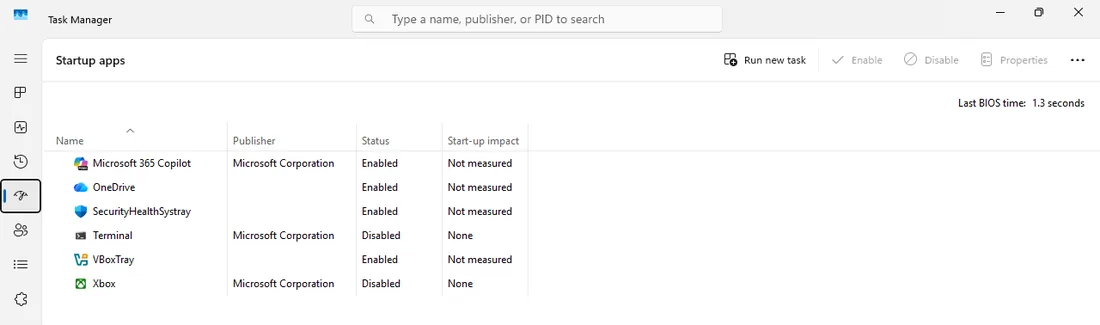
Note: on a freshly set up computer (like in the screenshot above), items may show Not measured — Windows calculates the impact only after a few restarts. On a regularly used computer, you’ll see High next to the resource hogs.
How do you decide? Imagine the situation: you turn on the computer, log in. Do you really need Spotify running immediately at that moment, or can you just open it later in the afternoon? Do you need Steam or Epic Games running as a service from the very first second, or is it enough to launch them manually before gaming? What you can safely disable: Spotify, Steam, Epic Games Launcher, Discord, Adobe Creative Cloud, iTunes Helper, Teams or Skype (if you don’t actively use them all day). And also various automatic updaters like Java updater, Google Update, programs from a printer or scanner – those will launch on their own when you connect the relevant hardware.
What to keep, on the other hand, or think twice about: security software (Windows Security, or your ESET, Avast, etc.) – I wouldn’t touch that at all. Sound drivers (Realtek HD Audio), touchpad drivers (Synaptics, ELAN), or manufacturer hotkey programs – without them, function keys for brightness and volume might stop working. And OneDrive? If you use it daily and sync files with it, keep it. If you know you never use it, feel free to disable it.
| Type of startup item | Recommendation | Note |
|---|---|---|
| Spotify, Steam, Epic Games, Discord | Usually disable | You can launch them manually when you need them. |
| Teams, Skype, Zoom | Depends on use | If you have work calls first thing in the morning, leave enabled. Otherwise, disable. |
| Adobe Creative Cloud, iTunes Helper, Java updater | Usually disable | You can check updates manually, or they’ll prompt you when you launch the app. |
| OneDrive, Dropbox, Google Drive | Only if you don’t sync daily | When disabled, files won’t start syncing immediately after boot. |
| Windows Security, ESET, Bitdefender | Leave enabled | Security software shouldn’t be a victim of cleanup. |
| Realtek, Synaptics, ELAN, Logitech, Lenovo/Dell/HP utilities | Better to leave | Often handle sound, touchpad, function keys, or power profiles. |
Settings → Apps → Startup
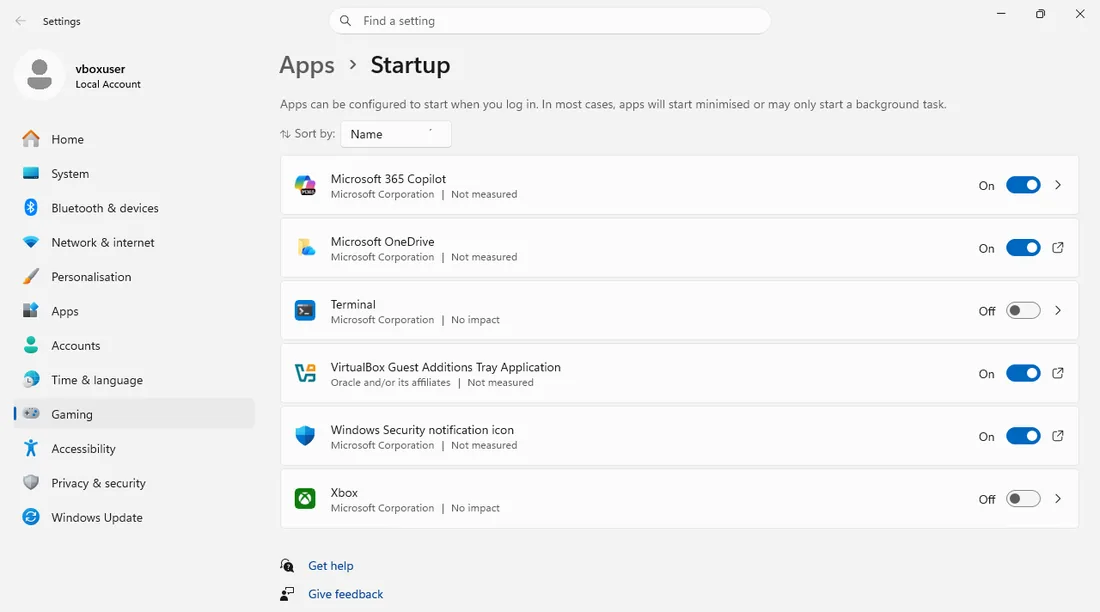
Windows 11 offers a more user-friendly path for those who don’t feel completely at home in Task Manager. Open Settings → Apps → Startup. This page shows the same thing, but neatly with On/Off toggles, and additionally displays the calculated impact under each app name in small text (e.g., High impact). You don’t have the sorting options available in Task Manager here, but it’s ideal for a quick check. Just scroll through the list and flip the switch to the left for everything you don’t want. It takes effect immediately.
Background apps: stop them from wasting RAM unnecessarily
There’s one more category of programs that doesn’t just affect boot itself, but the overall smoothness of the computer: background apps. Simply put – a program doesn’t officially “launch” at boot as an item in Startup, yet it still runs in the background, syncs data, displays notifications, and occupies a chunk of system memory.
In Windows 11, this is set individually for each application. Go to Settings → Apps → Installed apps. Find the app you want to limit – typically Spotify, Microsoft To Do, some game from the Microsoft Store, or maybe Weather – and click the three dots ⋮ to the right of its name. Choose Advanced options. Scroll down to the Background apps permissions section and choose Never or at least Power optimized. Power optimized means Windows itself will monitor whether you’re on battery and whether there are enough resources – and based on that, it will either put the background app to sleep or let it do its thing. For an average home user, this is a reasonable compromise.
This measure mainly saves RAM and, on laptops, battery life, but ultimately it also helps the system avoid having to juggle dozens of hidden processes all at once right after boot.
What not to disable so you don’t break your system
In the enthusiasm for cleanup, people occasionally disable absolutely everything – and then are surprised. A few basic rules:
- Security software – Windows Security (or your paid antivirus) should remain enabled. I specifically do not recommend disabling its startup entry.
- Sound drivers (Realtek HD Audio, etc.) and touchpad/keyboard drivers (Synaptics, ELAN, Logitech Options, etc.) – touchpad gestures or extra mouse buttons might stop working without them.
- Manufacturer power management utilities – on Lenovo, Dell, HP, and other laptops, they often maintain special performance and battery profiles. If you don’t know exactly what an item like “Lenovo Vantage Service” does, better to leave it enabled.
- General rule: when you see a name that means nothing to you, pause for a few seconds. Look it up (e.g., “item_name startup”), or simply leave it be. You can always disable an item later, once you find out what it is.
And just to reiterate for safety: disabling an item in Startup does not uninstall the program and no data is deleted. It just stops opening automatically. Anytime you need it, you can run it manually. You lose nothing.
Before major changes: a restore point
Simply disabling startup apps is safe and reversible. But if you’re planning to remove manufacturer programs, change services, drivers, or try guides from the internet using the command line, create a system restore point first.
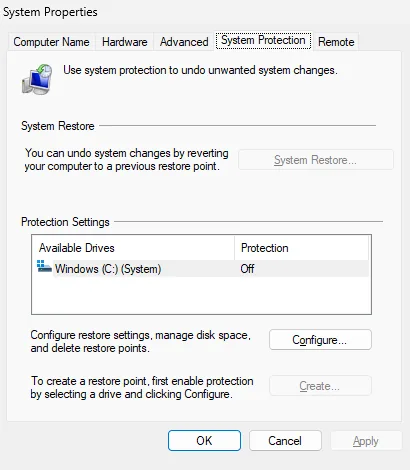
Find it via Start search: type Create a restore point, open System Protection, select your system disk, and turn on protection if it’s off. Then you can manually create a restore point. If something goes wrong after experimenting, you have a way back.
When boot still lags
If you’ve gone through both tabs and limited background apps and the computer still takes an uncomfortably long time to boot, the problem might lie elsewhere:
- Fast startup – Windows 11 usually has it enabled, and on SSDs it helps. But sometimes it can cause trouble, especially after a major update. Try turning it off, restarting, and turning it back on (you’ll find it in Control Panel → Power Options → Choose what the power buttons do).
- Full disk – if the system disk is 90% full or more, Windows lacks maneuvering room for the paging file and temporary files. We have a detailed guide for that: how to free up disk space.
- Slow HDD – if your computer still uses a classic mechanical hard drive (HDD) instead of an SSD, no amount of software cleaning will make it lightning-fast. Swapping to an SSD is the single most common thing we do in the shop to turn a subjectively “slow” few-year-old computer back into a snappy machine.
- Too little RAM – 4 GB of system memory for today’s Windows 11 and a couple of apps means constant offloading to the disk, which prolongs both boot and normal work.
- Malware – unwanted programs on the system can slow down boot because they overlap with normal applications.
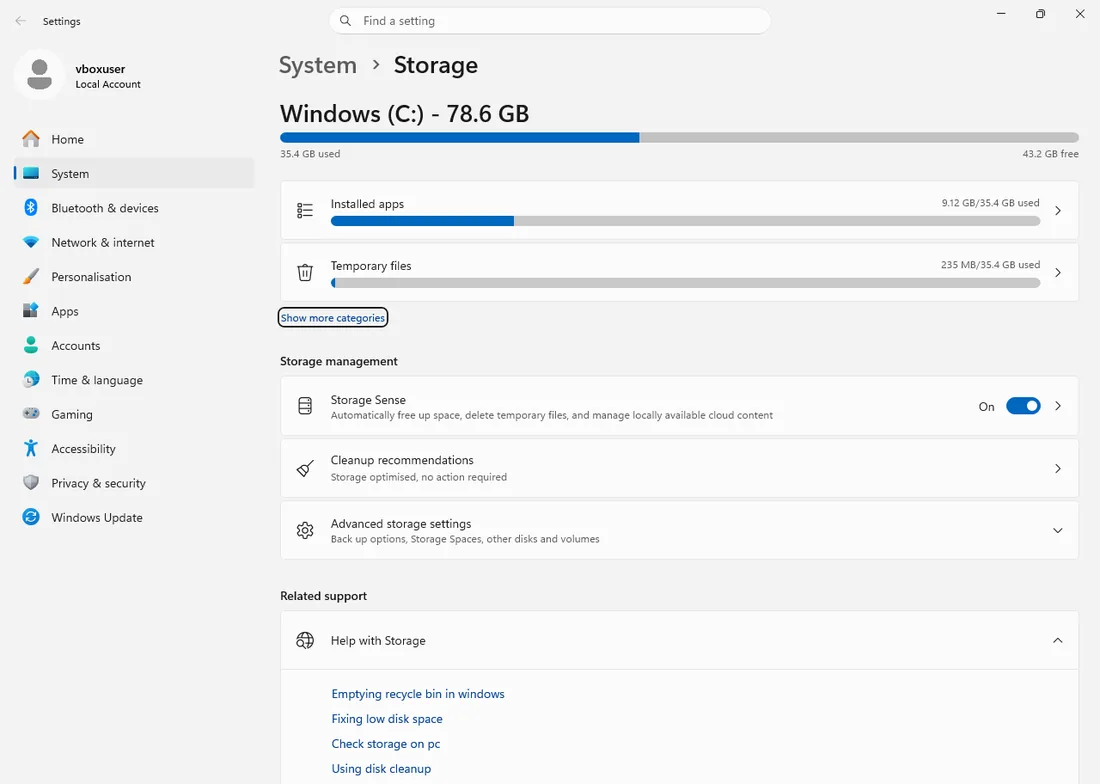
For a full disk, start in Settings → System → Storage. Windows will show how much space is taken up by apps, temporary files, documents, and the recycle bin. If free space on the system disk is in the single-digit GBs, boot and updates will slow down.
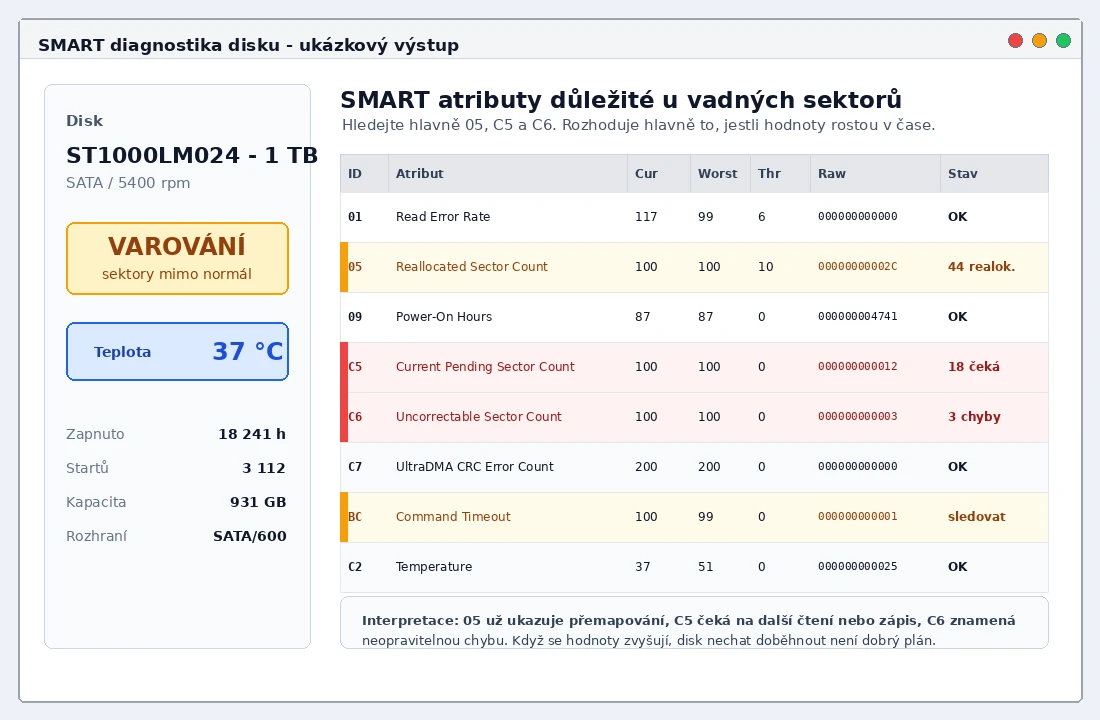
If you suspect a disk problem, just deleting programs isn’t enough anymore. Mainly watch SMART attributes related to reallocated and pending sectors. When the values are rising, back up your data first, and only then address the repair or disk replacement.
We’ve prepared a separate overview for all these situations: slow computer – what to check. If you suspect a physical disk failure, it makes sense to go straight for a PC diagnostics and stop trying things that only add unnecessary strain to the drive.
Fast startup in Windows 11: when to deal with it
Fast startup saves part of the system state, similar to hibernation. On a healthy SSD, it usually helps, but after a major update, a driver change, or when the device behaves oddly, it can instead hold onto an old state that a clean restart would resolve.
You’ll find it in Control Panel → Power Options → Choose what the power buttons do. If the option is greyed out, click Change settings that are currently unavailable at the top. For a test, you can turn it off, restart the computer, and after checking, turn it back on. If you have an old HDD, little RAM, or a failing disk, fast startup alone won’t fix the problem.
Prevention for the future
To avoid history repeating itself in a few months, just adopt a few simple habits:
- After installing a new program, occasionally glance into Settings → Startup to see if it’s settled in there. Many apps automatically enable themselves at startup during installation, and sometimes during updates, this can return.
- When a program during installation offers “Launch automatically at login”, consider whether you really need it. For music players, communication tools, and games, it’s usually not necessary.
- If your computer doesn’t have an SSD yet, consider the switch. It’s one of the most tangible upgrades you can give an older machine, and it shows most during boot and program launches.
- Keep an eye on background apps – especially apps from the Microsoft Store tend to switch on background runtime permission and not ask again.
If you stick to at least the first bullet point, there’s a great chance your computer’s boot will stay snappy and you won’t have to go through the whole list again next year.
If, even after this clean-up, your computer still doesn’t boot snappily, and perhaps you’ve also noticed slowdowns during the day or suspicious noises from inside the case, it’s sensible to look at it from a technical standpoint. At our PC service center in Brno, we deal with this daily, and diagnostics usually reveals whether the trouble comes from the disk, memory, or perhaps overheating. Sometimes it’s just a matter of replacing thermal paste, other times swapping an old disk for an SSD – and the “slow” computer suddenly becomes a machine that boots in seconds.
Frequently asked questions
If I disable a startup app, will I lose data or the program?
No. Disabling an item in the Startup list only stops the program from launching automatically when you turn on the computer. The program itself stays installed, and all its data is preserved. You can run it manually anytime, and it works normally.
Which startup programs are safe to disable?
Generally those you use only occasionally and don’t need right after boot. Typically Spotify, Steam, Epic Games, Discord, Adobe Creative Cloud, iTunes, Teams, Skype, Java updaters, and printer updaters. Security software and system drivers are best left enabled.
Does disabling startup items speed up the whole computer, or just boot?
It mainly speeds up the time from turning on (or logging in) to the moment when the computer stops “thinking” and you can work. But it can also help during use, because unnecessary background processes aren’t running and some RAM is freed up.
How many startup programs are too many?
It’s not about a specific number, but about their impact. Even three high-impact apps can slow down boot more than ten with low impact. If your list is longer than a single column and most items show High impact, you definitely have something to address.
Is a background app the same as a startup program?
No. Startup programs (Startup apps) run at system boot and you often see them on the taskbar. Background apps are processes you don’t see, but they keep running even after you close the window – updating content, showing notifications, syncing files. They aren’t tied just to boot, but to a permanent background runtime permission.
Does fast startup help with Windows 11 slow boot?
Sometimes yes, especially on a computer with an SSD. But if Windows acts strange after an update, it helps to turn fast startup off, actually restart the computer, then turn it back on. On an old HDD or with a failing disk, fast startup alone won’t solve the problem.
Rather not deal with it yourself?
Book a diagnosis in Brno — you get the price up front and we start only once you agree.
Where to find us
We are a PC and laptop repair shop in Brno-Židenice: diagnostics and repairs of computers and laptops, data recovery from drives, and out-of-warranty Apple repairs (iPhone 12 and newer, MacBook, iPad).
Viniční 3587/216, 615 00 Brno-Židenice, Czech Republic Mon–Fri 10:00–16:00
Call +420 774 777 774 Computer repair and laptop service in Brno
We put the repair price in writing after diagnostics and carry on only once you agree.