A freshly installed Windows 11 looks as if someone other than you set it up. A search box sprawls across half the taskbar, a weather widget glows in the bottom-left corner, and when you open the Start menu, half of it is taken up by “recommended” items and tips nobody asked for.
The good news: almost all of it can be turned off in a few minutes, without installing anything. In this guide we’ll go through the four things people most often want fixed right after a reinstall. The steps are the same on the Home and Pro editions.
About the screenshots: these are from an English-language Windows 11 install. Microsoft occasionally changes the names of these settings between versions, so treat the labels as a guide rather than the exact wording — if a name doesn’t match yours, look for the closest equivalent in the same place.
1. Hide search on the taskbar
The Search box takes up far too much room on the taskbar. You can search at any time anyway — just press the Windows key and start typing. So feel free to hide the box on the bar.
This is what the taskbar looks like before, with the search box stretched out:

Step by step:
- Right-click an empty spot on the taskbar.
- Choose Taskbar settings.
- Set Search to Hidden. If you want to keep at least the magnifying glass, choose Search icon only.
The box disappears instantly and the bar clears up — the app icons stay centred:

2. Turn off widgets (weather and news in the bottom-left)
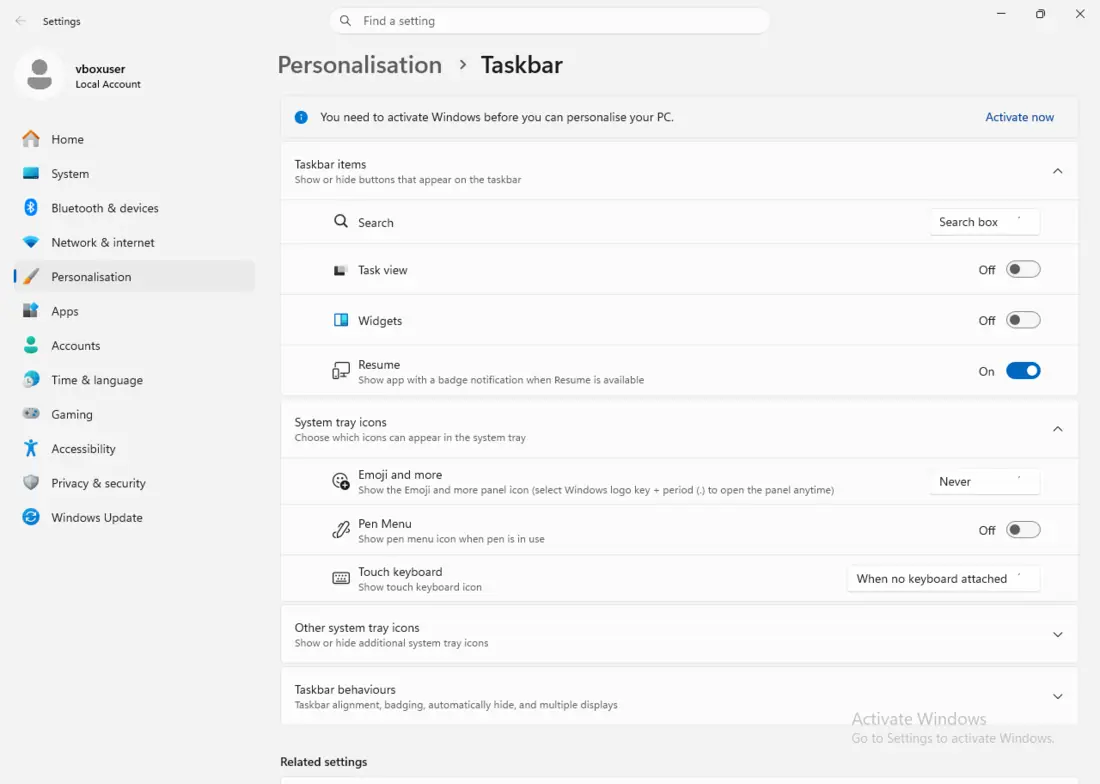
The widget in the bottom-left corner (weather, markets, news) can open just by accidentally hovering over it with the mouse. If you don’t use it, it’s more of a nuisance. You turn it off in the same window as in step 1:
- Right-click the taskbar → Taskbar settings.
- In the Taskbar items section, set the Widgets toggle to Off.
In the screenshot above (step 1) the Widgets toggle is right below Task view — just flick it to Off. The button vanishes from the bar and the weather no longer pops out at you.
A note from practice: on some installs (especially clean or corporate ones) widgets aren’t installed at all — in which case the toggle is either missing or does nothing, because there’s nothing to hide. On the test machine used for this guide that was exactly the case. It’s not a fault; Microsoft’s “Web Experience” component simply isn’t there.
3. Turn off recommendations and ads in Start
This is the real “annoyance”: the Start menu shows recommended files and tips, and sometimes even suggested apps to download. The Start menu should show your things, not advertising.
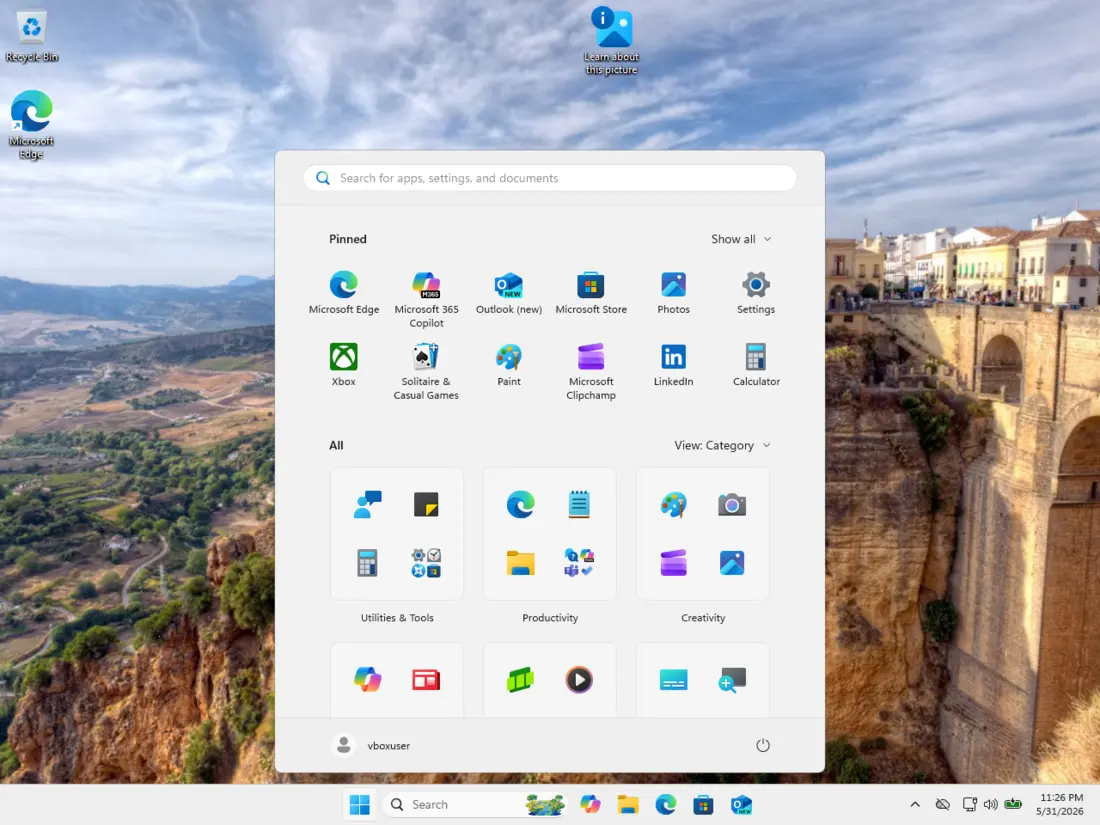
Step by step:
- Open Settings — Windows key + I.
- Go to Personalization → Start.
- Turn off these toggles (the screenshot on the right shows their current state):
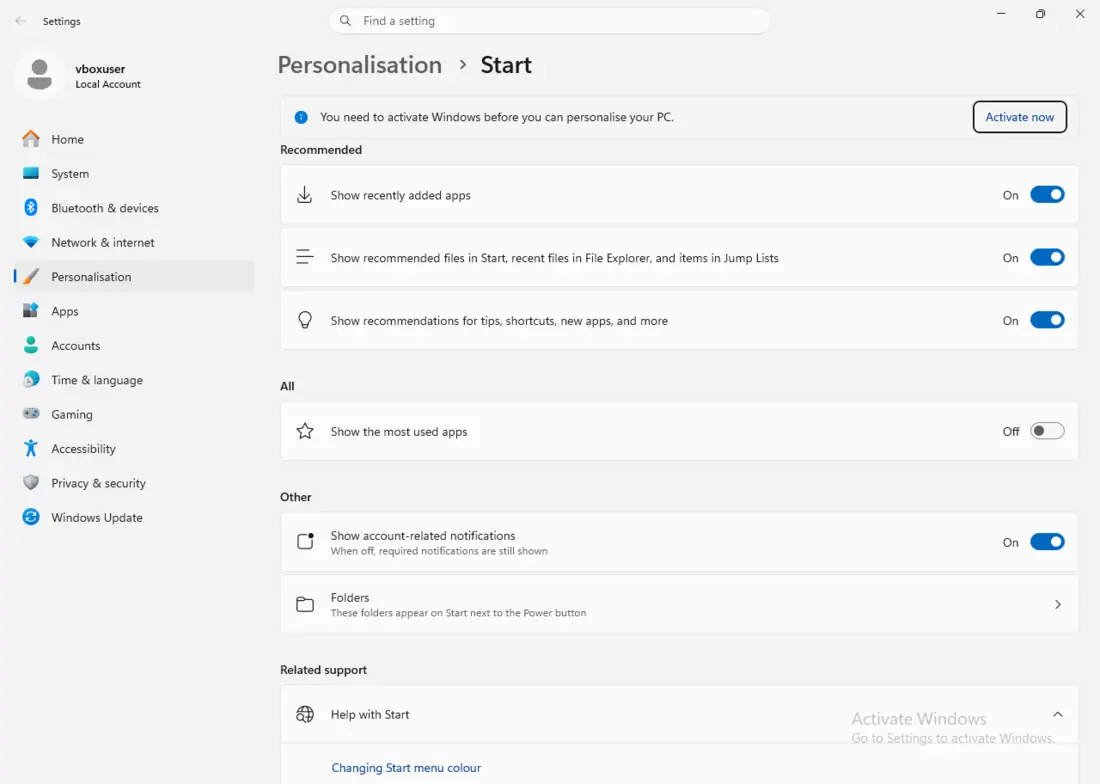
- Show recommendations for tips, app promotions, and more — these are the “ads”.
- Show recommended files in Start — recently opened documents.
- Show recently added apps and Show recently opened items — if you don’t want what you’ve been opening to be visible.
The second place Windows 11 tucks away suggestions is Settings → Privacy & security → General, where you turn off personalised ads and “suggested content”.
4. Switch on the light theme (and make the desktop nice)
The final step gives the system a clean, consistent look. The light theme reads better on a white background and feels tidier.
Step by step:
- Settings → Personalization → Colors.
- At Choose your mode, switch from Dark to Light.
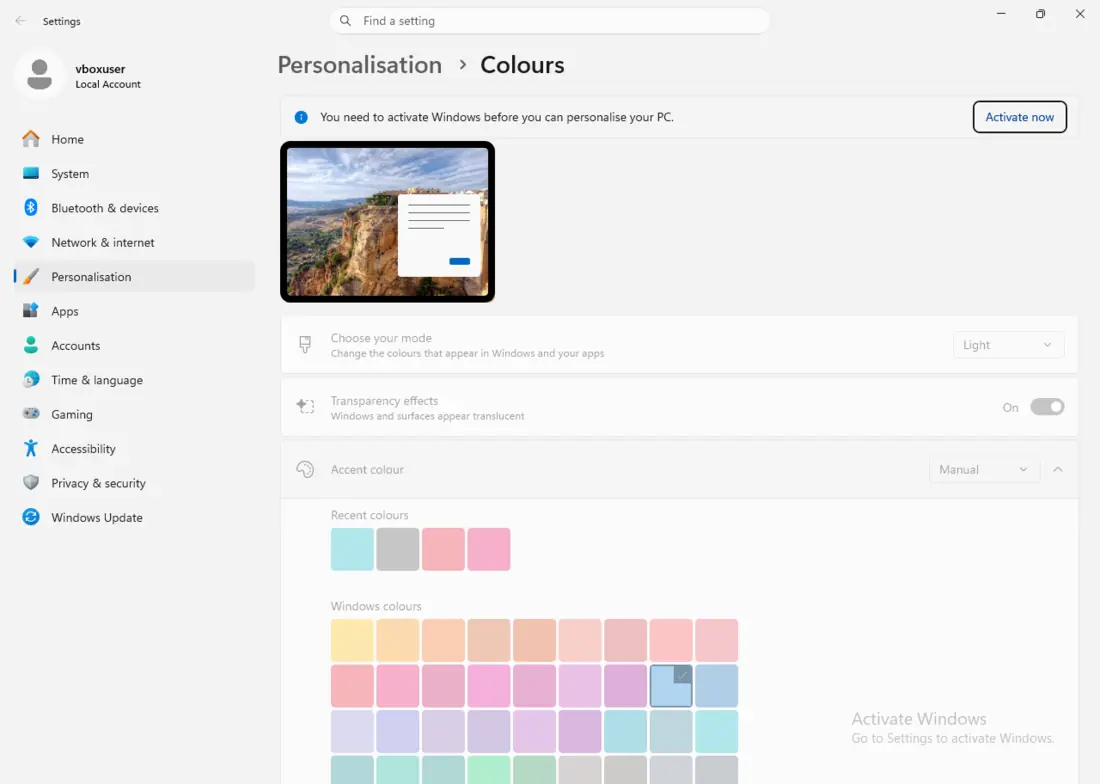
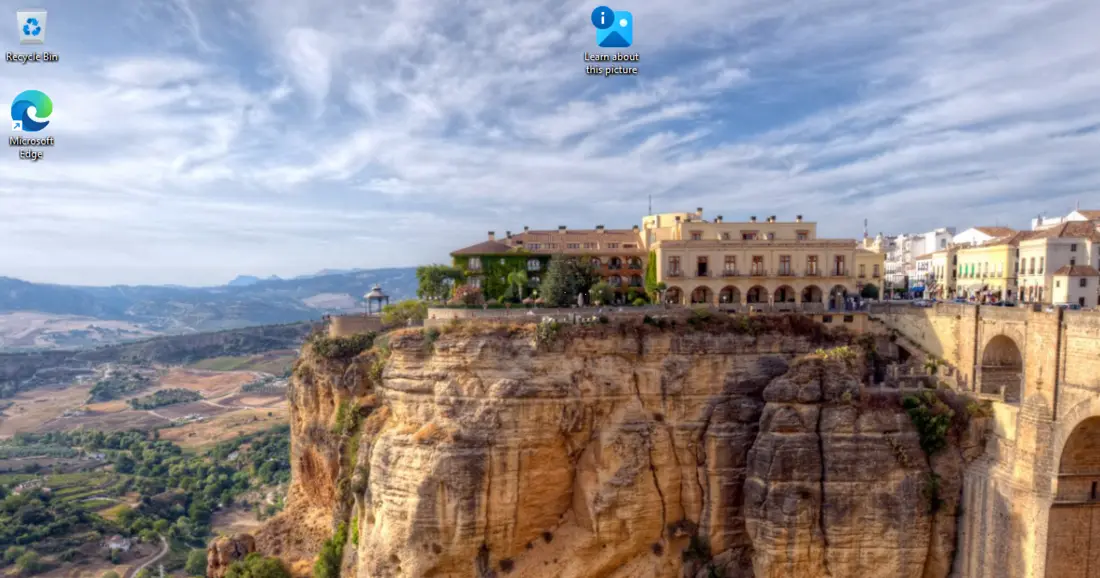
The taskbar, the Start menu, and the Settings windows all brighten up at once. The result on the desktop:
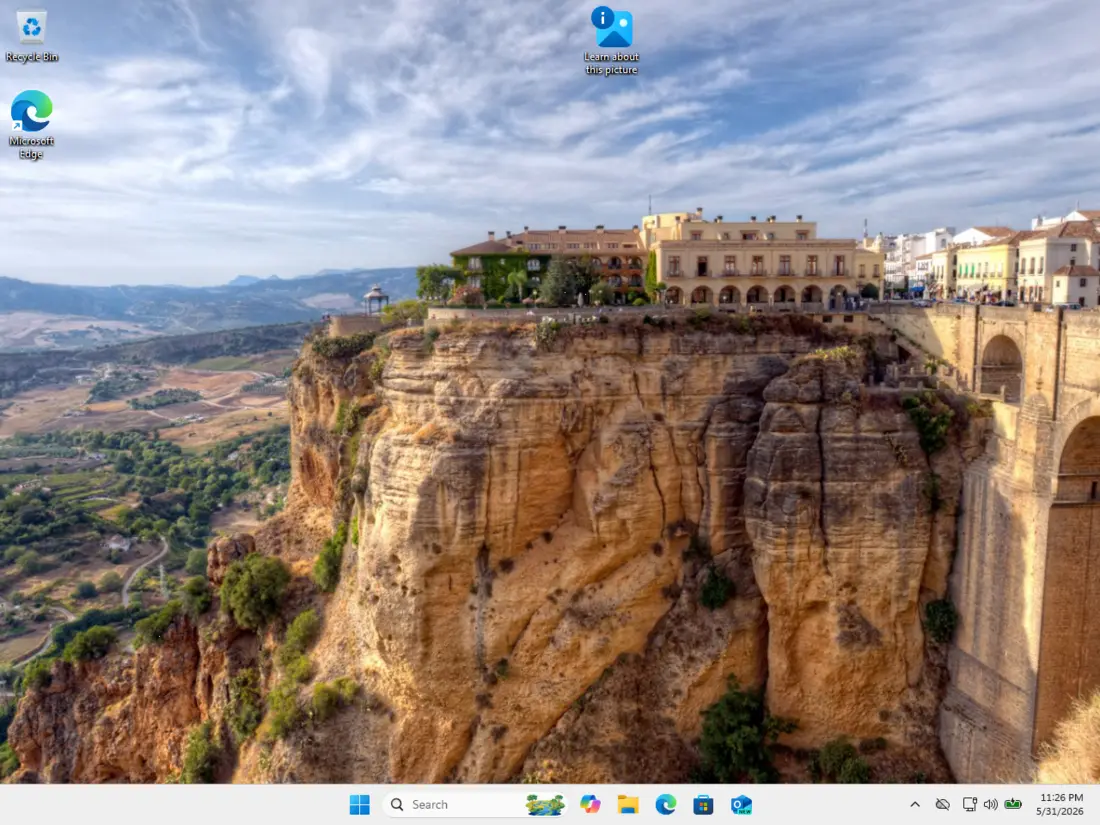
If you want to go further, in the same Personalization section you’ll find:
- Background — your own wallpaper, or a neutral solid colour.
- Themes — save the whole combination of colours and wallpaper as a single theme.
A few minutes of clicking and the desktop looks the way you want it.
What if something “doesn’t work”
Most of these toggles take effect immediately. With the Start menu or the taskbar, it sometimes helps to sign out and back in (or restart) — that refreshes the rendering. None of these changes are permanent: you can switch any of them back at any time.
If you have a computer where settings “won’t stick”, revert after a restart, or where Windows 11 misbehaves in general, there’s usually something deeper going on — a corrupted profile, a problem after upgrading from Windows 10, or malware. That’s a job for a technician: find out why the system behaves differently than it should, and bring it back to a state where it serves you.
Rather not deal with it yourself?
Book a diagnosis in Brno — you get the price up front and we start only once you agree.
Where to find us
We are a PC and laptop repair shop in Brno-Židenice: diagnostics and repairs of computers and laptops, data recovery from drives, and out-of-warranty Apple repairs (iPhone 12 and newer, MacBook, iPad).
Viniční 3587/216, 615 00 Brno-Židenice, Czech Republic Mon–Fri 10:00–16:00
Call +420 774 777 774 Computer repair and laptop service in Brno
We put the repair price in writing after diagnostics and carry on only once you agree.