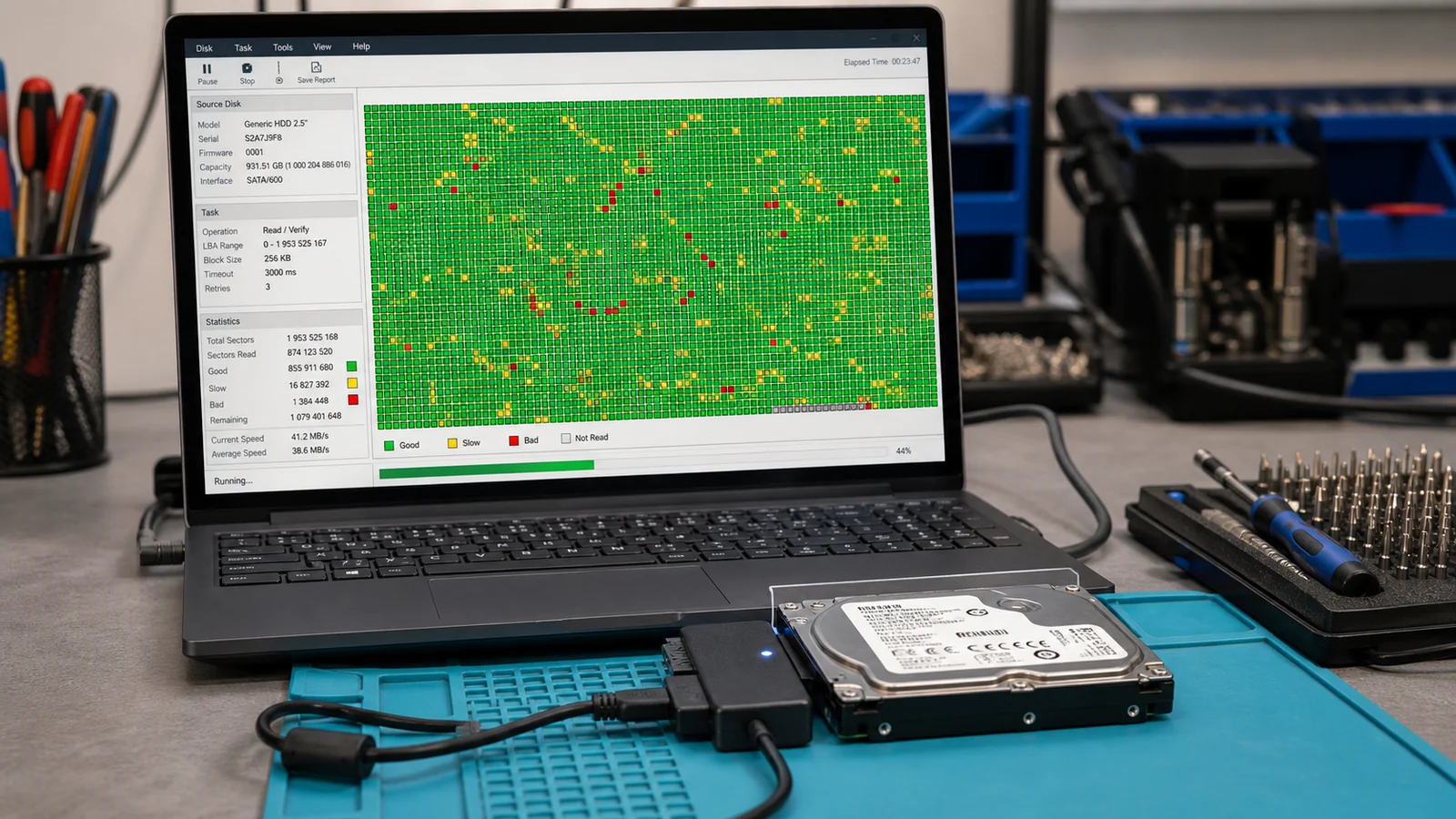
A logical bad sector can sometimes be repaired by overwriting it, but a physically damaged sector cannot be repaired—the drive can only remap it to a spare area. “I ran chkdsk and it found bad sectors. Is there any way to fix them?” We hear this question at the repair shop all the time. The short answer is: sometimes yes, sometimes no—and honestly, that is the less important question. What matters more is what you do right now, before trying to “repair” anything.
Once a drive reports bad sectors, you have a more urgent concern than repairing it: your backup. And no, that is not just a cliché—you will soon see the figures that make it especially important.
Let us break it down the way I explain it to customers in the workshop: what a bad sector actually is, what can and cannot be repaired, how the numbers reveal a dying drive—and when simply replacing the drive and focusing on the data is the cheapest option.
Before running anything: if the drive contains data you do not want to lose, back it up now—before starting another scan. Every surface test puts additional strain on a failing drive. If the data can no longer be read, repeated scanning is not the answer; you need hard drive data recovery.
ITHOPE handles data recovery
A drive with bad sectors is not repaired—the data is recovered from it. Servis PC Brno does not perform data recovery. When a drive cannot be read, it is copied sector by sector by the ITHOPE s.r.o. laboratory, which operates Servis PC Brno: HDD data recovery. The initial diagnosis of a standard HDD may be free there; for more complex cases, the laboratory provides the price in advance.
What is a bad sector—and why does the type matter?
A drive is divided into tiny “compartments” called sectors. A bad sector is one from which the drive cannot reliably read the data it wrote there. The catch is that there are two types of bad sectors, and each means something entirely different (Wikipedia provides a good summary):
- Logical (soft) bad sector. The hardware itself is not damaged; the data simply does not match its checksum. This typically happens when power is lost during a write—the drive does not finish writing, leaving the sector in an inconsistent state. This type can be repaired by overwriting it. The Windows
chkdskutility can do this. - Physical (hard) bad sector. Actual damage to the platter surface—a scratch, head crash, degradation of the magnetic layer, or age-related wear. This type cannot be repaired. It can only be mapped out—marked so that the drive stops writing to it.
How can you tell them apart? Honestly, often only by trying to repair them. Anything that can be repaired was a logical problem. Anything that remains is physical damage—and a sign that the drive is ageing.
SMART: three numbers that matter
Modern drives keep internal health statistics known as SMART. You can read them for free with a program such as CrystalDiskInfo. Of the dozens of values available, three are particularly relevant to bad sectors. Together, they tell the story of a failing sector:
- Current Pending Sector Count (197)—unstable “pending” sectors. The drive cannot currently read them reliably and is waiting to see what happens to them.
- Reallocated Sector Count (05)—sectors that the drive has identified as defective and remapped to spare sectors. The drive firmware handles this automatically.
- Uncorrectable Sector Count (198)—sectors from which the data could no longer be recovered. At this point, the data is already lost, whether you have noticed it or not.
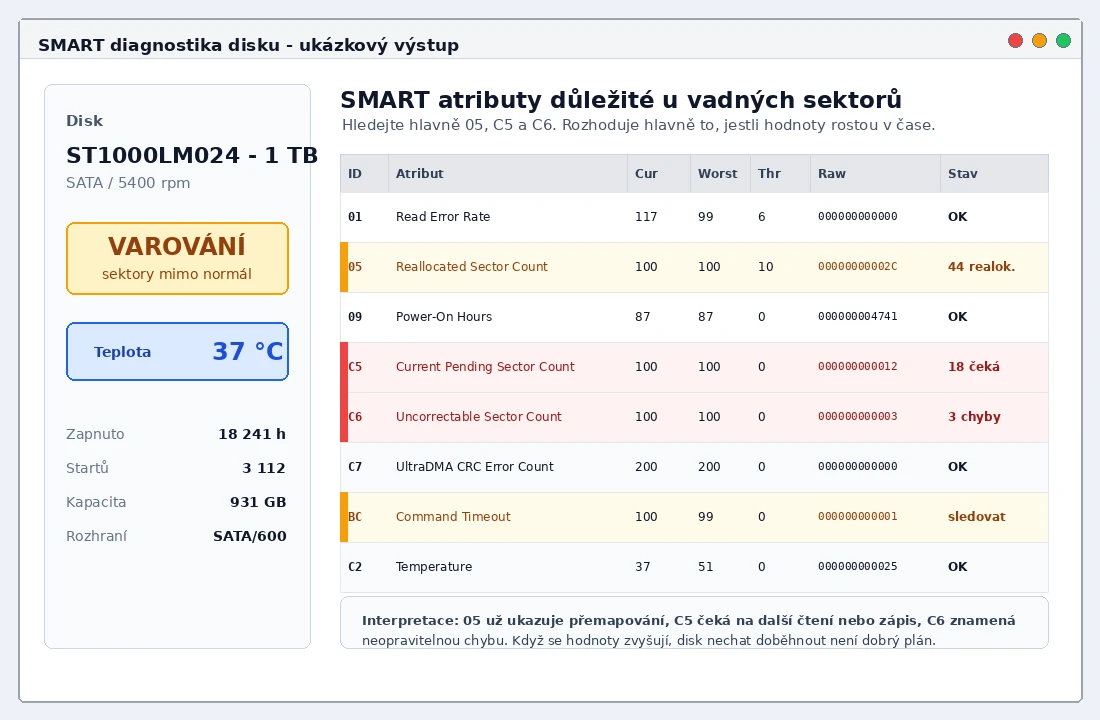
SMART diagnostics show the drive’s health and the number of reallocated, pending, and uncorrectable sectors. A few dozen may mean nothing—the key question is whether the number increases over time.
And now the most important rule: the trend matters more than the absolute number. A drive with a few reallocated sectors that remain unchanged for years may continue working perfectly well. A drive whose count rises week after week is on its way out—even if it still appears to “work.”
Why SMART is not enough (and why backup is king)
Here is the figure promised earlier. Cloud storage company Backblaze operates hundreds of thousands of drives and has published drive failure statistics for years. Its analysis of SMART values is clear: 76.7% of drives showed a warning before failure through one of the key SMART attributes, including reallocated and pending sectors. That sounds reassuring—until you consider the remainder.
23.3% of drives failed without any warning whatsoever. Almost one in four died with clean SMART data. That is why no diagnostic tool can provide certainty and why the only real safeguard is a backup—ideally following the 3-2-1 rule. SMART is a useful servant but a terrible master.
Can HDD bad sectors be “repaired”? What the tools actually do
Now for the myth we promised to address. People search for “bad sector repair” and expect a program to somehow smooth out a damaged surface. That is impossible. Let us look at what these tools actually do.
First, the most common—and often most harmful—advice on the internet: run chkdsk. Yes, chkdsk C: /f repairs logical file-system errors, while chkdsk C: /r scans the entire surface. That is fine on a healthy drive after an improper shutdown. But on a drive that is already reporting bad sectors, chkdsk can cause serious harm—and we see this regularly in the repair shop:
- It can finish off a dying drive.
chkdsk /rreads the entire drive sector by sector, which can take hours on a large HDD. Data recovery specialists warn that this additional strain can often push an already weak mechanical drive over the edge—turning “it reads slowly” into “it no longer spins up.” - It can destroy recoverable data.
chkdsk /frewrites the file system while “cleaning it up.” On a damaged drive, it may disrupt the file structure, place unreadable files in theFOUND.000folder as unusable.chkfragments, and make professional data recovery much more difficult or even impossible. Repair specialists put it bluntly: if you care about the data, do not runchkdskon a failing drive.
Even if it finishes without a problem, chkdsk still cannot repair a physical bad sector. It merely marks the sector as bad and stops using it. Remapping to a spare sector is handled by the drive firmware, which is why Reallocated Sector Count increases. The system may “stop crashing,” but the drive has not recovered. The workshop rule is simple: do not run any “repairs” until your data is safe. During data recovery, the drive is cloned first—a bit-for-bit 1:1 copy—and all subsequent work is performed on that copy. The original is not subjected to unnecessary strain.
A warning about SSDs: repeated surface scans (
chkdsk /r) make no sense on an SSD, and Microsoft itself warns that they unnecessarily consume write cycles and shorten the drive’s lifespan. Scan an SSD only in exceptional circumstances.
There are also specialised tools for checking an HDD surface with a visual map, such as HD Tune, Victoria, or HDDScan. Laboratories also use equipment for controlled block-by-block copying, including PC-3000 and similar systems. They display the drive as a grid: green blocks are read successfully, yellow blocks are usually slow or require repeated reads, and red blocks indicate a read error. The colours are not universal, so always check the legend used by the particular program.
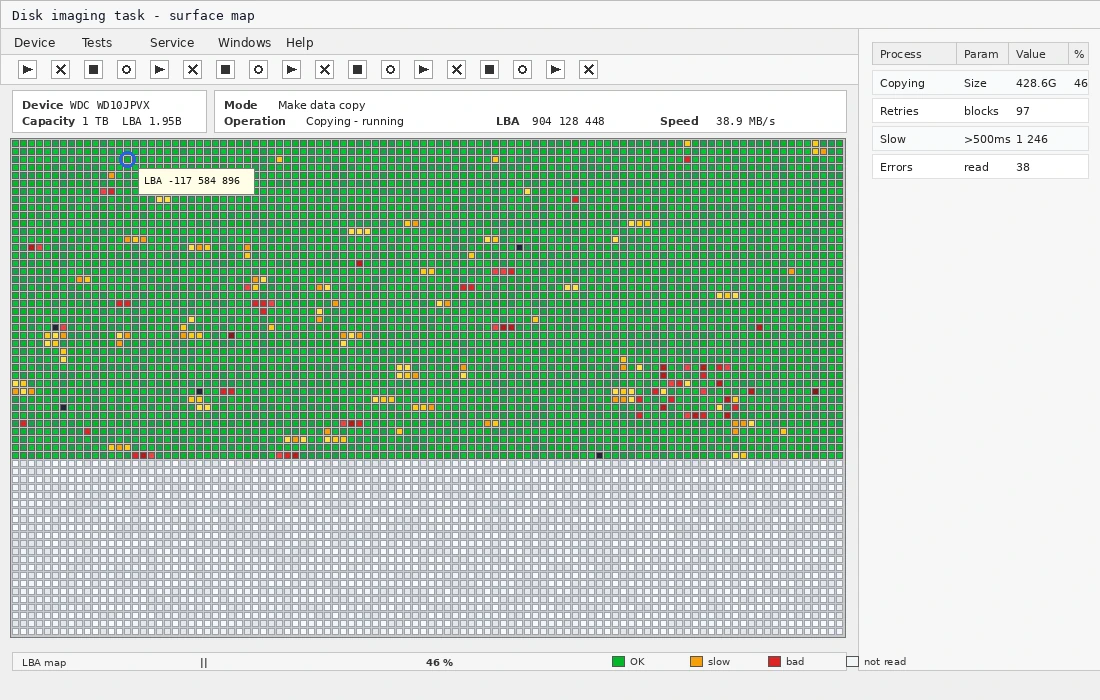
An illustrative block-by-block reading map based on laboratory diagnostics: green indicates a successful read, yellow indicates slow or problematic reading, and red indicates an error. A few scattered blocks may not mean disaster, but continuous red areas are a serious warning sign.
Do not confuse this with defragmentation. A defragmentation map shows where parts of files are located on the drive. A surface or block-copying map primarily shows latency and read errors—in other words, whether particular areas of the drive can still be read reliably.
When to keep monitoring a drive—and when to discard it
In practice, the decision tree is straightforward:
- Zero or a few reallocated sectors, with no change over a long period → the drive may remain in service. Just monitor it by checking SMART periodically, and keep a backup. It may continue working for years.
- The number of reallocated or pending sectors is increasing → the drive is on its way out. Back up the data and plan a replacement before it catches you by surprise.
- Uncorrectable Sector Count > 0, or continuous red areas on the map → some data has probably already been lost. Back up immediately and retire the drive. This is not something to repair.
- The drive knocks, clicks, disappears, and reappears in the system → turn it off and stop trying repeatedly. Every start reduces the chances of recovery. This is a job for HDD data recovery.
Replacing a drive is inexpensive today and routine in both laptops and desktop computers—see SSD/drive replacement. You do not necessarily have to reinstall the operating system; a separate guide explains how to replace a hard drive with an SSD without reinstalling. This is almost always more worthwhile than repeatedly trying to revive a drive whose firmware is running out of spare sectors. If you are unsure whether to repair the computer, reinstall the system, or retire the drive, we also discuss it in when to repair, reinstall, or discard a computer.
SSDs are a slightly different story
An SSD has no rotating platter, so it does not have “bad sectors” in the mechanical sense. It does, however, wear out—NAND memory cells support a limited number of writes, and the firmware also remaps defective cells. In CrystalDiskInfo, monitor values such as Percentage Used / wear level and data integrity errors instead.
There is also one thing you should never do to an SSD: do not defragment it. Defragmentation merely consumes write cycles unnecessarily. SSDs are maintained using the TRIM command, and Windows handles this automatically—the “Optimize Drives” utility defragments HDDs and runs TRIM on SSDs, approximately once a week. An ordinary user does not need to do anything.
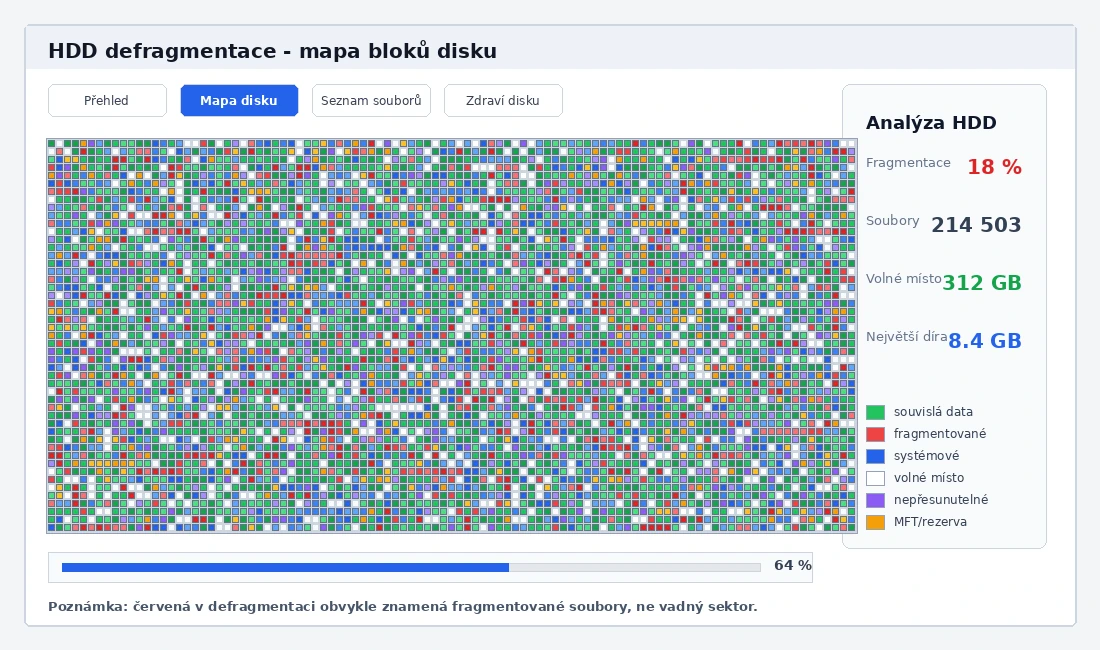
Fragmentation mainly slows down conventional HDDs. Red on a defragmentation map usually indicates fragmented files, not a bad sector. Fragmentation is not meaningfully relevant to an SSD—and an SSD should not be defragmented.
What you can do at home and when to call a repair shop
At home, you can safely:
- back up important data—this is always the first step,
- check SMART using CrystalDiskInfo and examine the reallocated and pending sector counts,
- run
chkdsk C: /ffor logical errors on a healthy drive after an improper shutdown, if necessary.
What you should not do at home is run chkdsk or any “repair” utility on a drive with a growing number of bad sectors—or one that clicks or disappears—until the data has been backed up. You could push the dying drive over the edge or overwrite data that could still have been recovered. At that point, only hard drive data recovery may help.
It is time to call a repair shop when the number of reallocated sectors is increasing, the drive clicks or disappears from the system, data cannot be read from it, or you simply do not want to risk losing your files and want a reliable assessment. At our PC repair shop in Brno, we can check the drive’s health and tell you immediately whether it is still worth using or should be replaced. If recovering the data is now the main concern, the drive belongs in the ITHOPE laboratory—HDD data recovery—while it can still be read.
In summary: only logical bad sectors can be “repaired”; physical ones can merely be bypassed. A drive with a growing number of bad sectors should be replaced, not repaired. And because almost a quarter of drives fail without warning, the most important rule remains unchanged—have a backup before you need one.
Rather not deal with it yourself?
Book a diagnosis in Brno — you get the price up front and we start only once you agree.
Where to find us
We are a PC and laptop repair shop in Brno-Židenice: diagnostics and repairs of computers and laptops, data recovery from drives, and out-of-warranty Apple repairs (iPhone 12 and newer, MacBook, iPad).
Viniční 3587/216, 615 00 Brno-Židenice, Czech Republic Mon–Fri 10:00–16:00
Call +420 774 777 774 Computer repair and laptop service in Brno
We put the repair price in writing after diagnostics and carry on only once you agree.


