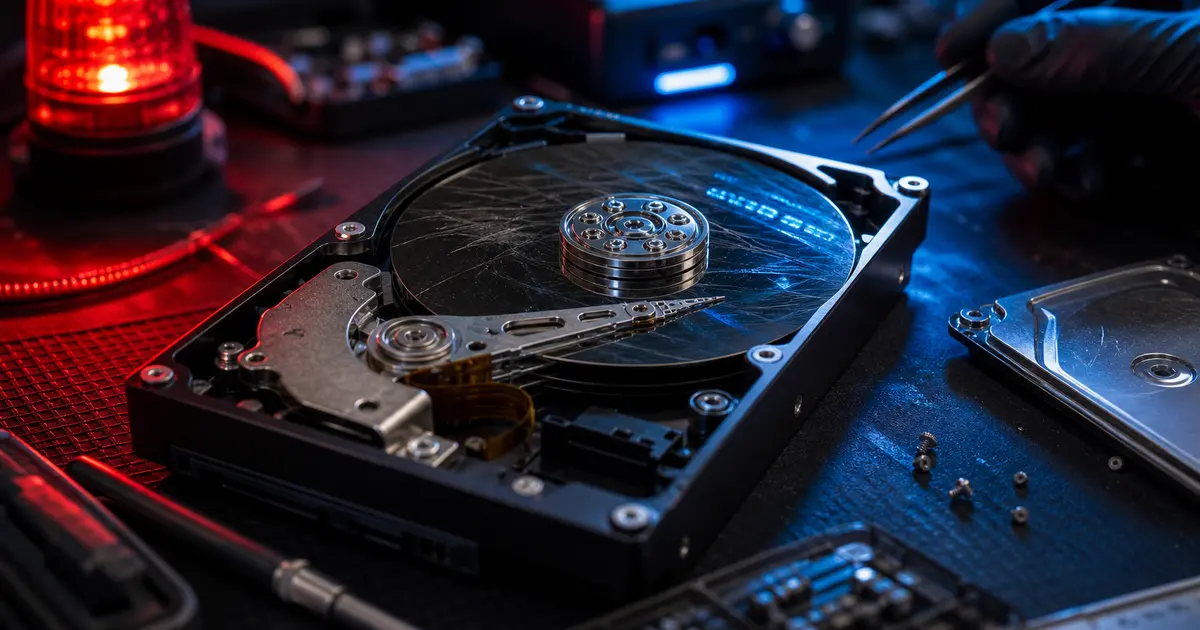
We receive two completely different kinds of calls about lost data. The first: “I accidentally deleted an entire folder of photos and emptied the Recycle Bin—is it gone for good?” The second: “My drive has started making a strange clicking noise, and everything is on it.”
They sound equally desperate, but they represent two opposite situations. The first is usually not as bad as it looks—the data can often be recovered, provided you do not make a hasty mistake. The second is a race against time, where one wrong response may determine whether the data can still be recovered. This article will help you recognise which of these situations you are in and what you should—and should not—do.
Rule No. 1 before you try anything: if the drive is clicking, beeping, grinding, or repeatedly disappearing and reappearing, and it contains valuable data, turn it off and leave it alone. Every additional power-on cycle causes further damage to a dying drive. Conversely, a deleted file on a healthy drive is not going anywhere until you start writing new data to the drive. Staying calm is your best tool here.
ITHOPE handles data recovery
Servis PC Brno does not provide data recovery services. Everything described in this article as “a job for a laboratory” is handled by ITHOPE s.r.o., the company that operates Servis PC Brno: data recovery, including HDD data recovery for clicking and defective mechanical drives.
First, identify what kind of data loss you are dealing with
This is the key decision point. Whether and how the data can be recovered does not depend on how alarming the situation feels, but on what exactly happened.
Deleted, formatted, or missing partition (logical data loss)
A deleted file, an emptied Recycle Bin, an accidentally formatted drive, or a “missing” partition. The good news is that the hardware is intact; only the file-system records have been damaged. When you delete a file, the system does not physically overwrite it—it merely marks its space as available while the contents remain on the drive until something new is written over them. This is therefore both the most common and the most recoverable scenario, and you can often handle it yourself (see below). The crucial step is to stop writing to the drive immediately.
Clicking drive, crashed head, or scratched platters (physical damage)
Clicking, knocking, grinding, or a drive that will not spin up. Inside a mechanical drive, the read/write heads fly just a few nanometres above the surface. If they begin scraping the platters, every additional spin-up risks physically removing the magnetic layer that holds the data—after which the data is permanently lost. This cannot be fixed at home: opening a drive outside a cleanroom allows dust inside, where it can become trapped between the platter and the head and finish the damage. Rule No. 1 applies here: turn it off and do not gamble with it.
Burned-out drive electronics (PCB, power surge)
A power surge, faulty power supply, or lightning strike can burn out the drive’s controller board (PCB). The platters and data may still be intact, but the drive appears completely dead. The solution is to replace the electronics—but not simply by “buying the same drive second-hand and swapping the boards.” Modern drives contain calibration data tied to the individual unit, so the ROM chip must also be transferred. That is a job for a laboratory.
SSDs are a completely different story—and surprisingly worse
What applies to a mechanical drive does not apply to an SSD. The main difference is TRIM: once you delete a file, the operating system tells the SSD that the space is free, after which recovering the deleted data may be difficult or impossible. On an internal SSD with TRIM enabled, recovery software may find only the file names—or nothing at all. Behaviour varies with external USB drives, older operating systems, and certain controllers, but the safe rule remains the same: turn it off, install nothing on the affected drive, and do not write to it. If the SSD’s controller has failed, it is immediately a laboratory case involving direct reads from the memory chips—no home recovery program can help.
Encrypted drive (BitLocker)
This case is simple and unforgiving: even a perfectly imaged drive is useless without the encryption key. Data recovery can restore the storage medium, but it cannot break the encryption. If the drive was encrypted with BitLocker, you will need the recovery key—without it, even a professional cannot help.
Here is the summary:
| Type of data loss | Where the data is | Recoverability | Who should handle it |
|---|---|---|---|
| Deleted / formatted (healthy drive) | still physically on the drive | good until overwritten | often you |
| Clicking drive / crashed head | on a damaged platter | only in a cleanroom; success is uncertain | professional (turn it off!) |
| Burned-out electronics (PCB) | intact on the drive | good after the electronics are repaired | professional |
| SSD—deleted / dead controller | TRIM may have cleared the blocks | low to none | professional / often no guarantee |
| Encrypted without the key | on the drive, but encrypted | none without the key | no one |
What NOT to do (and how people destroy their own data)
This is the most practical section. Most of the permanently lost data we see was not destroyed by the original fault—it was destroyed by the response to it.
- Do not run
chkdskor any “repair” tools on a failing drive. Data recovery specialists are unequivocal about this: on a failing drive,chkdskmodifies the file system, disrupts its structure, and makes recovery much harder—while placing additional strain on the failing mechanism. We explain this in detail in our article on bad sectors; the takeaway here is simple: do not attempt any “repairs” until your data is safely copied elsewhere. - Do not install recovery software ON the affected drive or write anything to it. Deleted data remains on the drive until it is overwritten—and installing a program, or downloading anything, is exactly the kind of write operation that can overwrite it. Always recover the data using another computer and save it to another drive.
- Do not reinstall Windows until the data has been recovered. Reinstallation writes a large amount of data across the drive. Newer versions of Windows may also encrypt the drive again with a different key. Recover the data first; deal with the operating system afterwards.
- The freezer trick is a myth—seriously, do not try it. The advice to “put the drive in the freezer for a few hours” is folklore from the 1990s, and modern laboratories warn against it unequivocally: condensation introduces moisture into the drive, which can cause a head crash and corrosion once the platters start spinning. A drive that needed an inexpensive repair may then require a costly head replacement. The freezer makes the problem more expensive; it does not solve it.
- Do not open the drive at home. “I’ll just take a look inside” on the kitchen table means dust on the platters and potentially the end of your data. Cleanrooms exist for a reason.
- Do not keep taking photos on a card from which you want to recover deleted images. Remove it from the camera. Every new photo may overwrite a deleted one.
Before trying it yourself: why asking first is worthwhile
The internet—and now AI—is full of instructions telling you to “download a recovery tool and restore everything yourself in five minutes.” We will be direct because we see this constantly: this is how many people lose their data for good. The problem is that, from the outside, you cannot tell whether the drive is genuinely healthy or already failing silently—and if it is failing, every DIY attempt only makes matters worse.
This is even more important today: modern drives have several layers of protection, including spare sectors, error correction, and internal health monitoring. As long as these mechanisms work, the drive may appear perfectly normal. Once one of those layers fails, recovery can suddenly become difficult—or impossible. Data loss is also often not a coincidence; it may be caused by an emerging fault that a “quick fix from the internet” will only accelerate.
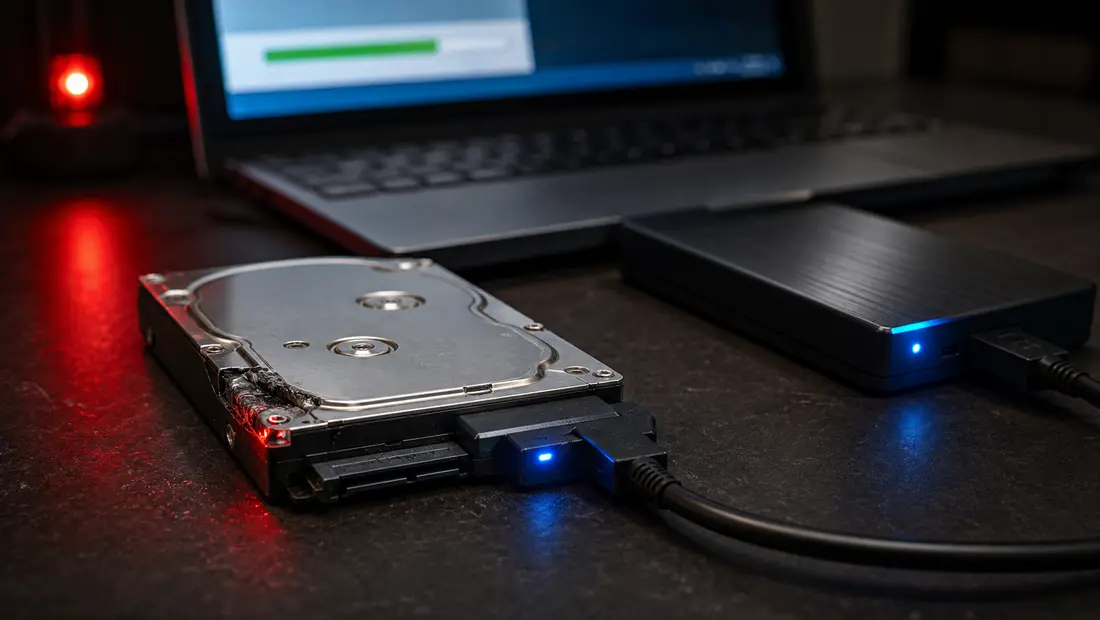
Safe recovery does not begin by installing a tool on the affected drive. The drive should first be read using another computer, with recovered data saved to another storage device—and for an at-risk drive, a sector-by-sector image is preferable.
Based on our experience, the safest advice is therefore:
- If the data genuinely matters to you, do not gamble on experiments—have the drive assessed. Initial diagnostics for a standard HDD may be free at the ITHOPE laboratory (hard drive data recovery). The assessment will reveal whether this is a five-minute job or a fault where every additional attempt reduces the chances of recovery. Getting advice before causing further damage at home is almost always the better option.
- Do not attempt to “revive” a drive that clicks, disappears from the system, or is no longer detected after a fall or liquid damage. Turn it off (Rule No. 1) and bring it in as it is.
- Do not install anything on the affected drive or reinstall its operating system. Even a “harmless” attempt may overwrite exactly what you are trying to recover.
You may feel that this level of caution is excessive for an ordinary deleted file. But damaging a drive is easy—and you may not even notice it, because you cannot determine its true condition from the outside. Initial diagnostics for a standard HDD may be free, so if you want certainty, the cheapest and safest option is to have the drive assessed instead of experimenting at home.
Turn the drive off immediately and do not try anything if: it clicks, beeps, or grinds · it is not detected at all · it has been dropped, exposed to liquid, or hit by a power surge · it is an SSD with a dead controller · it is encrypted and you do not have the recovery key · or the data is simply irreplaceable and you do not want to risk even one more attempt. In these cases, every additional minute reduces your chances—hand the drive over to a laboratory.
Professional recovery: what it can do and why it costs more
When a drive is physically damaged, the work goes beyond anything you can do at home. A laboratory works in a cleanroom (class 100)—a dust-free environment where a drive can be opened without contaminants destroying the platters. Specialists can replace read/write heads using a donor drive, transplant platters, repair electronics while transferring firmware, or read flash memory chips directly.
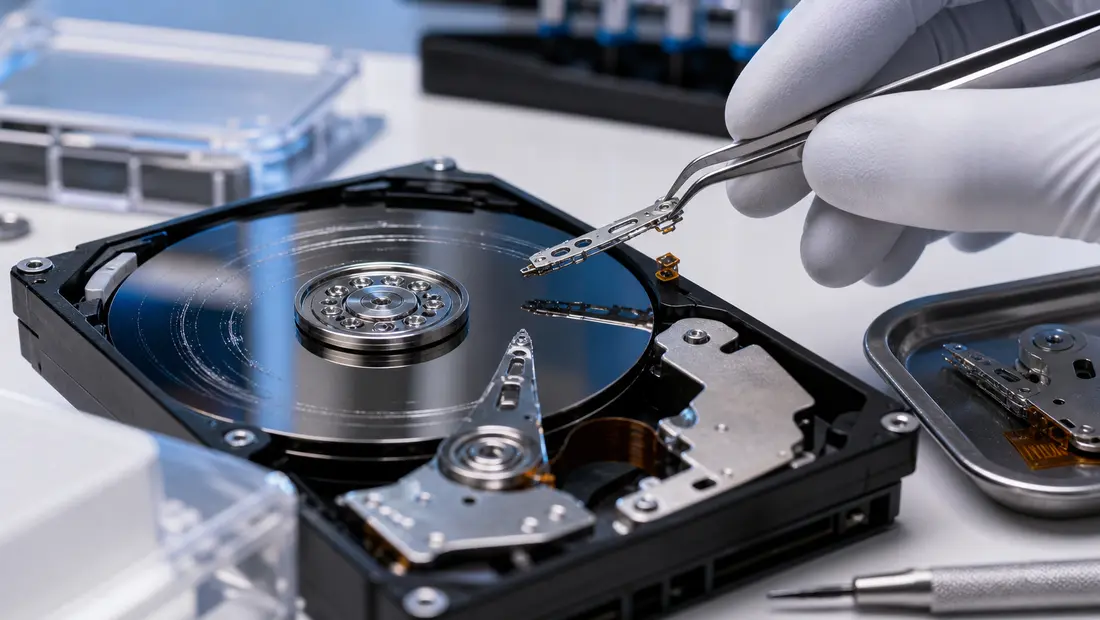
Illustrative image. Physical recovery is performed in a cleanroom—opening the drive, replacing the heads, and using a donor drive for spare parts. That is why it costs considerably more than software-based recovery and cannot be done “while you wait” on a workbench.
Now for an honest word about the price so there are no surprises: data recovery is not cheap. Software-based recovery from a working drive is relatively affordable, typically starting at a few thousand Czech crowns. Once the case involves bad sectors, a dead SSD, mechanical damage, donor parts, or RAID/NAS, the price and turnaround time depend on the specific fault. Initial diagnostics for a standard HDD may be free; the recovery itself is charged according to its scope, and a meaningful quote can only be provided after diagnostics. No reputable specialist can guarantee 100% success with a physically damaged platter. Anyone promising to fix “a clicking drive cheaply and immediately” either does not understand the problem or is overstating what they can deliver.
It is equally important to understand what professional recovery cannot do: restore blocks that have already been overwritten, bypass BitLocker without the recovery key, or miraculously read an area where the head has physically scraped the magnetic layer off the platter. A reputable outcome means an honest assessment of the chances and a list of recoverable data—not a promise of “100% at any cost.”
Do you have a NAS or RAID? Do not start a rebuild blindly
When a drive fails in a multi-drive array such as a NAS or RAID, it is tempting to start rebuilding the array immediately. Be careful: during a rebuild, the array operates under maximum load at exactly the moment when it is most vulnerable—and a second drive may fail at that very point. One wrong step can overwrite the parity and turn “one drive has failed” into “I have lost everything.” If one or more drives fail, turn the array off and seek advice before you overwrite anything. And remember: RAID protects against drive failure; it is not a backup and will not protect you against deletion or ransomware.
The best recovery is the one you never need
This needs to be said, even if it sounds like a cliché: even the best data recovery is expensive, uncertain, and arrives too late. The only genuinely reassuring protection is a backup following the 3-2-1 rule—and a basic backup can be configured in just a few minutes. One figure from our article about bad sectors is worth repeating: almost a quarter of drives fail without any warning at all. Trusting a drive to “warn you in time” is a gamble that one in four people will lose.
When data matters, contact us sooner
If you are unsure, or the drive is making noises and the data is valuable, do not gamble on further attempts. Data recovery is handled by the ITHOPE laboratory—data recovery. Its specialists will determine whether it is a DIY case, a software recovery job, or a laboratory procedure, including whether recovery is financially worthwhile. For urgent cases such as a clicking drive or ransomware, call the 24/7 hotline at 775 556 063. If the matter is not urgent, describe the device, what happened, and how important the data is using the data recovery form.
In summary: a deleted file on a healthy drive can often be recovered—but it is difficult to tell from the outside whether the drive is truly healthy, and every additional attempt with a clicking drive is a risk. If the data is valuable, do not gamble: turn the drive off and have it assessed by a laboratory first. Whatever the outcome, one rule always remains true: a backup is always cheaper than recovery.
Rather not deal with it yourself?
Book a diagnosis in Brno — you get the price up front and we start only once you agree.
Where to find us
We are a PC and laptop repair shop in Brno-Židenice: diagnostics and repairs of computers and laptops, data recovery from drives, and out-of-warranty Apple repairs (iPhone 12 and newer, MacBook, iPad).
Viniční 3587/216, 615 00 Brno-Židenice, Czech Republic Mon–Fri 10:00–16:00
Call +420 774 777 774 Computer repair and laptop service in Brno
We put the repair price in writing after diagnostics and carry on only once you agree.


