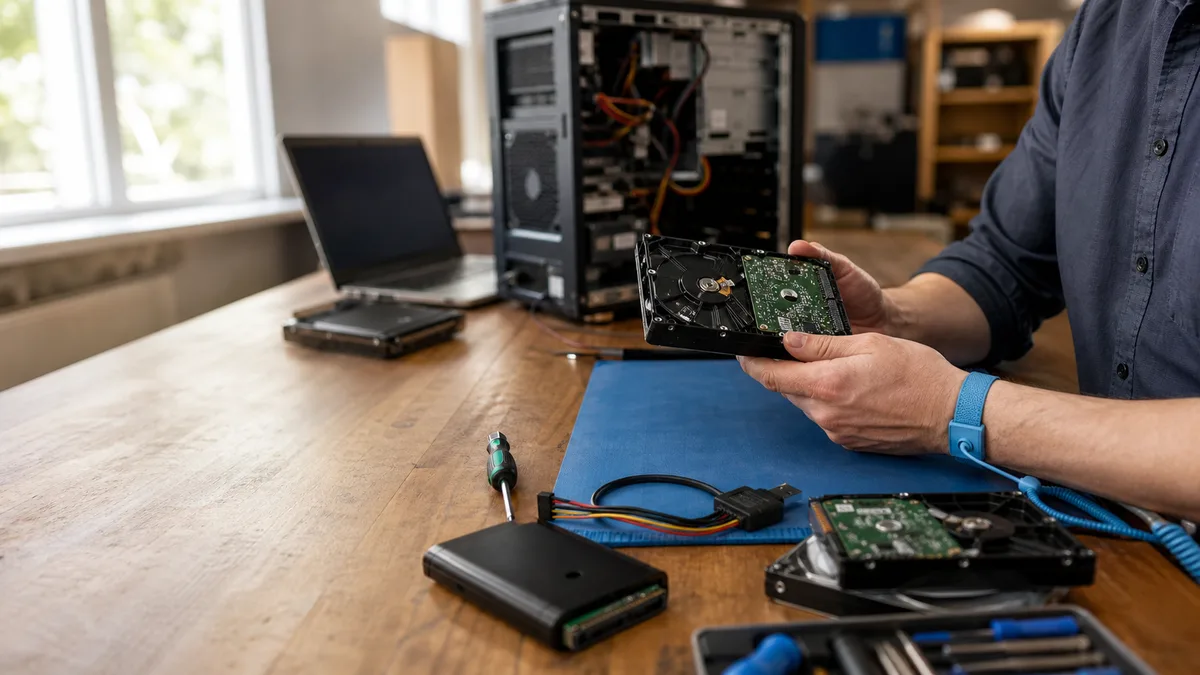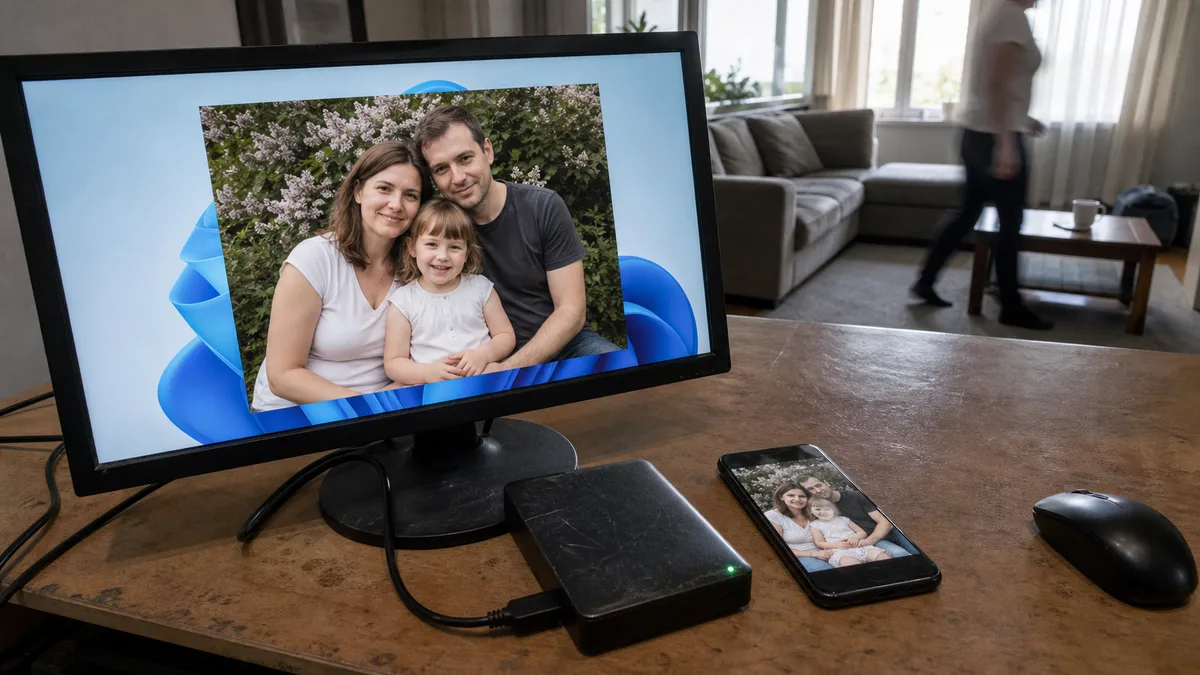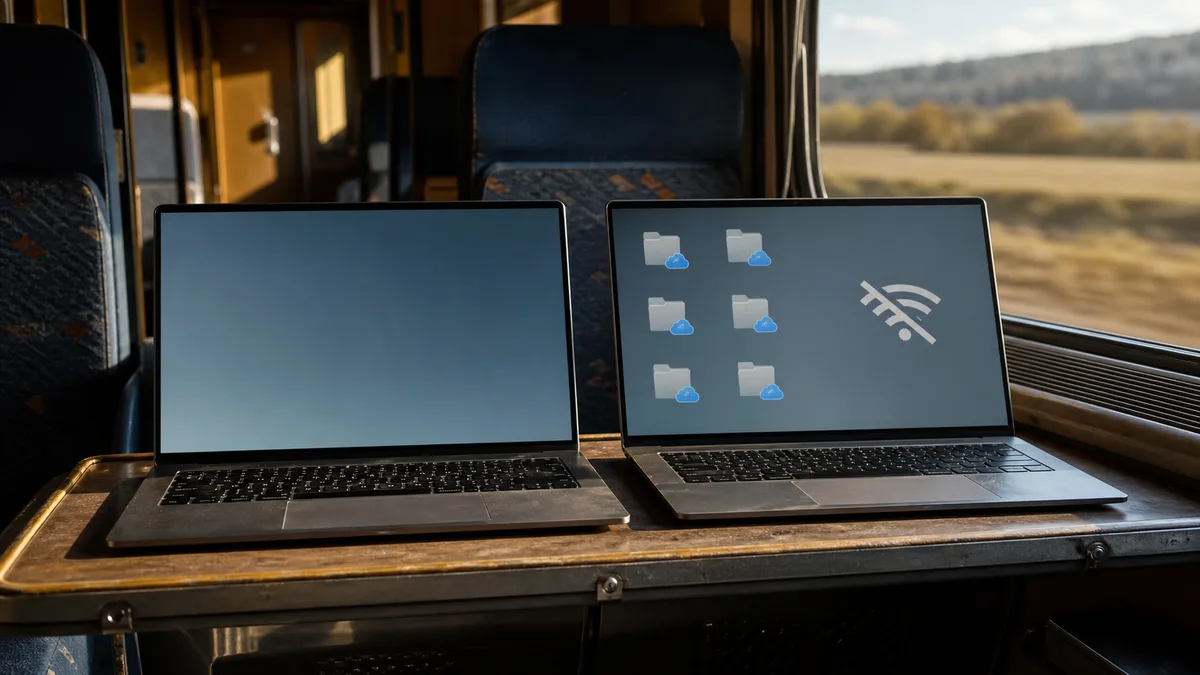
You turn on your laptop and the desktop is empty. At other times, you can see the files, but each one has a blue cloud icon and none of them will open on a train without a signal. Or you tidy up the desktop on your home computer and find the same files missing from your work laptop the next day.
These are three different symptoms that most often point to a single setting on Windows 11 computers: the Desktop has moved into OneDrive. Most people agreed to this when they first set up Windows because the option is called “backup”. But it is not the only possible explanation. Signing in to a different account or user profile can look the same, as can stalled or failed synchronization, ordinary deletion, a corrupted profile, or the early stages of a disk failure. The checks described below will show which one applies to you—until then, do not rule anything out.
The short answer: The most common cause is not deletion but redirection. When setting up a computer, Windows 11 offers to “back up” the Desktop, Documents, and Pictures folders to OneDrive. Once you accept, the active Desktop is located at
C:\Users\Name\OneDrive\Desktop, or underOneDrive – Company Namefor a work account. Before changing anything: useWin + R→shell:desktopto find out where the path leads, verify which account you are signed in to, check OneDrive on the web and its recycle bin, and make a copy of your most valuable data on separate storage. If the path does not go through OneDrive and the files are not in the cloud either, something else is going on—a different profile, deletion, or a hardware problem—and the response will be different. Do not unlink the account, delete the OneDrive folder, or move files in bulk—each such change will be synchronized to your other computers. Most importantly, synchronization is not a backup. Deletions and encryption are propagated everywhere.
The Desktop has moved—and File Explorer does not make it obvious
When setting up a computer, Windows 11 offers to “back up” the Desktop, Documents, and Pictures folders; newer versions of the client also include Music and Videos. Once you accept, the active Desktop is no longer located at C:\Users\Name\Desktop, but at C:\Users\Name\OneDrive\Desktop—or C:\Users\Name\OneDrive - Company Name\Desktop for a work account. File Explorer displays both locations in exactly the same way: as Desktop. That is why it feels as though “someone moved the desktop”.
You can check this in ten seconds: in File Explorer, right-click the Desktop folder, select Properties, and open the Location tab. The destination path is shown there in black and white. A few items that were not moved during redirection may remain in the old location. That is why people who turn off backup sometimes find a six-month-old set of icons on the desktop and think a backup has been restored.
If the Location tab points to the ordinary C:\Users\Name\Desktop and the folder is still empty, redirection is not the cause. You need to look elsewhere—at a different signed-in account or profile, deleted files, a corrupted profile, or the disk itself.
What really happened when you accepted the prompt was that the Desktop became a synced folder. From that point on, OneDrive transfers every change between the cloud and all signed-in computers—additions, renames, overwrites, and deletions. That is different from a backup, which keeps an older state separately and cannot be persuaded to change along with the original.
A free Microsoft account includes 5 GB of basic storage, and OneDrive is not the only service using it—email attachments on Outlook.com also count. A few folders of invoices will fit. A desktop full of phone videos, installers, and accounting exports will exhaust the allowance before anyone notices.
Before changing anything: a five-minute inventory
Do not unlink the account, delete the OneDrive folder, or move hundreds of files back and forth. Anything you do in a synced folder will be propagated to the cloud and your other computers—including deletions. First establish what is really happening:
- Where the active Desktop is located. Press
Win + R→ entershell:desktop→ press Enter. This opens the folder Windows is currently using as the Desktop. Click the address bar and read the full path: does it go through OneDrive or not? - What the OneDrive icon by the clock says. Up to date, paused, error, or storage full? A cloud with a cross is not cosmetic—it means synchronization has stopped.
- What appears on the web. Sign in to the same account—personal accounts at onedrive.live.com, work accounts through the Microsoft 365 portal—and check the Desktop folder, search, and the Recycle bin. If something is visible on the web, it is genuinely in the cloud.
- Which account owns the files. Check the email address in OneDrive settings. Small businesses often confuse a personal Microsoft account with a work account; each has its own storage, folder, and recycle bin. Only one of them can take over the Desktop at a time.
- Open one important file and inspect its contents. Do not rely on its name and icon—look inside. Only then should you copy anything irreplaceable to separate storage, before touching any settings.
If these five checks show that the Desktop does not go through OneDrive and nothing is present in the cloud or its recycle bin, you are dealing with something other than a synchronization setting. From this point, the procedure depends on whether the cause is deletion, a corrupted profile, or a disk problem.
If files are being renamed in bulk, acquiring unfamiliar extensions, or becoming impossible to open, this is not OneDrive. Disconnect the computer from the network and follow the article on what to do during a ransomware attack.
Cloud, check mark, cross: what each icon really means
“Seeing a file” no longer means “the file is on this drive”. Files On-Demand is the default in the current OneDrive client: File Explorer displays the entire folder tree, but the contents are not downloaded until you click a file.
| Icon | Where the data is stored | What happens without internet access |
|---|---|---|
| Blue cloud | In the cloud only; the disk contains a placeholder a few kilobytes in size | You cannot open it |
| Green check mark inside an outlined circle | A local copy exists because you opened the file | You can open it—but Windows may free up the space again later |
| Solid green circle with a check mark | Marked Always keep on this device | You can always open it; it occupies its full size on the disk |
| Circular arrows | Synchronization is currently in progress | Not complete—do not assume the cloud has the latest version |
| Red circle with a cross | Synchronization error | The cloud may not have the latest version |
The middle one is deceptive. A green check mark inside an outline is temporary: Windows has a Storage Sense feature under Settings → System → Storage that can return locally available content to the “online-only” state after a specified number of days. A file that you “downloaded by opening it” before a trip may therefore show a cloud icon again by the time you reach the airport. If you need guaranteed offline access, it must have a solid green circle.
Why desktop files “disappear”
| Symptom | Likely cause | What to check |
|---|---|---|
| The Desktop is empty after signing in | OneDrive is not running, you are signed in to a different account or profile, Windows is showing a different Desktop folder—or the files were deleted, the profile is corrupted, or the disk is failing | shell:desktop, account email, OneDrive on the web, disk errors |
| The file is visible but will not open | It is online-only and there is no connection—or the download has stopped because of an error | The icon, internet connection, synchronization status |
| The file disappeared from the other computer as well | The deletion was synchronized | Windows Recycle Bin and the OneDrive recycle bin on the web |
| The local Desktop is empty after turning off “backup” | Depending on the option selected in the dialog, the files remained in the OneDrive folder | …\OneDrive\Desktop, or OneDrive - Company\Desktop, plus the path shown by shell:desktop |
| New files do not appear on the web | The quota is full or synchronization has stopped because of an error | Storage usage, red cross, list of problems in the client |
| You see an old set of documents | A personal account is signed in instead of the work account, or vice versa | Account email and the OneDrive – Company folder name |
| Program shortcuts on the Desktop do not work | The Desktop is synchronized between computers, but the .lnk file points to a program that is not installed on the other machine | This is not a synchronization error—shortcuts do not belong on a shared Desktop |
A full storage allowance does not delete old files from the cloud by itself. OneDrive simply stops accepting new changes—and you may continue working under the impression that everything is online. The different versions on the computer and in the cloud then have to be reconciled manually, one file at a time. Also note that the contents of the recycle bin count towards the quota for personal accounts: moving files “to the recycle bin” does not free up space immediately.
If you are running out of space on the system drive and OneDrive is only one of the causes, continue with our article on how to free up disk space in Windows 11. With synced folders, however, you first need to know which files are online-only and which have a genuine local copy. Otherwise, your “clean-up” may remove offline access to precisely the files you need while travelling.
What OneDrive can recover—and what it cannot
OneDrive is not a basic copying tool. It has version history—right-click a file and select Version history—a web recycle bin, and a second-stage recycle bin beneath it for business accounts. For personal accounts, deleted items remain in the web recycle bin for 30 days. If the recycle bin grows beyond 10% of the storage capacity, that period begins to shorten. The default retention period for work or school accounts is 93 days, although an administrator can change it. Microsoft 365 subscribers and business accounts also have Files Restore, which can return the entire OneDrive to any point within the previous 30 days. This is the only sensible recovery option after files have been overwritten or encrypted in bulk.
These features are useful. They do not replace a backup:
| Situation | Synced OneDrive | Separate backup |
|---|---|---|
| You delete a file on one computer | The deletion is propagated everywhere; you depend on the recycle bin and its retention period | An older copy remains outside synchronization and is unaffected |
| Ransomware overwrites documents | Encrypted versions may be uploaded to the cloud; recovery depends on version history and the account type | A disconnected or immutable drive cannot be directly overwritten by the attack |
| The account is blocked, cancelled, or was managed by a former employee | You may be unable to access the data at all | The copy remains under the company’s control |
| You need a file with a cloud icon while offline | It is not on the disk | The backup can be read without signing in to the cloud |
One detail catches out more people than any other: a file that was online-only will not appear in the Windows Recycle Bin after deletion. There is nothing to place in it—the disk only held a placeholder a few kilobytes in size. Look in the OneDrive recycle bin on the web. If someone has emptied that as well, you have reached the limit of what you can recover yourself.
Our article on the 3-2-1 backup rule explains what a second copy should look like if you do not want synchronization to delete it. For this particular problem, one sentence is enough: synchronization provides availability; backup provides a way to return to an earlier point in time. They are two different jobs, and neither can replace the other.
How to set things up based on what you want from OneDrive
You want the same Desktop on every computer
Leave Desktop folder backup enabled and get three things right: sufficient storage space, completed synchronization without a red cross, and the correct account—the work account rather than a personal one in a business environment. Mark any folder you need to use without an internet connection as Always keep on this device; otherwise, Storage Sense will eventually return it to the “online-only” state.
Do not put large archives, installation images, or work exports on the Desktop. They will be downloaded to every additional computer and consume your storage allowance. Documents used by multiple people belong in a managed SharePoint or Teams library—not on an individual employee’s Desktop, where they may leave along with that person.
You want the Desktop only on this computer
- Download everything first. Right-click the Desktop folder inside OneDrive → Always keep on this device. Wait until every item shows a solid green circle. Moving online-only items means their data must first be downloaded from the cloud. A full Desktop can take time, and the operation may fail halfway through if the connection drops, synchronization encounters an error, or the disk runs out of space. Downloading everything in advance is the safest way to prevent this.
- Make a separate copy on an external drive or USB flash drive. Yes, even now—before touching anything else.
- Go to OneDrive → Settings → Sync and backup → Manage backup and stop backup for the Desktop. The client will ask what should happen to the files: depending on the version, it may offer to leave them in OneDrive or move them back to the computer. Read which option you are confirming—do not dismiss the dialog without checking, because this choice determines where the files will be after the process finishes.
- Verify where the files actually ended up. If you chose to keep them in OneDrive, they remain in
…\OneDrive\Desktop, and you must move them toC:\Users\Name\Desktopmanually after the download is complete. If the client moved them back to the computer, inspect both locations and make sure you have the complete contents and that nothing remains stranded in OneDrive. - Check the result. Run
shell:desktopagain: are both the path and contents correct? Only then should you clean up anything left in the cloud.
You want to bring order to business accounts
Every employee should have a company identity rather than a personal Microsoft account—otherwise, the business has no control over the data they create. Establish who owns each folder, which content is personal and which belongs to the team, and above all, what happens when someone leaves: before cancelling an account, you must take control of its data, including files that are online-only. After the licence is cancelled, the data can be accessed only for a limited period and then not at all.
Enable multi-factor authentication, maintain a record of tenant administrators, and do not assume that a green check mark means a backup exists. It only describes the availability of a file on one particular device—nothing more.
What does not belong on a synced Desktop
- Outlook data files (
.pst,.ost). Microsoft does not recommend storing them in a synced folder: the file remains open whenever Outlook is running, so the client repeatedly uploads it. - Single-file databases used by accounting and inventory applications. The application locks the file and writes small changes to it. Synchronization interferes with that process, resulting not in a backup but in a corrupted data file.
- Installation images, archives, and video exports. They exhaust the storage allowance and are downloaded again on every additional computer.
- Program shortcuts (
.lnk). On another computer, they point to nowhere. - Excessively long paths and unusual names. The entire path, including the filename, must remain below 400 characters and must not contain
" * : < > ? / \ |. A file that “refuses to upload” is surprisingly often simply buried too deeply inside folders with long names.
When to stop changing settings and call a technician
Professional help makes sense when you cannot tell which of two accounts is the correct one and the data is scattered across both. When synchronization reports an error that cannot be dismissed. When some data is online-only but the account’s licence has expired. When files are no longer in the web recycle bin. And especially when hardware problems are also involved—the disk clicks, the system reports read errors, or the computer shuts down by itself. At that point, you are no longer troubleshooting settings but dealing with data recovery.
The order of work is always the same: first inventory the accounts, paths, and file states; then make an independent copy of everything accessible; only then change the settings. A technician who begins by unlinking the account or deleting a folder “to see what happens” is doing things in the opposite order from what is safe.
When the data is genuinely gone—the recycle bin has been emptied, the computer reinstalled, or the disk formatted—that is a different discipline from configuring OneDrive, and there is no point pretending otherwise. If you do not feel confident handling it yourself, we can provide data recovery in Brno for you: the work is performed from a sector-by-sector copy rather than the original drive, and we will tell you in advance what is realistically possible. Whether you choose us or someone else, ask them beforehand to confirm the estimated price, what the inspection includes, and whether copying a larger volume of data is charged separately.
The conclusion fits into a single sentence: a green check mark tells you that a file is available; it does not confirm that a second copy exists anywhere.
Rather not deal with it yourself?
Book a diagnosis in Brno — you get the price up front and we start only once you agree.
Where to find us
We are a PC and laptop repair shop in Brno-Židenice: diagnostics and repairs of computers and laptops, data recovery from drives, and out-of-warranty Apple repairs (iPhone 12 and newer, MacBook, iPad).
Viniční 3587/216, 615 00 Brno-Židenice, Czech Republic Mon–Fri 10:00–16:00
Call +420 774 777 774 Computer repair and laptop service in Brno
We put the repair price in writing after diagnostics and carry on only once you agree.