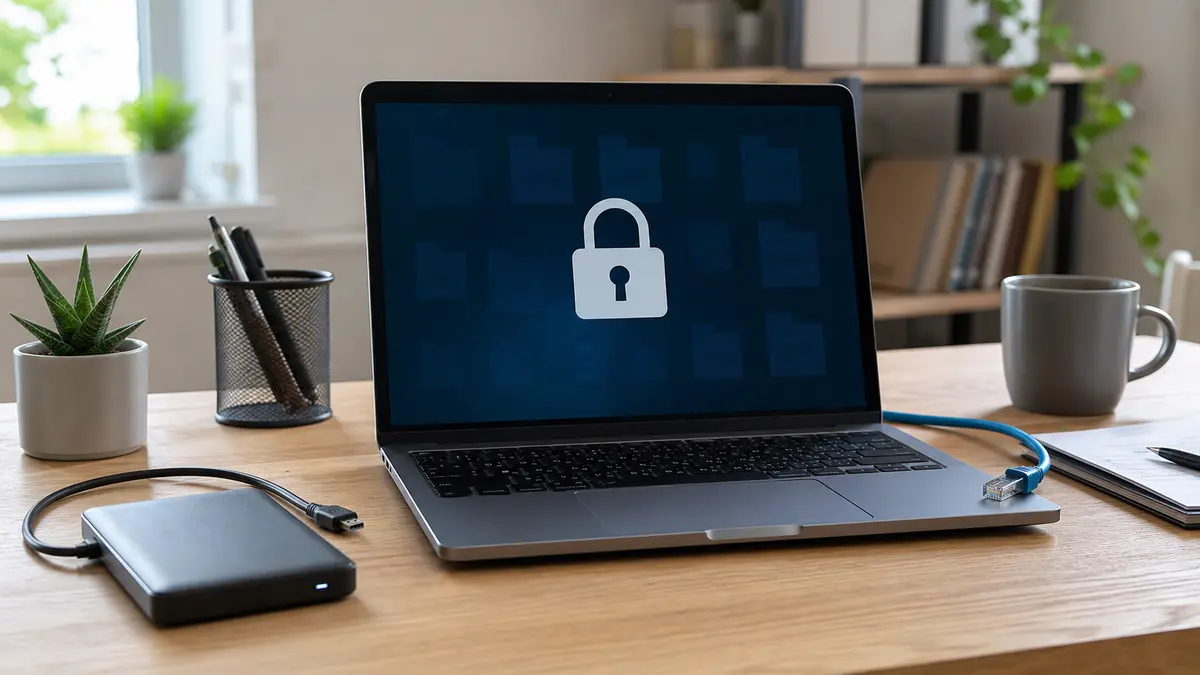
Ransomware is malicious software that encrypts your files and then demands a ransom. At home, this usually means losing photos, documents, accounting records, schoolwork, or work files. It’s not just a corporate problem. A fake invoice in an email, a crack downloaded from a forum, or an outdated program is all it takes.
This article is primarily for home users: how to defend yourself beforehand and what to do in the first few minutes when a ransom note appears on your desktop. If your data is already encrypted and you’re dealing with an active incident, also read the detailed crisis guide Ransomware encrypted your data: what to do step by step.
What is ransomware
Think of ransomware as digital extortion. Once launched, it silently scans your drive, finds files that are valuable to you, and encrypts them. Typically documents, photos, videos, spreadsheets, and databases. It then displays a ransom note with payment instructions, often demanding cryptocurrency.
An encrypted file might look like fotka.jpg.locked, dokument.docx.encrypted, or have some other unknown extension. Simply renaming it back won’t help. The problem isn’t the name, it’s the file’s content.
The most common infection vectors:
- Fake emails with attachments. An invoice, a reminder, a package delivery notice, or a document with a macro.
- Cracks and keygens. A “free full version” is one of the riskiest ways to bring ransomware home.
- Phishing links. An email or message redirects you to a page that downloads a malicious file.
- An outdated system and programs. Attackers exploit known vulnerabilities for which a fix often already exists.
We cover how to distinguish a common scam email separately in the article How to recognize a phishing email.
Prevention: five things that matter
With ransomware, thinking ahead pays off. Once the attack is complete and you have no backup, your options are limited.
1. 3-2-1 backup, especially offline
The 3-2-1 rule means three copies of your data, two different media, and one copy off-site. For a household, this could be a combination of your computer, an external drive, and the cloud or a NAS. We go into more detail in the article Backup according to the 3-2-1 rule.
A key detail: disconnect the external drive after the backup. Physically unplug the cable. Ransomware doesn’t just target the internal drive. It often scans connected USB drives, network shares, and NAS devices. If the backup is connected during an attack, it can end up encrypted just like the original data.

An offline backup isn’t as convenient as cloud sync, but it’s crucial against ransomware. A cloud service with versioning can help, but a synced folder without version history might obediently upload the encrypted files to the cloud as well.
2. Windows and program updates
Updates are annoying, but they patch holes that ransomware and other malware exploit. Don’t put off Windows, browser, PDF reader, office suite, and communication app updates for long periods.
If your computer has been reporting failed updates for several months, don’t ignore it. A full disk, a corrupted Windows Update component, or an old system version is often the culprit.
3. Caution with attachments and downloads
Don’t open attachments you aren’t expecting. Even if they look like they’re from a known company. Check the sender’s address, the file type, and the context. An invoice in a password-protected ZIP archive or a “PDF” that’s actually an .exe is a red flag.
We recommend skipping cracks and keygens entirely. In our repair shop, we repeatedly see computers where ransomware started precisely through a game or office suite “activator.”
4. Controlled Folder Access
Windows Defender has a feature called Controlled Folder Access. It works by protecting selected folders from unknown applications. If a suspicious program tries to bulk-modify documents or photos, Windows can block it.
Here’s how to turn it on:
- Open Windows Security.
- Go to Virus & threat protection.
- Find Manage ransomware protection.
- Turn on Controlled Folder Access.
It’s not maintenance-free. You’ll need to allow some legitimate programs. But for folders with documents, photos, and accounting records, it’s a useful layer of protection.
5. Keep Defender on
The built-in Microsoft Defender is a reasonable baseline for a home computer today. It doesn’t protect against everything, but it can catch known threats, suspicious behavior, and malicious files. The important thing is not to turn it off for cracks, games, or internet tutorials.
If you need to go through Defender’s settings, the article Do I still need an antivirus? What free Defender can do follows up on this.
Ransomware attack: what to do immediately
When you see a ransom note or mass-encrypted files, the main goal is not to make the situation worse.
1. Disconnect the computer from the network
Turn off Wi-Fi and unplug the Ethernet cable. If you have a NAS or network drive, disconnect that from the network too. The goal is to stop the spread to shared folders and other devices.
2. Do not connect backups
The worst home reaction is to connect an external drive and “quickly save the photos.” If the ransomware is still running, it will encrypt the connected backup too. A backup drive belongs connected to a clean computer or only after the system is cleaned.
3. Do not pay the ransom
Payment doesn’t guarantee you’ll get your data back. The attacker can disappear, send a non-functional tool, or try to extort you again later. Paying also funds further attacks.
4. Take a photo of the ransom note
Use your phone to take a picture of the screen or the text file with instructions. The extension of the encrypted files, the name of the ransom note, and any attack ID are useful. Not for paying, but for identifying the type of ransomware.
5. Try No More Ransom
Go to nomoreransom.org. This is a project by Europol, law enforcement, and security companies. You upload a sample encrypted file or the ransom note, and the site tries to determine if a free decryption tool exists.
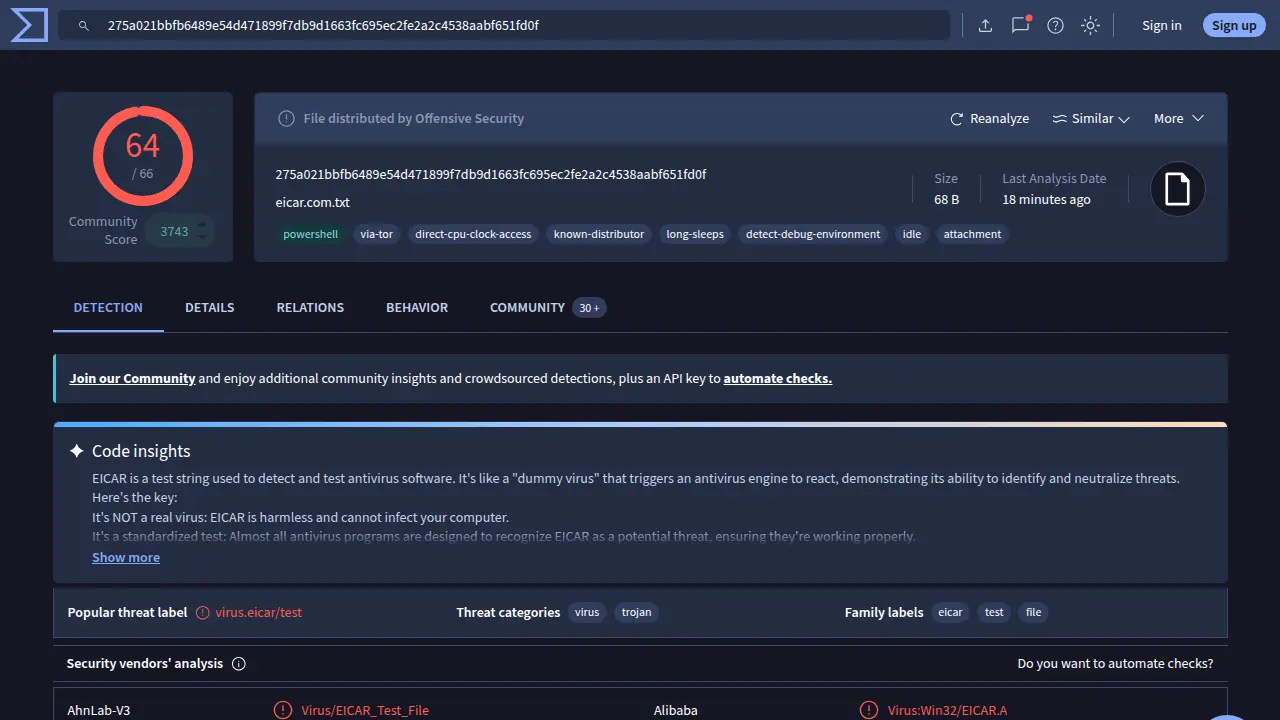
For older or cracked variants, you might get lucky. For modern variants like LockBit or Phobos, there is often no usable decryptor without a backup. That’s not fearmongering, just the reality of strong encryption.
6. Only restore to a clean system
If you have a backup, don’t restore it directly to the infected system. The safest procedure is:
- Disconnect the infected computer from the network.
- Check the backups on a clean device.
- Clean or cleanly reinstall the infected system.
- Only then restore the data.
For important data, it makes sense to first create a bit-for-bit image of the original drive. The original then remains untouched, and all attempts are made on the copy.
Can files be decrypted without paying?
Sometimes, yes. If it was an older ransomware strain, a poorly written variant, or a family for which security teams obtained the keys, there’s a chance through No More Ransom or a specialized decryptor.
Sometimes, no. For modern ransomware with strong encryption, “cracking the password” at home or in a repair shop isn’t realistic. Without a backup and without an available decryptor, the data may be practically lost. That’s why prevention is so important.
Don’t delete the encrypted files right away. Save them to a disconnected drive. A decryptor might appear later.
When to call a repair service
A repair service makes sense mainly in these situations:
- you have no backup and the data has real value,
- you don’t know if the ransomware is still running,
- the computer is a business machine or contains accounting records,
- you need to safely restore data from backups,
- you want to be sure no backdoors remain in the system.
In Brno, we handle ransomware as part of our antivirus and ransomware service. For home computers, we usually first assess whether a backup or decryptor exists. If not, we tell you straight. For well-executed modern ransomware without a backup, sometimes there’s nothing to save.
Frequently asked questions
Should I pay the ransom if there are years of photos on there?
No. Paying does not guarantee the return of your data. First, disconnect the computer from the network, try identification via No More Ransom, and look for offline backups.
Will an antivirus protect me from ransomware?
It helps, but it’s not bulletproof protection. Defender or a paid antivirus is just one layer. The most important things are an offline backup, updates, and caution with attachments.
How is ransomware different from a regular virus?
A regular virus can cause harm in various ways: stealing passwords, displaying ads, slowing down the computer. Ransomware is specific in that it encrypts data and demands a ransom. If you’re not sure what your computer is infected with, the guide how to recognize and remove a virus can help.
Is a backup on an external drive enough if it’s always connected?
No. A connected external drive is just another drive for ransomware to encrypt. Unplug the cable after the backup is complete.
What is No More Ransom?
No More Ransom is a website with a database of free decryptors and a tool for identifying ransomware. It’s not a miracle solution for every variant, but it’s the first place worth trying.
Rather not deal with it yourself?
Book a diagnosis in Brno — you get the price up front and we start only once you agree.
Where to find us
We are a PC and laptop repair shop in Brno-Židenice: diagnostics and repairs of computers and laptops, data recovery from drives, and out-of-warranty Apple repairs (iPhone 12 and newer, MacBook, iPad).
Viniční 3587/216, 615 00 Brno-Židenice, Czech Republic Mon–Fri 10:00–16:00
Call +420 774 777 774 Computer repair and laptop service in Brno
We put the repair price in writing after diagnostics and carry on only once you agree.