Half an hour before an online meeting you find out that your computer has gone quiet. The YouTube video is playing, the timeline is moving, but not a single tone comes out of the speakers. And the speaker icon in the bottom right reports no error — no cross, no warning. Just silence.
The good news: of all the possible causes, a dead audio chip is the rarest one. In the workshop we see the same four situations over and over — and three of them you can fix at home in a few minutes, once you know where to click.
The short answer: Most often Windows is sending the sound to a different device than the one you are listening to — typically a monitor connected over HDMI that has no speakers at all. Click the speaker icon in the bottom right, then the > arrow next to the volume slider and pick the right output. The second most common culprit is an app muted in the volume mixer. Only after that do drivers and the Windows Audio service come into play.
Two checks before you install anything
It sounds trivial, but these two steps are where a fair share of “sound repairs” ends right at our counter:
- Volume and mute. Click the speaker icon on the taskbar and look at the slider. On laptops, sound is muted with the key showing a crossed-out speaker (often combined with Fn) — it is easy to hit by accident while typing. With external speakers, also check their own volume knob and power supply.
- Cables and connectors. On a desktop, speakers belong in the green jack at the back of the board; the front panel of the case is often unreliable or not connected at all. On a monitor with speakers, check the volume in its own menu. And if you have Bluetooth headphones paired, take a look whether they are not stealing the sound from a drawer — they connect on their own as soon as they are switched on.
None of that helped? Carry on in order. The steps below are sorted from the most likely cause and none of them can break anything.
Windows is playing somewhere other than where you are listening
Windows 11 remembers the default audio device and switches it on its own depending on what you plug in. That is exactly why sound “mysteriously disappears” always after some change:
| What happened | Where the sound went |
|---|---|
| You connected a monitor over HDMI or DisplayPort | To the monitor’s speakers — even if it has none |
| You put the laptop into a docking station | To the dock’s output or to the monitor behind it |
| You paired Bluetooth headphones | To the headphones, even when they are not on your ears |
| You plugged headphones into the front panel | The front jack takes priority over the rear one |
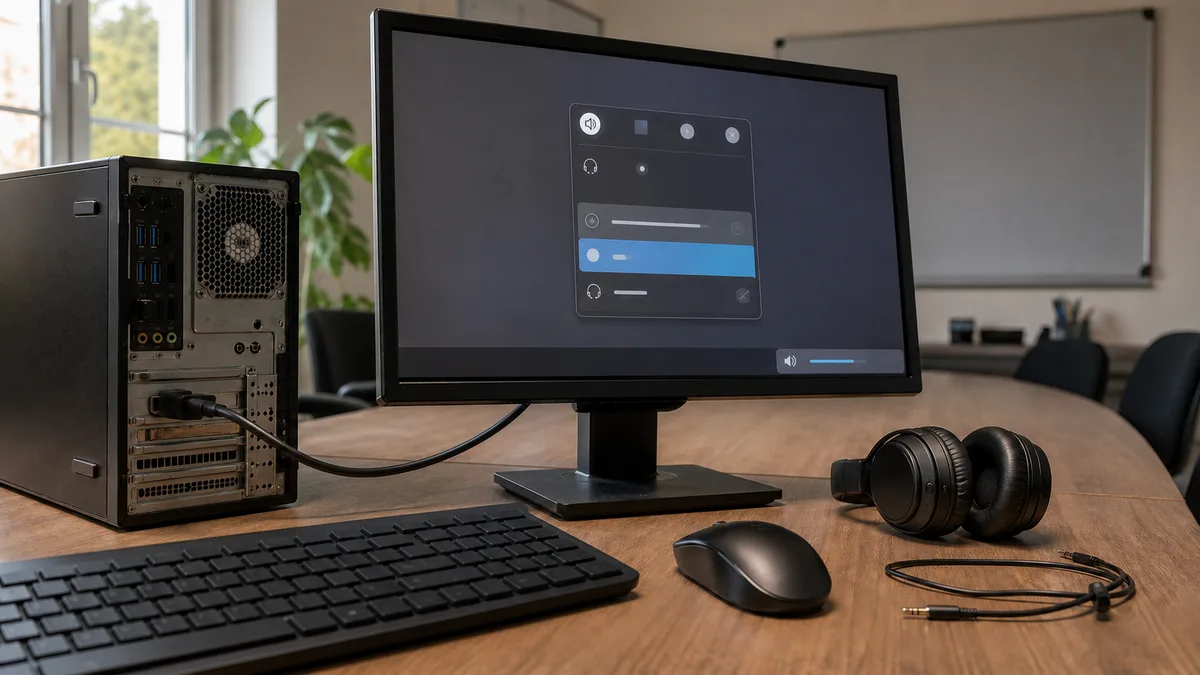
The fix takes three clicks: the speaker icon in the bottom right → the > arrow next to the volume slider → pick the right device from the list. You will find the same thing in Settings (Windows + I) → System → Sound, the Output section → Choose where to play sound.
To stop the switching from happening at every startup, set the default device permanently: in System → Sound click the device and choose Set as default sound device.
If the right output is not in the list at all, go through the disabled devices: System → Sound → More sound settings opens the classic window with the Playback tab. Right-click into the empty area of the list, tick Show Disabled Devices and Enable any greyed-out device.
An app muted in the volume mixer
Windows keeps the volume for each app separately. If you muted your browser a month ago because of an annoying ad, it will still be muted today — and you will be looking for the fault somewhere completely different.
Open Settings → System → Sound and at the bottom Volume mixer. You will see a list of running apps, each with a volume slider and a choice of output device. Check both: an app can not only have its volume pulled down to zero, but also a different output assigned than the rest of the system — headphones you unplugged long ago, for instance.
Two extra traps:
- A muted browser tab. Both Chrome and Edge can mute one specific tab — you can recognise it by the crossed-out speaker on the tab. Right-click the tab → Unmute tab.
- The app’s own volume. Games, Spotify or media players have another slider of their own inside. The Windows mixer will not override it.
After changing the output in the mixer, it is better to close the app and start it again — some of them read the audio device only at launch.
The Realtek driver after an update
If the sound disappeared right after a Windows update, the main suspect is the sound card driver — on most boards and laptops that means Realtek. An update sometimes installs a newer but worse version, or the installation does not finish and the device ends up with an exclamation mark.
Starting with the gentlest step:
- Right-click the Start button → Device Manager → expand Sound, video and game controllers → double-click Realtek(R) Audio (or a similarly named device).
- On the Driver tab try Roll Back Driver — the button is only active when there is something to roll back to. It exists for exactly this case.
- If rolling back is not possible, choose Uninstall device. Leave the Attempt to remove the driver for this device option unticked and restart — Windows will install the driver again from scratch at startup.
- Look for a newer driver in Settings → Windows Update → Advanced options → Optional updates → Driver updates, or on the website of your laptop or motherboard manufacturer.
What to avoid: “driver booster” utilities downloaded from the internet. They promise to fix all drivers at once, but in reality they install mismatched versions and bundle unwanted software.
One connection that is easy to miss: sound over HDMI or DisplayPort does not go through Realtek, but through the graphics card driver. If it is the monitor or the TV that is not playing, deal with the graphics driver — and if the graphics is misbehaving in other ways too, go through the article Graphics acting up: artefacts, stripes or a black screen?.
A cross on the speaker: the Windows Audio service
A red cross on the speaker icon and a message saying the audio service is not running point to a stopped Windows Audio service. Without it the system does not process sound at all, even if the driver is perfectly fine.
- Press Windows + R, type
services.mscand confirm. - Find Windows Audio and Windows Audio Endpoint Builder in the list.
- For both, check that Startup type is set to Automatic (double-click → drop-down menu) and right-click → Restart.
The built-in troubleshooter can help as well: Settings → System → Troubleshoot → Other troubleshooters, and click Run next to Audio. On newer Windows 11 builds the Get Help app opens instead and walks you through the same steps as a wizard — it can restart the services and switch the default device for you.
Restart means Restart
Windows 11 has fast startup enabled by default: Shut down does not switch the computer off completely, part of the system is saved to disk and next time it only wakes up. So the stuck audio part of Windows does not get restarted by “switching it off and on again” at all, and the problem survives for days.
The only way to get a truly clean start is Start → Power → Restart. If you want to know what else fast startup affects and when to turn it off, we go through it in the article Windows 11 starting slowly? How to speed up boot without a reinstall.
One last software step: audio enhancements. In Settings → System → Sound click your output device and switch Audio enhancements to Off. Effects such as an equaliser or virtual surround sound can cause crackling, hissing or complete silence after a driver update.
When the symptoms do not say what the cause is, the next step is measurement — fault diagnostics in Brno, not blind part swapping.
When it is no longer software
Sometimes the silence really is a hardware issue. Bring the computer in for service when:
- the No audio device is installed message survives even a driver reinstall and a restart,
- the sound card keeps disappearing from Device Manager or shows up only as an unknown device,
- the sound cuts out or crackles when you move the connector in the jack — a broken-off socket is a common mechanical fault,
- only one speaker plays in the laptop, or both rattle while headphones sound perfectly clean,
- the trouble started after the laptop was dropped or had liquid spilled on it.
In cases like these it needs measuring to find out whether the fault is the codec on the board, the jack itself, the speakers, or just a contact. You will find our diagnostics in the price list — if you decide against the repair afterwards, it costs 600 CZK; when the repair goes ahead, it is covered within the job.
And if the computer is misbehaving overall on top of the sound — slow to start, stuttering, crashing — do not look for five separate causes. Go through the article Slow computer: what to do first, the cause is usually shared.
Not keen on digging into it?
Going honestly through the outputs, the mixer, the driver and the services can easily take an hour — and with a computer you need for work in the morning, you are simply not in the mood for it. If you lost patience halfway down the list, or do not fancy taking on Device Manager, book a repair online: we will sort the sound out remotely over a secure connection, or come to you.
Indicative prices in Brno: installation and setup from 600 CZK, a service call-out within Brno-město 700 CZK. We confirm the price up front, before we start work.
Once the sound is playing again, give the system five more minutes: in the guide Windows 11: how to turn off annoying features we show how to sort out the taskbar, Start and recommendations so that Windows works for you — not the other way round.
Order online: Fault diagnostics — tell us the model and what happens, and we will come back with the next step.
Rather not deal with it yourself?
Book a diagnosis in Brno — you get the price up front and we start only once you agree.
Where to find us
We are a PC and laptop repair shop in Brno-Židenice: diagnostics and repairs of computers and laptops, data recovery from drives, and out-of-warranty Apple repairs (iPhone 12 and newer, MacBook, iPad).
Viniční 3587/216, 615 00 Brno-Židenice, Czech Republic Mon–Fri 10:00–16:00
Call +420 774 777 774 Computer repair and laptop service in Brno
We put the repair price in writing after diagnostics and carry on only once you agree.