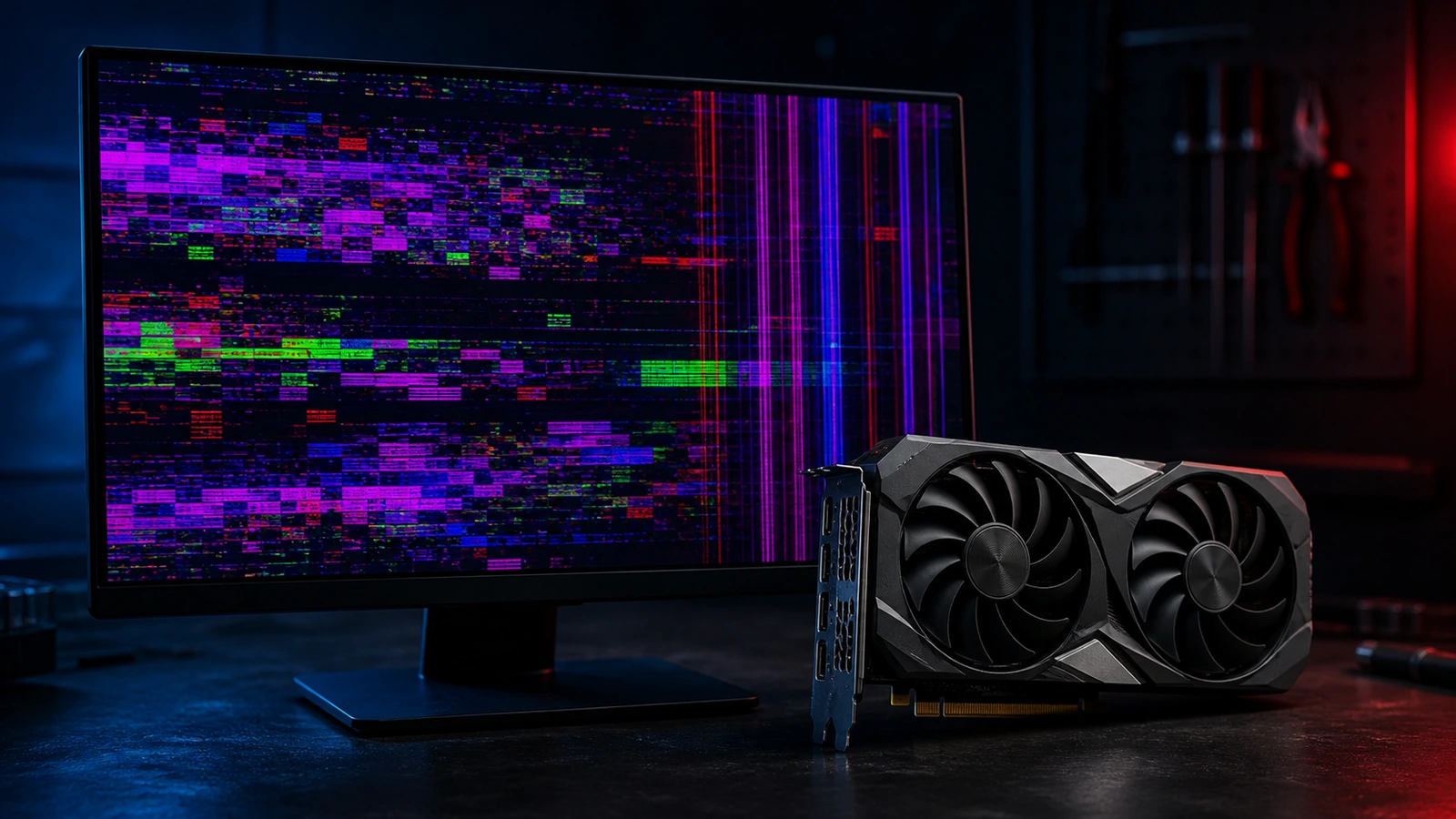
An image full of colored squares, vertical stripes, or just a black screen with No signal after turning on the computer. We see this daily in the repair shop. Before you panic that your graphics card is dead, know that most of these issues have a clear cause – and many can be fixed at home for free. Let’s go through it step by step, from the simplest.
Quick verdict
- Artifacts only in games / under load, desktop is clean → typically overheating: clean the card, check the fans.
- Artifacts even on the desktop (squares, scrambled textures) → more likely dying memory (VRAM), often the beginning of the end for the card.
- ”No signal” immediately after power-on, PC doesn’t even beep → first check cable, port, RAM, or poorly seated graphics card.
- Test a different monitor and cable first — in five minutes you’ll know if the problem is the graphics card or the monitor.
What a “misbehaving” graphics card looks like: artifacts, stripes, black screen
When someone in our shop says “the graphics card is acting up,” they could mean several different things. Let’s name them so we know exactly what we’re dealing with.
Artifacts are visual defects in the image. They can be:
- Random colored pixels or dots scattered across the screen.
- Squares, “checkerboard” patterns, or blocks of color.
- Horizontal or vertical stripes (often blue, green, purple).
- Torn, “scrambled” textures in games – characters or objects have strange geometric protrusions.
- Flickering of part of the screen or the entire desktop.
Black screen means the monitor receives no signal. Typically, a No signal message appears, or the monitor simply stays in standby mode. This can happen right after turning on the PC, or only after running for a while – like when launching a game.
Crashes, freezes, and restarts under load. The computer suddenly freezes while gaming or rendering, restarts, or throws a blue screen with a video-related error (e.g., VIDEO_TDR_FAILURE).
The most important question: when and where does it happen
In our view, this is the key diagnostic angle. Before you start taking anything apart, answer one question: When exactly does the problem occur? Because that gives the biggest clue about the cause.
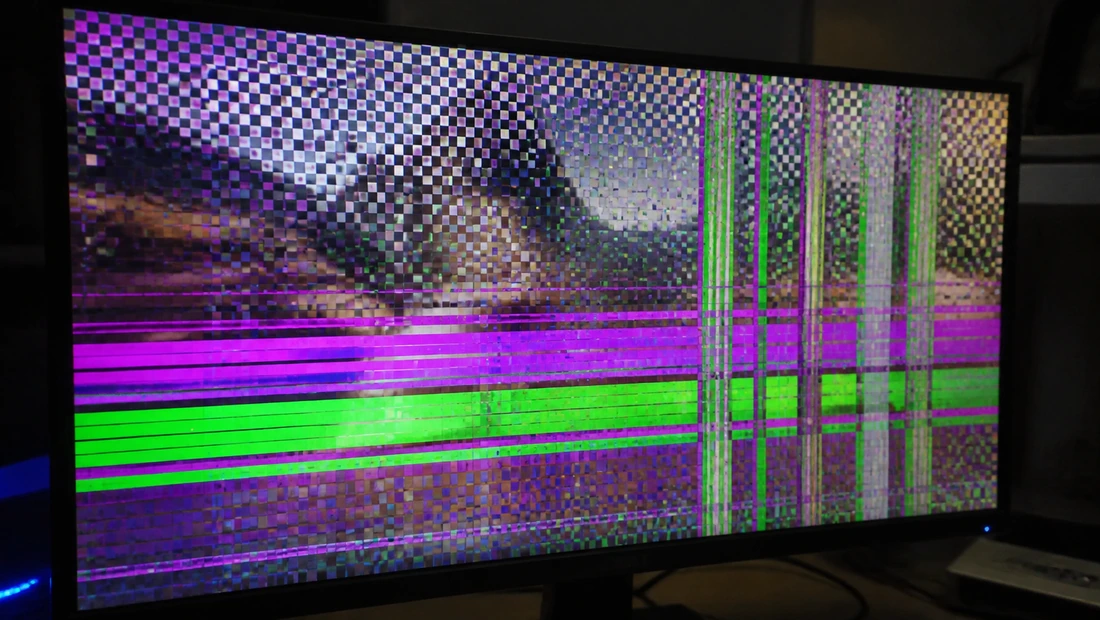
Typical artifacts — colored squares and stripes across the image.
| When it happens | What it most likely means |
|---|---|
| Artifacts ONLY under load (games, benchmark), clean image on desktop | Overheating – clogged cooler, non-functional fan, dried-out paste |
| Artifacts even on desktop / while browsing (squares, blocks of color) | Dying memory (VRAM) – more serious, often irreversible |
| Artifacts right after startup, still in BIOS (before Windows loads) | Hardware defect in chip or memory – serious, card likely a write-off |
| Artifacts or glitches ONLY after installing a new driver or game update | Driver – software issue, solvable by reinstallation |
No signal immediately after power-on, PC doesn’t even start | Cable, wrong input, poorly seated graphics card or RAM, PSU |
No signal only after running for a while, typically under load | PSU, overheating |
See the difference? If artifacts appear only during gaming and the desktop image is clean, there’s a good chance it’s “just” overheating. But if you see squares even while scrolling the web, the situation is worse.
Is it the graphics card, the monitor, or the cable?
Before you start taking the computer apart, rule out the simplest possibilities. In the shop, we far too often see customers bring in a “faulty graphics card” when they just have a broken cable.
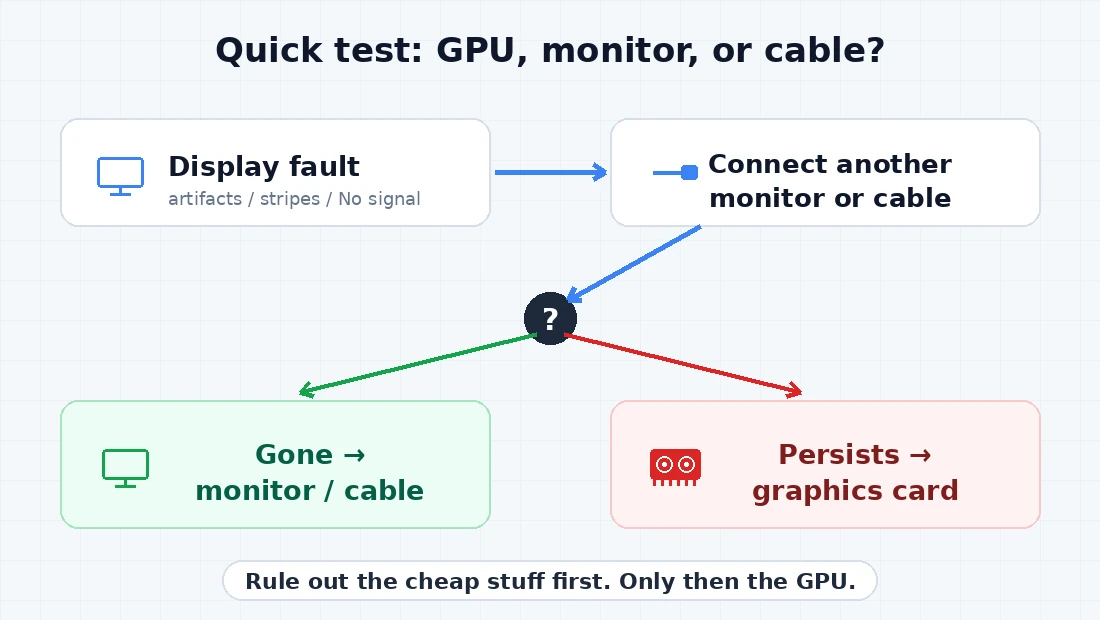
Diagram: rule out the monitor and cable first, only then address the graphics card.
How to tell them apart:
- Check if the cable is firmly connected on both ends – in the graphics card and in the monitor.
- Try a different cable (HDMI, DisplayPort, DVI – whatever you have available).
- Try a different port on the graphics card, if it has multiple outputs.
- Connect a different monitor or TV. If the defect disappears, it’s the monitor or the original cable. If it persists on the second display, the fault is in the PC or graphics card.
- On a desktop PC with a dedicated graphics card: is the cable plugged into the graphics card, or accidentally into the motherboard? The graphics card has outputs at the bottom, the motherboard at the top. If you plug the monitor into the motherboard, you’re using the processor’s integrated graphics – the dedicated card sits idle. If the card gives no image, try plugging the cable into the motherboard for a test. If the PC boots, you know the problem is the graphics card.
Common causes (and how to recognize them)
Let’s break down the individual culprits in more detail.
Overheating – the most common and often fixable cause. The graphics card’s cooler and fans get clogged with dust over time, the thermal paste between the chip and cooler dries out, a fan can stop spinning. Under load, the card heats up to a critical temperature and starts spewing artifacts or shuts off the image. You can recognize it because everything is fine on the desktop and the problem only occurs during gaming.
Dying GPU chip or VRAM – a defect in the memory modules or the graphics core itself. Artifacts appear even at idle, often right after system startup, and worsen over time. This is usually the beginning of the end for the card.
Drivers – a corrupted or conflicting driver after an update can cause glitches, black screens, or crashes. It’s typical that the problem starts exactly after installing a new driver or after a Windows update.
Power supply (PSU) – a weak or dying PSU cannot deliver enough current under load. This manifests as crashes, a black screen, or restarts during gaming. The PSU is an underestimated culprit – we see it often in the shop.
Cable, connector, port – a damaged or loose cable, bent pins in the connector, incorrectly selected input on the monitor. This is the first thing we always check because it’s the simplest and costs nothing.
RAM – poorly seated or faulty system memory can prevent the PC from completing POST (the initial hardware test), leaving No signal on the monitor. The computer doesn’t even start; fans spin, but there’s no image.
Overclocking (OC) – unstable overclocking of the graphics core or memory causes artifacts. If you’ve overclocked the card or memory, revert everything to default values – that’s a one-minute test and you’ll immediately know if that’s the cause.
Monitor (not the graphics card!) – stripes or defects visible only on one monitor, changing when you bend or press on the panel, or persisting on a different input. Then it’s a monitor defect, not a computer problem.
Step-by-step diagnostics (what to try at home)
Here’s our proven procedure, from simplest to more complex. Before taking anything apart, go through the first points – it will save you a lot of time.
1. Monitor and cable Check that the correct input (HDMI, DP) is selected on the monitor. Switch the input manually using the button on the monitor. Try a different cable and a different port on the graphics card.
2. Test with a different monitor or TV Connect the PC to a different display. If the defect disappears, it’s the monitor or cable. If it persists, the problem is in the PC.
3. Dedicated vs integrated graphics On a desktop PC with a graphics card, the cable must be plugged into the card (outputs at the bottom), not the motherboard. If the card gives no image, try the cable in the motherboard – if the PC boots, you know the problem is the card.
4. Safe Mode If you see artifacts or a black screen in Windows, but the image is clean in BIOS or Safe Mode, it’s the driver. Boot into Safe Mode and continue to step 5.
5. Clean driver reinstallation using DDU Display Driver Uninstaller (DDU) is a tool that completely removes graphics drivers, including all remnants. Run it in Safe Mode, let it clean the system, then download and install the latest driver directly from the manufacturer – NVIDIA, AMD, or Intel.
6. Temperature monitoring Download GPU-Z or HWMonitor. Run a game or stress test and monitor the GPU temperature. If the temperature quickly shoots above 85–90 °C and artifacts appear, it’s overheating.
7. Reset overclocking If you’ve overclocked the card or memory (Afterburner, Precision X), revert everything to default values. This is a quick cause to rule out.
8. Visual inspection and cleaning Look at the graphics card. Are the fans dusty? Are they spinning at all? Clean the cooler and fans with compressed air. Hold the fan with your finger so it doesn’t spin up to high RPMs when blowing – you could damage it.
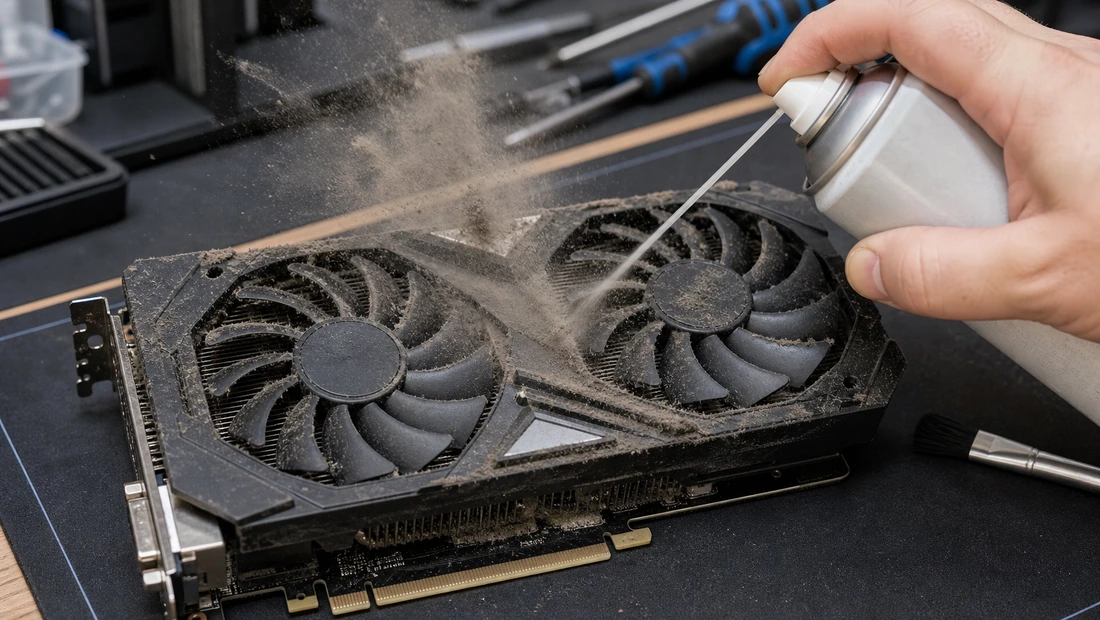
A clogged cooler and dried-out paste = overheating. Cleaning often saves the card.
9. Reseating
Turn off the computer, unplug the power cable from the outlet. Pull the graphics card out of the PCIe slot and firmly reinsert it until it clicks. Check that the power connectors from the PSU are firmly connected. For No signal without completing POST, reseat the RAM modules – pull them out and firmly click them back in.
10. Test the card in another PC (or another card in yours) The most reliable way to distinguish whether the card is faulty or the rest of the computer is. If you have the option, put the card in another PC. If it causes the same problems there, it’s the card. If not, look elsewhere (PSU, motherboard).
Warning: Always work on a computer that is turned off and disconnected from the mains. Beware of static electricity – before handling components, touch a metal part of the case to discharge any buildup. For a new device, opening the case may affect the warranty – if you’re unsure, it’s better to leave it to a repair shop.
When a graphics card can be repaired and when it’s dead
This is the question you ask us most often. The answer depends on the cause.
What can be repaired:
- Overheating – cleaning dust, replacing thermal paste and possibly thermal pads on the memory. After this intervention, the card often serves for years. It’s not expensive and definitely makes sense.
- Faulty driver – trivial, free, you can fix it yourself.
- Bad cable or overclocking – also free and immediate.
- Weak PSU – replacing the PSU with a quality unit with sufficient headroom.
When the card is a write-off:
- Dying GPU chip or VRAM – if you see artifacts even at idle and they worsen over time, it’s a defect at the chip level. Repairs like reflow or reball (heating the chip to restore connections) are expensive, temporary, and often return within a few months. In most cases, it’s more worthwhile to buy a new card.
- Laptop with integrated graphics – the graphics chip is soldered directly onto the motherboard (BGA). Repair means a chip-level intervention, which is complex and expensive. Gaming laptops rarely have a separate MXM module, but that’s an exception. Usually, it means replacing the entire motherboard, which isn’t worth it for an older laptop.
What you definitely shouldn’t do:
- “Baking a graphics card in the oven” is a myth circulating on the internet. It might temporarily revive the card for a few days or weeks, but you risk permanent destruction and also contaminate your oven with chemicals. We don’t do it in the shop and don’t recommend it.
- Don’t reach into a computer while it’s powered on.
- Before you start experimenting, back up your data.
Black screen on a laptop
On a laptop, diagnosing a black screen is a bit specific. Here, you need to distinguish whether the problem is the graphics or the display itself.
Display vs graphics – how to tell:
- Shine a flashlight on the display at an angle. If you can faintly see an image (typically the Windows desktop), it’s a backlight or inverter defect, not the graphics. The display works, it just doesn’t light up.
- Connect an external monitor via HDMI to the laptop. If there is an image on the external monitor, the problem is the laptop’s display or the cabling between the motherboard and the display. If there is no image on the external monitor either, the fault is in the graphics or motherboard.
On laptops, the graphics are mostly integrated directly into the processor (Intel, AMD), or it’s a dedicated chip soldered to the board. A “dying graphics card” in a laptop practically means a motherboard or graphics chip defect – and that’s a repair that is often not worth it.
Frequently Asked Questions
Black screen after power-on – what to do first?
Check the cable and input on the monitor. Then try a different cable and a different monitor. On a desktop PC, make sure the cable is plugged into the graphics card, not the motherboard. If the PC doesn’t even beep at startup, reseat the RAM modules – it’s often just a bad contact.
How do I know if my graphics card is dying?
Artifacts even on the desktop and during normal work (browsing, documents), gradual worsening, squares and blocks of color even in BIOS. If it only happens in games, it’s more likely overheating – that can be fixed.
Do artifacts always mean the end of a graphics card?
No. If artifacts are only under load and the desktop image is clean, it’s typically overheating – cleaning and repasting often solve it. Artifacts even at idle are more serious and often mean the end of the card.
Is it the graphics card or the monitor?
Connect a different monitor or TV. If the defect disappears, it’s the monitor. If it persists, it’s the graphics card or PC. This is a five-minute test that gives you a clear answer.
Is it worth repairing an older graphics card?
It depends on the cause. If it’s overheating, cleaning and repasting are almost always worth it – it’s cheap and the card can keep serving. If the chip or memory is dying, the repair is expensive and unreliable – it’s usually better to buy a new card.
Will reinstalling drivers help?
Yes, if the problem is the driver. You can tell because the image is clean in Safe Mode or BIOS. Use DDU in Safe Mode to completely remove old drivers, then install the current version from the manufacturer. If artifacts persist even in BIOS, the driver is not to blame.
When you’re stuck
If you’ve gone through all the steps and still don’t know where the problem lies, reach out. In our repair shop in Brno, we deal with exactly these problems daily – from diagnostics through cleaning and repasting to replacing the entire graphics card or building a new system.
- Need to find out if it’s the graphics card or something else? Fault diagnostics will give you a clear answer.
- Overheated card, repasting, PSU or graphics card replacement? PC repair will solve it.
- The card is dead and you need a new one, or is a whole new build worthwhile? Check out purchases and builds.
Most graphics card problems have a clear cause – you just need to know where to look. Testing a different monitor and observing when exactly the issues occur is half the battle. The rest is just patience and systematic elimination.
Rather not deal with it yourself?
Book a diagnosis in Brno — you get the price up front and we start only once you agree.
Where to find us
We are a PC and laptop repair shop in Brno-Židenice: diagnostics and repairs of computers and laptops, data recovery from drives, and out-of-warranty Apple repairs (iPhone 12 and newer, MacBook, iPad).
Viniční 3587/216, 615 00 Brno-Židenice, Czech Republic Mon–Fri 10:00–16:00
Call +420 774 777 774 Computer repair and laptop service in Brno
We put the repair price in writing after diagnostics and carry on only once you agree.


