A slow computer doesn’t have to mean a new computer. On older laptops and office PCs the usual culprit is a mechanical hard drive, too little RAM, overheating, or a Windows install that’s been neglected for years. Here’s how to work out in half an hour what’s holding the machine back — and when it makes sense to repair, when to upgrade, and when it really is time for a new one.
1. Find out whether you have an SSD or an HDD
In 80% of cases this is the single biggest difference. Press Ctrl + Shift + Esc, open Task Manager, go to the Performance tab and look at the right-hand column — if it says “HDD”, you have a mechanical disk. If it says “SSD” or “NVMe”, you have an SSD and the problem is elsewhere.
A mechanical HDD is the main brake on a computer today. Even an old Core i3 from 2015 with 4 GB of RAM perks up noticeably after you swap the HDD for an SSD. Windows boot drops from 2-3 minutes to 10-20 seconds, programs open instantly, and multitasking stops stuttering.
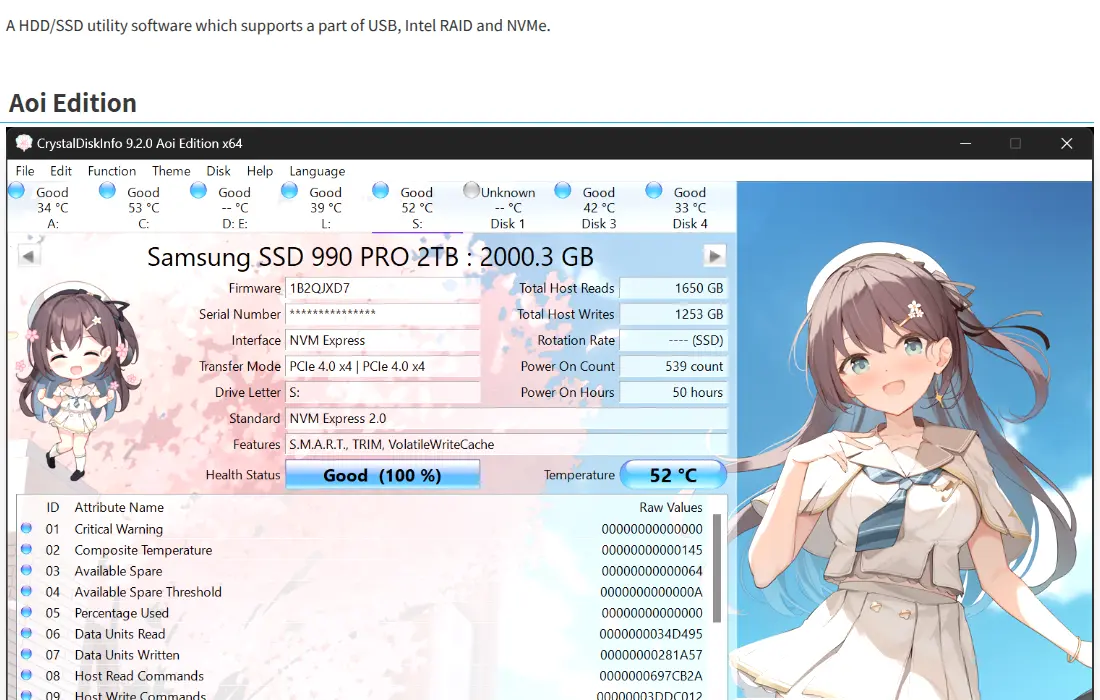
If you want a more precise read on the disk’s health, download the free CrystalDiskInfo. In the main window you’ll see “Health Status” straight away (98% = excellent, below 80% start backing up) along with the temperature. When the disk shows a warning, it’s time to replace it — before it dies unexpectedly and takes your data with it. Image source: the official CrystalMark / CrystalDiskInfo site.
2. Check your RAM usage
In Task Manager, Performance → Memory. If at idle (no Chrome open, no 30 tabs) it shows usage above 70%, you don’t have enough RAM.
- 4 GB of RAM is no longer enough for anything beyond checking email. Windows 11 and Chrome on their own already eat over 3 GB.
- 8 GB of RAM is a sensible minimum for everyday work, but with 20 browser tabs and Word open it already starts to choke.
- 16 GB of RAM is the new standard for comfortable work today.
- 32 GB of RAM is what you want for video, 3D, virtualisation, or programming.
If you have a laptop with soldered (non-removable) RAM, you can’t upgrade it — that’s already a conversation about a new machine. On a desktop and on older laptops with DIMM/SO-DIMM slots, an upgrade usually costs very little.
3. Measure the temperatures
Download HWMonitor (free). Put the computer under load (open a few videos, a game, a video editor) and watch the CPU and GPU temperatures.
- CPU above 90 °C under load = a problem. The heatsink is clogged with dust, or the thermal paste has dried out. A laptop protects itself from overheating with throttling — it lowers the clock speed, so it effectively slows down.
- CPU below 70 °C = temperatures are fine.
For laptops that roar like a vacuum cleaner and visibly slow down during video calls, cleaning the cooling system and replacing the thermal paste helps. It’s usually an hour or two of work depending on the model. Without cleaning, a laptop eventually cooks itself — and replacing the motherboard costs many times more than prevention.
4. Go through your startup items
Win + R → type taskmgr → the Startup tab. That’s where you see what launches with Windows. You should typically find:
- the antivirus
- audio / Wi-Fi card drivers
- one or two of your main apps (e.g. Slack, Dropbox)
What doesn’t belong there:
- updaters for 15 different programs (Adobe, Java, QuickTime…)
- bloatware from the laptop maker (HP Support Assistant, Lenovo Vantage, Dell Update — keep one, disable the rest)
- browser toolbars
- Spotify, Discord, Steam (unless you genuinely need them at startup)
Right-click each and choose Disable. That doesn’t delete anything — it just stops it launching automatically. After a reboot, Windows starts tens of seconds faster.
5. Check for malware and suspicious browser extensions
Ads in the browser where there shouldn’t be any. A home page you never set. New icons on the desktop. Those are the classic signs of malware or aggressive adware.
- Download Malwarebytes Free and run a full scan.
- In Chrome, open
chrome://extensions/and remove anything you don’t recognise or use. - In Microsoft Defender (the built-in antivirus) run an Offline scan — it restarts the computer into an isolated environment and checks whether something is running right inside the system core.
6. Clean up the disk
Win + R → cleanmgr → select drive C: → tick everything and delete. Then Win + R → %temp% → delete the contents of the folder.
If your disk is full (less than 10% free space left), Windows slows down. Check:
- Downloads (often 10+ GB of old installers)
- Downloaded drivers (
C:\Drivers,C:\NVIDIA) - Windows.old (after an upgrade the old Windows version stays behind — you can remove it via Disk Cleanup)
- Browser caches (Chrome and Firefox can each hold 5+ GB)
Aim to keep at least 20 GB of free space on the system drive.
7. Check Windows Update
A disabled or stuck Windows Update can leave the computer “forever trying to download something” and hammering the disk. Win + I → Windows Update → click Check for updates. If something has been hanging in the queue for months, a reboot usually helps.
If you’re on Windows 10, take note — Windows 10 officially reached end of support on 14 October 2025. Without updates the computer is vulnerable and will gradually stop supporting modern apps.
8. Reinstalling Windows as a last resort
If you’ve been through steps 1-7 and the computer is still slow, a clean Windows install usually helps. Years of registry cruft, half-installed drivers, leftovers from removed programs — a reinstall sweeps all of it away.
Important: before reinstalling, always back up your data. Without a backup you lose everything on drive C:. See the details in The 3-2-1 backup rule.
When an upgrade doesn’t make sense
If you have a laptop that is:
- more than 7-8 years old with soldered RAM
- holding a charge for 20 minutes
- has a cracked display or missing keys
- and on top of that has both a slow disk and too little RAM
…then the sum of the repairs (new display + new battery + SSD + extra RAM) can easily exceed the price of a refurbished or new laptop. An honest repair shop will tell you that straight — see Reinstall, repair, or replace?.
When you’re not sure
Diagnostics is the part that saves money, because it means you’re not repairing blind. After half an hour of testing you know exactly what’s holding the computer back — and from there you can decide whether the answer is an SSD, a clean-out, more RAM, or a new machine.
Rather not deal with it yourself?
Book a diagnosis in Brno — you get the price up front and we start only once you agree.
Where to find us
We are a PC and laptop repair shop in Brno-Židenice: diagnostics and repairs of computers and laptops, data recovery from drives, and out-of-warranty Apple repairs (iPhone 12 and newer, MacBook, iPad).
Viniční 3587/216, 615 00 Brno-Židenice, Czech Republic Mon–Fri 10:00–16:00
Call +420 774 777 774 Computer repair and laptop service in Brno
We put the repair price in writing after diagnostics and carry on only once you agree.