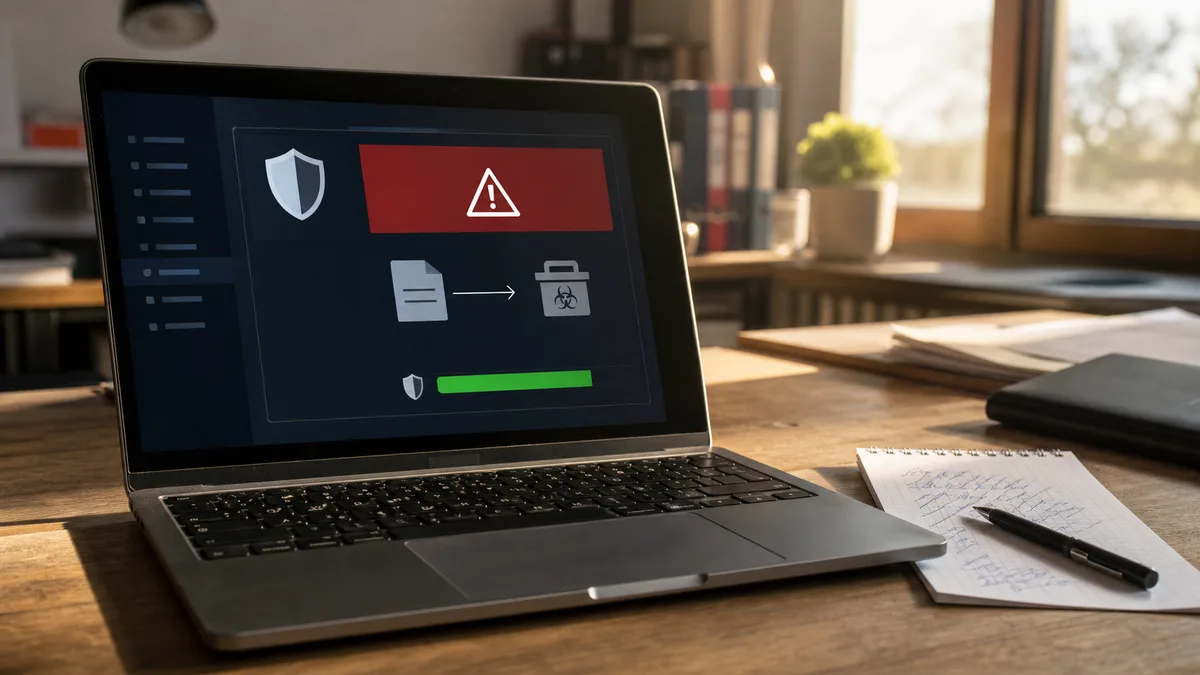
The computer starts acting up and your first thought is a virus. Your browser opens some random search engine instead of your usual homepage, a program you never installed appears on the desktop, or a friend messages you about a suspicious email with an attachment that supposedly came from you.
Sometimes it really is malware. Other times it’s just a full disk, a bad browser extension, overheating, or an old hard drive. In the shop, we always differentiate symptoms first and only then start cleaning. Below is a procedure for Windows 11 that you can handle at home without making things worse.
If your files are encrypted and there’s a ransom note on your desktop, skip the standard cleaning. Disconnect the computer from the network first and follow the guide Ransomware at Home: What to Do.
Quick Safe Procedure
If you don’t want to read the whole article, stick to this order:
- Disconnect sensitive accounts: don’t log into banking, email, or password managers on the infected computer.
- Run a full scan in Windows Security → Virus & threat protection.
- If the threat keeps coming back or the computer acts suspiciously, run a Microsoft Defender Offline scan.
- Get a second opinion using Malwarebytes Free downloaded from the official website.
- Check browser extensions, startup programs, and the homepage.
- Only change passwords from a different, clean device. Start with email and enable two-factor authentication.
- If the infection returns, Windows won’t boot, or the antivirus reports a rootkit, a clean reinstall or a repair shop is the smarter move.
How to Tell If Your Computer Has a Virus
In the shop, we often hear: “My computer is slow, I definitely have a virus.” Not always. Slowness can be caused by an old HDD, low RAM, a full disk, or startup programs. It’s mainly suspicious when the slowness is accompanied by any of these symptoms:
- Pop-ups beyond normal ads. Ads appear on the desktop, in Windows notifications, or on pages where they normally aren’t.
- The browser has a mind of its own. The homepage has changed, searches redirect elsewhere, or a new toolbar has appeared.
- Unknown programs in the app list. Typically various “PC Optimizer”, “Driver Updater”, “Search Helper”, or similar tools.
- Antivirus is off and can’t be turned on. This is a strong warning sign, as some malware actively resists removal.
- CPU maxed out even when idle. Cryptominers can load the CPU or GPU so much that the fan roars even when you’re doing nothing.
- Spam is being sent from your email. Contacts receive weird messages you didn’t send. This could mean malware, but also a compromised email account.
- Files have a new extension and won’t open. That’s ransomware territory, a different league. Don’t blindly clean and especially don’t connect backups.
If it’s mainly slowness without other suspicious symptoms, also check out the guide Slow Computer: What to Check. It’ll save you from pointlessly hunting for a virus when the problem is the disk or Windows startup.
Before You Start: What Not to Do
A few things can make the damage worse:
- Don’t log into banking, email, and other sensitive accounts. If a keylogger is running on the computer, it can capture your password and even one-time codes.
- Don’t download miracle cleaners from ads. A pop-up saying “Your computer is infected” is a classic trap.
- Don’t delete files in the Windows and System32 folders. Without certainty, you can easily damage the system more than the malware.
- Don’t connect an external backup drive to a suspicious computer. For a regular virus, it’s an unnecessary risk; for ransomware, it’s a disaster.
- Don’t install two antiviruses side by side. Defender plus a one-off Malwarebytes scan is fine. Two resident antiviruses running simultaneously often fight over files and slow down the computer.
Step 1: Scan Your Computer with Defender
Microsoft Defender is part of Windows 10 and Windows 11 and is a good first step for common threats. Open Windows Security and click on Virus & threat protection.
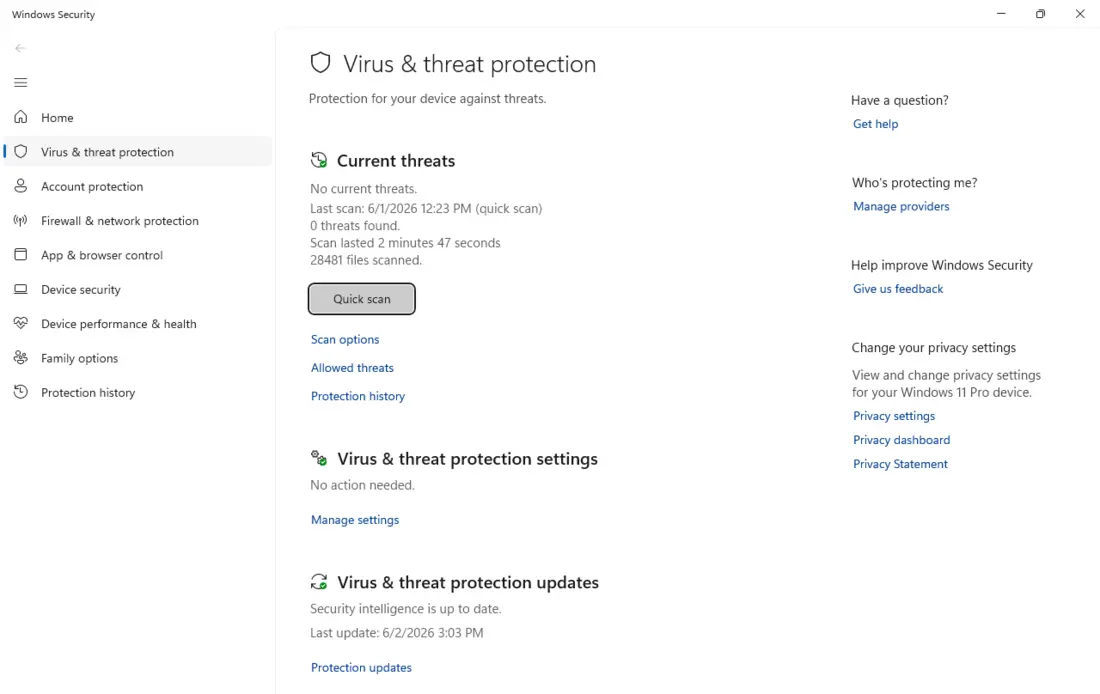
If you suspect an infection, don’t just choose a quick scan. Open Scan options and run a Full scan. This goes through the entire disk and, depending on the amount of data, can take tens of minutes to several hours.
If the malware fights back, returns after a restart, or protection can’t be turned on, use the Microsoft Defender Offline scan. The computer restarts and Defender scans before Windows loads. This is important: some malware hides or blocks removal during normal system operation, but has less room to maneuver before Windows starts.
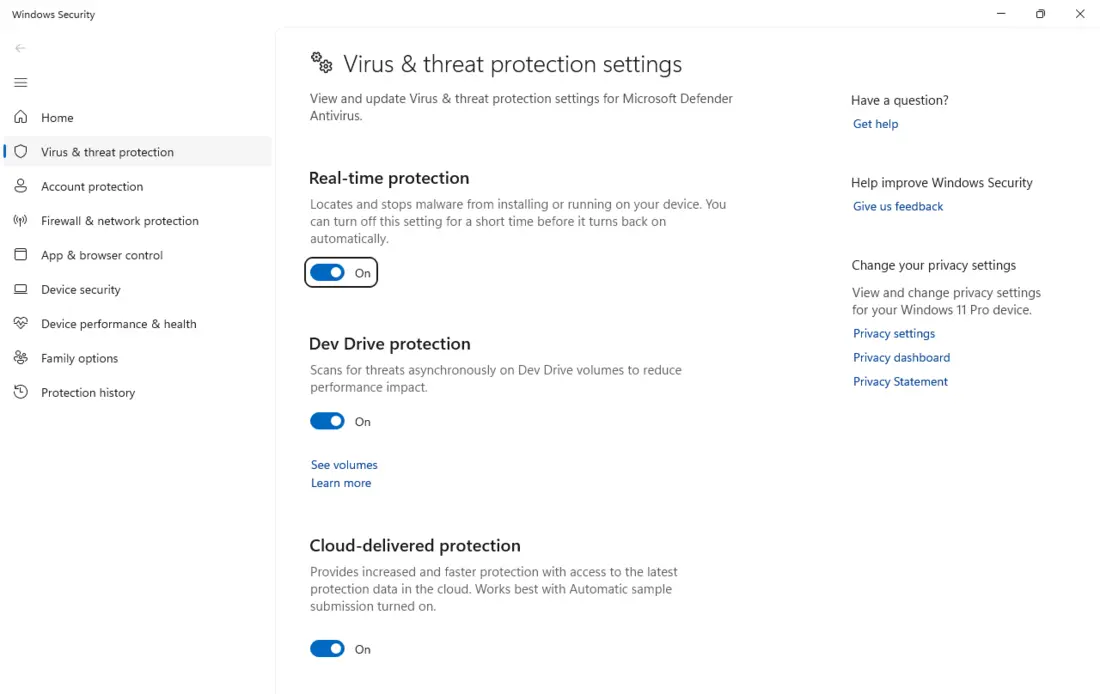
When Defender finds something, quarantine the threat or remove it as recommended. Then restart the computer and repeat the scan. One clean scan after a restart is a good minimum.
Step 2: Second Opinion with Malwarebytes Free
No antivirus is 100% effective. That’s why it makes sense to get a second opinion, especially for adware, browser hijackers, and potentially unwanted programs. In practice, Malwarebytes Free is good for this.
Only download it from the official website malwarebytes.com. After installation, a 14-day trial of the paid real-time protection typically activates. After it ends, the program remains as a free on-demand scanner, so you can keep running it as needed. This is exactly the mode that works well with Defender: Defender runs permanently, and you use Malwarebytes as an extra check.
Run a full scan, move found items to quarantine, and restart. If the same threat comes back, don’t take it as “Malwarebytes is bad.” It more likely means the infection is launching from a different location or has hidden itself deeper.
Step 3: If Malware Fights Back, Try Safe Mode
Safe Mode starts Windows with only a minimum of drivers and services. Malware that normally starts with the system often doesn’t launch, making it easier to remove.
In Windows 11, open Settings → System → Recovery. Under Advanced startup, click Restart now. After the restart, choose:
- Troubleshoot.
- Advanced options.
- Startup Settings.
- Restart.
- Press
5to select Safe Mode with Networking.
In Safe Mode, run Defender and Malwarebytes again. After removing threats, restart normally into Windows and verify that protection remains on.
Step 4: Post-Virus Cleanup
The job isn’t done after removing the found threat. Adware and browser hijackers often leave behind a changed browser, extensions, or automatic startup entries.
Check browser extensions. In Chrome, Edge, and Firefox, open the list of extensions and remove anything you don’t recognize. Extensions promising discounts, quick search, coupons, or “browser protection” are especially suspicious. More on this can be found in the article Dangerous Browser Extensions.
Check startup programs. Open Task Manager via Ctrl+Shift+Esc and switch to the Startup apps tab. Don’t blindly remove unknown entries, but verify the name of suspicious programs and disable them if needed. A practical procedure is in the guide How to Speed Up Windows 11 Startup.
Reset your browser. If a weird homepage or search engine keeps coming back, use the browser’s settings to restore original defaults. Check saved passwords and bookmarks beforehand, as behavior varies by browser.
Change passwords from a clean device. Start with email, as it’s used to reset other accounts. Then banking, social media, cloud, stores, and anything where you have a card or personal data. Turn on 2FA or passkeys wherever possible.
When to Give Up and Reinstall
Sometimes a clean installation is faster and safer than further hunting for remnants:
- the infection returns after every removal,
- Windows won’t boot or crashes to a blue screen,
- the antivirus reports a rootkit or bootkit,
- malware disables protection and blocks security tools,
- files on the computer have been encrypted,
- the computer belongs to a business or had accounting and work data on it.
Before reinstalling, back up only data, not programs and random executable files. If you’re unsure, it’s better to scan the disk first and copy data from a clean environment. In Brno, we handle this as part of our PC service and antivirus and ransomware services.
How to Avoid Infection Next Time
Prevention isn’t complicated, it just needs to be regular:
- Keep Windows, your browser, and common programs updated.
- Don’t open attachments you aren’t expecting, especially ZIP, ISO, EXE, and documents with macros.
- Don’t download cracks, keygens, and “full versions free” from forums.
- Keep Defender and cloud protection on.
- Use a password manager and unique passwords.
- Back up according to the 3-2-1 rule.
If you’re mainly wondering whether you need a paid antivirus these days, read the follow-up article Do I Still Need an Antivirus? What Free Defender Can Do.
Frequently Asked Questions
Is free Defender enough to remove a virus?
For common threats, often yes. If the computer is still suspicious after the first scan, add a Defender Offline scan and Malwarebytes Free as a second opinion.
Do I have to reinstall Windows because of a virus?
Not always. Common adware or a trojan can often be removed. A reinstall makes sense for a rootkit, repeated infection, non-functional Windows startup, or after ransomware.
Is Malwarebytes Free safe?
Yes, if you download it from the official website. The free version after the trial ends works as an on-demand scanner and doesn’t conflict with Defender like a second resident antivirus.
How do I tell ransomware from a regular virus?
You can recognize ransomware by files that won’t open, have a new extension, and a ransom message appears. At that point, disconnect the computer from the network and don’t connect backups.
Rather not deal with it yourself?
Book a diagnosis in Brno — you get the price up front and we start only once you agree.
Where to find us
We are a PC and laptop repair shop in Brno-Židenice: diagnostics and repairs of computers and laptops, data recovery from drives, and out-of-warranty Apple repairs (iPhone 12 and newer, MacBook, iPad).
Viniční 3587/216, 615 00 Brno-Židenice, Czech Republic Mon–Fri 10:00–16:00
Call +420 774 777 774 Computer repair and laptop service in Brno
We put the repair price in writing after diagnostics and carry on only once you agree.