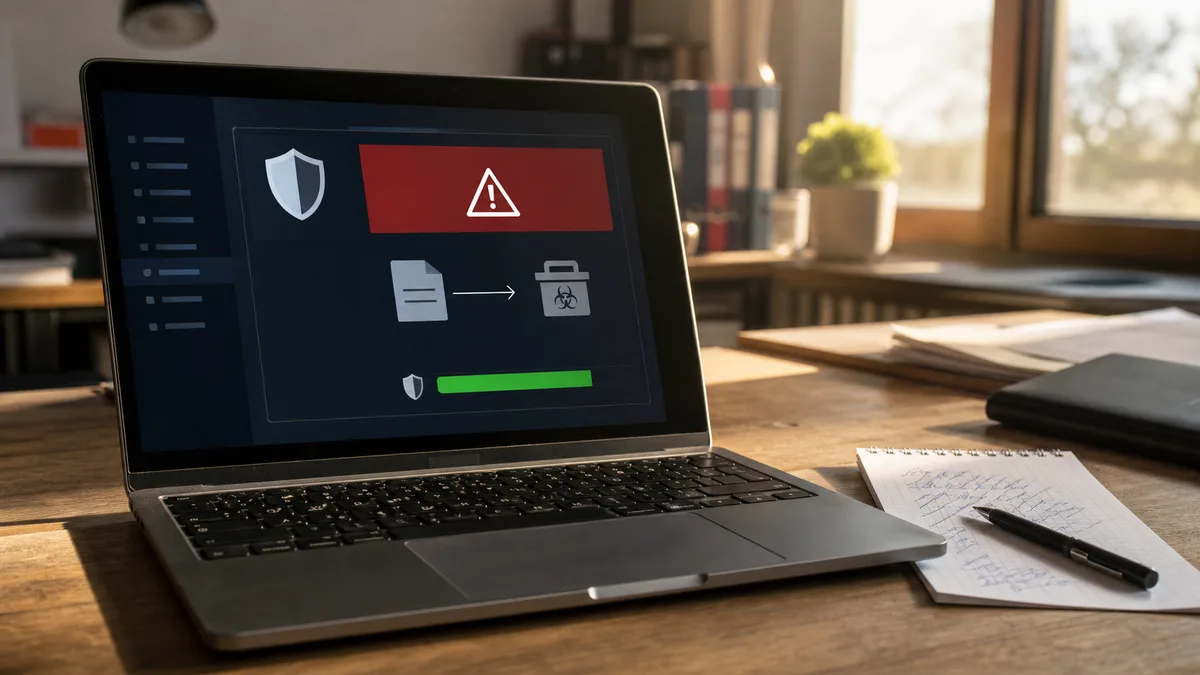
A browser extension (an “add-on”) effectively has more access to your life than most mobile apps. It sees what you type into a banking form, it sees the cookies you use to log into Gmail, and it can quietly sign in to your Facebook even while no one is touching the computer. This isn’t theory. It has been demonstrated repeatedly over the past few years with extensions that had millions of users.
This guide is about how to run an honest audit of what you have installed in Chrome, Firefox and Edge, how to tell what’s a risk, and what to do when you hit something malicious.
Why extensions are a problem even when you installed them yourself
When you click “Add to browser” during installation, the browser shows a brief dialog with phrases like “Read and change all your data on the websites you visit”. Nine out of ten users confirm it — otherwise the extension wouldn’t work. But that’s exactly the moment the extension gains a permission no downloaded Windows app gets: it sees everything your browser sees, including login cookies, card numbers, emails and the contents of open banking pages.
The second problem is that an extension updates itself in the background. If the original author sells the project (or gets a tidy offer — “we’ll buy your project with 200,000 users for $50,000”), the new owner can bake malware into the next update — and it installs itself on your machine, without your consent, without a warning.
This has really happened. Linus Tech Tips showed in December 2024 that the popular coupon plugin “Honey” quietly rewrote affiliate codes, taking the commission for itself instead of the referrer. Mozilla removed more than a thousand extensions in 2024 that were hiding spyware or cryptominers. Google removes hundreds of extensions from the Chrome Web Store every month — but often only after they’ve already reached hundreds of thousands of users.
Three ways a malicious extension gets into your browser
1. You installed it yourself (the most common)
Usually because a website or a YouTuber recommended a “great plugin”. Often it’s:
- A free VPN — the vast majority are paid for by tracking or by selling your data. A safe free VPN doesn’t exist unless it’s an open-source project with genuinely funded servers (Mullvad, Proton).
- Coupon / cashback plugins — they track every purchase and often rewrite affiliate links. Honey was the textbook example.
- AI PDF summarisers / AI web translators — some send the entire contents of a page (including private documents) to a remote server. Always read the privacy policy.
- “Themes” and cosmetic extensions — a popular target. Change your theme to green once and the attacker has a session into your mailbox.
- Screen recorders / screenshot tools — some track everything you do in the browser, not just what you’re actively recording.
2. A formerly reputable project that someone bought
The extension’s author had five years of good reviews, 200,000 users, then wanted to wind it down. Someone offered them tens of thousands of dollars for the project. After the sale, the new owner ships an update containing malware, and it auto-installs for all 200,000 users.
This is the hardest path to detect — you acquired the extension in good faith, it worked flawlessly for ages, and suddenly it’s stealing passwords. Mozilla has documented several such cases where, between 2022 and 2024, more than 30 extensions were sold this way and then abused.
3. Force-installed by malware or by a company’s IT admin
If you have adware or a trojan on your computer, it can add an extension to your browser without your knowledge (by writing to the Windows registry for Chrome, or to user.js for Firefox). You often only notice when some extensions won’t delete — Chrome says “Installed by your administrator”.
If you’re not at a company where IT actually manages your machine, and you see “Installed by your administrator” on an extension — that’s a malware indicator.
Red flags: how to spot a suspicious extension
Here’s the checklist I use when someone brings me a computer that’s behaving strangely:
Permissions that should give you pause
In your browser, Chrome → Settings → Extensions → Details (or chrome://extensions) has a “Permissions” section. If you have an extension that has access to “all your data on all websites” while doing something trivial (changing the wallpaper, a calculator, a date formatter), that’s a red flag.
Specifically:
- “Read and change all your data on all websites” — only makes sense for genuine tools (uBlock, Bitwarden, a translator). For a “calendar in a new tab” it’s excessive.
- “Manage your downloads” — a dangerous combination. The extension can download any file to your computer and open it.
- “Read your browsing history” — tracking. If there’s no reason for it (a legitimate analytics plugin), remove it.
- “Access to your browser tabs” — the extension can monitor every tab you open.
Download and rating statistics
In the Chrome Web Store, Firefox Add-ons and Edge Add-ons:
- The number of ratings doesn’t match the number of installs — 5,000 installs but only 3 ratings usually means nobody really uses it, or the reviews were wiped.
- All ratings are 5 stars with no text — the classic pattern of bought reviews.
- All ratings are from the last 2 months — the original reviews may have been deleted during a takeover.
- The author’s website doesn’t exist or is generic — no GitHub repo, no contact, just a Gmail address.
Behaviour after installation
If you’ve just installed an extension and immediately afterwards:
- Your browser’s homepage changed
- The default search engine changed
- Ads started appearing on sites where there were none before
- Invisible tabs open (you hear sound from the browser but can’t find a player anywhere)
- The antivirus starts reporting blocked requests
Delete the extension immediately. This isn’t a “wait and see” situation — it’s explicit evidence that the extension is doing something you didn’t agree to.
Step-by-step audit: what you have right now
Chrome / Edge / Brave / Opera (Chromium-based)
- Type
chrome://extensionsinto the address bar (in Edge,edge://extensions). - Turn on “Developer mode” at the top right (just briefly, for the details).
- Go through each extension and for each one:
- Click “Details” → check the “Permissions”
- Note the ID (the unique hash) — that’s important
- Click “View in Chrome Web Store” → check:
- Number of users (fewer than 10,000 for an everyday tool = caution)
- Date of the last update (more than a year with no update = the project is dead or sold)
- The author’s name and their other projects
- Ratings and comments (actual text, not just stars)
- If you can’t explain within 30 seconds what the extension does and why you have it — delete it. Click “Remove” → confirm.
Firefox
- Type
about:addonsinto the address bar. - Open the “Extensions” section.
- For each one click ”…” → “Manage” → the “Details” and “Permissions” tabs.
- Same rules as for Chrome:
- Less well-known extensions = more scrutiny
- “Access your data for all websites” + a trivial function = remove
- Check against addons.mozilla.org — author, ratings, updates
Firefox has better extension isolation than Chrome (Mozilla’s take on Manifest V3 is stricter), but that’s not enough — malicious add-ons turn up here too.
Edge — watch for “managed by your organisation”
Edge is pushed as the default browser on Windows, so people open it by accident a lot, and a different set of extensions ends up there than in Chrome. edge://extensions shows the list.
If you see “This extension is managed by your organisation” on an extension and you’re not at a company where someone manages IT, that’s a serious indicator. Either you have adware, or someone deployed a group policy you don’t have access to. In that case you need to audit the whole system, not just the browser.
What to do when you’ve found a malicious extension
Immediately
- Sign out of all critical services (Gmail, your bank, Facebook, Microsoft 365) before deleting the extension — the attacker may hold a session token that still works after a normal logout.
- Delete the extension. Chrome/Edge: puzzle icon → the gear → Remove. Firefox: about:addons → Remove.
- Clear the browser’s cookies and session storage (Settings → Privacy → Clear data for the last 24 hours, or everything if you’d had the extension longer).
- Change your passwords — at minimum for whatever you logged into in that browser. Bank, email, social networks first.
- Turn on 2FA everywhere you don’t already have it. This is the single most important step — even if the attacker has the password, 2FA usually stops them logging in.
If you’re not sure how to proceed (especially with email or a bank), read the detailed guide Hacked email or Facebook — a step-by-step recovery guide.
If you suspect a trojan in the system
Deleting the extension is half the job. If the extension installed itself without your knowledge, you have something in the system that put it there — adware, a browser hijacker, possibly a trojan.
In this scenario reinstalling the browser won’t help, because the malware sits in Windows and will infect the next browser just the same. You need:
- An antivirus / antimalware scan — Malwarebytes (the free version is enough for a scan), Windows Defender plus ESET or another reputable engine.
- An autorun and process audit — Sysinternals Autoruns (free from Microsoft) shows what launches with Windows.
- If you’re not sure how to do it — get help. This isn’t something to practise on, because the attacker can see what you’re doing. One wrong step and your bank password goes out before you’ve managed to change anything.
Prevention: the rules I install extensions by myself
These are the rules I follow for my own machines (and for business clients):
- Fewer extensions is better. The goal is at most 5–7 extensions I genuinely use every day. Everything else goes.
- Open-source first. If there’s a GitHub with active development and more than one contributor, it’s a notch safer than “freeware with no source”.
- No coupon / cashback plugins. I’ll find the discount manually — it costs me a few minutes a month, not my security.
- VPNs only paid, only verified. Mullvad, Proton, NordVPN (the dedicated app, not the extension). A browser-level VPN extension is the least safe option.
- An audit once every 3 months. Open
chrome://extensions(or the Firefox equivalent) and go through the list. Anything I don’t recognise, or haven’t used in 30+ days → gone. - Keep the browser updated. Chrome and Firefox ship security updates every four weeks. “Restart the browser” when it asks is more important than “let me finish this spreadsheet”. A bug an attacker exploits is typically weaponised within 24–72 hours of disclosure.
- A password manager outside the browser. Bitwarden, KeePassXC, 1Password — instead of “save to Chrome”. If someone gets into the browser, they get all the passwords. A manager contains the damage.
Once the machine is actually compromised, it belongs to virus and ransomware removal.
When to call a technician
If, after deleting the extension and changing your passwords, you still:
- See ads in the browser where there were none before
- Find your homepage reverting to an unknown page
- Notice the device slowing down, the fan running constantly
- See the antivirus reporting blocked requests during normal browsing
- Find someone has logged into your Gmail from a place you’ve never been
There are remnants somewhere in the system. Until they’re found and removed, you won’t have peace. That’s exactly the situation where a professional system audit is worth it.
A short TL;DR for those who’ve run out of time:
- Open
chrome://extensionsorabout:addons- Delete anything you don’t recognise or haven’t used in 30+ days
- Change your Gmail, bank and Facebook passwords (turn on 2FA if you don’t have it)
- If something stays strange — get a professional to audit the system
A regular browser audit costs you five minutes a quarter. Ransomware from a bought extension can cost tens of thousands and several days of your time. The maths is simple.
Order online: Virus / ransomware / hacked e-mail — tell us the model and what happens, and we will come back with the next step.
Rather not deal with it yourself?
Book a diagnosis in Brno — you get the price up front and we start only once you agree.
Where to find us
We are a PC and laptop repair shop in Brno-Židenice: diagnostics and repairs of computers and laptops, data recovery from drives, and out-of-warranty Apple repairs (iPhone 12 and newer, MacBook, iPad).
Viniční 3587/216, 615 00 Brno-Židenice, Czech Republic Mon–Fri 10:00–16:00
Call +420 774 777 774 Computer repair and laptop service in Brno
We put the repair price in writing after diagnostics and carry on only once you agree.