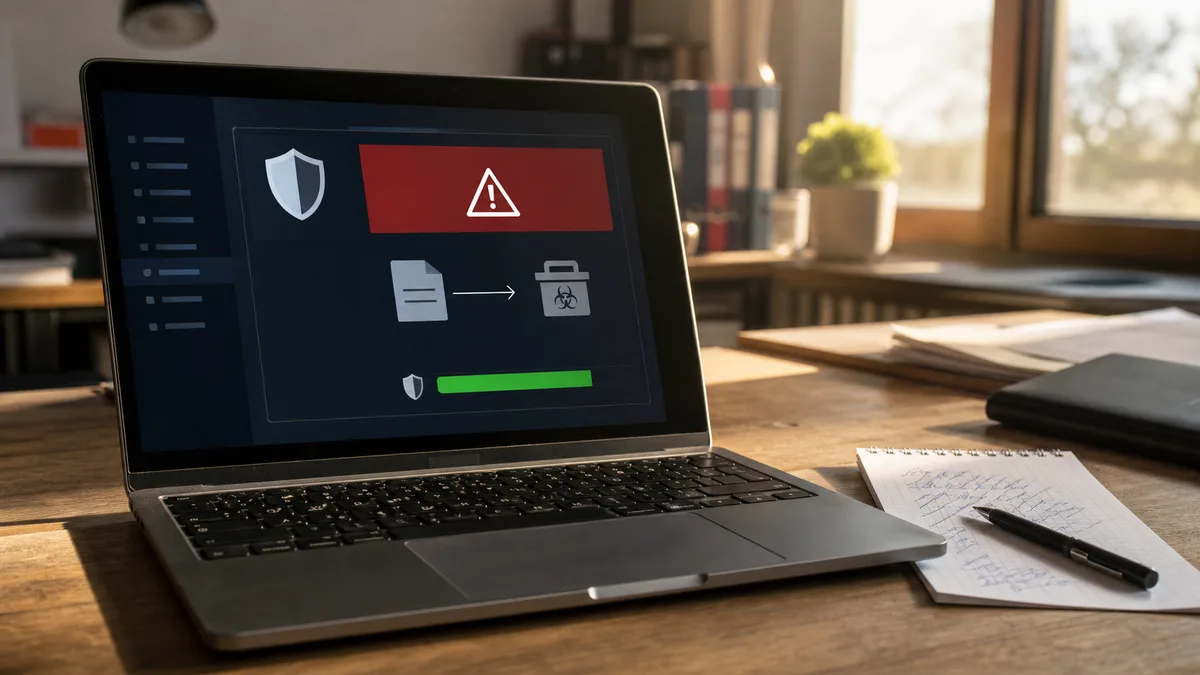
A window pops up in the middle of work: “A threat was found.” The antivirus reports a file you’ve never heard of in your life — or, conversely, a program you’ve been using yourself for years. The first reaction tends to be one of two: panic and deleting everything that moves, or an annoyed click on “allow” so it doesn’t hold things up. Both are wrong, and both can cause more damage than the finding itself.
This article is about evaluating an alert: how to find out if your antivirus caught a real threat or just made a mistake, and what to base your decision on. We’re not dealing with the actual cleaning of a computer here — we’ll link to that below, once you know you really need it.
The answer right away: When your antivirus has put a finding in quarantine, the threat is blocked, and nothing acute is happening. Don’t turn off the protection, don’t delete anything extra, and don’t click “restore.” Take a photo or write down the exact detection name and the file path, leave the file in quarantine, and calmly verify what’s going on — based on the detection name, where the file came from, and, if needed, a second opinion via VirusTotal. Only then, based on the result, decide what to do next.
What the alert is actually telling you
Every antivirus alert carries three pieces of information, and all three are useful before you start doing anything:
- Detection name — for example,
Trojan:Win32/Wacatac.B!mlorPUA:Win32/Presenoker. It’s not a random code; you can read from it how seriously the vendor means it. - File and path — what exactly and where the antivirus found it. The difference between your script in a project folder and a randomly named
.exeinAppData\Local\Tempis critical. - Action taken — blocked upon download, moved to quarantine, or removed. Blocking upon download means the file never even reached execution. A finding during a scheduled scan, on the other hand, means the file has been lying on the disk for some time.
In Microsoft Defender, you’ll find all three details in Windows Security → Virus & threat protection → Protection history. Paid antiviruses have a similar event log and a Quarantine section.
Quarantine: the file is locked away, not gone
Quarantine is an isolated vault. A file in it cannot be run, does no harm, and at the same time is not deleted — the antivirus can return it to its original location at any time, or permanently remove it.
This is important to understand because it takes the pressure off the whole situation. You don’t have to solve anything in the next thirty seconds. A false positive finding can be restored from quarantine with no loss; real malware will remain harmless in it until you decide. That’s why both quick reactions — immediate deletion and immediate restoration — are pointless. Quarantine buys you time for verification. Use it.
Step 1: Read the detection name
Detection names have structure: category, platform, family, variant, and potentially a suffix. From the category and suffix, you can estimate whether the antivirus is claiming “this is known malicious code” or just “I don’t like the look of this.”
| What you see in the name | What it means |
|---|---|
| Trojan, Backdoor, Worm, Ransom | Full-fledged malicious code — take seriously |
| PUA, PUP, Potentially Unwanted | An unwanted program: toolbars, bundled offers — a nuisance, not necessarily a virus |
| Adware | Aggressive advertising software |
| HackTool, KeyGen, Crack, Patcher | A tool for bypassing licenses — detected universally |
| RiskTool, RemoteAdmin | A legitimate tool that is, however, also abused by attackers |
| !ml, Heur, Gen, Susp, @gen | Heuristics or machine learning — an estimate based on behavior, not a match with a known virus |
The suffix !ml means the file was flagged by a machine learning model, not a match with a specific known virus. A generic detection with Heur, Gen, or !ml on a freshly downloaded, unsigned program is a typical candidate for a false alarm. In contrast, a specific family from the Ransom or Backdoor category found in a system folder is something entirely different.
Step 2: Where the file lies and where it came from
Before you reach for any tool, answer three questions:
- Were you just downloading something? A detection a split second after downloading an installer from the manufacturer’s official website has a different context than a finding that appeared on its own at three in the morning on a Tuesday.
- Do you know the file? Your own script, a program from work, a tool you’ve been using for years — all of these can trigger heuristics. A file with a random name that you know nothing about cannot.
- Does the location make sense? An installer in the Downloads folder is normal. An executable file buried in
AppData\Local\Temp, in another user’s folder, or directly inC:\Windowswithout you having installed anything is not normal.
When all three answers point toward an innocent explanation, it’s still not proof. But it is a good reason to proceed with verification instead of deletion.
Step 3: A second opinion via VirusTotal — carefully
VirusTotal runs a file through dozens of antivirus engines at once and shows how many of them detect it and under what name. For deciding “false alarm or malware,” it’s the most useful public tool.
However, it has a catch that’s rarely discussed: what you upload to VirusTotal ceases to be private. Uploaded files are shared with the security community, and paying customers of the service can download and examine them. Therefore, never upload a contract, an invoice, a document with personal data, or an internal company tool.
There is a solution: send the file’s fingerprint instead of the file itself. Run this in PowerShell:
Get-FileHash -Algorithm SHA256 "C:\path\to\file.exe"
Insert the resulting string into the VirusTotal search. A hash doesn’t reveal the file’s content — and if someone has already scanned the file, you’ll see the complete results without sending anything. Only when the fingerprint is unknown and the file is not sensitive does it make sense to consider uploading.
How to read the result:
- One to three engines out of dozens, plus generic names like
GenorHeur— likely a false alarm from heuristics. - A majority of engines, a consistent family across vendors — real, known malware.
- Beware of fresh files: brand-new malware might initially have few detections. A low score for a file from a suspicious source is therefore not an absolution — there, the origin plays a bigger role than the numbers.
Typical false alarms
We see some situations repeatedly in the service shop, and they’re worth knowing.
Your own scripts and programs. A script packed into an .exe via PyInstaller, an AutoHotkey macro, a freshly compiled custom program. An unsigned executable file unknown to the world, which is sniffing the keyboard or automating windows — this is exactly how spyware behaves too, so heuristics will flag it. The most common false alarm among developers and power users.
Older installers and utilities. Installers from a time when toolbars and “recommended offers” were commonly bundled with programs are rightfully getting the PUA label today — even if the program itself is harmless. A special chapter is tools for displaying saved passwords or product keys: antiviruses detect them intentionally because the same utility serves both the computer owner and an attacker. The detection is “true,” but the danger depends on who ran the tool.
Keygens and cracks. One warning here: with keygens, “that’s definitely a false alarm” is the most common misconception in the entire category. Yes, antiviruses label key generators universally as HackTool. But cracks are also one of the main pathways for real infection — malware authors intentionally bundle malicious code into them because they count on the user turning off the protection for the crack. Don’t verify an alert for a crack with the goal of allowing the crack. The result of verification in this category is almost always worse than you hope.
Once the machine is actually compromised, it belongs to virus and ransomware removal.
When the alert isn’t from your antivirus at all
A special category of “finding” doesn’t originate from your antivirus but from your browser. A website or an allowed notification pretends to be an antivirus: “Your computer is infected,” a countdown, flashing red, a call to dial a support phone number or pay for a license immediately.
The identifying signs are reliable: a real antivirus never asks you for a phone call or credit card payment through a pop-up window, and its alert won’t disappear by closing the browser. The decisive test: open your antivirus’s Protection History. If there’s no record there, no finding exists. Close such a window, remove the website’s permission to send notifications in your browser settings, and don’t install anything or call anyone.
When to take an alert seriously
False alarms are one-off events. A real infection tends to manifest repeatedly and in patterns:
- The same finding returns — after removal, after a restart, again the next day. Something is restoring it.
- Findings in system paths (
C:\Windows,System32) or in user profiles, without you having downloaded or installed anything. - Categories like Trojan, Backdoor, or Ransom with a specific family, confirmed by a majority of engines on VirusTotal.
- The antivirus has turned itself off, can’t be turned on, or has disappeared from the computer. Malware that actively defends itself is not a false alarm.
- Multiple different findings within a short time — a typical picture of a downloaded “installer” that fetches other malicious components.
- A finding in an email attachment you’ve already opened — blocking beforehand is good news; a detection after opening means the code might have had time to run.
- Files get new extensions, can’t be opened, a ransom note has appeared. This is no longer the topic of this article — immediately disconnect the computer from the network, don’t connect backups, and follow the crisis guide Ransomware has encrypted your data: what to do step by step.
When a real infection without signs of encryption is confirmed, this article is followed by the procedure Do I have a virus in my computer? How to detect an infection and safely remove it — from a full scan via Defender Offline to cleaning the browser and changing passwords.
What not to do, even if the alert is annoying
- Don’t turn off your antivirus. This is the worst possible reaction to an annoying alert and, at the same time, precisely the one malware authors count on. Turning off protection because of one questionable file means no protection against everything else. We discuss what built-in Defender can do and why it pays to leave it running in the article Do I still need an antivirus?.
- Don’t set an exception for an entire folder or disk. An exception for
C:\or for Downloads is the same as turning off the antivirus; it just doesn’t look like it. - Don’t restore from quarantine just so you can continue working. Restoration belongs after verification, not before it.
- Don’t manually delete files across the disk based on guides from forums. With a false alarm, you’ll delete something functional; with a real infection, you still won’t delete everything.
- Don’t download a “stronger cleaner” from an ad because of the alert. A pop-up promising virus removal is a classic trap.
- Don’t install a second permanent antivirus for assurance — two resident shields fight over files and decrease reliability.
A confirmed false alarm: how to close it properly
When verification comes out in favor of the file — known origin, sensible location, generic detection, minimal engines on VirusTotal — proceed as follows:
- Restore the file from quarantine.
- Add an exception only for the specific file or your project’s folder, not more broadly.
- Report the false alarm to the vendor. Microsoft and other vendors have a form for submitting a file for analysis; erroneous detections get fixed in definition updates. Once that happens, cancel the exception again — so it doesn’t stay in your settings forever.
For your own programs that you distribute further, a stable solution helps: code signing with a certificate. An unsigned .exe will always irritate heuristics.
When to bring the finding to us
Sometimes the honest answer is “I don’t know” — the detection name is ambiguous, VirusTotal wasn’t decisive, or you’re simply not sure if you’ve verified enough. That’s a legitimate moment to leave the decision to someone who assesses findings daily. If you’re unsure about a finding, book an appointment online — just copy the detection name from the alert into the note, and we’ll already know what to look at.
It makes sense to bring a computer to our Brno service center mainly in these situations:
- the finding repeats, and you don’t know why,
- it’s a company computer, a machine with accounting, or one with access to banking,
- the antivirus won’t turn on, or the alerts can’t be opened,
- you need certainty that nothing remained after a real finding.
What we’ll do about it: we’ll go through the protection history and the context of the findings, verify the suspicious files by their fingerprints, check the autostart and scheduled tasks, add a scan with an independent scanner — and tell you straight whether it was a false alarm or an infection. For a false alarm, we’ll set an exception so it doesn’t open an unnecessary hole; for an infection, we’ll agree on the next steps before we touch anything.
An antivirus that occasionally reports is doing its job. An alert is information, not a verdict — and a few minutes of verification will almost always lead you to a clear answer.
Order online: Virus / ransomware / hacked e-mail — tell us the model and what happens, and we will come back with the next step.
Rather not deal with it yourself?
Book a diagnosis in Brno — you get the price up front and we start only once you agree.
Where to find us
We are a PC and laptop repair shop in Brno-Židenice: diagnostics and repairs of computers and laptops, data recovery from drives, and out-of-warranty Apple repairs (iPhone 12 and newer, MacBook, iPad).
Viniční 3587/216, 615 00 Brno-Židenice, Czech Republic Mon–Fri 10:00–16:00
Call +420 774 777 774 Computer repair and laptop service in Brno
We put the repair price in writing after diagnostics and carry on only once you agree.