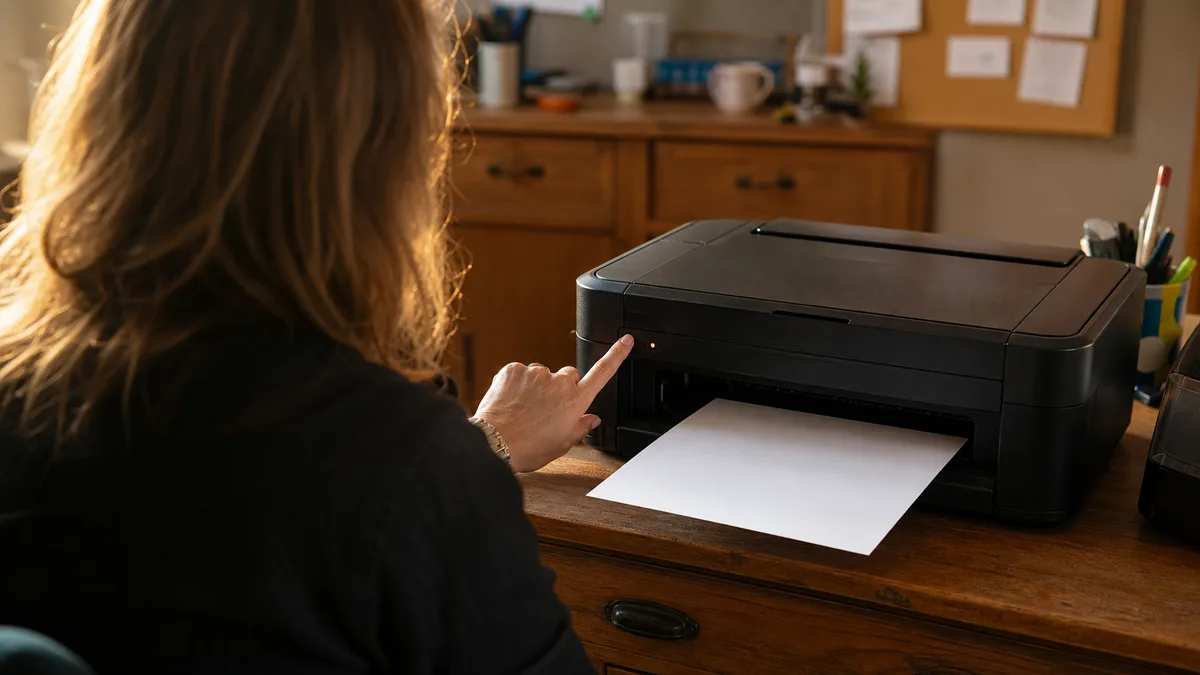
A printer is a peculiar machine. It prints without complaint for months and then picks exactly the moment you need a boarding pass, a tax return or your child’s homework — and Windows shows a grey “Offline”. The document hangs in the queue while the printer sits there blinking, apparently ready.
The good news: the vast majority of these outages are not faults. They are the same three scenarios over and over, and all three can be sorted out at home.
The short answer: When a printer “won’t print but is connected”, it is nearly always one of three things: a stuck print queue in Windows (clear the queue and restart the Print Spooler service), a wifi printer that has dropped off the network (new router password, a replaced router, a different band — the printer needs the network details entered again), or a driver broken by a Windows update (fixed by removing the printer and installing the manufacturer’s driver). Streaks on paper are a chapter of their own: dried-up nozzles on an inkjet, low toner or a worn drum on a laser — the computer is not to blame.
Before you troubleshoot anything: two minutes of basics
It sounds trivial, but these four steps fix a surprising share of “dead” printers:
- Switch the printer off, wait 30 seconds, switch it on. Not a restart from the computer — the power button on the printer itself. Cheap printers can get so stuck after weeks in power-saving mode that only a hard restart wakes them up.
- Check the display and the indicator lights. A flashing amber light usually stands for something specific: out of paper, a door open, a paper jam, an empty cartridge. A printer waiting for you to do something looks offline to the computer.
- Restart the computer. The Windows print service occasionally seizes up and a restart is the quickest way out.
- Make sure you are printing to the right printer. The print dialogue often has Microsoft Print to PDF or a printer from your last job quietly selected. The document then “prints” to a file and never reaches paper.
If none of that helped, let’s work through the scenarios, starting with the most common.
Scenario 1: A stuck print queue
The tell-tale sign: one document failed to print at some point, stayed hanging there and everything since has been lining up behind it. The printer may be perfectly fine — the blockage is in Windows.
Clearing the queue in Windows 11:
- Open Settings → Bluetooth & devices → Printers & scanners.
- Click your printer and choose Open print queue.
- Cancel every pending document. While you are there, check the Printer menu in the queue window — neither Pause Printing nor Use Printer Offline may be ticked. That second option is a classic: it gets ticked once (sometimes on its own after an outage) and the printer stays “offline” forever.
If a document refuses to cancel and sits at “Deleting”, the service itself is stuck:
- Press Win + R, type
services.mscand confirm. - Find the Print Spooler service, right-click it and choose Restart.
- If even that does not help, Stop the service, delete the contents of the
C:\Windows\System32\spool\PRINTERSfolder (these are only the files of pending print jobs, nothing system-critical) and Start the service again.
Windows 11 has an automated tool for this too: Settings → System → Troubleshoot → Other troubleshooters → Printer → Run. It does no harm and occasionally hits exactly this problem.
Scenario 2: The wifi printer has dropped off the network
The second most common case — and it is almost always preceded by some change in the home network, possibly weeks earlier. The printer does not complain the moment it drops out; you hear about it when you next need to print.
Typical triggers:
- You changed the wifi password. The printer still has the old one saved and can no longer connect. Incidentally, if you changed the password because you suspected uninvited guests on your network — we describe how to spot them in Someone is connecting to my wifi — don’t forget to enter the new password into the printer as well.
- The router was replaced — by your provider, for instance. The new network has a different name or password, and even if it is called the same, the printer often gets a different address.
- The printer only supports the 2.4GHz band. Most older and cheaper printers cannot see a 5GHz network. When a new router merges both bands under one name, phones are happy, but the printer sometimes gets lost — especially in combination with mesh systems, where devices hop between units. We covered what to expect from a mesh network in mesh wifi recommendations.
How to fix it:
- On the printer, go through the network settings (on the display, using the WPS button, or via the manufacturer’s app — HP Smart, Canon PRINT, Epson Smart Panel) and connect it to the current network with the current password.
- Print a network configuration page — every network printer can do this from its own menu. You will see whether it is connected and what address it has.
- If Windows still cannot see the printer, remove it (Settings → Bluetooth & devices → Printers & scanners → printer → Remove) and add it again via Add device. That way Windows builds a connection to the new address; the old connection may be pointing at an address the printer no longer has.
Watch out for one distinction: if the internet is down on your other devices too, your problem is not the printer but the network — we have a separate guide for that in Wifi not working: what to do. Here we are talking about the situation where everything else is running and only the printer is offline.
Scenario 3: The driver after a Windows update
The third classic: the printer was printing on Friday, a Windows update ran over the weekend, and on Monday it prints blank pages, reports an error, or scanning has vanished from it.
During updates, Windows increasingly often installs its own universal driver (Microsoft IPP Class Driver) instead of the manufacturer’s full one. That is enough for simple printing, but it can do less — and on all-in-ones it typically kills scanning, double-sided printing or correct ink level reporting.
How to fix it:
- Remove the printer in Windows (see above).
- Download the complete driver or app from the manufacturer’s website — not from some random “driver” site; those wrap drivers in installers full of junk. Look for the HP, Canon, Epson or Brother pages directly and the exact printer model.
- Install it and let the installer find the printer itself. With all-in-ones, install the full package including the scanning software.
With printers ten years old or more, it can happen that a Windows 11 driver simply does not exist. Manufacturers end support, and with the end of Windows 10 this problem landed on a great many households — we described the background in Windows 10 is ending: what next. Sometimes a generic driver from a related series works, but it is a lottery.
And let’s be honest here: reinstalling a printer is exactly the kind of job where you can burn an entire evening and end up furious. If you have removed the printer twice, installed it three times and it still won’t run — or you simply have no appetite for that merry-go-round — book us. We will install and set up the printer including scanning for roughly 600 CZK and up, remotely or at your place; a technician call-out around Brno is 700 CZK and on-site work is charged by time. Full rates are in our price list.
It prints, but with streaks: when it’s the head and when it’s the toner
Streaks are not a fault of the computer or the driver — they come from the printer’s consumables. The key thing is to tell the two printer types apart:
| Symptom | Inkjet | Laser |
|---|---|---|
| Horizontal missing bands, a missing colour | Dried-up print head nozzles | — |
| Pale printing, light vertical stripes | Ink running out | Toner running out |
| Marks or lines repeating down the whole page | Dirty head or belt | Worn or scratched drum |
| Smudged printing you can wipe with a finger | Wet ink, wrong paper | Faulty fuser unit |
On an inkjet: the nozzles dry out when nothing is printed — a couple of weeks away on holiday is enough. Open Settings → Bluetooth & devices → Printers & scanners → your printer → Printing preferences and, on the Maintenance tab, run a nozzle check and, if needed, a print head cleaning. Two cleaning cycles with a test page in between is a sensible maximum for one day; every cleaning uses up ink and endless repetition will not fix the head. If the test pattern is still not clean after two cycles and a few hours’ pause, the head has dried out more deeply — on printers with the head built into the cartridge a new cartridge sorts it out, while on printers with a fixed head it is a judgement call whether a repair is worth it.
On a laser: pale stripes almost always mean the toner is at the bottom. A short-term rescue: take the cartridge out and tilt it gently from side to side a few times so the remaining powder spreads out — that usually buys a few dozen pages, then replace the cartridge. Defects repeating down the whole page point to the drum (a separate part on many models). Do not reach in towards the fuser unit — it stays hot long after printing.
When the problem is not the device but the network, Wi-Fi and home network service handles it.
When to stop doing it yourself
A short, honest weighing-up, the same one we give over the phone:
- A cheap inkjet costing a few hundred to a thousand crowns with a mechanical fault is usually not worth repairing — an hour of labour matches the price of a new machine. It is worth setting up properly, though, so it stops being a nuisance.
- A laser printer or business all-in-one is a different story: it is usually built for years of service, and a repair or adjustment costs a fraction of a replacement.
- Software trouble — the queue, wifi, drivers, sharing a printer between several computers, scanning to e-mail — we often handle remotely and quickly.
If you are not sure which category your case falls into, write or call — over the phone we will estimate whether a call-out makes sense and quote the price up front. Diagnostics come to roughly 600 CZK, and only if no repair ends up being carried out.
A printer is meant to print, not to teach you patience. The three scenarios in this article cover the overwhelming majority of failures — and for the rest, we’re here.
Order online: Wi-Fi and home network — tell us the model and what happens, and we will come back with the next step.
Rather not deal with it yourself?
Book a diagnosis in Brno — you get the price up front and we start only once you agree.
Where to find us
We are a PC and laptop repair shop in Brno-Židenice: diagnostics and repairs of computers and laptops, data recovery from drives, and out-of-warranty Apple repairs (iPhone 12 and newer, MacBook, iPad).
Viniční 3587/216, 615 00 Brno-Židenice, Czech Republic Mon–Fri 10:00–16:00
Call +420 774 777 774 Computer repair and laptop service in Brno
We put the repair price in writing after diagnostics and carry on only once you agree.