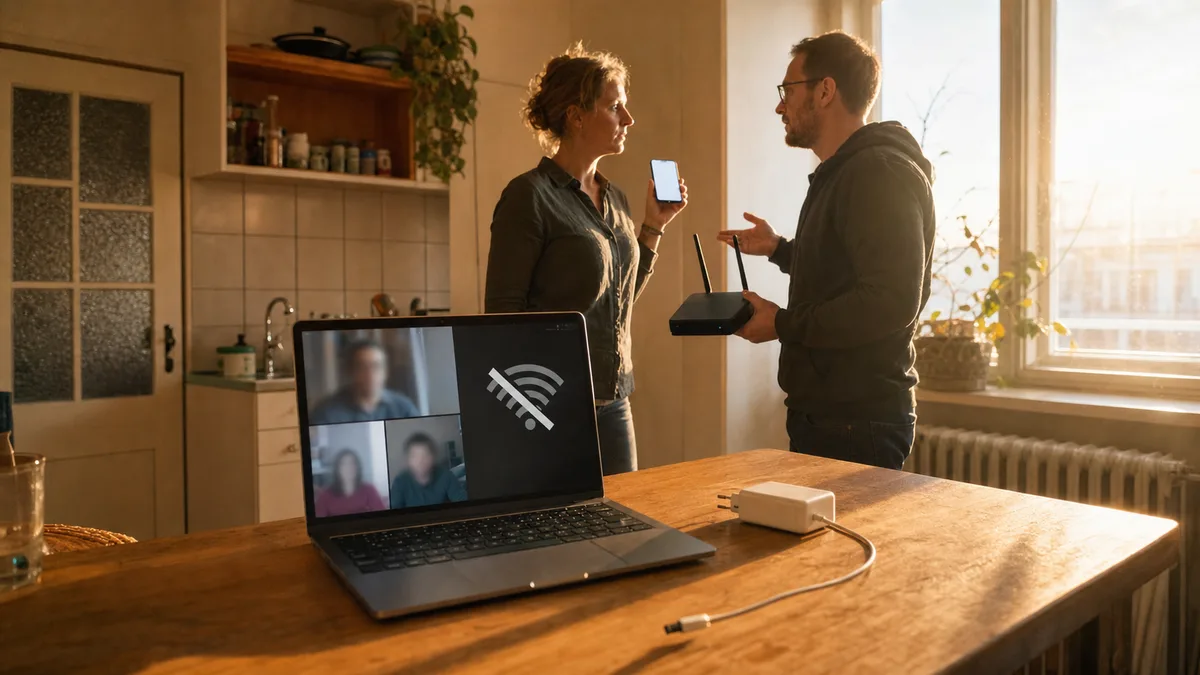
A typical scenario: at home you run just three devices (phone, laptop, TV), you pay for a fast plan, and in the evening you can’t even load your email. When you look into the router’s admin page, you find ten, twelve, sometimes more devices that aren’t yours. They get added one by one, you don’t notice for years, and the router is grinding away as if at peak hour even though there’s only one person sitting at home.
The suspicion that someone is on your Wi-Fi is more common than you’d think. And it’s usually not some hacker out of a film — it’s a neighbour who decided “why pay when it’s free?” Let’s look at how to spot the uninvited guests and boot them out.
How to tell you have an intruder on your Wi-Fi
The first sign is always speed. When you pay for 300 Mbit/s and in the evening you can’t even open your email, something’s wrong. But a slowdown can have several causes — an old router, interference from neighbours, or indeed someone “sharing” your connection.
Here are three concrete symptoms worth checking:
1. The internet slows down at regular times
If your internet runs badly mainly in the evening between seven and ten, that’s suspicious. That’s when everyone’s home — including the neighbours streaming Netflix on your Wi-Fi. If the slowdown is random and irregular, it’s more likely a congested line at your ISP.
2. Your data allowance disappears faster than usual
Got a capped data plan and suddenly burning through it a week early? Someone’s downloading films or game updates over your Wi-Fi. A single game update on a PlayStation or Xbox can easily be 50–100 GB — so unsecured Wi-Fi for a neighbour’s gaming can drain your allowance over a weekend.
3. The router shows activity even when you’re offline
This is the most telling one. When you’re sitting in front of the TV and all your devices are off or asleep, the router’s lights should barely blink. If they’re lit up and flickering like mad, data is flowing — and you don’t know where to.
How to find out who’s on my Wi-Fi
The simplest way is to look directly into the router. Every router has a web interface you reach through a browser. It’s nothing complicated; you can do it in five minutes.
Step 1: Find the router’s IP address
On Windows, open Command Prompt (press Win+R, type cmd and hit Enter). In the black window type ipconfig and look for the line “Default Gateway.” That number — usually 192.168.0.1 or 192.168.1.1 — is your router’s address.
On a Mac, go to System Settings > Network > Wi-Fi > Details > Router.
Step 2: Log in to the router
Type that IP address into your browser (Chrome, Edge, whatever). A login page appears. If you’ve never changed the credentials, you’ll find them on the sticker on the underside of the router. Typically it’s admin/admin or admin/no password.
If you can’t log in because someone changed the password (say, whoever installed the router for you), you’ll have to reset the router to factory settings. More on that shortly.
Step 3: Find the list of connected devices
Each manufacturer hides this a little differently, but look for tabs like:
- DHCP Clients List
- Connected Devices
- Network Map
- Home Network > Connected Devices
You’ll see a table listing everything currently on your Wi-Fi. Each device will have:
- An IP address — assigned by the router
- A MAC address — a unique hardware identifier (looks like 00:1A:2B:3C:4D:5E)
- A device name — sometimes descriptive (“Peter-iPhone”), sometimes just the model (“Xiaomi-Redmi”)
Step 4: Identify the intruder
Now comes the detective part. Go through the list and ask of each entry: “Is that mine?” Count everything — phones, tablets, laptops, the TV, the games console, smart-home gear, the printer.
Anything you don’t recognise is suspect. Especially if you see names like “Johns-iPhone” and no John lives with you.
Here’s a trick: the first six characters of a MAC address reveal the device’s manufacturer. If you see “Samsung-Galaxy” and you only have Apple gear at home, it’s clear-cut. There are MAC address databases online (just search for “MAC vendor lookup”) where you paste the address and see the maker.
How to kick an uninvited guest off your Wi-Fi
You have three options, from simplest to most secure.
Quick fix: change the Wi-Fi password
This is like changing the lock on the door. Go into the router’s Wi-Fi settings (Wireless Settings, WLAN) and find the field labelled “Pre-shared Key,” “WPA Key” or simply “Password.” Set a new password — and pay attention, make it a proper one:
- At least 12 characters
- Upper and lower case, numbers, special characters
- No “password123” or “freewififorall”
The router restarts and everyone connected gets disconnected. You reconnect with the new password. The neighbour’s out of luck.
Advanced fix: MAC address filtering
Every device has a unique MAC address. In the router you can set up a whitelist — a list of MAC addresses that are allowed to connect. The router refuses anything else, even if it knows the password.
This method is more secure, but it has two downsides:
- When you have visitors, you have to add their device by hand
- Newer phones use MAC address randomisation for privacy, so they may look different every time
For an ordinary household, changing the password is perfectly sufficient.
What if you have an ISP’s router and can’t get into it
Some providers (mainly the big operators) supply routers that are locked down. Only their technician knows the credentials and you can’t get into the settings. In that case:
- Call customer support and say you want to change the Wi-Fi password — they’ll do it remotely
- Or get your own router and switch theirs into bridge mode — but that’s a more advanced configuration
Why “hiding” the network isn’t enough
Now and then I hear the advice: “Turn off SSID broadcast so the network isn’t visible.” That’s like hiding the key under the doormat and pretending the house has no door. Anyone with a little know-how will find your network within seconds using free tools.
A hidden network also mainly complicates life for you — every new device has to be connected by hand. And some smart devices (printers, IoT) can’t even connect to a hidden network.
What to do when it won’t work
It happens that even after changing the password, the problems don’t go away. Or you can’t get into the router at all because you’ve forgotten the credentials and the ones on the sticker are illegible. In that case there’s the hard reset:
On the back of the router you’ll find a small hole with a button. Take a paperclip and hold the button for 10–15 seconds (until the lights start blinking). The router returns to factory settings — including the default password and network name.
Careful: after a reset you’ll have to set the network up again. If you’re not confident, it’s better to turn to someone who knows what they’re doing. A misconfigured router can end up more vulnerable than before.
When you need a professional
Sometimes the problem runs deeper than just a neighbour on your Wi-Fi. If you can’t get the router properly secured, the network is still slow even after evicting the intruders, or you suspect someone has broken into the router itself, it’s time to call an expert.
In the workshop we come across cases where the router was infected with malware that opened a back door for an attacker. Or where a client had been using WEP encryption for years (which can be cracked in two minutes) without ever knowing it.
This is a general guide to Wi-Fi security for home networks. Router menu names vary by manufacturer.
Rather not deal with it yourself?
Book a diagnosis in Brno — you get the price up front and we start only once you agree.
Where to find us
We are a PC and laptop repair shop in Brno-Židenice: diagnostics and repairs of computers and laptops, data recovery from drives, and out-of-warranty Apple repairs (iPhone 12 and newer, MacBook, iPad).
Viniční 3587/216, 615 00 Brno-Židenice, Czech Republic Mon–Fri 10:00–16:00
Call +420 774 777 774 Computer repair and laptop service in Brno
We put the repair price in writing after diagnostics and carry on only once you agree.