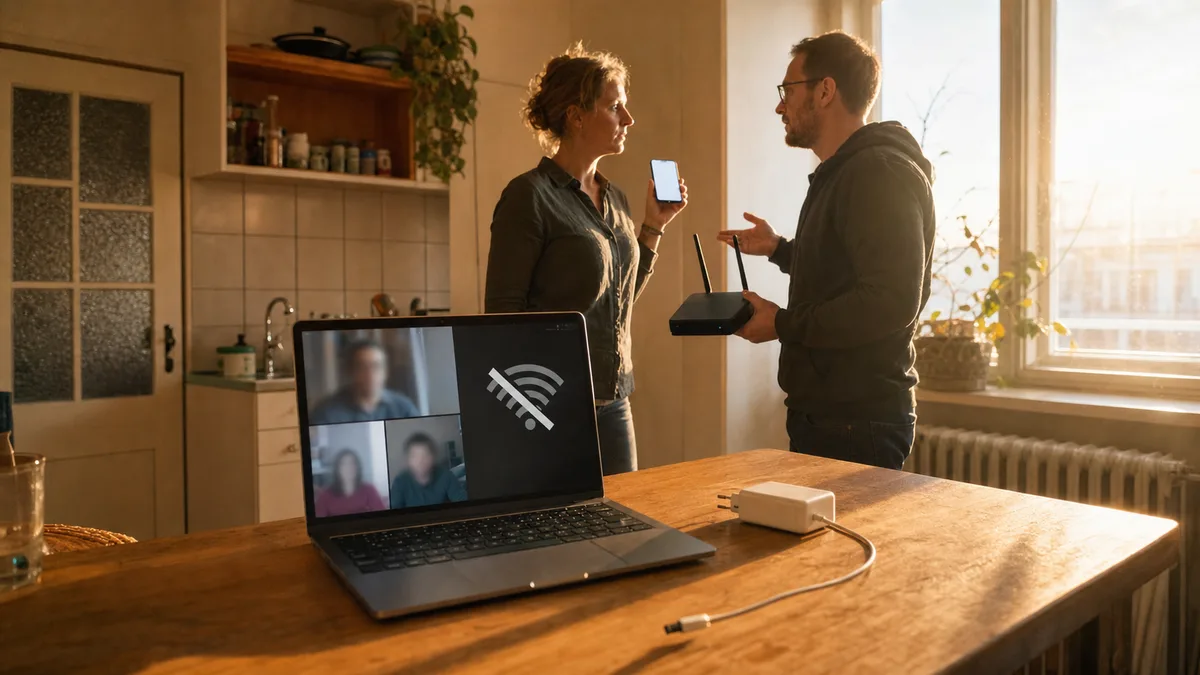
A classic from the workshop: a customer turns up with a “broken Wi-Fi card” in their laptop — but after five minutes of testing it turns out the machine is just sitting on a metal surface or near metal furniture that’s shielding the signal. Move the laptop 30 cm away and the Wi-Fi springs to life.
I tell this story because 80% of the Wi-Fi problems we see in the workshop aren’t hardware faults. They’re little things you can sort out yourself in three minutes. Here are five concrete steps we recommend trying before you start panicking or calling a technician.
1. Restart the router and the device — and we mean it
“I restarted it, didn’t help.” We hear this sentence daily. When we then ask what exactly the customer did, they usually just turned the Wi-Fi off and on on the laptop. That isn’t enough.
Pull the router out of the socket. Not with a switch — physically unplug it. Wait 30 seconds. Those 30 seconds matter, because the capacitors in the router need time to discharge fully. Then plug it back in and wait another 2 minutes for the router to boot and re-establish the link with your ISP.
Only then restart the computer or phone too. This double restart clears up problems with the IP address, the DNS cache, and temporary network conflicts. In the workshop this procedure alone fixes the Wi-Fi in three out of ten cases without us having to do anything else.
2. Check whether the problem is the device or the network
Before you start reconfiguring anything, work out which side the fault is on. The procedure is simple:
- Connect another device to the Wi-Fi — a phone, tablet, second laptop. If it works, the problem is in the original device.
- If the Wi-Fi is down on all devices, the problem is the router or the ISP.
- Try connecting a computer to the router with a cable. If the internet works over the cable but not over Wi-Fi, you know for certain the router is transmitting badly or being interfered with.
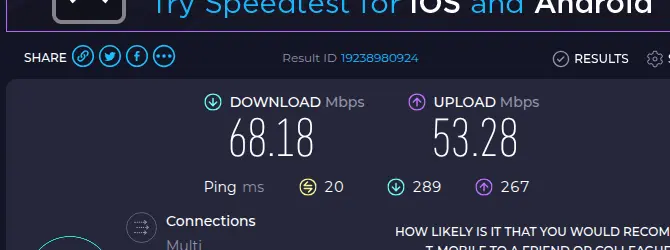
Measure your speed at speedtest.net — once over a cable into the router, then over Wi-Fi from the same spot. If over cable you get the promised 100/100 Mbps and over Wi-Fi only 15 Mbps with an 80 ms ping, the problem is clearly the Wi-Fi (interference, distance, a weak router). If you get 15 Mbps over cable too, call your ISP — they’re not delivering what they promised.
This quick test saves you hours of googling the wrong fixes. When you know whether it’s one laptop dropping out or the whole network, you’re solving an entirely different problem.
3. Look at signal interference — physical obstacles and neighbouring networks
A Wi-Fi signal is more sensitive than most people think. Here are the most common signal killers we see at clients’:
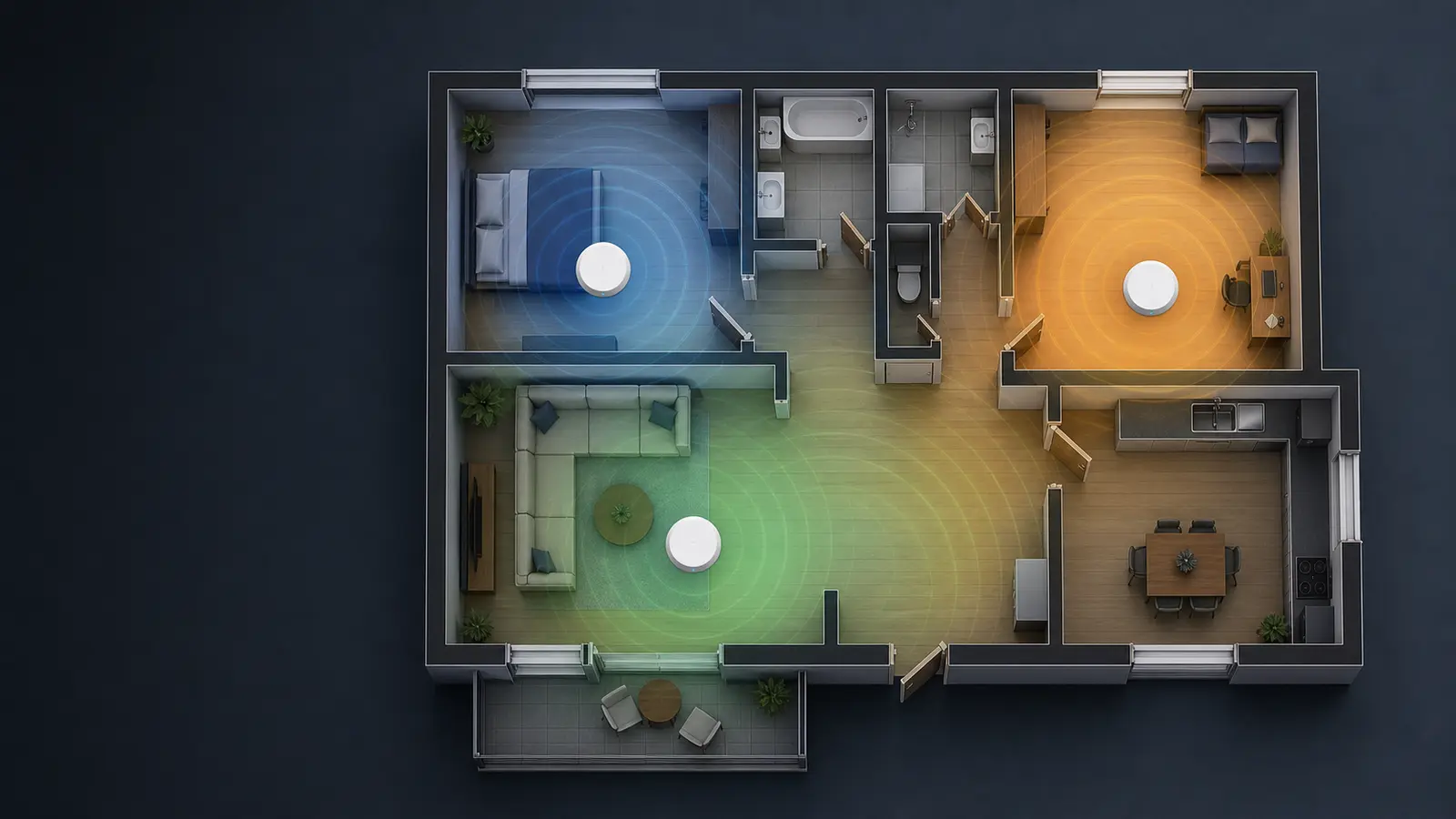
Physical obstacles: Metal shelves, mirrors, fish tanks, thick concrete walls. A router behind the fridge or in a metal cabinet is a plainly bad idea — the compressor and the metal soak up the signal. Often just moving the router a metre away or into a more open space makes the problem vanish.
Neighbouring Wi-Fi networks: In a block of flats you’ll typically see 15–30 Wi-Fi networks within range. If your router is transmitting on the same channel as five neighbours, the signal gets congested. In the router settings switch the channel from “auto” to a manually chosen one — channels 1, 6 and 11 on the 2.4 GHz band don’t overlap with each other.
The microwave and Bluetooth: A microwave oven interferes with the 2.4 GHz band while it’s heating. If your Wi-Fi stutters every time someone heats up lunch, switch the device to the 5 GHz band (if your router supports it).
4. Forget the network and reconnect
This is so simple that people skip it. Yet it fixes a load of problems with a saved password or a corrupted network profile.
On Windows: Settings → Network & internet → Wi-Fi → Manage known networks → click your network → Forget. Then reconnect and enter the password.
On a Mac: System Settings → Network → Wi-Fi → Advanced → select the network and click the minus. Confirm and reconnect.
We do this in the workshop as the first step after a restart. It takes 20 seconds and clears up problems with invalid certificates, a changed router password, or a conflict after a Windows update.
5. Update the Wi-Fi card drivers — but from official sources
An out-of-date Wi-Fi card driver can make the connection stutter, drop, or run at a quarter of the speed. Especially after larger Windows 11 updates we see Microsoft install a generic driver that doesn’t work properly with a specific card.
Don’t download drivers from dodgy “free-drivers” sites. Go to the laptop manufacturer’s website (Lenovo, Dell, HP) and download the Wi-Fi driver for your exact model. Or find out the card’s maker (Intel, Realtek, Qualcomm) and download the driver from their official site.
If you don’t know which card you have: in Device Manager, under “Network adapters,” you’ll find the exact name. Intel AX201, Realtek RTL8821CE and the like.
What to do when it won’t work
When you’ve gone through all five steps and the Wi-Fi still doesn’t work, it’s time for deeper diagnostics. It could be:
- A faulty Wi-Fi card in the laptop (you can tell because the device sees no networks at all, not even the neighbours’)
- A damaged antenna in the laptop (the signal is extremely weak even a metre from the router)
- A faulty router (after a restart the lights don’t come on as they should, or it switches itself off)
- A problem on the ISP’s side (an outage in the area, a congested network in the afternoon peak)
At this point you need a technician with diagnostic tools — to measure signal strength, test throughput, and check the hardware components.
When you need a professional
If you’ve tried these tips and the Wi-Fi is still giving you grief, it’s worth getting an expert in. Good diagnostics work through the problem systematically — from measuring the signal, through testing the card, to checking the router settings — rather than guessing.
This is a general guide. Menu names and steps vary slightly by operating system version and router.
Rather not deal with it yourself?
Book a diagnosis in Brno — you get the price up front and we start only once you agree.
Where to find us
We are a PC and laptop repair shop in Brno-Židenice: diagnostics and repairs of computers and laptops, data recovery from drives, and out-of-warranty Apple repairs (iPhone 12 and newer, MacBook, iPad).
Viniční 3587/216, 615 00 Brno-Židenice, Czech Republic Mon–Fri 10:00–16:00
Call +420 774 777 774 Computer repair and laptop service in Brno
We put the repair price in writing after diagnostics and carry on only once you agree.