The short answer: Follow these steps in order and save yourself an hour of troubleshooting drivers. Inspect the camera itself—many laptops have a sliding privacy shutter or a key with a camera icon that physically disables the sensor. Open the Camera app (Start → Camera): if the image works there but not in Teams, the problem lies with permissions or the app settings, not the hardware. Check all three switches under Settings → Privacy & security → Camera, including the one at the very bottom for desktop apps. Only then move on to Device Manager.
Inspect the camera first
Microsoft lists this among the first troubleshooting steps, and our service experience confirms it: a significant number of “faulty” cameras are simply switched off. The control can take several forms:
- a key in the top row with a crossed-out camera icon, activated together with Fn, or a dedicated camera button;
- a sliding switch on the side of the laptop;
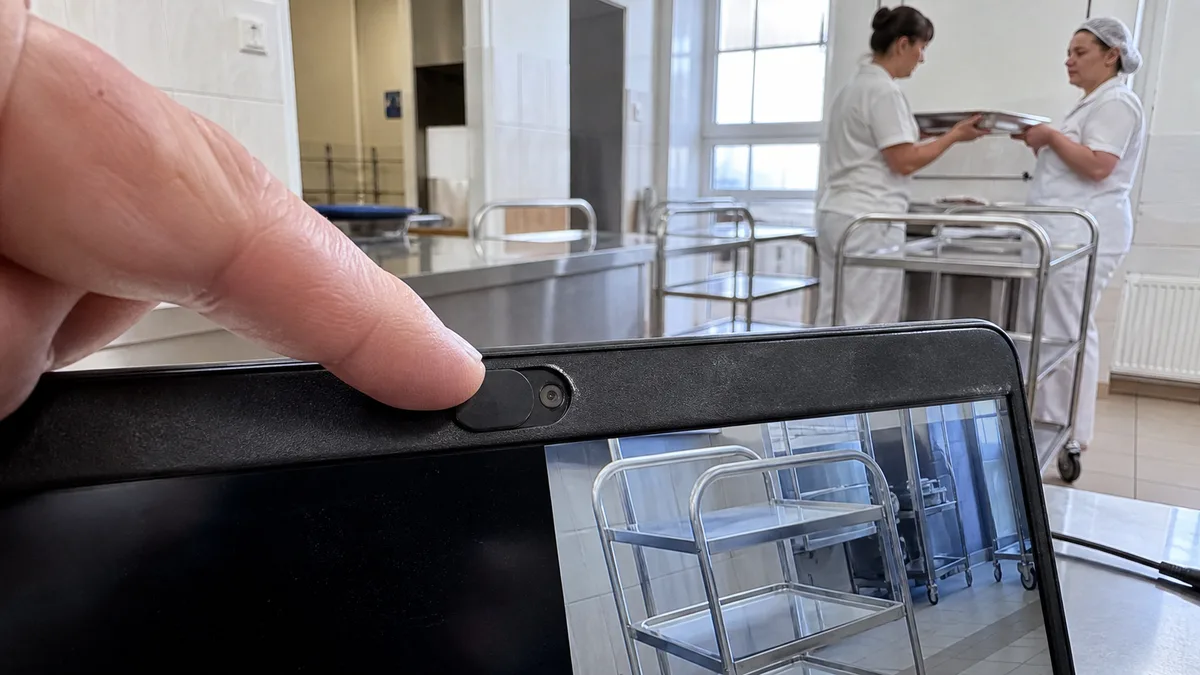
- a small mechanical shutter next to the lens that only needs to be moved a millimetre.
When the sensor is disabled this way, Microsoft says the device may not detect that a camera is installed at all—or it may display a crossed-out camera symbol instead of an image. Before searching for a system fault, shine a light on the laptop and run your finger around the lens.
The Camera app divides the problem in half
Open Start → Camera. Microsoft recommends it as a reference test, and it is the quickest thirty seconds of the entire diagnostic process. If the preview appears, the camera and its driver are working, and the problem lies with a specific application—the selected device in Teams or Zoom, the app’s own video mute setting, or its permissions. If the preview does not appear, the problem is system-wide, so continue with permissions and Device Manager. Web meetings add another layer: browsers grant camera permission separately for each domain, and a website that has been blocked once remains blocked even after the computer restarts. If people cannot hear you during calls either, see microphone and permission issues in Windows 11.
Three permission switches—and the trap at the bottom
Go to Start → Settings → Privacy & security → Camera. The following options must be enabled:
- Camera access—the master switch for the entire device. If it is disabled and greyed out, an administrator must enable access.
- Let apps access your camera—followed by a list of individual apps containing only Microsoft Store apps.
- Let desktop apps access your camera—a separate switch at the very bottom.
The third setting is the trap we encounter most often. Microsoft explicitly states that browsers such as Microsoft Edge and video-conferencing applications such as Microsoft Teams are desktop apps that require this setting to be enabled—and camera access cannot be granted to them individually. If you cannot find Teams or Zoom in the app list, nothing is wrong; you just need to scroll further down. Another source of confusion is that Windows Hello sign-in works even when camera access is disabled. The fact that your laptop recognises your face therefore tells you nothing about app permissions.
Windows 11 also has a second location for camera settings: Settings → Bluetooth & devices → Cameras. You can select connected cameras there and adjust settings such as brightness or sharpness, but more importantly, the page may contain a Disabled cameras section with an Enable button. An administrator account is required both to disable and enable a camera. If your camera is not listed there, that does not necessarily indicate a fault: Microsoft says this page does not display infrared cameras used for Windows Hello, devices operating through DirectShow, or proprietary and network cameras.
Error codes and where to start
| Error code | What it means according to Microsoft | Where to start |
|---|---|---|
| 0xA00F4244 | the system does not detect the camera | shutter and switch, Device Manager, permissions |
| 0xA00F4243, 0xA00F4289 | another application or process is using the camera | close applications, check Task Manager |
| 0x80070005 | camera access denied | permissions in privacy settings |
| 0xA00F4292 | access restricted by policy | company management, contact the IT administrator |
| 0xA00F4246 | camera locked by security software | temporarily disable antivirus software and test |
| 0x80070490, 0x80004005 | device detection, registry, or hardware error | troubleshooter, reinstall the driver |
Of these, 0xA00F4244 is the most common, and Microsoft primarily associates it with outdated, missing, or corrupted drivers in a dedicated article. Before installing anything, however, check the shutter as well—the same code can appear when the camera is covered by a plastic slider.
Device Manager: look in three places
Type Device Manager into Search. According to Microsoft, the camera may be listed under Cameras, Imaging devices, or Sound, video and game controllers. On older laptops, it may be under Imaging devices even if the machine has recently been upgraded to Windows 11.
- If you cannot find the camera anywhere, select Action → Scan for hardware changes and restart the computer.
- If right-clicking the camera displays Enable device, the camera is disabled—and this is the quick fix.
- For an external USB webcam, Microsoft recommends switching to the built-in UVC driver: Update driver → Browse my computer for drivers → Let me pick from a list of available drivers on my computer → USB Video Device. Also try another port without a hub. If other devices are malfunctioning as well, start with the guide to a USB port that is not working.
Updates, antivirus software, and company policies
According to Microsoft, some apps may not have camera access by default after a Windows 11 update, which is why permissions should be checked first. If they are correct, open the camera properties in Device Manager, select the Driver tab, and try Roll Back Driver. This option is unavailable for some drivers; in that case, uninstall the device with Attempt to remove the driver for this device selected, then scan for hardware changes again. The opposite approach is Windows Update → Advanced options → Optional updates, where camera drivers may appear separately from regular updates. If the updates themselves fail, see Windows Update errors.
Two other factors can block the camera externally. The first is security software—Microsoft recommends temporarily disabling protection and testing the camera; our guide to an antivirus false positive explains how to interpret its warnings. The second is company policy, indicated by error code 0xA00F4292. There is no point trying to bypass it on a work laptop; contact the IT administrator. You can run the system troubleshooter under Settings → System → Troubleshoot → Other troubleshooters → Camera.
If the fault survives these checks, or the damage is mechanical, laptop repair in Brno takes over. A related step is fault diagnostics in Brno.
When it is a hardware problem
A laptop’s camera and microphones are located in the top of the lid and connected by a thin ribbon cable running through the hinge. After a fall or liquid spill, do not keep trying to start the camera repeatedly—the liquid-damaged laptop guide describes a procedure that will not make the damage worse. A hardware fault becomes more likely when:
- the camera works nowhere, including the Camera app, and does not appear in Device Manager even after scanning for hardware changes;
- the image cuts out or returns depending on the angle of the lid;
- the camera stopped working after a screen replacement—the ribbon cable is disconnected during this repair, and a loose or pinched connector is the most common consequence;
- the symptom began after a fall, pressure on the lid, or liquid spill;
- the microphone or Wi-Fi has disappeared as well—the wiring and antennas run together through the lid.
What to bring to the service centre
Tell us whether the camera works in the Camera app, whether it appears in Device Manager, the exact error code you see, and what happened before the problem began—an update, screen replacement, fall, or liquid spill. If you use an external webcam, bring it together with its cable. For a work laptop, also tell us who manages the device. We do not promise the scope or price of the repair in advance; we confirm both only after inspecting the specific machine.
If the camera does not work even in the Camera app and is missing from Device Manager, have the laptop inspected before reinstalling the operating system. Book an appointment using the booking form or call 774 777 774. In the description, include the laptop’s make and model, the Windows version, and everything you have already tried.
Order online: Fault diagnostics — tell us the model and what happens, and we will come back with the next step.
Sources
- Microsoft: Camera does not work in Windows
- Microsoft: Manage app permissions for a camera in Windows
- Microsoft: Camera app displays error 0xA00F4244 NoCamerasAreAttached
- Microsoft: Manage cameras with Camera settings in Windows 11
- Microsoft: Windows camera, microphone, and privacy
Rather not deal with it yourself?
Book a diagnosis in Brno — you get the price up front and we start only once you agree.
Where to find us
We are a PC and laptop repair shop in Brno-Židenice: diagnostics and repairs of computers and laptops, data recovery from drives, and out-of-warranty Apple repairs (iPhone 12 and newer, MacBook, iPad).
Viniční 3587/216, 615 00 Brno-Židenice, Czech Republic Mon–Fri 10:00–16:00
Call +420 774 777 774 Computer repair and laptop service in Brno
We put the repair price in writing after diagnostics and carry on only once you agree.