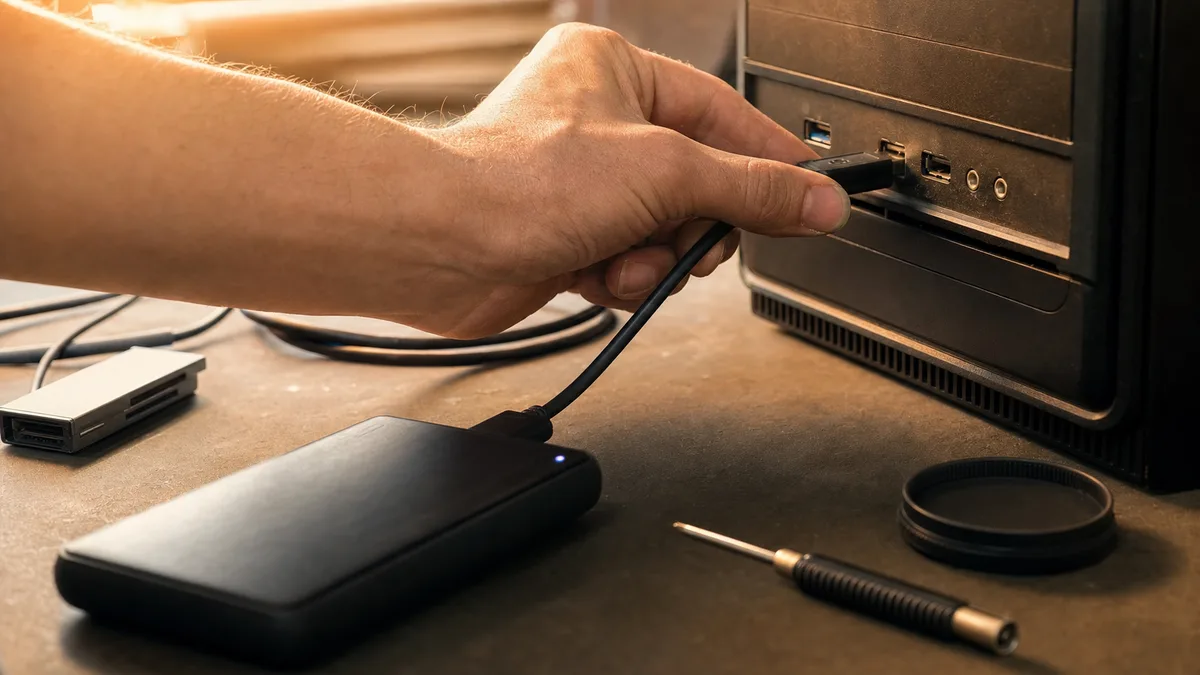
You plug in a flash drive and a balloon pops up in the corner of the screen: “USB device not recognized.” Or worse — nothing happens at all. The mouse doesn’t light up, the external drive doesn’t click, the phone doesn’t start charging. Yet the same symptom can have two completely different causes: either Windows and the device simply failed to talk to each other — driver, power-saving features, an overloaded hub — or the connector itself is faulty. And that’s a mechanical fault no amount of clicking will fix.
You can tell the two worlds apart at home in about ten minutes. Just work the way a repair shop does: swap parts first, adjust settings second.
The short answer: Isolate the culprit with three swaps. The same device in a different port, a different device in the same port, and if you have the option, the same device in a different computer. When one particular device works nowhere, that device or its cable is faulty. When nothing works in one port and everything works in the others, the port is faulty. When all the ports misbehave at once, look inside Windows — drivers and power-saving features. And if the connector wobbles in the port, or the device only comes up when you hold the cable at a certain angle, stop experimenting: that’s mechanical and it belongs in a repair shop.
What the message “USB device not recognized” actually means
Once you push the connector in, a brief introduction takes place. The port supplies power, the device announces itself and sends its identification, Windows looks up a driver for it and makes the device available. The unrecognized-device message means something did announce itself, but the introduction never finished — the identification didn’t arrive in full, or it didn’t make sense.
And here’s the key part: that failure can be caused by a faulty cable, insufficient power, a confused driver or a cold solder joint in a mechanically stressed connector. The message on its own doesn’t reveal the culprit. Elimination does.
One notch worse is complete silence — no balloon, no sound, nothing in Device Manager. That means the device never announced itself at all: the port isn’t supplying power, the cable has no data wires, or the device itself is dead.
Three swaps instead of guesswork
Before you open a single setting, run three simple tests. Each takes a minute, and together they tell you more than an hour of trawling through forums.
| Test | Result | Most likely culprit |
|---|---|---|
| Same device, different port | works in the other port | the original port |
| Different device, same port | the other device works in it | the original device or its cable |
| Same device, different computer | doesn’t work anywhere else either | the device itself |
| Anything, any port | nothing works anywhere | Windows, chipset drivers, rarely the motherboard |
Two notes from practice. First, cables: plenty of USB-C cables out there are “charge only”, with no data wires — typically the ones bundled with power banks, desk lamps and cheap electronics. You can’t tell by looking, a phone will charge through them, but data will never flow. So when testing, always swap the cable too, not just the device.
Second, the front ports on a desktop: they aren’t on the motherboard itself, a lead runs to the board from the case’s front panel. That lead is often not pushed home properly, or cheaply made. When the front ports misbehave and the rear ones work, don’t buy a new computer — use the rear ports and have the front ones checked at the next clean-out.
When Windows is at fault: drivers and power-saving features
If the tests pointed to software — typically all the ports misbehave, or the device connects and then disconnects on its own after a while — work through the following steps in this order.
1. Do a genuine restart. It sounds trivial, but “Shut down” and “Restart” are not the same thing in Windows 11. A shutdown with fast startup merely hibernates the system into a file and carries the confused state of the USB drivers over into the next start-up. Restart performs a clean boot. If USB always comes up after a restart but not after a shutdown and power-on, you’ve found the cause — you turn fast startup off in Control Panel: Power Options → Choose what the power buttons do → Change settings that are currently unavailable, then untick Turn on fast startup (recommended).
2. Look in Device Manager. Right-click Start (or press Win+X) → Device Manager → expand Universal Serial Bus controllers. You’re looking for an entry with a yellow exclamation mark, or “Unknown device”. Its properties usually show an error code — most often code 43, meaning “the device has reported problems and Windows has stopped it”. Right-click the problem entry → Uninstall device → restart. Windows rebuilds the driver cleanly at start-up; it’s safe and it fixes a surprising number of cases.
3. Check USB power-saving shutdown. Windows saves energy by suspending unused ports — and occasionally forgets to wake them. It shows up as a device that “drops out” after a few minutes of inactivity: the mouse wakes up with a delay, the external drive vanishes from the system. In Device Manager, open the properties of the USB Root Hub entries and on the Power Management tab untick Allow the computer to turn off this device to save power. In addition, you can disable USB selective suspend setting in the advanced power settings (Control Panel → Power Options → Change plan settings → Change advanced power settings). On a laptop this slightly increases power draw — that’s the price of peace and quiet. We cover similar “smart” features that mostly get in the way in Windows 11 in the article Windows 11: how to turn off the annoying features.
4. Chipset drivers. The USB controllers are part of the motherboard chipset. After a clean Windows installation or a major update, they sometimes end up running on a generic driver that has bugs. The right approach: download the chipset drivers from the laptop or motherboard manufacturer’s website for your specific model or serial number (Lenovo, Dell, HP and ASUS all have support pages that detect the machine automatically). Steer clear of “driver booster” utilities from the internet — they cause more problems than they solve.
If you’ve been through all four steps and the ports still all misbehave at once, software becomes an unlikely explanation. At that point it’s worth having someone measure what’s happening on the board — a single USB circuit dropping out can also be an early sign of a failing motherboard, as we describe in the article faulty motherboard: how to spot it.
An overloaded hub: too many devices, too little current
Every USB port has a limited current budget. An unpowered hub (one without its own adapter) splits that budget between everything you plug into it. As long as it’s a mouse and a keyboard, nobody notices a thing. But as soon as an external 2.5″ drive, a webcam or a charging phone joins the hub, the classic symptoms begin: the drive clicks and disconnects, the camera reports itself as an unrecognized device, things work “sometimes”.
The telltale sign: the device works reliably when plugged straight into the computer and misbehaves through a hub or docking station. The fix is simple — put the drive and other power-hungry devices straight into a port, or use a hub with its own power adapter. On a desktop, plug demanding devices into the rear ports, which sit directly on the board.
A broken port: how to spot it and what definitely not to do
And now for the second family of causes, the one clicking can’t touch. You can recognize a mechanically damaged port by four signs:
- the connector noticeably wobbles in the port — more than in the healthy ports next to it,
- the device works only while you hold the cable at a certain angle or press it in,
- the port is pushed inwards, or the plastic tongue with the contacts is missing or bent,
- the connection breaks when you move the laptop, not when you work in Windows.
The causes are mundane: levering on a plugged-in connector, dropping the laptop onto an inserted cable, years of plugging in blind. USB-A takes a lot of abuse, but the contacts on the tongue wear down over time; USB-C, in turn, is held by a series of tiny solder joints that a knock tears off.
What not to do: don’t poke around in the port with tweezers while it’s powered, don’t bend the tongue “back” with a needle, don’t glue a wobbly connector with superglue and don’t try to solder it at home with a micro iron following a video. Every one of those attempts can turn a cheap repair into an expensive one. And above all — don’t plug anything important into a wobbly port: shorted contacts can kill a flash drive’s controller, data and all.
A chapter of its own is a laptop with liquid spilled on it, where the USB ports fail one by one because of corrosion — don’t wait for them to finish dying there, and read what to do right after a spill.
The good news: a broken port isn’t a death sentence. On plenty of laptops the USB ports sit on a small separate board and replacing it is quick and cheap. When the port is soldered straight onto the motherboard, it’s work under a microscope — still an order of magnitude cheaper than a new board. If your port wobbles or only works at an angle, there’s no point in working around it with settings any longer: book a visit or call 775 556 063. During diagnostics we pinpoint exactly where the fault sits and tell you the repair price up front — diagnostics cost 600 Kč, and only if you decide not to go ahead with the repair; component replacement work starts at roughly 600 Kč plus parts.
Careful when it’s a flash drive with your only copy
One situation deserves particular caution: the unrecognized device is a flash drive or external drive holding the only copy of important files. A thesis, the accounts, photos.
At that point “just try things and see” no longer applies. Every further insertion into a suspect port, every “repair” utility downloaded from the internet and above all the dialogue “You need to format the disk before you can use it” — all of those are risks. Click No on formatting and write nothing to the drive. If the drive misreports itself on several computers, the problem is inside it, and we’ve written up what can and can’t be salvaged in the article data recovery: when it’s possible and when it isn’t.
When you can handle it at home and when to call
Home turf: the three swaps from the table, a genuine restart, uninstalling the problem entry in Device Manager, checking the power-saving settings, a powered hub. That solves most software cases, and none of it can break anything.
Repair-shop turf: a wobbly or pushed-in connector, ports failing after a spill or a drop, all the ports dead even after reinstalling the chipset drivers — and anything where the only copy of your data is at stake. Our prices are public in the price list; and if you simply don’t fancy working through Device Manager, that’s a perfectly legitimate reason to send us an order too — cleaning up USB on the software side is a single-visit job.
Rather not deal with it yourself?
Book a diagnosis in Brno — you get the price up front and we start only once you agree.
Where to find us
We are a PC and laptop repair shop in Brno-Židenice: diagnostics and repairs of computers and laptops, data recovery from drives, and out-of-warranty Apple repairs (iPhone 12 and newer, MacBook, iPad).
Viniční 3587/216, 615 00 Brno-Židenice, Czech Republic Mon–Fri 10:00–16:00
Call +420 774 777 774 Computer repair and laptop service in Brno
We put the repair price in writing after diagnostics and carry on only once you agree.


