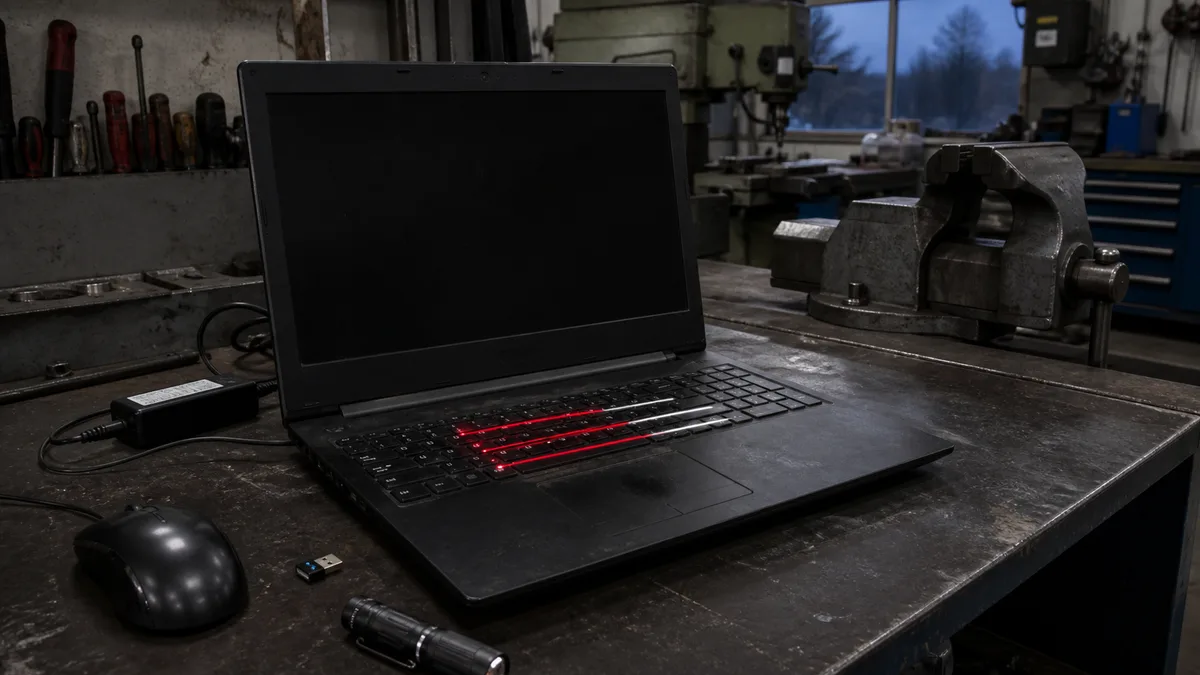
The short answer: If an HP laptop will not boot and Caps Lock—or Num Lock on some models—blinks in a regular pattern, the keyboard is not faulty. The firmware is reporting where startup stopped. Count the long flashes (red on a two-colour LED = main category) and the short flashes (white = detail): 3 long + 2 short is code “3.2”, which probably indicates a memory problem. Codes 3.2 and 4.x (memory and overheating) may have an at-home solution, such as reseating the module, cleaning the vents, or letting the laptop cool down. Code 2.2 means a corrupted BIOS; codes 3.3, 3.5, and 5.x that persist after a reset require motherboard work. Before trying anything else, disconnect all peripherals and perform HP’s hard reset procedure.
Would you rather not deal with it yourself? Bring the laptop to our repair shop in Brno
You will find us at Viniční 3587/216 in Brno-Židenice, Monday to Friday, 10:00–16:00. We will diagnose the fault and quote the repair price in advance. Diagnostics cost CZK 600, but only if you decide not to proceed with the repair—when we carry out the repair, diagnostics are handled as part of the job (price list).
How to read the Caps Lock code correctly
The LED flashes a group of long pulses, then a group of short ones, goes dark, and repeats the entire sequence. In its “Computer beeps or a light blinks during startup” document, HP explains the pattern as follows: red long flashes = the main error category; white short flashes = the subcategory. On models without a two-colour LED, both groups flash white, so only their duration distinguishes them. The code is written as “long.short”: two long and four short flashes make code 2.4.
Three details cause the most confusion when reading the code at home:
- Not every model beeps. HP states this explicitly; count the flashes.
- The sequence repeats. If you missed the first cycle, count the next one.
- The power light is a different signal. HP lists continuous blinking of this light as a symptom of a corrupted BIOS, not as a numerical code.
For general guidance on reading lights and beep codes from other brands, see Laptop Won’t Turn On: What to Try and When to Seek Repair; this article focuses on HP.
HP blink code table: long × short flashes
The rows come from the current version of HP’s document; the “at home” and “repair” columns are our summaries.
| Code | What HP reports | What to try at home | When repair is needed |
|---|---|---|---|
| 2.2 | the main BIOS (DXE) region is corrupted and no recovery image is available | only BIOS recovery following HP’s instructions | recovery fails |
| 2.3 | the embedded controller (EC) is waiting for a keyboard sequence | reset the EC: disconnect the adapter and hold the button for more than 12 seconds | the code repeats |
| 2.4 | the EC is checking or recovering the boot block | reset the EC; do not interrupt the process | the code repeats |
| 3.2 | probable memory failure | reseat the modules and test them one at a time | the memory is soldered or the fault persists |
| 3.3 | probable graphics chip failure | nothing—HP recommends repair immediately | yes, motherboard |
| 3.4 | probable power system failure | check the cable, connector, and an adapter with sufficient wattage | it persists with a verified adapter |
| 3.5 | the processor was not detected | HP specifies no at-home step | yes, motherboard |
| 3.6 | the processor does not support an enabled feature | HP: clear CMOS and disable the feature | practically always on a laptop |
| 4.2 | the processor may be overheating | clean the vents and let it cool for about 10 minutes | the code returns |
| 4.3 | the ambient temperature is too high | move it away from the heat and let it cool | the code returns |
| 4.4 | the graphics chip may be overheating | clean the vents and let it cool | the code returns |
| 5.2 | the EC did not find valid firmware | reset the EC | the fault persists |
| 5.3 | the EC could not access the BIOS within the time limit | disconnect all accessories | the fault persists |
| 5.4 | the EC timed out while waiting for the BIOS | disconnect all accessories | the fault persists |
The rule of thumb is: 3.3, 3.5, and the entire category 5 point to the motherboard, category 4 concerns cooling, and 2.x concerns firmware. Code 3.2 is the only one where working on the hardware at home generally makes sense.
Older HP laptops: number of flashes only, no colours
Older ProBook 4xxx and EliteBook 8xxx models still nearing the end of their service lives in businesses used a simpler scheme. HP’s older “Computer Does Not Start and Emits an LED or Beep Code” document states that HP laptops manufactured from 2009 onwards report faults through a number of Caps Lock or Num Lock flashes: 1 = processor, 2 = corrupted BIOS, 3 = memory, 4 = graphics controller, 5 = motherboard, 6 = BIOS authentication failure. The sequence usually repeats three or four times; the codes do not apply to machines made before 2009. HP has since removed the document from its website, but we still encounter this scheme on business laptops.
What to try at home, in order
- Disconnect everything. Remove the dock, USB drives, external monitor, and any card in the card reader. For codes 5.3 and 5.4, this is the only at-home step HP specifies.
- Perform HP’s power reset. Turn the laptop off, disconnect the AC adapter and peripherals, hold the power button for about 15 seconds, reconnect the adapter, and turn the laptop on. According to HP, this clears the contents of memory without deleting your data. Remove a detachable battery first, but do not dismantle a laptop with a sealed battery.
- Reset the embedded controller for codes 2.3, 2.4, and 5.2. HP specifies a longer version here: with the adapter disconnected, hold the button for more than 12 seconds, release it, wait, and only then reconnect the adapter.
- For codes 4.2, 4.3, and 4.4, HP recommends cleaning the vents on the bottom and sides with compressed air and letting the machine cool for about 10 minutes. If the code returns, the underlying problem may be thermal paste, the fan, or a clogged heatsink—see laptop dust cleaning in Brno and Laptop or Desktop PC Overheats and Shuts Down.
- For code 3.2, reseat the memory, but only if the model has a service hatch or an easily removable bottom cover. Discharge static electricity by touching metal, hold the module by its edges, and test one module at a time if two are installed. Skip this step if the memory is soldered.
- For code 3.4, check the power supply: the cable, connector, and an adapter with the wattage HP specifies for the model. An underpowered USB-C phone charger can trigger the code by itself.
- For code 2.2, BIOS recovery is the remaining option. HP’s laptop procedure uses Win + B—or Win + V on some models—with the AC adapter connected. For full instructions, see HP’s BIOS recovery document; we do not reproduce the procedure here.
HP PC Hardware Diagnostics step by step
Diagnostics are useful if the laptop can at least reach the Startup Menu—after a successful reset, for example, or when the code appears only occasionally. Follow the procedure from HP’s “Testing for hardware failures” document:
- Turn the computer on and press Esc repeatedly, about once per second, until the Startup Menu appears.
- Press F2 to launch HP PC Hardware Diagnostics UEFI, which runs independently of Windows.
- Start with the Fast Test, which takes about four minutes. The more thorough Extensive Test takes two hours or longer. Memory and drive checks are available under Component Tests.
- If a test fails, write down the Failure ID—the 24-character code—and the product number, or photograph the QR code. HP uses this information to open a warranty claim; it tells us which component failed.
- If the built-in diagnostics do not launch, HP offers a version that runs from a USB flash drive, currently UEFI 10.8.7.0. Insert the drive, then press Esc and F2 again.
If the machine only blinks and never reaches the menu, the blink code is the only diagnostic information available.
How ProBook and EliteBook differ from Pavilion and Victus
The code table is the same. HP uses one document for its laptops and does not distinguish between product lines. The difference lies in what happens around the code.
Business product lines have HP Sure Start. In its Sure Start documentation, HP lists EliteBook G5–G10, ProBook G4–G10, and ZBook G5–G10 models manufactured between 2017 and 2023. According to the BIOS recovery document, these machines repair a corrupted BIOS automatically from an isolated backup and do not support manual recovery from the keyboard or a USB drive. Holding Win + B on an EliteBook showing code 2.2 is therefore pointless. Let the machine complete its own recovery; if that fails, it needs repair.
Consumer product lines such as Pavilion, HP 15, and HP 17 use the Win + B method described by HP.
Gaming models such as Victus and OMEN have dedicated graphics, so codes 3.3 and 4.4 concern a large chip with its own cooling system. Code 4.4 may be resolved by cleaning, while 3.3 requires motherboard work, much like the display failures described in Graphics Problems: Artifacts, Lines, or a Black Screen.
Not every model has a two-colour LED. HP does not associate this with a particular product line; it merely states that both groups flash white when a two-colour LED is unavailable, so their duration is what matters.
What not to do
- Do not keep turning on a machine showing a 4.x code. HP recommends cleaning it and letting it cool first.
- Do not interrupt BIOS recovery once it has started. Blinking during recovery indicates progress, not another fault.
- Do not dismantle a sealed battery or open the motherboard “just to have a look”. There is nothing you can repair at home for codes 3.3, 3.5, and 5.x.
- Do not try to “reflow” the graphics chip at home with a hairdryer or oven. The result may last a few weeks and leave the board harder to repair properly.
- Do not buy memory or an adapter blindly. Identify the code first, then the part.
When professional repair is needed
- Codes 3.3, 3.5, and 5.x after an unsuccessful reset—the graphics chip, processor, and embedded controller are soldered to the motherboard, so the solution is a chip-level repair or motherboard replacement. Faulty Motherboard: How to Recognise It and When Your Data Is Safe explains when this is worthwhile.
- Code 3.4 with a verified adapter—the power connector or charging circuit is faulty.
- Code 2.2 after unsuccessful recovery, and any code that persists after the steps above.
- A recurring 4.x code—the cause may be thermal paste, the heatsink, or the fan.
- No code, only a black screen—that is not a blink code but a video path problem; follow the procedure in the general article.
The hard drive or SSD is usually unaffected by these faults. Encryption is the only catch: after a motherboard replacement, BitLocker will request the recovery key, as explained in BitLocker Is Asking for a Recovery Key: Where to Find It. Find it in advance.
What to bring to the repair shop
- The laptop and its original adapter—code 3.4 cannot be diagnosed properly without it.
- The recorded code in “long + short” format, plus what happened beforehand: a BIOS update, a fall, a liquid spill, or use in high temperatures.
- The product number from the label. It is shown on the bottom of the laptop as Product NO or P/N. On a working machine, press fn + esc to open System Information. The correct replacement part cannot be ordered without it.
- The Failure ID from diagnostics, if you managed to run them.
- Access to the BitLocker recovery key if the drive is encrypted.
Frequently asked questions
My HP’s Caps Lock blinks three times. What does that mean?
It depends on what follows the three long flashes. According to HP, 3 + 2 indicates memory, 3 + 3 the graphics chip, 3 + 4 the power system, 3 + 5 an undetected processor, and 3 + 6 a processor with an unsupported feature. Only on older machines using the scheme introduced around 2009 did three flashes on their own indicate a memory problem.
The fan runs, the screen is black, and Caps Lock blinks. Is the display faulty?
If the light follows a pattern of long and short flashes, the firmware stopped before video output began, so the display is not the primary suspect. If nothing is blinking, the problem lies in the video path; the general article explains how to test the laptop with an external monitor.
Will removing the battery or holding the power button help?
That is the first step. HP’s power reset involves disconnecting the adapter, holding the button for about 15 seconds, and turning the laptop on with the adapter connected. Codes 2.3, 2.4, and 5.2 require an embedded controller reset lasting more than 12 seconds. Do not dismantle a laptop with a sealed battery.
Is a laptop showing code 3.3 or 3.5 beyond repair?
Not necessarily. Both codes point to the motherboard, so the decision depends on the machine’s age and value. The data on the drive is usually intact; if the drive is encrypted, you will need the BitLocker recovery key.
PC Repair Brno: we will decode the signal and assess the motherboard
HP laptops make up a large proportion of the business machines brought to our Brno workshop. Bring the laptop with its adapter and the recorded code. For codes 3.3, 3.5, 4.x, and 5.x, we can determine whether it needs cleaning, a motherboard repair, or replacement. Arrange an appointment through the booking form or call +420 774 777 774; diagnostic terms are listed in the price list. Include the model, product number, and code in your booking.
Sources
- HP Notebook PCs – Computer beeps or a light blinks during startup
- HP Notebook PCs – Recovering the BIOS
- HP PCs – Testing for hardware failures
- HP PC Hardware Diagnostics
- HP PCs – How to power reset your computer
- Find product and serial numbers for HP PCs, printers, and accessories
- HP Commercial Products (2017–2023) with Sure Start
- Computer Does Not Start and Emits an LED or Beep Code—PDF copy of an older HP document (2012)
Rather not deal with it yourself?
Book a diagnosis in Brno — you get the price up front and we start only once you agree.
Where to find us
We are a PC and laptop repair shop in Brno-Židenice: diagnostics and repairs of computers and laptops, data recovery from drives, and out-of-warranty Apple repairs (iPhone 12 and newer, MacBook, iPad).
Viniční 3587/216, 615 00 Brno-Židenice, Czech Republic Mon–Fri 10:00–16:00
Call +420 774 777 774 Computer repair and laptop service in Brno
We put the repair price in writing after diagnostics and carry on only once you agree.


