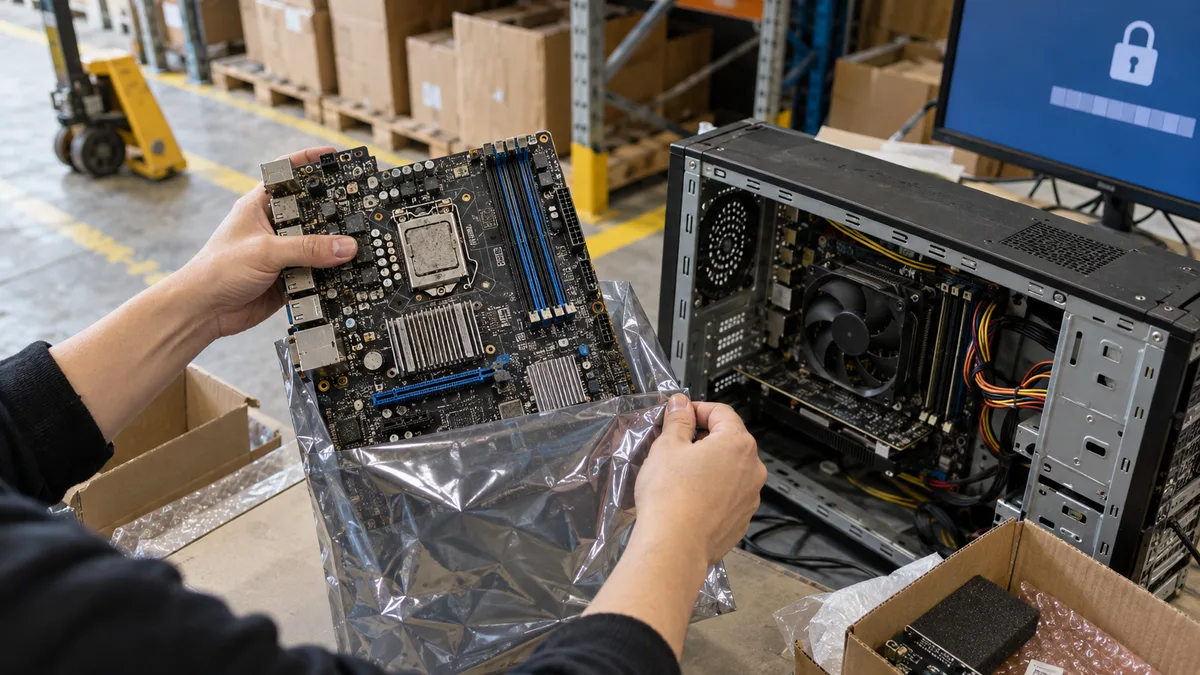
The short answer: You usually do not need to reinstall Windows after replacing the CPU while keeping the same motherboard. What matters is whether the board supports the new CPU and whether you update the BIOS before replacing it. A motherboard replacement is a more substantial change: Windows may become deactivated, BitLocker may request a recovery key and the system may sometimes fail to start because of a different storage controller. Before you begin, back up your data, find your BitLocker recovery key and link your licence to your Microsoft account.
CPU or motherboard: two different upgrades
Replacing the CPU while keeping the same motherboard changes relatively little from Windows’ perspective. The chipset, storage controller and network adapter remain the same, and the system will usually just install the drivers needed for the new CPU after startup.
Replacing the motherboard is a different matter. The chipset, storage controller, networking, audio, USB and TPM all change. Microsoft explicitly lists motherboard replacement as an example of a significant hardware change that may cause Windows to lose its activation.
| What you are replacing | Windows activation | BitLocker | Reinstallation |
|---|---|---|---|
| CPU on the same motherboard | Usually unchanged | Take care when updating the BIOS | Usually unnecessary |
| Motherboard on the same platform | May be lost, requiring reactivation | New TPM, recovery key requested | Sometimes, if the system will not start |
| Motherboard and CPU on a different platform | May be lost, requiring reactivation | New TPM, recovery key requested | A clean installation is often more sensible |
Replacing the CPU: update the BIOS before installing the new chip
A CPU cannot automatically be used just because it physically fits the same socket. Motherboard manufacturers provide a CPU support list for each model, specifying the minimum BIOS version required for every supported processor. Newer CPU generations often work on older motherboards only after a BIOS update.
The procedure recommended by ASUS is clear. If you have an older CPU that is on the support list and the board starts with it, update the BIOS to the latest version before installing the new CPU. If you no longer have the old CPU, check whether the motherboard can update its BIOS without a processor. ASUS calls this feature USB BIOS FlashBack; other manufacturers use different names, and not every motherboard supports it.
What to watch out for:
- The exact motherboard model can be found printed on the board or in System Information in Windows. Different board revisions may support different processors.
- Check the support list only on the motherboard manufacturer’s website, not in discussion forums.
- Do not interrupt the power supply during a BIOS update. ASUS also explicitly recommends backing up your data before updating.
- Suspend BitLocker before updating the BIOS. Microsoft lists a BIOS or UEFI update among the events that may cause Windows to request the recovery key during startup.
If only the fans start and the display remains black after a BIOS update, see Black screen after a BIOS update.
In laptops, the CPU is usually soldered to the motherboard, so this section mainly applies to desktop computers.
Replacing the motherboard and activating Windows
According to Microsoft, Windows may not find a licence matching the device after the motherboard has been replaced. The problem can be resolved, but you need to prepare in advance.
Before the replacement, open Start → Settings → System → Activation. Look for the status “Windows is activated with a digital licence linked to your Microsoft account.” If the licence is not linked to an account, sign in to Windows with your Microsoft account while the old motherboard is still installed.
After the replacement, follow these steps:
- Open Start → Settings → System → Activation.
- Select Troubleshoot.
- Choose I changed hardware on this device recently and continue.
- Sign in with the Microsoft account linked to the licence.
- Select This is the device I’m using right now from the device list, then choose Activate.
Two conditions in Microsoft’s documentation are often overlooked. The Windows edition must remain the same: Home must remain Home and Pro must remain Pro. If you activated Windows with a Product Key, you will also need that key again after the replacement.
If the computer manufacturer replaced the motherboard as part of a repair and Windows came pre-installed, Microsoft states that the computer should reactivate automatically.
Moving a licence to a completely different computer is no longer simply a component replacement. The process is explained in Transferring data to a new computer.
BitLocker and device encryption: find your key in advance
On many Windows 11 computers, the system drive is encrypted even if you did not enable encryption yourself. The motherboard’s TPM holds the drive key. A new motherboard means a new TPM, which cannot unlock the drive by itself.
Microsoft lists the following among the common triggers for BitLocker recovery:
- replacing a motherboard with a new one that has a new TPM,
- moving an encrypted drive to another computer,
- updating the BIOS or UEFI,
- disabling or clearing the TPM.
For planned hardware and firmware changes, Microsoft recommends temporarily suspending BitLocker protection. The drive remains encrypted, and protection resumes afterwards. Be aware that protection resumes automatically after a restart unless you set the number of restarts using PowerShell or manage-bde.
Always find your recovery key even if you suspend BitLocker. Without it, not even a repair shop can access the data on the encrypted drive. On a personal computer using a Microsoft account, the key is usually stored in that account. Instructions for finding it are available in BitLocker is asking for a recovery key. For a company laptop, contact your IT administrator.
The TPM is also linked to the Windows 11 requirements. If the motherboard replacement also involves moving to a different CPU generation, check for TPM 2.0 and a supported processor using TPM 2.0 and Windows 11.
INACCESSIBLE_BOOT_DEVICE blue screen
After a motherboard replacement, Windows may sometimes fail to start and display a blue screen with the INACCESSIBLE_BOOT_DEVICE code (0x7B). According to Microsoft, this means the system lost access to the system partition during startup.
Microsoft’s documentation lists a BIOS configuration change or the installation of a different storage controller among the possible causes. Some controllers require a driver that must already be available when Windows starts. The new motherboard may use a different chipset or controller mode, such as AHCI instead of RAID.
What to try:
- In the new motherboard’s BIOS, compare the SATA or NVMe controller mode with the setting used on the old board. Microsoft recommends reverting recent controller mode changes.
- Disconnect any newly added drives and controllers that are not required for startup.
- If the system still does not start, the next step is a repair or a clean installation.
On newer Intel platforms with VMD technology, Windows Setup may not detect the drive at all. For this situation, Intel describes how to load the Intel RST driver from a USB flash drive during installation.
If the new motherboard will not even start the BIOS, Windows is not the cause. See How to identify a faulty motherboard for troubleshooting steps.
Backing up your data before the upgrade
Replacing a CPU or motherboard does not normally erase data. The risk comes from the surrounding circumstances: an interrupted BIOS update, an encrypted drive without its recovery key or a rushed reinstallation in which the wrong partition is erased.
Before the upgrade:
- back up documents, photos and work files to an external drive or the cloud,
- make a note of your BitLocker recovery key,
- verify that the Windows licence is linked to your Microsoft account,
- check whether applications with their own licences are tied to the hardware.
For instructions on backing up the entire Windows installation or just your files, see How to back up Windows 11. If you cannot access your data after the upgrade and have no backup, first read about when data recovery is and is not possible and stop experimenting with the drive.
When a clean installation is worthwhile
We recommend a clean installation when changing the entire platform, such as moving from Intel to AMD or vice versa, or upgrading from an older chipset to a substantially newer one. The old system carries drivers for the previous hardware, making subsequent stability problems more difficult to diagnose. Microsoft lists a clean installation from installation media as one possible solution to the INACCESSIBLE_BOOT_DEVICE error.
A clean installation also makes sense if Windows was already causing problems and the upgrade offers a good opportunity for a fresh start. If you want to keep your applications and data, first read about reinstalling Windows 11 without losing data.
By contrast, reinstalling Windows is generally unnecessary when simply upgrading to a more powerful CPU on the same motherboard.
What our repair shop can do for you
We will check whether the CPU is compatible with the motherboard, update the BIOS, replace the components and verify system stability. Before replacing the motherboard, we will take care of the backup, BitLocker recovery key and Windows activation. If the system does not start on the new hardware, we will reinstall it.
Indicative prices from our price list:
- replacement of an SSD, RAM or another component from approximately CZK 600 plus parts,
- basic Windows reinstallation from approximately CZK 1,500, with the licence and data backup charged separately,
- Windows reinstallation with a data backup from approximately CZK 2,400.
If you decide to proceed with the repair, diagnostics are included in the total price. If you decline the repair after diagnostics, the diagnostic work is charged separately according to the price list. Learn more on our PC repair Brno and Windows reinstallation Brno service pages.
Enquire online: Contact us — tell us the model, what is happening and what matters most to you, and we will get back to you with the next steps.
Rather not deal with it yourself?
Book a diagnosis in Brno — you get the price up front and we start only once you agree.
Where to find us
We are a PC and laptop repair shop in Brno-Židenice: diagnostics and repairs of computers and laptops, data recovery from drives, and out-of-warranty Apple repairs (iPhone 12 and newer, MacBook, iPad).
Viniční 3587/216, 615 00 Brno-Židenice, Czech Republic Mon–Fri 10:00–16:00
Call +420 774 777 774 Computer repair and laptop service in Brno
We put the repair price in writing after diagnostics and carry on only once you agree.


