The short answer: If your laptop’s fan runs after a BIOS update but the screen remains black, wait first—the flash process and automatic recovery may be running with no display output. Dell says recovery can involve several restarts and take at least 15 minutes. Next, try the manufacturer’s emergency procedure: Windows + B (or Windows + V) and a brief press of the power button on HP, Ctrl + Esc with a BIOS_IMG.rcv file on a USB drive on Dell, or a “power drain” and, on ThinkPads, automatic recovery from the built-in backup. The AC adapter must remain connected throughout. If none of these produces an image, the chip must be reprogrammed directly on the motherboard—a job for a repair shop.
Why the screen stays black after a BIOS update
The BIOS (UEFI firmware on modern machines) is the first program that runs when you press the power button. If it is damaged, HP explains that the computer cannot reach Windows. In a laptop, it resides on a memory chip on the motherboard, and an update rewrites it in place. If the process is interrupted by a power failure, a closed lid, a depleted battery or a file intended for a different model, the chip may be left with a mixture of old and new data, leaving the processor with nowhere to start. The fan runs and the indicator lights come on, but even the code responsible for driving the display has not started.
Desktop motherboards often have a backup chip, while ASUS boards may also provide a USB BIOS FlashBack button. Laptops generally have neither. Manufacturers therefore protect a small boot block that is not overwritten and can start recovery from a USB drive—the basis of Windows + B on HP and Ctrl + Esc on Dell—and retain a backup copy: HP on a hidden drive partition, Dell in the \EFI\Dell\BIOS directory and ThinkPad in its own backup storage. If the boot block itself is damaged, an external programmer is the only remaining option.
Let the flash process finish first
A common mistake is intervening too soon: a properly running update or recovery can look like a fault. HP says the laptop may restart several times, display a black screen, start its fans, beep and flash the power light, describing all of this as expected behaviour. During automatic recovery, the screen may either remain black or show a progress window. Dell says the computer will restart several times and must not be switched off; if problems occur, it recommends waiting at least 15 minutes. During ThinkPad self-recovery, the screen may remain blank while the LEDs on the Esc, F1 and F4 keys indicate three stages of progress (0–32%, 33–65% and 66–100%). Lenovo explicitly says not to press the power button and to wait several minutes for the logo to appear.
The rule is simple: keep the AC adapter plugged in, leave the lid open, press nothing and wait 20–30 minutes. Only move on to the emergency procedure if nothing changes.
Manufacturer emergency procedures at a glance
| Manufacturer | Emergency procedure | When it works | Source |
|---|---|---|---|
| HP laptops without Sure Start | Windows + B (or + V) and the power button for 2–3 seconds; otherwise, a recovery USB created with HP BIOS Update and Recovery | When automatic recovery from the hidden partition has failed | HP: Recovering the BIOS |
| Dell from December 2015 onwards (6th-generation Intel and newer) | Ctrl + Esc while connecting the AC adapter; recovery from the drive or from a FAT32 USB drive containing BIOS_IMG.rcv | When the recovery file is available on the original drive or a USB drive | Dell KB 000132453 |
| Lenovo ThinkPad | Automatic recovery from the built-in backup, with progress shown by the Esc, F1 and F4 LEDs | Starts automatically; the user waits with the AC adapter connected | ThinkPad T14 Gen 5 User Guide |
| Lenovo, all product lines | Power drain: disconnect everything and use the emergency-reset hole or Novo button, or hold the power button for 10 seconds | When the machine is unresponsive; it does not repair the chip contents | Lenovo HT510479 |
HP: Windows + B and a recovery USB drive
HP first attempts automatic recovery from a hidden partition. If that does not help and the laptop flashes the Caps Lock light, beeps twice, reports BIOS APPLICATION ERROR 501, or runs its fan while the screen remains black, try manual recovery:
- Switch off the laptop and connect the AC adapter.
- Hold Windows + B and press the power button at the same time.
- Release the power button after 2–3 seconds but continue holding the keys; you may hear beeping.
- The HP BIOS Update screen should appear, and recovery will begin automatically.
If it does not appear, HP recommends trying Windows + V. If the power light goes out, you held the power button for too long. If the recovery message keeps reappearing, you need a recovery USB drive. On another computer, download the BIOS from HP support using the product number printed on the label underneath the laptop (HP warns that an incorrect BIOS can prevent the machine from starting altogether). Run the package and select Create Recovery USB flash drive in the HP BIOS Update and Recovery window. HP does not support flash drives with a USB-C connector on Intel platforms. Then switch off the laptop, wait 5–10 seconds, insert the USB drive and repeat the Windows + B and power-button procedure. If HP BIOS Update still does not appear, professional repair is the next step. Business machines with HP Sure Start (according to HP, the 800 series from G3, the 600 series from G4 and the 400 series from G7) do not support manual recovery; they repair the BIOS automatically using an isolated backup.
Dell: Ctrl + Esc and the BIOS_IMG.rcv file
Recovery from the drive uses a file stored on the EFI partition. It works only with the original drive, without a Windows reinstallation, in UEFI mode, and without BitLocker or a drive password. It is unavailable if the SSD has been replaced or the drive is encrypted. The second option is a USB drive. For a laptop, KB 000132453 gives the following procedure:
- Make sure the battery is at least 25% charged, then disconnect the power cable.
- Hold Ctrl + Esc on the built-in keyboard—an external keyboard will not work on laptops.
- While holding the keys, connect the power cable (on Alienware, also press the power button once).
- Release the keys when the recovery screen appears, then select Recover BIOS and Continue. The computer will restart several times; do not switch it off.
If “No recovery image found” appears or the LEDs merely flash, prepare a USB drive. Download the latest BIOS for the machine’s Service Tag—it does not need to be the same version—and rename the entire file, including its .exe extension, to BIOS_IMG.rcv. Use uppercase letters, the underscore and the .rcv extension exactly as shown, then copy the file to the root of a FAT32-formatted flash drive. Repeat the Ctrl + Esc procedure with the USB drive connected. If nothing happens, Dell recommends holding the keys for up to 30 seconds and trying a black USB 2.0 port before a blue one. LED codes 3,3 (recovery image not found) and 3,4 (recovery image invalid) mean “the correct file is missing,” not “the motherboard is faulty.” After recovery, the BIOS settings return to their factory defaults, so check the boot order, Secure Boot and SATA mode.
Lenovo: power drain and ThinkPad self-recovery
Lenovo’s official procedure (HT510479, updated in July 2026) begins by discharging residual power:
- Disconnect the power supply and all external devices.
- Remove the battery if it is removable.
- For a built-in battery, press the emergency-reset hole on the bottom cover with a straightened paper clip. On IdeaPads, use the Novo button. If the machine has neither, hold the power button for at least 10 seconds.
- Reconnect the power supply and switch the machine on.
If this does not help, Lenovo directs users to power troubleshooting and then to support. This document does not provide a key combination for USB recovery; consult the manual for your specific model. ThinkPads also have a mechanism that is not documented for IdeaPads: according to the T14 Gen 5 / T16 Gen 3 / P14s Gen 5 manual, a damaged or compromised UEFI BIOS automatically restores itself from the most recent intact backup. In this case, the correct action is to do nothing and leave the AC adapter connected.
ASUS and Acer: a brief note
USB BIOS FlashBack is a feature found on desktop motherboards. The ASUS FAQ lists only motherboards (PRIME, TUF and ROG STRIX): rename the file using BIOSRenamer, place it in the root of a USB drive, insert the drive into the FlashBack port, leave the power supply connected with the computer switched off, and hold the button for three seconds until the LED flashes three times. Then do nothing for approximately eight minutes. ASUS laptops do not have this button. We found no single manufacturer document covering emergency recovery across Acer laptops; confirm the procedure with Acer support.
What not to do
- Do not keep pressing the power button—each press could interrupt an active recovery process.
- Do not remove the battery or disconnect the AC adapter—Dell and HP require continuous power, while the ThinkPad README warns that interruption may lead to motherboard replacement.
- Do not install “a BIOS from the internet” or use a recovery USB made for another model—use only the manufacturer’s website and the exact model. Dell ties a recovery USB to a specific model.
- Do not attempt recovery through a dock, hub or external keyboard—Dell requires the built-in keyboard, and HP does not support USB-C flash drives on Intel platforms.
BitLocker may request its key after BIOS recovery
Microsoft lists a BIOS or UEFI firmware update among the events that can trigger BitLocker recovery mode. Dell recommends locating the 48-digit recovery key before attempting recovery. Encryption may be enabled on a Windows 11 laptop without the owner realising it—see silent BitLocker encryption. BitLocker is asking for a recovery key explains where to find it. For future updates, Microsoft recommends suspending BitLocker before a planned firmware update. The drive remains encrypted, and protection resumes automatically after the restart.
If the fault survives these checks, or the damage is mechanical, laptop repair in Brno takes over. A related step is fault diagnostics in Brno.
When to seek professional repair and what to bring
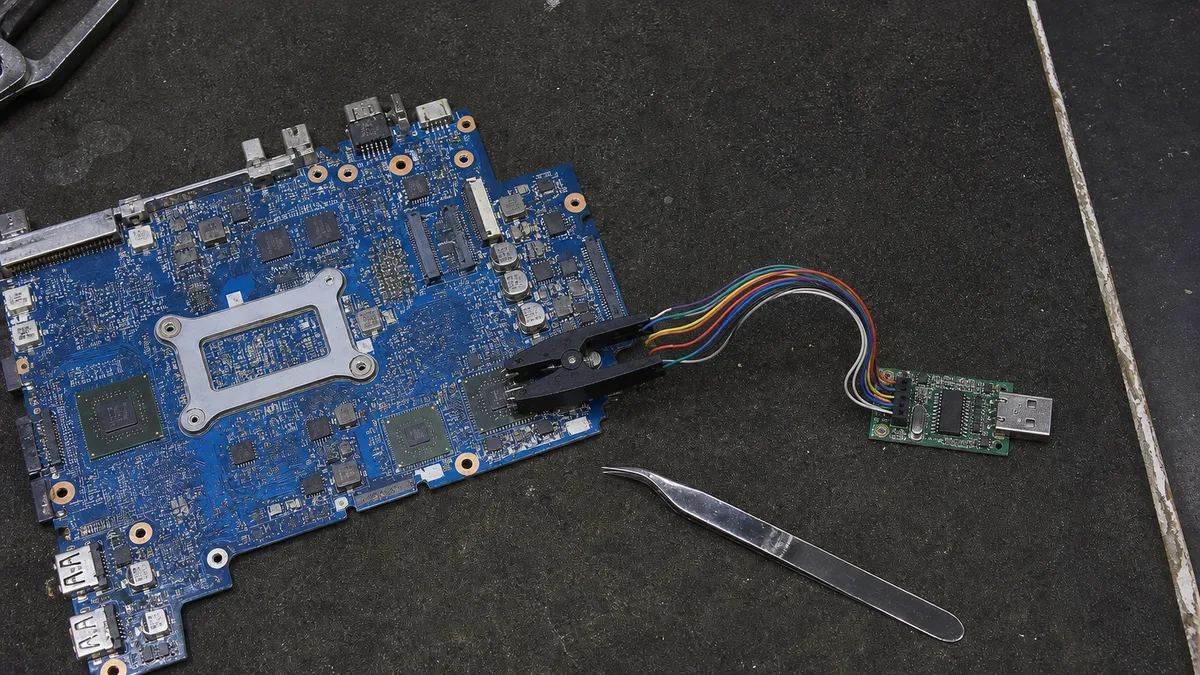
Take the machine to a repair shop if the manufacturer’s procedure does not start—the key combination does nothing, the USB drive is not read, or a Dell continues to report codes 3,3 and 3,4 despite using the correct file. In the workshop, the chip on the motherboard is connected to a programmer with a clip; if the chip is inaccessible, it is desoldered. Its complete contents are read and backed up before a repaired image is written. The image supplied in the manufacturer’s package contains only part of the chip. The Intel ME region, serial number, Service Tag, UUID and, on OEM machines, Windows activation data must be transferred from the original contents. Otherwise, the machine may start but identify itself incorrectly.
If even a verified image does not bring the display back to life, the BIOS is no longer the cause—Dell itself mentions replacing the motherboard. Faulty motherboard explains when that is worthwhile. If the machine boots to a blue screen or Automatic Repair, continue with Windows 11 will not start. A machine showing no signs of life requires a different diagnosis—see laptop will not switch on.
What to bring: the laptop with its AC adapter, the exact model designation, the BIOS version you attempted to install and where you obtained it, a description of what happened when the process was interrupted, the BitLocker recovery key and the USB drive you tried.
How to prevent this next time
- Download the BIOS only from the manufacturer’s support page for the exact model, never from links posted on forums.
- Always connect the AC adapter and charge the battery: Dell requires at least 25%, Lenovo requires both the AC adapter and a charged battery for ThinkPads, and HP requires the adapter throughout the process.
- Suspend BitLocker before the update and keep the recovery key available. Disconnect USB devices and docks, do not close the lid, and prevent the machine from entering sleep mode.
- After recovering a Dell from a USB drive, run the update once more from Windows. According to Dell, this restores the recovery file to the drive.
Frequently asked questions
Do I need to install the same BIOS version that was previously on the laptop?
No. Dell states that recovery works with any version and recommends the latest BIOS for the Service Tag. HP calls for the latest or recommended version. The exact model is what matters.
Will BIOS recovery erase my data?
Recovery changes only the firmware; Dell states that your data and Windows remain intact. However, the BIOS settings return to their factory defaults, and BitLocker may request its 48-digit recovery key.
Why does Windows + B do nothing on my HP EliteBook?
HP business laptops with Sure Start do not support manual recovery and repair the BIOS automatically using an isolated backup. If that does not happen, contact a repair shop or HP support.
Will recovery work with an external keyboard or through a dock?
Not on Dell laptops, which require the built-in keyboard. HP does not support USB-C flash drives on Intel platforms. Use a port directly on the laptop.
At Servis PC Brno, we provide emergency BIOS recovery and reprogram motherboard chips after reading and backing up their original contents, preserving the serial number, Service Tag and Windows activation data. If even a verified image does not bring the machine back to life, we will tell you immediately that the fault lies with the motherboard. Repair work is approximately CZK 600 per 30 minutes according to our price list; diagnostics without repair costs CZK 600. Book an appointment through the booking form or call 774 777 774. Include the make and model, what happened during the update, and whether the drive is protected by BitLocker.
Order online: Fault diagnostics — tell us the model and what happens, and we will come back with the next step.
Sources
- HP: Recovering the BIOS (Notebook PCs)
- HP Support Community (HP Administrator): How to Update the BIOS, 6 August 2026
- Dell KB 000132453: Recover BIOS on Dell Computer or Tablet
- Lenovo HT510479: Computer does not restart after BIOS update
- Lenovo: ThinkPad T14 Gen 5 User Guide, Recover the UEFI BIOS
- Lenovo: BIOS Update README, ThinkPad T480
- ASUS FAQ 1038568: How to use USB BIOS FlashBack
- Microsoft Learn: BitLocker recovery overview
Rather not deal with it yourself?
Book a diagnosis in Brno — you get the price up front and we start only once you agree.
Where to find us
We are a PC and laptop repair shop in Brno-Židenice: diagnostics and repairs of computers and laptops, data recovery from drives, and out-of-warranty Apple repairs (iPhone 12 and newer, MacBook, iPad).
Viniční 3587/216, 615 00 Brno-Židenice, Czech Republic Mon–Fri 10:00–16:00
Call +420 774 777 774 Computer repair and laptop service in Brno
We put the repair price in writing after diagnostics and carry on only once you agree.


