A child’s first computer is rarely configured before they get it—it is simply switched on. A parent creates one account, their own, lets the child play on it, and six months later wonders why the computer has ten game launchers, a browser full of toolbars, and a history nobody wants to discuss.
Yet Windows includes free parental controls. They are called Microsoft Family Safety and can do more than most parents expect—you just need to know what to ask of them and where their limits lie.
The short answer: Create a separate Microsoft child account under Settings → Accounts → Family and make sure its type is Standard user—never Administrator. You can then manage screen-time limits, web filtering, and age restrictions for apps at family.microsoft.com or in the Family Safety mobile app. Be aware of the limits: web filtering works only in Edge, Windows alone cannot see your child’s phone, and no filter can replace a conversation about why the rules exist.
How Family Safety works
Everything is built around a family group—your Microsoft account as the organizer and your child’s account as a member. All rules are linked to the child’s account, not to a particular computer. If your child signs in on another computer using their account, the limits still apply; if they use your account, none of them apply. That is why a separate account is the first and most important step.
You can manage four areas:
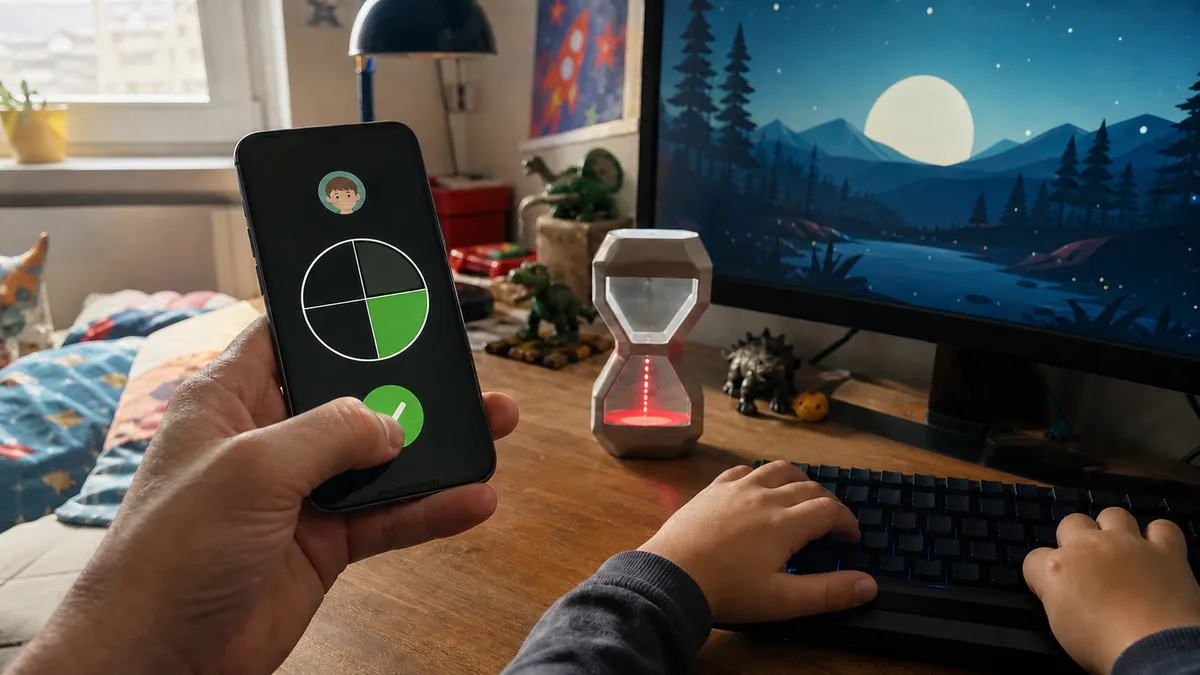
- Screen time—a schedule determining when your child can sign in and a daily time limit. Each day of the week can have different rules: Wednesday can differ from Saturday. You can also set limits for individual apps and games—for example, one hour of gaming per day while leaving schoolwork unrestricted. When time runs out, your child can select Ask for more time to send you a request. You receive a notification and can approve another 15 minutes, an hour, or nothing at all.
- Content filters for the web and search—enable Filter inappropriate websites and searches, and Edge will begin blocking adult websites while Bing enforces SafeSearch. You can add specific websites to a blocked or allowed list. For younger children, there is a stricter Only use allowed websites mode—a whitelist that prevents anything else from loading.
- Apps and games—an age filter for Microsoft Store based on your child’s age. Your child cannot install anything above the limit without sending a request, which you approve by email or in the app. You can also block an unsuitable app that is already installed on the computer.
- Spending—your child cannot make Store purchases without your approval. Instead of adding a payment card, you can deposit a specific amount for your child to manage.
You also receive activity reports showing how much time your child spent on the computer, which apps they used, and which websites and search terms they accessed in Edge. You can view the report at any time on family.microsoft.com and receive a weekly summary by email.
Family Safety handles one thing particularly well: children know they are being supervised. When they sign in, they can see that their account is managed, and Microsoft shows them what their parents can view. It is not a secret surveillance tool—and that is a good thing, as we will return to later.
Step by step in Windows 11
The entire setup takes about half an hour, most of which is spent creating the account.
- Secure your own account first. Your account is an Administrator account—if your child knows your password or PIN, the entire parental-control setup becomes pointless. Use a password your child does not know and sign in with a PIN or fingerprint.
- Create a child account. Go to Settings → Accounts → Family → Add someone → Create one for a child. Enter a name, a new email address, and a date of birth, which determines the default age filters. Do not enter an older age, or you will disable half the protections.
- Check the account type. On the same Family page, select your child’s account and confirm that it is a Standard user account. If your child used the computer before and had an Administrator account, select Change account type.
- Set the rules. Sign in at family.microsoft.com, select your child, and work through Screen time, Content filters, Apps and games, and Spending. Start with less restrictive settings—you can always tighten them later, while rules that feel unbearable from day one will only encourage children to bypass them.
- Test everything from the child account. Sign in as your child, try opening a blocked website, installing a game above the age limit, and sending an approval request. This confirms that notifications are reaching you and shows you exactly what your child will see.
- Install everything your child needs yourself. This includes school apps, games, and the printer. A standard account asks for the administrator password whenever software is installed—which is precisely the mechanism meant to stop your child, not inconvenience you every evening.
The child account runs the same Microsoft Defender as yours, so you do not need to buy a separate antivirus for your child. We explain what the free Defender can handle in Do I still need antivirus software? Paid family security packages mainly make sense when you also want parental controls on devices outside the Microsoft ecosystem.
What Windows can do—and what it cannot
This is where most expectations fall apart. Family Safety is a tool for Windows computers, not for your child’s entire digital life.
| Can do | Cannot do |
|---|---|
| Schedules and daily time limits on PCs and Xbox | Monitor your child’s phone without the Family Safety app |
| Web filtering and SafeSearch in Edge | Filter the web in Chrome or Firefox—it blocks those browsers instead |
| Age filters and approval of Store installations | See content inside apps, including game chats, Discord, and TikTok |
| Reports on apps, screen time, and websites visited in Edge | Recognize what your child watches within an allowed website |
| Block specific websites and apps | Control someone else’s device, such as a friend’s phone or a school tablet |
Three limitations deserve a closer look:
YouTube. The filter works with entire domains—you either allow or block youtube.com. Windows cannot tell whether your child is watching content on an allowed YouTube account that you would not have chosen. More granular controls, such as Restricted Mode, supervised accounts, and YouTube Kids, are configured through Google rather than Windows.
Phones. Windows alone cannot see a phone. The Microsoft Family Safety app for Android supports app limits and screen-time reports, while its features on iPhone are noticeably more restricted. If your child has an iPhone or an Android device with a Google account, expect to manage a second set of rules—Apple Screen Time or Google Family Link. Family Safety does not combine them into one system.
Bypassing restrictions. A standard account and Edge filtering close the main loopholes, but not all of them. A child with access to an administrator account can create another unmanaged account. A live system on a USB flash drive can boot the computer entirely outside Windows and all its filters. These are real methods used by real children—and older children can find the instructions online. Technical countermeasures exist, including a UEFI password and disabling USB booting, but consider whether an arms race is what you want at home.
Common mistakes that disable parental controls
- The child has an Administrator account. This is the most common and most serious mistake. An administrator can disable reports, bypass filters, create another account, and install anything. Parental controls on an account with administrator privileges are merely decorative. The reverse situation is just as problematic: the computer has only one Administrator account, and the entire family uses it.
- The child knows the parent’s password. “Enter my password so it doesn’t slow you down”—from that point onward, the child can approve their own installations. Every administrator password prompt is a moment when you should know what is being installed and why.
- The child uses the parent’s account. None of the rules apply to your account—and your child also gains access to your email, saved passwords, and payment cards stored in the browser.
- A local account is used instead of a Microsoft account. Screen-time limits, filters, and reports do not work unless your child signs in with a Microsoft account. Windows also offers older local restrictions, but you cannot manage them from your phone, and they do not integrate with Family Safety.
- Setting it once and forgetting about it. Age filters suitable for an eight-year-old will be unreasonably restrictive for a twelve-year-old—and unreasonable rules are the first ones children try to bypass. Review the settings occasionally and relax restrictions your child has outgrown.
- Relying on the filter alone. A filter will not recognize every new scam website or “free cheat” for a game, one of the most common routes for malware onto children’s computers. We explain what to do when something like this gets downloaded in Does my computer have a virus? and why browser extensions that children install for games and discounts can also be dangerous in Dangerous browser extensions.
Parental control is not spying
The final point is not technical, but it determines whether the entire setup will achieve anything.
Family Safety is designed as a transparent tool: children know their accounts are managed, and they know what their parents can see. Take the same approach yourself. Set the rules together, explain the reasons behind them, and treat the weekly report as a starting point for a conversation—not as an interrogation record. The report can tell you that your child spent three hours in one app. Only your child can tell you why and with whom, and only if they are not afraid to talk.
Two practical principles:
- A ban without an explanation teaches children to bypass rules, not to make good choices. The goal is not a computer on which nothing works, but a child who gradually learns what deserves their attention. A filter buys time for that learning; it does not replace it.
- Relax restrictions with age instead of tightening them. Reading a fifteen-year-old’s browsing history is an invasion of privacy that may damage your relationship more than it protects them. You can keep screen-time limits and payment approvals while gradually reducing detailed reporting.
And when your child makes a mistake—clicks a scam or downloads something they should not have—treat it as an accident, not a crime. A child who fears punishment will hide the next problem, allowing a minor infection to turn into a drained bank account.
If you would rather not configure everything yourself, we can do it as part of a Windows reinstallation and setup.
When you would rather not handle it alone
You can complete this setup yourself in one evening. At our service centre, we most often do it while preparing a new computer: a child account, standard permissions, age-appropriate limits and filters, school applications, and updates—plus a walkthrough showing you where to find everything in the reports. Book an appointment and we will configure your child’s computer while you wait. A standard setup is billed at CZK 600 per 30 minutes, with no flat fee for a “security package.”
You can also bring in a computer your child already uses. We will review its accounts and permissions, check what has been installed, and configure controls appropriate for your child’s age and your household rules. No spyware—just the tools already built into Windows, configured correctly.
Book online: Windows reinstallation—tell us the model and what is happening, and we will contact you with the next steps.
Rather not deal with it yourself?
Book a diagnosis in Brno — you get the price up front and we start only once you agree.
Where to find us
We are a PC and laptop repair shop in Brno-Židenice: diagnostics and repairs of computers and laptops, data recovery from drives, and out-of-warranty Apple repairs (iPhone 12 and newer, MacBook, iPad).
Viniční 3587/216, 615 00 Brno-Židenice, Czech Republic Mon–Fri 10:00–16:00
Call +420 774 777 774 Computer repair and laptop service in Brno
We put the repair price in writing after diagnostics and carry on only once you agree.