The short answer: Replacing a display, keyboard, battery, or fan does not normally erase your data. The risk increases when replacing an HDD or SSD, repairing Windows, performing a clean system installation, dealing with a motherboard fault, or handling a failing or encrypted drive. Before handing over the laptop, verify your backup and have the repair order state that the shop must not format the drive or reinstall the system without your additional consent.
When a repair normally does not affect your data
The display, keyboard, touchpad, battery, hinges, fan, and power connector are separate from the storage drive. Replacing these components does not in itself require files to be deleted or a new operating system to be installed.
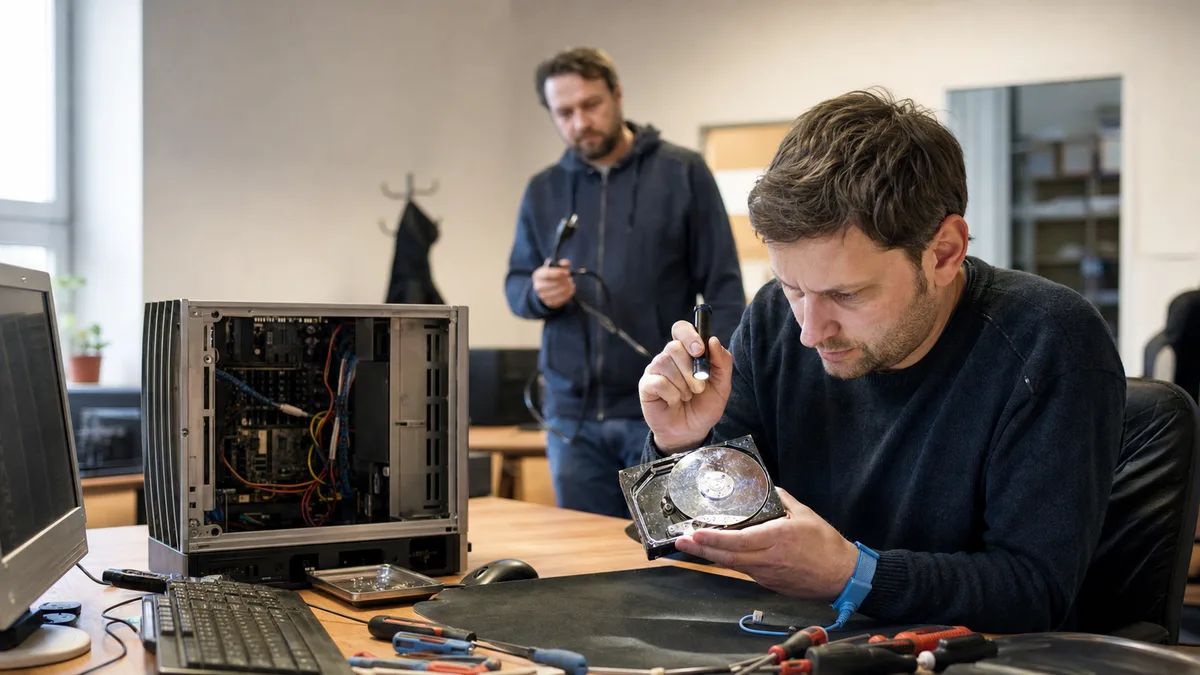
However, the technician must test the repair. After replacing a display, they will check the image and backlight; after repairing the cooling system, they will check temperatures and fan speeds; and after replacing a keyboard, they will test the individual keys. Depending on the fault, UEFI, the manufacturer’s diagnostics, or a service operating system booted from external media may be sufficient. Sometimes a brief test in your Windows installation is also necessary.
“Low risk” therefore does not mean zero risk. The drive may already be damaged before the repair, with the fault becoming apparent during startup or a stress test. If the data matters, create a backup even before an apparently straightforward battery replacement.
| Type of work | Does it involve the storage drive? | Risk to data | What to confirm |
|---|---|---|---|
| Display, keyboard, touchpad, or battery | Usually not | Low | How the laptop will be tested after the repair |
| Fan, cooling system, or power connector | Usually not | Low | Whether signing in to Windows will be necessary |
| RAM or Wi-Fi card | Usually not | Low | What diagnostics will be performed |
| UEFI update or changes to the TPM | Not directly | Medium | Whether you have the BitLocker recovery key |
| Motherboard repair or replacement | Depends on the design | Medium to high | Whether the storage is removable and encrypted |
| HDD or SSD replacement | Yes | High, but manageable | Cloning, the scope of the copy, and return of the original drive |
| Windows repair | Yes | Medium | What may be changed and whether a verified backup exists |
| Windows reset or clean installation | Yes | High | What will be erased and which data must be restored |
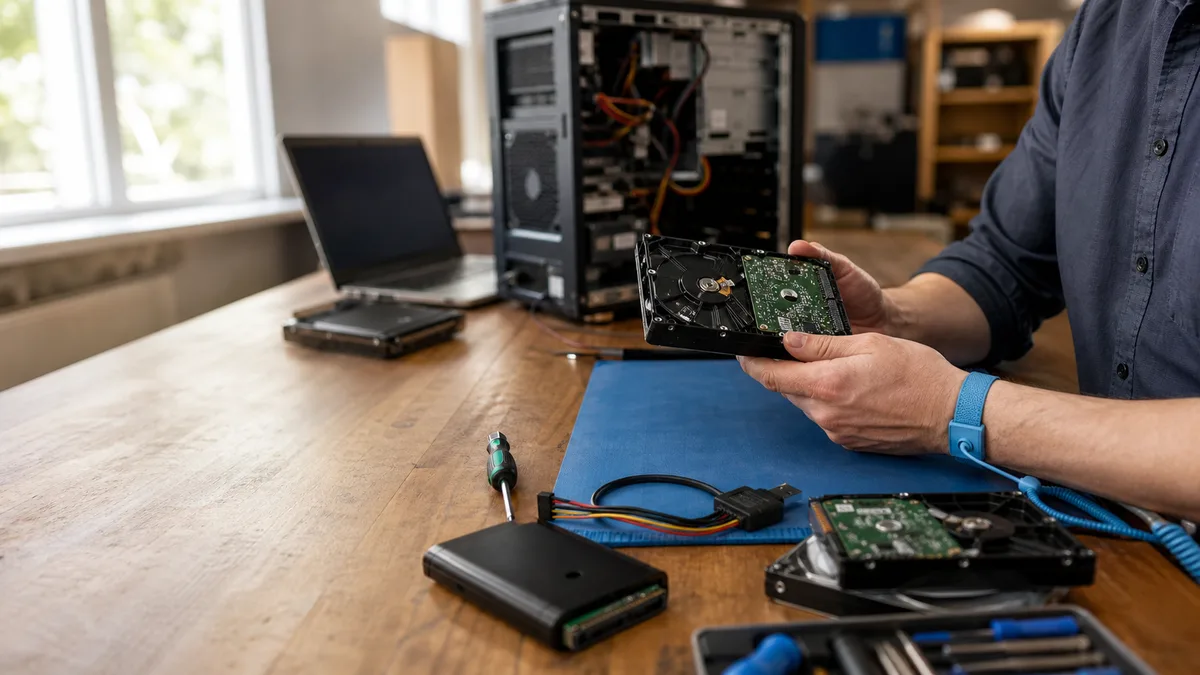
| Clicking HDD or disappearing SSD | The drive is already failing | Very high | Recover the data first, then repair the laptop |
The handover procedure, scope of diagnostics, and information the repair shop should receive are summarised in What to tell the repair shop before having your laptop repaired.
Before reinstalling, saying “keep my data” is not enough
The request “keep everything” is not precise enough. The technician needs to know which files, applications, and settings matter to you and where they are stored.
For a work laptop, check at least:
- the Desktop, Documents, Downloads, and any custom folders outside your user profile;
- databases used by accounting, inventory, and invoicing software;
- locally stored email, PST archives, signatures, and templates;
- browser bookmarks and profiles if they are not synchronised;
- certificates, VPN profiles, SSH keys, and configuration files;
- software licences and accounts protected by multi-factor authentication;
- files stored only locally inside synchronised folders.
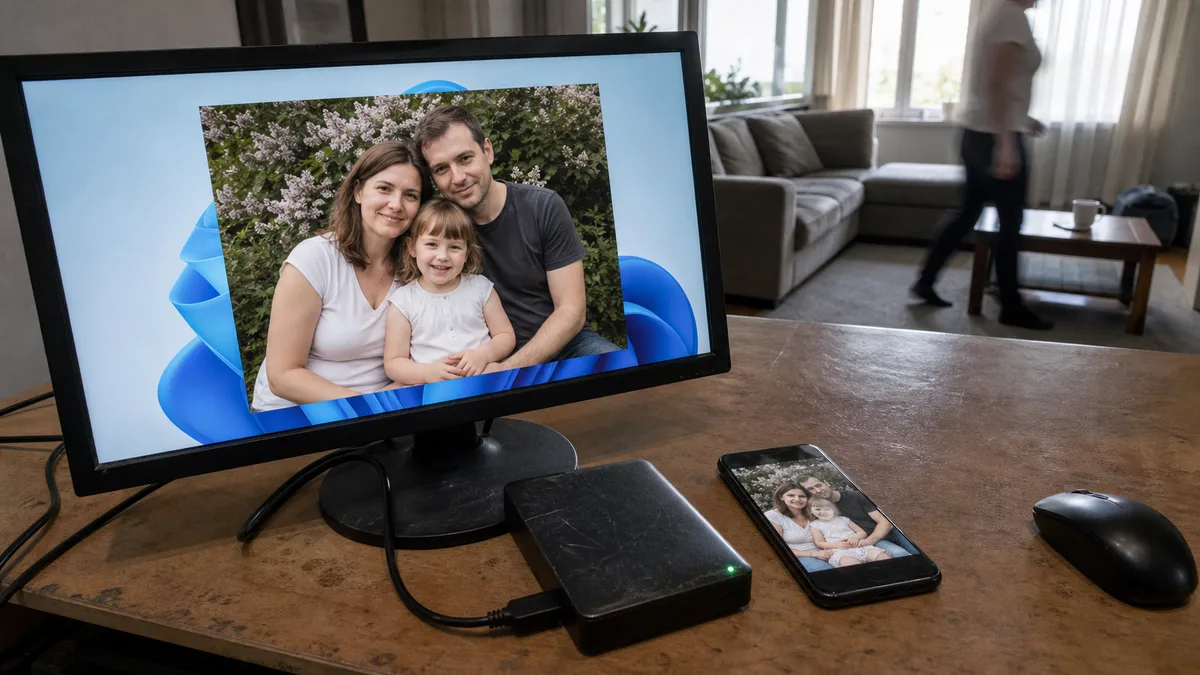
A backup is not verified merely because the copy operation finished without an error. Connect the backup medium to another computer and open several documents, photos, and files from essential applications. For database software, also verify the restoration procedure rather than merely checking that a particular folder exists.
The differences between a file copy, File History, and a disk image are explained in How to back up Windows 11.
OneDrive is not automatically an independent backup
The Desktop, Documents, or Pictures folders may be redirected to OneDrive. However, synchronisation also propagates deletions and other changes. It therefore does not guarantee a separate copy protected from user error, synchronisation problems, or changes to the account.
Before the repair, check:
- whether the correct personal or business account is signed in;
- whether synchronisation has completed without errors;
- which files are downloaded to the laptop and which are available only online;
- whether any important folders are outside the synchronised location;
- whether you can also open the files from another device.
If the drive is going to be erased, save important data to another independent storage medium as well.
When an ordinary backup is no longer appropriate
If an HDD clicks, repeatedly spins up, or disappears from the system, do not attempt to copy the entire drive using ordinary File Explorer as a precaution. Continued operation may make a mechanical fault worse.
Warning signs for an SSD include disappearing from UEFI, read errors, freezing while opening files, or suddenly switching to read-only mode. An SSD fault may produce no audible warning at all.
In these situations, do not run:
- a Windows reset;
- a clean installation;
- formatting;
- CHKDSK with repair options;
- repeated automatic startup repairs;
- lengthy tests or further attempts at a normal startup.
Replacing the drive and installing a fresh copy of Windows may make the laptop usable again, but it will not recover the original files. If the data is the priority, the condition of the original drive must be addressed before the laptop itself is repaired.
SSD replacement: cloning, copying, or a clean installation
There are three different approaches when replacing a storage drive:
| Approach | What is transferred | When it makes sense |
|---|---|---|
| Disk cloning | Partitions, Windows, applications, and files | The original drive is stable and the existing system should be preserved |
| Copying selected data | Only the agreed folders and files | The system will receive a clean installation |
| Clean installation without transfer | Nothing from the original drive | The data is not needed or a verified backup exists |
Cloning is not the right choice for every faulty drive. If reads keep stopping or the drive repeatedly disconnects, repeated cloning attempts with an ordinary tool may place unnecessary strain on the device. The first step is to decide whether this is a routine transfer or a data recovery case.
When replacing the drive, also obtain written confirmation that the original will be returned. It may contain documents, active login sessions, personal data, and the only remaining copy of certain files. Formatting is not the same as securely erasing data.
The available system repair options, ways to preserve files, and clean installation are compared in Reinstalling Windows 11 without losing data.
Motherboards and soldered storage
In a conventional laptop, an M.2 SSD or 2.5-inch drive is usually a separate component. If the motherboard fails, the drive can often be removed and assessed separately. Even then, access to the data is not guaranteed if the drive is damaged or encrypted.
In some thin laptops and devices with soldered storage, the memory chips cannot simply be moved to another computer. MacBook Air models with Apple silicon are a typical example: their storage chips are part of the logic board, and access to the data also depends on the original electronics functioning correctly and on encryption.
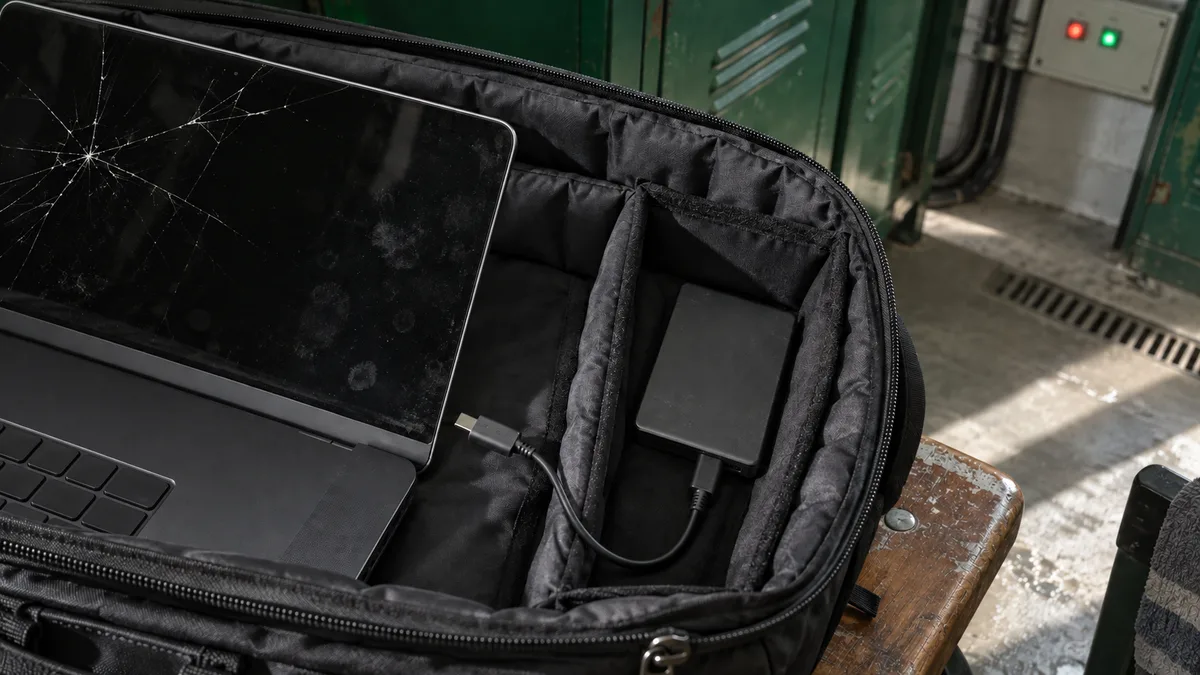
If a laptop with soldered storage cannot be switched on and the data has not been backed up, tell the repair shop in advance that preserving the original board and its data is the priority. Simply replacing the entire board may restore the device to working order, but it will not recover the contents of the faulty board.
BitLocker can make files inaccessible without erasing them
After a motherboard replacement, a security setting change, or work on the UEFI, BitLocker may request its 48-digit recovery key. The data may not have been erased. However, the drive is encrypted, and the system can no longer automatically verify that the device is in a trusted state.
Your Windows sign-in PIN is not the recovery key. Before the repair, check whether the key is stored:
- in your Microsoft account;
- in your work or school account;
- with your company’s IT administrator;
- in a securely stored printout or file.
Do not automatically include the key with every laptop you hand over. If the repair shop needs it, ask why, how it should be provided, and what level of access it will allow. The steps for locating it are described in Cannot find your BitLocker key: what to check.
The repair shop may not need your main password
A purely hardware-related repair can often be tested without signing in to your personal or work profile. Dell laptops provide pre-boot diagnostics, HP offers its own hardware diagnostics, and Lenovo laptops include diagnostic options depending on the particular model range and configuration.
However, these tests cannot cover every fault. Checking drivers, sleep behaviour, the camera, or performance under ordinary workloads may require testing directly in Windows.
In that case, you can agree to create a temporary service account. The technician will not need to work inside the profile containing your email, accounting software, passwords, and client documents. Delete the account after collecting the laptop.
For a company-managed device, do not disconnect the work account, disable BitLocker, or remove remote management tools yourself. Arrange the service account and recovery key with your IT administrator.
What should be written in the repair order
Diagnostics, backup, and destructive work are separate activities. In the handover form or email, distinguish between:
- permission to diagnose the device;
- the permitted scope of access to the operating system;
- the exact list of data to be copied;
- the destination medium and method used to verify the backup;
- consent to resetting, formatting, or performing a clean installation;
- the requirement to return the original HDD or SSD.
A suitable instruction could read:
The hardware may be diagnosed and tested. Do not access user documents. Do not format the drive, reset Windows, or perform a clean installation without additional written consent.
If you need the condition of your storage assessed in Brno, a verified backup created, or your laptop repaired without unclear intervention in your data, we will agree on the procedure through our laptop repair service before beginning any risky operation.
Four questions to ask before approving a repair
Before handing over the laptop or authorising further work, ask:
- Will the original HDD or SSD be accessed or written to?
- Does a verified backup exist, and exactly what does it contain?
- Which planned step could erase the data or make it inaccessible?
- How will the repair shop obtain my consent before taking that step?
For a display or battery replacement, the answer will usually be straightforward: the drive will not be replaced and the system will not be erased. With faulty storage, reinstallation, BitLocker, or a motherboard failure, the procedure must be much more precise. After all, a technically repaired laptop does not necessarily mean that its data has been saved.
Rather not deal with it yourself?
Book a diagnosis in Brno — you get the price up front and we start only once you agree.
Where to find us
We are a PC and laptop repair shop in Brno-Židenice: diagnostics and repairs of computers and laptops, data recovery from drives, and out-of-warranty Apple repairs (iPhone 12 and newer, MacBook, iPad).
Viniční 3587/216, 615 00 Brno-Židenice, Czech Republic Mon–Fri 10:00–16:00
Call +420 774 777 774 Computer repair and laptop service in Brno
We put the repair price in writing after diagnostics and carry on only once you agree.