You signed in at aka.ms/myrecoverykey, the list loaded — and the key the blue screen is asking for simply isn’t there. Or the account is completely empty. At that point most people do one of two things: they start trying keys from other devices, or they write the drive off and run a clean install.
Both are premature. “Key not found” usually doesn’t mean the key doesn’t exist. It means you’re looking in the wrong place.
The short answer: A key belongs to one specific identity and one specific drive. Check three things in this order: a different identity (a personal Microsoft account and a work Microsoft 365 account can share the same address, but they’re two separate worlds with two separate device lists), company management (the key may sit in Microsoft Entra ID, Intune, or Active Directory, where the user can’t see it), and the original computer (if the drive came from elsewhere, the original board with its TPM may unlock it on its own). Don’t format anything yet, don’t delete partitions, and don’t delete the device record from company management. Only once no matching key exists, no device will unlock the drive, and the data isn’t backed up — only then is it a decision rather than a repair.
This piece builds on the basic guide on where to look for a BitLocker recovery key via aka.ms. It doesn’t repeat every place the key gets stored. It deals with the situation where you’ve been through the usual places and still have nothing.
First, what you must not do
Plenty of permanently lost BitLocker data isn’t lost the moment the drive locks, but during the attempts to “fix it somehow” that follow.
Until you know whether the data is replaceable, don’t do this:
- don’t format the drive and don’t remove partitions,
- don’t confirm the disk initialisation that Disk Management offers,
- don’t run a clean Windows install on the same drive,
- don’t run CHKDSK, especially if the drive has physical problems,
- don’t delete the device record from Entra ID, Intune, or Active Directory,
- don’t close the former employee’s account,
- don’t install “unlocker” programs from unknown websites.
BitLocker isn’t a file system fault and formatting won’t repair it — it only destroys structures that might still have come in handy. And if the drive clicks, disconnects mid-operation, or the computer only sees it now and then, switch it off entirely. At that point you’re not dealing with one problem but two: a missing key and dying hardware. For the second one we have the warning signs of a dying SSD and data recovery from a drive with bad sectors.
First, get clear on what you’re actually looking for
There are two different numbers on the blue screen and people routinely mix them up.
The recovery key ID is a short identifier, of which you typically remember the first eight characters. It unlocks nothing. Its only job is to help you spot which of your stored keys belongs to this drive.
The recovery key is a 48-digit number in eight groups of six digits. That’s the thing that unlocks the drive.
When you have five keys in your account and none of them works, it almost always means you’ve been trying keys from other devices or from an older Windows installation. Don’t try them at random — compare the ID on the screen against the ID next to the entry in the list. Either there’s a match, or the key isn’t there and the search continues elsewhere.
How to tell which route to take next
| Situation | What to check | What it means |
|---|---|---|
| The key isn’t in the personal account you expected | Who first set the computer up, and under which address | The key may be in a different account — check who set the computer up. |
| You use the same email both privately and at work | Whether you’re in the personal or the company identity | These are two separate sign-ins, each with its own device list. |
| The laptop belonged to an employee or another company | Entra ID, Intune, local Active Directory | Only an administrator can see the key — and only if key backup was set up before encryption. |
| The drive was taken out of another computer | The original board and its TPM | The original TPM chip held the key — try putting the drive back in the original machine. |
| The account was closed or the employee left | Account recovery, the device record held by the administrator | It depends on what survived: both the account and the device record may have been deleted. |
| You have several keys, but none of them works | Whether the ID on screen matches the ID next to the key | You’re probably trying keys from other devices — compare IDs, not contents. |
| There’s no key and no unlocked device | Backups, OneDrive, SharePoint, the server, attachments | You can’t open the drive itself without the key — look for the data elsewhere. |
Right address, wrong identity
For small businesses and sole traders, this is the most common dead end. Microsoft runs two separate worlds: the personal Microsoft account and the work or school account in Microsoft Entra ID. Both can run on the same email address, but they’re two different identities, each with its own device list and its own key vault. You sign in to the wrong one, the list dutifully loads — and it’s empty.
So work through this:
- Who did the initial setup on the laptop. The key was saved to their account, not yours.
- Who turned encryption on or joined the device to the company.
- Whether the sign-in at
aka.msis picking the personal or the work account. - Whether the computer was prepared by an external administrator, a supplier, or a former employee.
- Whether the owner used an older Outlook.com, Hotmail, or Live address.
Newer builds of Windows 11 can display a hint on the recovery screen about which account to look under. But it doesn’t show the full address, only a fragment — enough to tell two accounts apart, not enough to guess an unknown one.
A drive from another computer: the original board may still help
In normal operation, a system drive is unlocked by the TPM chip on the motherboard. It only releases the key when the boot fingerprint matches — firmware, UEFI settings, bootloader. Move the SSD into a different laptop or a USB enclosure and the original TPM simply isn’t there. Hence the recovery key prompt.
If the original computer still exists and works:
- put the drive back in it,
- don’t change the TPM settings, Secure Boot, or boot mode beforehand — any such change breaks the fingerprint, and then even the original machine will ask for the key,
- try a normal boot,
- once Windows unlocks, copy the data first and deal with everything else afterwards.
On an unlocked system you can check the state with manage-bde -status and list the available protectors with manage-bde -protectors -get. Those show you how things are configured and let you save the key again. What they won’t do is create a missing key for a locked drive.
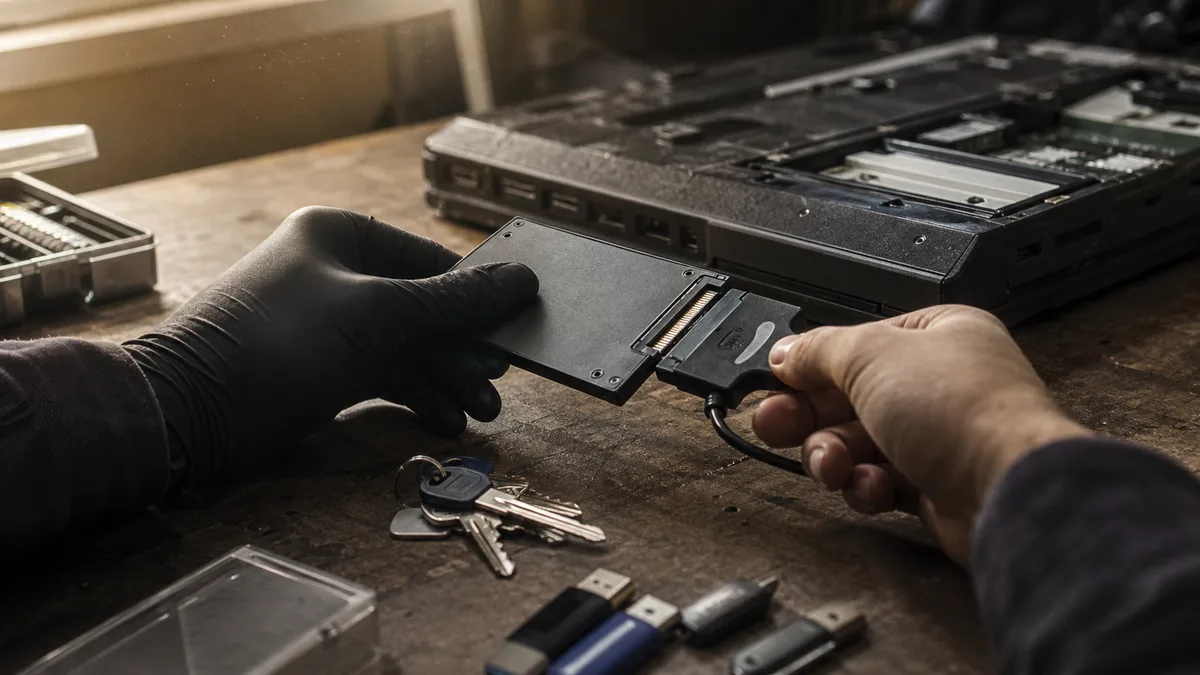
And no, connecting the SSD through a USB enclosure doesn’t bypass the encryption. A USB enclosure is just a way to reach the drive — the data behind it is still encrypted and it will ask you for the key all the same.
A company laptop: the key may not be with the user
On a managed computer, the recovery key may be stored in Microsoft Entra ID, Microsoft Intune, or a local Active Directory domain. The user simply can’t see it in their own account — and never will. It isn’t their mistake.
Give the administrator:
- the device name,
- the laptop’s serial number,
- the full key ID from the screen,
- the name of the original user,
- roughly when the computer joined the company.
An administrator can search by device or by key ID. On devices managed through Intune the key is usually in the device properties; on computers in a local domain it’s on the computer object in Active Directory. But watch out for one thing: backing keys up to the directory isn’t automatic. It had to be configured before encryption was turned on. If it wasn’t, you’ll find nothing in Entra ID or AD no matter how hard you look. Microsoft documents the enterprise key locations and the recovery process in the BitLocker documentation.
An employee leaving doesn’t delete the key by itself. It hangs off the device record, not their mailbox. So don’t delete that laptop from Entra ID, Intune, or Active Directory until an administrator has checked for the key — deleting the record throws away exactly what you’re looking for.
A closed or inherited account
With a closed personal account, the first question is whether access to the account itself can be restored. A repair shop can help you work out which address the computer used, but it can’t bypass Microsoft’s owner verification — and neither can anyone else.
With a computer left behind by a former business partner, employee, or deceased owner, separate two things that have nothing to do with each other:
- who owns the device,
- who is authorised to access the data and the account.
Owning the laptop doesn’t give you access to someone else’s online account. For company data, bring in the Microsoft 365 administrator and whoever is responsible for the business. And before you delete anything, go through OneDrive, SharePoint, the company server, and the backup system — the documents you need often exist outside the locked drive. A locked profile doesn’t mean locked data.
If the only key was stored solely on a permanently closed account and no other copy exists anywhere, no one is reconstructing it from the drive.
What a repair shop can check — and what nobody can do
The point of diagnostics isn’t to promise “cracking BitLocker”. The honest scope is this:
- confirm it really is BitLocker and which partition is locked,
- record the ID of the requested key,
- check the health of the SSD or HDD without writing to it and without formatting,
- check whether the original computer still unlocks the drive on its own,
- help tell personal and company identities apart and point you to the right administrator,
- safely copy the data elsewhere once it’s unlocked,
- on a failing drive, make a working copy first and work from that, not from the original.
Even the repair-bde tool isn’t a way around the encryption. It can rescue data from a damaged volume, but it still needs a valid recovery credential, or a key package saved in advance. Without one it does nothing.
Microsoft states outright that its own support can neither retrieve nor recreate a lost recovery key. Without a valid key, the data on a properly encrypted drive is inaccessible — that isn’t a gap in support, that’s the entire point of BitLocker. Microsoft support confirms it directly.
What it costs and what you’re paying for
The price depends on whether the shop is only verifying accounts and configuration, copying data off an unlocked drive, or dealing with a failing SSD or HDD at the same time. Checking the state and the accounts starts at roughly CZK 590; recovering data from a drive that is also physically damaged is a different discipline at a different price — more in the article on data recovery in Brno. Without inspecting the specific device, quoting a fixed figure wouldn’t be honest.
Before you hand the computer over anywhere, ask:
- whether you pay for diagnostics even if the key isn’t found,
- whether you get the results of the check before any further paid work starts,
- whether the shop will leave the original drive unchanged,
- how much data is to be copied once it’s unlocked, and where to,
- whether the recovery price is indicative and what could push it up.
A technician who knows what they’re doing will tell you straight out that a healthy BitLocker drive won’t open without the key. An offer of guaranteed unlocking without the recovery key is a warning sign — either they don’t know what they’re talking about, or they’re counting on billing you for failure.
When it stops being a repair and becomes a decision
When no matching key exists, the original device won’t unlock the drive, and the data isn’t backed up, further attempts lead nowhere. Two options remain:
- set the drive aside unchanged in case the key turns up one day — an old laptop, notes left by a previous technician, a piece of paper in a drawer,
- write the data off, wipe the drive, and install Windows from scratch.
A clean install gets the computer back in service; it doesn’t rescue the encrypted files. Before you start it, go through cloud storage, the NAS, accounting exports, email attachments, and other computers’ backups one more time. In a business, a significant share of documents is usually available elsewhere too, even when the local profile stayed locked.
Making sure it doesn’t happen again
The recovery key belongs outside the encrypted computer — printed out, in a second account, in a safe. A key stored only on the drive it unlocks is a joke nobody laughs at.
In a business, set up central key storage in Entra ID, Intune, or Active Directory — and above all verify on a new device that the key actually got written there. A configured policy and a stored key are not the same thing; you’ll find out the difference either by checking, or at the moment when it’s too late.
For every key, keep a record of the device name, serial number, user, and the date it was last checked. And don’t send keys into ordinary chat threads or leave them printed out next to the laptop — this is the piece of information that unlocks the drive. Encryption is only as strong as the place you put its key. We cover the wider context of why BitLocker switched itself on on so many computers in the article BitLocker turned itself on.
Rather not deal with it yourself?
Book a diagnosis in Brno — you get the price up front and we start only once you agree.
Where to find us
We are a PC and laptop repair shop in Brno-Židenice: diagnostics and repairs of computers and laptops, data recovery from drives, and out-of-warranty Apple repairs (iPhone 12 and newer, MacBook, iPad).
Viniční 3587/216, 615 00 Brno-Židenice, Czech Republic Mon–Fri 10:00–16:00
Call +420 774 777 774 Computer repair and laptop service in Brno
We put the repair price in writing after diagnostics and carry on only once you agree.