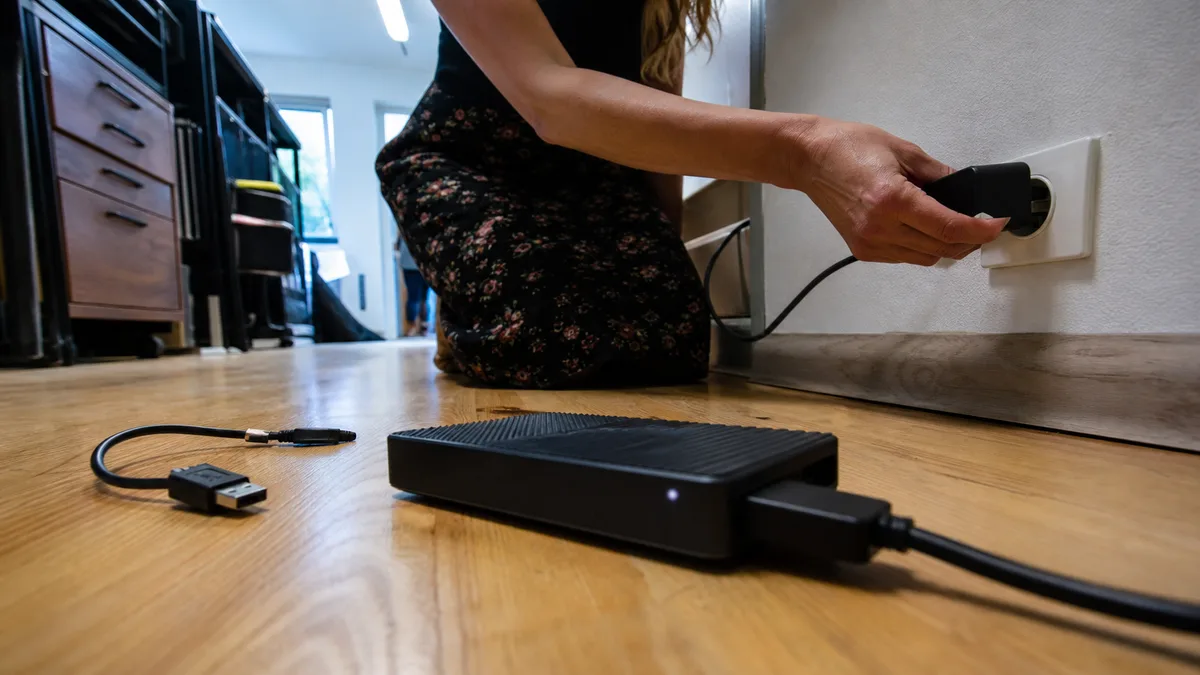
Has your external drive stopped working after a fall, started clicking, or prompted Windows to format it? The first decision is always the same: disconnect the power and do not reconnect the drive—not even to try another cable, and certainly do not confirm formatting. You connect the external drive as usual. Instead of spinning up normally, it begins clicking at regular intervals, its icon does not appear in Windows—or it does appear, but the system immediately offers to format the drive. The drive contains the only copy of your photos, accounts, or client work.
The first instinct is usually to disconnect the drive and reconnect it. To try another cable, another computer, or another port. This instinct is what most often costs people their data.
The short answer: Regular clicking indicates a serious fault—typically a mechanical problem, although insufficient power, faulty electronics, or damaged firmware can produce the same symptom; the cause cannot be determined from the sound alone. If the drive contains valuable data, disconnect the power immediately and do not reconnect it; only a diagnostic examination can identify the exact cause. Do not confirm the “Format disk” prompt, run CHKDSK or “Error checking,” or install recovery software. Every additional start and every write operation reduce the chances of recovery. A drive that spins normally and merely appears as RAW is in a much better position—as long as you do not format it. Leave diagnosis to a specialist; recovery should be performed from a sector-by-sector image, never from the original drive.
ITHOPE handles data recovery
Servis PC Brno does not repair clicking or disassembled external drives and does not perform data recovery. A drive containing the only copy of your data should go directly to the ITHOPE s.r.o. laboratory, which operates Servis PC Brno: external drive data recovery. Initial diagnostics for a standard drive may be free; for more demanding cases, the laboratory will quote the price in advance.
Clicking, beeping, scraping, or asking to be formatted—four different failures
Windows responds to them in much the same way (“USB device not recognized,” “Do you want to format the drive?”), but their causes and the correct response differ significantly.
Regular clicking every second or two. Most often, this is the head assembly striking its stop during recalibration: the drive tries to read the service area, fails, returns the actuator arm to its parked position, and tries again. The head assembly may be damaged, the service area may be unreadable, or both. However, a drive receiving insufficient power can sound exactly the same, as can one with faulty electronics or damaged firmware—no one, not even a recovery specialist, can diagnose the cause from a single sound. The only certainty is that this is a serious fault that software cannot repair, and if the damage is mechanical, every additional attempt makes it worse. If the drive holds the only copy of the data, disconnect it and leave diagnosis of the cause to a specialist.
Beeping or making a faint “chirp-chirp” sound while the platters do not spin at all. You are hearing the motor struggle unsuccessfully to spin the platters against resistance. This typically means a seized bearing after a fall or after the cable was pulled out while the drive was running; less commonly, the heads are stuck to the platters (stiction). Repeated power cycles cause the most damage in this situation.
Scraping, grinding, or a “coffee grinder” sound. This is the worst-case scenario: the heads are travelling across the platter surface and stripping away the magnetic layer that stores the data. Seconds matter here—disconnect the power immediately.
The drive spins normally, but Windows asks to format it or reports it as RAW. The mechanical components are usually still working. The file system, partition table, electronics, or USB bridge is damaged. Of these four cases, this one offers the best prospects for data recovery—as long as you do not format the drive.
The first five minutes: what to do and in what order
- Disconnect the power. For a 2.5-inch drive, unplug the USB cable; for a 3.5-inch drive, also unplug the power adapter from the socket. Do not use “Safely Remove Hardware”—that can make the drive spin again and perform another write operation.
- Do not reconnect it “just to try one more time.” With a clicking drive, the number of additional starts is the one thing still under your control.
- Do not confirm “Format disk.” Windows displays this prompt even when all the data is physically intact and only the index is unreadable.
- Do not run CHKDSK or “Error checking” from the drive properties. This is not a viewer but a repair tool: it rewrites the MFT and directory records, truncating and relocating damaged entries. On a drive with bad sectors, it marks areas containing data as defective, and recovering what remains afterwards is harder than recovering the original. Windows will refuse to run it on a RAW partition anyway. We explain the context in our article on recovering data from a drive with bad sectors.
- Do not install recovery software. Recuva, Disk Drill, and similar applications create two problems at once: installation writes to the system drive, which matters if you are dealing with a partition accidentally deleted from that same computer, while the scan itself keeps a failing drive under full load for hours.
- Do not put the drive in a freezer or hit it. This advice dates from the era when drives held hundreds of megabytes. Condensation on the platters will finish off a modern drive.
One more thing can save the recovery service time: write down exactly what happened and in what order—the fall, power failure, cable being pulled out, the sound the drive makes, and the exact wording of the Windows message. This information helps determine the approach before the enclosure is even opened.
One thing worth checking—but only with a silent drive
This section applies only to a drive that makes no suspicious sounds—no clicking, beeping, or scraping. With such a drive, rule out a simple cause first. But make one attempt, not ten.
- For a 3.5-inch external drive (WD My Book, Seagate Expansion Desktop), try another power adapter with identical specifications. Faulty adapters are common with these enclosures and can make the drive appear completely dead.
- For a 2.5-inch drive, connect it directly to a rear USB port on the computer—not to a hub, front-panel port, or extension cable. Insufficient power can look like repeated connection and disconnection. If another healthy drive behaves the same way, read why a USB port may not be working.
- If the drive clicks, beeps, or scrapes, do not follow these steps. Do not power it on again to test the cable, port, or adapter: with mechanically damaged media, even this single test can worsen the damage. Even if weak power ultimately turns out to be the cause of the sound, it can only be distinguished safely during professional diagnostics.
- If a silent drive still does not spin after changing the adapter and port, stop. Further attempts will not improve your chances; they will only reduce them.
Why the “remove it and put it in another enclosure” trick often fails with external drives
This is the most common misconception. It works with internal drives: remove the drive, connect it through an adapter, and copy the data. With external drives, it has often not worked for years—and it is worth understanding why before breaking open the enclosure. However, construction varies between models and revisions, so the following table is a guide, not a rule that applies to every unit.
| Family | Typical internal design | What it means for the data |
|---|---|---|
| WD My Passport (2.5-inch) | Many models have the USB connector soldered directly to the drive’s circuit board, so there is no SATA connector beneath the enclosure; they also write encrypted data to the platters | There is nowhere to connect an adapter. Replacing the electronics does not help—the data cannot be decrypted without the original board. This depends on the model and revision and must be checked before disassembly |
| WD My Book (3.5-inch) | SATA drive with a USB bridge; on many generations, the bridge performs encryption | Removing the drive and fitting it in another enclosure produces unreadable content, even if you never set a password |
| Seagate Expansion Portable | Some models use a detachable, unencrypted USB-to-SATA bridge | If the bridge fails, the bare drive can be read directly—one of the most favourable scenarios |
| Toshiba Canvio Basics / Advance (newer models) | USB connector soldered directly to the drive’s circuit board | A broken connector requires board-level work, not software |
The key detail that surprises most people is that where WD uses encryption, the encryption remains active even if you never entered a password. The password in WD Security protects access to the key, not the existence of encryption—on these units, encryption is enabled at the factory. Whether this applies to your drive can only be determined from its exact model number and internal electronics; that is why it must be checked before the enclosure is broken open. Where encryption is active, taking a My Passport apart will not improve the situation and may make it worse: if you damage the original board, you lose the only component capable of reading the platter contents. If you have already opened the enclosure, keep absolutely everything—the board, plastic parts, and screws.
Another point that receives little attention is that the highest-capacity 2.5-inch external drives use SMR recording (overlapping tracks). Writing to an area that already contains data requires adjacent tracks to be rewritten as well, so these drives can be slow under prolonged load and handle interruptions poorly. They are adequate for a backup connected once a month; they are a worse choice as a working drive subject to continuous writes.
What a recovery service does and how to tell whether it is doing it properly
A reputable laboratory follows one fundamental rule: the storage medium is first brought into a condition that allows a copy to be made, and the data is then recovered from that copy. Recovery is never performed from the original drive.
- Diagnostics—listening to the drive, observing its behaviour when powered on, and reading the service area and SMART status if the drive can be identified at all. Only at this point can the fault be classified as mechanical, electronic, firmware-related, or purely logical.
- Stabilisation or mechanical intervention, depending on the findings. If the head assembly is faulty or the motor has seized, the medium must first be repaired professionally—by replacing the head assembly with one from a donor drive, repairing the motor, or transferring the ROM to replacement electronics if the board is faulty. Otherwise, no sector image can be created. This work is performed in a filtered-air environment, not on a desk. If the drive remains readable, this step is unnecessary and the process moves directly to imaging.
- Creating a sector-by-sector image on another storage medium. For a drive with healthier mechanical components, a tool such as GNU ddrescue can be used with minimal retries on problematic sectors. More severe cases require a hardware imager capable of resetting the drive and skipping defective zones. The aim is to extract as much data as possible with the fewest possible platter rotations.
- Recovering the file system from the image only. The original drive is no longer spun up.
Questions to ask before handing over the drive:
- Is the initial diagnosis non-binding, and what will I pay if the data cannot be recovered?
- Will I receive a list of the files found before paying? You should, ideally with the folder tree, so you can verify that the accounts are present rather than just empty directories.
- Do you work from an image or directly from the drive? “Directly—it is faster” is a warning sign.
- How will the recovered data be returned to me? You will need to provide or purchase a destination drive.
- Who will have access to the data? For company accounts and customers’ personal data, address this in writing; it is a data-processing relationship, not merely a matter of personal trust.
A reputable laboratory will provide a time estimate only after diagnosis—and it will be a range, not a promise.
If you are in Brno and do not want to send the drive to an unknown destination, the ITHOPE laboratory provides external drive data recovery—external drive data recovery. Bring the drive disconnected, together with its power adapter and any enclosure parts if you have already opened it. Our article the drive stopped working explains what to do during the first hour after any drive failure.
How much does it cost?
The price usually does not depend on the volume of data, but on the type of fault, the condition of the medium, and the amount of work required to obtain a usable copy. Typical approximate ranges seen on the Czech market include:
| Type of fault | Approximate cost |
|---|---|
| Logical fault—deleted partition, RAW file system, or quick format; the drive spins normally | from several thousand Kč |
| Faulty electronics or USB bridge | from the upper single-digit thousands of Kč |
| Mechanical fault—replacement head assembly from a donor drive, clean environment | from 10,000 Kč |
| Damaged platters, seized motor, or repeated intervention | significantly higher, assessed individually |
Treat these figures as a guide for decision-making, not as a quotation—the binding price can only be determined after diagnostics. You must also account for the destination drive on which the recovered data will be delivered; HDD and SSD prices have tended to rise in recent months because manufacturers’ capacity is being drawn towards data-centre demand. One comparison is worth considering: a single mechanical recovery procedure costs more than a second external drive plus an hour spent setting up automatic backups.
How to avoid this pain next time
An external drive that holds the only copy is not a backup—it is another single point of failure. Start with the 3-2-1 rule: three copies, on two different types of storage, with one copy kept off-site. Small businesses also tend to overlook two additional points:
- Synchronisation with OneDrive or Google Drive is not a backup. Deletions and encryption are propagated to the cloud within moments, and deleted items remain in the recycle bin for only a limited time.
- RAID in a NAS is not a backup. It protects against the failure of one drive, not against deletion, ransomware, or a power surge—read more in what to do when a RAID or NAS reports a degraded state.
If the drive that clicked held the only copy of your company data, address both issues after recovery: the data itself and the reason it existed in only one place.
Rather not deal with it yourself?
Book a diagnosis in Brno — you get the price up front and we start only once you agree.
Where to find us
We are a PC and laptop repair shop in Brno-Židenice: diagnostics and repairs of computers and laptops, data recovery from drives, and out-of-warranty Apple repairs (iPhone 12 and newer, MacBook, iPad).
Viniční 3587/216, 615 00 Brno-Židenice, Czech Republic Mon–Fri 10:00–16:00
Call +420 774 777 774 Computer repair and laptop service in Brno
We put the repair price in writing after diagnostics and carry on only once you agree.


