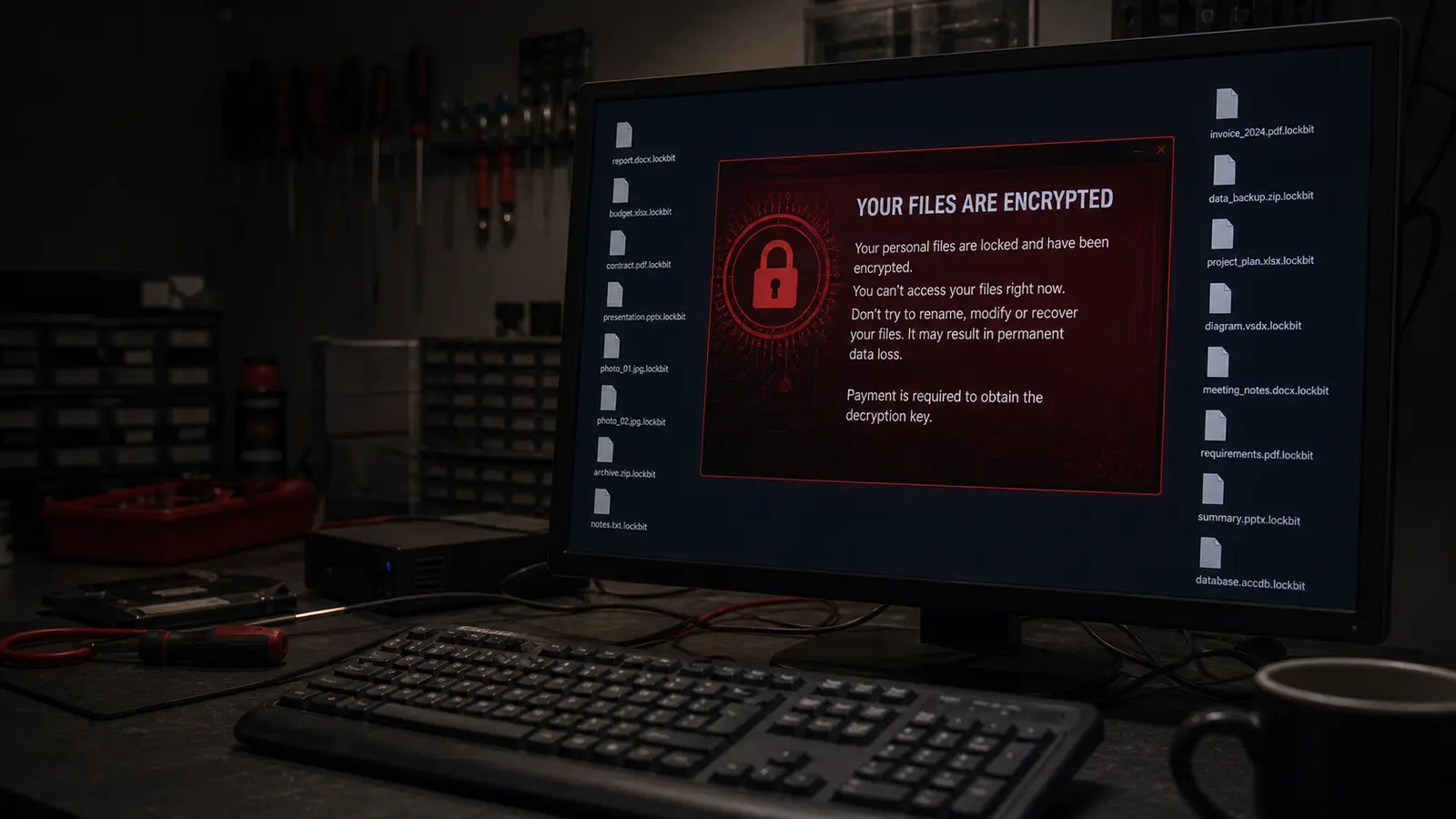
A typical situation in the shop: a computer where every file suddenly has a strange extension (.lockbit, .encrypted, .crypt — the name of whatever ransomware variant is doing the rounds). On the desktop, a text file with instructions to pay in Bitcoin, usually a few hundred to a thousand dollars. No backup. For businesses it’s often the accounts or documents from years of work. We see this scenario several times a month.
Before we get to the procedure, one thing right at the start: don’t pay. Not because it’s unethical (although working with criminals really isn’t a good idea). But because in around 60% of cases you don’t get your data back anyway. And when you do, you’ve got a backdoor left in the system and you’re back in the same spot a month later.
Here’s the exact step-by-step of what to do — from the moment you realise things have gone wrong.
Disconnect the computer from the network immediately
Turn off Wi-Fi, pull out the ethernet cable. Physically. Right now.
A lot of modern ransomware spreads across the network. A single infected computer in an open-plan office can encrypt the shared drives on every other machine within tens of minutes. In a smaller company it’s entirely realistic for an attack to crawl through accounting, sales and the warehouse all the way to the server — and turn eight computers into bricks within an hour.
If you have a NAS or network drives, disconnect those too. Not through software — walk over to the device and pull the network cable.
Don’t shut the computer down. Not right away. Some ransomware variants run a destructive routine on restart, or conversely cut off access to temporary files from which something might still be recovered.
What NOT to do (this matters more than what to do)
Before we get to the rescue, a few things that will ruin even the little that’s left:
- Don’t plug in an external drive for a backup. If the computer is infected, the ransomware will encrypt that drive too, instantly. The classic mistake: you plug in a USB stick to copy your most important files, and lose everything, the stick included.
- Don’t install any “miracle decryptor” from the first page of search results. 90% are scams that simply download more malware.
- Don’t delete the encrypted files. Even when they look lost, data can sometimes be recovered from copies or shadow copies.
- Don’t pay the ransom in cryptocurrency if you have no experience with it. People in a panic send money to the wrong address, or buy Bitcoin on a fraudulent exchange and lose both the money and the data.
Identify the type of ransomware
Before you try to fix anything, work out what you’re dealing with. Not all ransomware is the same.
Look at the extension on the encrypted files (.lockbit, .stop, .djvu, .crypt, .encrypted). Look at the ransom text file — it often contains the name of the group or an attack ID.
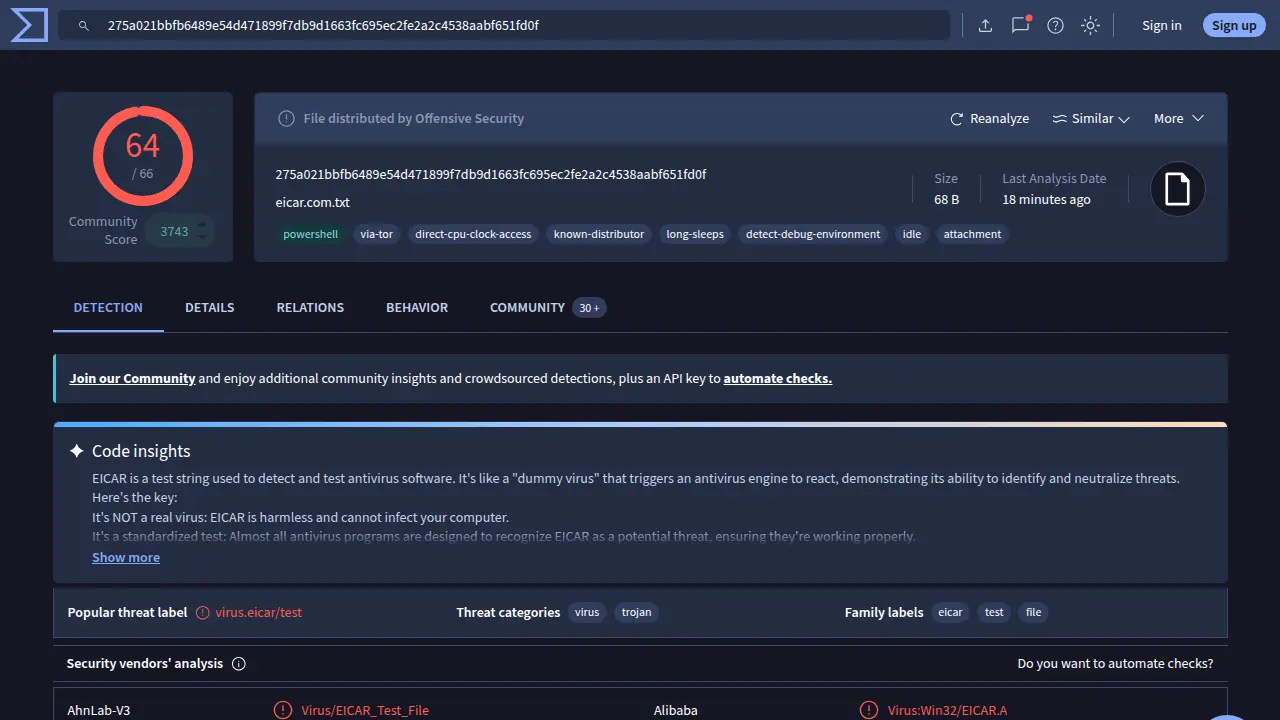
If you have a suspicious file (say the one the infection started with), upload its hash or the file itself to VirusTotal. It runs it through 66+ antivirus engines and, in the “Code Insights” section, often tells you straight away which malware family it is. In the image above you can see EICAR — a standardised test file every antivirus is meant to recognise (hence the 64/66 score).
Go to nomoreransom.org — a project run by Europol and major security firms. Upload one encrypted file and the ransom text there. The system will tell you whether a free decryptor exists for that particular ransomware.
Good news: for older variants (STOP/Djvu, GandCrab, older versions of Dharma) decryptors do exist. For newer strains like LockBit 3.0 or BlackCat, currently not. But the situation changes every month, so always check.
Try recovery from Volume Shadow Copy
Windows automatically creates shadow copies of files. Some of the more primitive ransomware doesn’t delete them.
Open Command Prompt as administrator and type:
vssadmin list shadows
If you see a list of shadow copies, you have a chance. Download Shadow Explorer (it’s free) — it can browse those copies and restore earlier versions of files from them.
Success rate? About 30%. Modern ransomware deletes shadow copies in the very first phase of the attack. But it costs nothing to try.
If you have backups — don’t connect them to the infected PC
This is critical. If you have backups on an external drive or NAS, don’t connect them to the infected computer until it’s 100% clean.
Do it the other way around:
- Pull the drive out of the infected computer (or use a clean Linux live USB).
- Copy the data off the drive on a clean computer.
- Have the infected drive cleaned, or just replace it with a new one.
- Only then restore data from your backups.
A typical mistake we see: someone in a panic plugs the backup drive straight into the infected PC to “quickly restore the projects”. The ransomware encrypts it in seconds and the client loses years of work — the backup ends up in the same state as the original data.
What to do when nothing works
If no decryptor exists, the shadow copies are gone and you have no backups, you’re in a tight spot. But not everything is lost.
Some ransomware encrypts only the file headers, not the whole content. For photos, videos or documents it’s sometimes possible to recover the data partially — the file won’t open normally, but a specialised tool can pull the content out. That’s several hours of work, though, and it takes experience.
Another possibility: if the attackers used weak encryption, or made a mistake in their implementation, security firms eventually release a decryptor. Keep an eye on forums like BleepingComputer and the No More Ransom project mentioned above. Miracles do happen occasionally — for the Petya ransomware a decryptor turned up two years later and saved thousands of people’s data.
A practical tip: back up the encrypted files somewhere (a drive you then disconnect from the PC) and wait. Don’t format the drive right away. In six months a decryptor might be out.
When you need a professional
If this is business data, accounts, or anything worth more than pocket change, don’t experiment. Every amateur attempt lowers the chance of recovery.
A solid recovery process always follows the same steps:
- Make a bit-for-bit image of the disk (work only with the copy; the original stays untouched).
- Identify the exact ransomware strain.
- Check shadow copies, temporary files, thumbnails.
- If a decryptor exists, deploy it.
- If not, attempt recovery from fragments and metadata.
- Clean the system of any backdoors.
- Put protection in place so it doesn’t happen again.
The success rate runs somewhere around 40–70% depending on the type of ransomware and how quickly it’s handled. When you bring it in straight away and don’t try to “save” the data yourself, the odds are markedly higher.
Rather not deal with it yourself?
Book a diagnosis in Brno — you get the price up front and we start only once you agree.
Where to find us
We are a PC and laptop repair shop in Brno-Židenice: diagnostics and repairs of computers and laptops, data recovery from drives, and out-of-warranty Apple repairs (iPhone 12 and newer, MacBook, iPad).
Viniční 3587/216, 615 00 Brno-Židenice, Czech Republic Mon–Fri 10:00–16:00
Call +420 774 777 774 Computer repair and laptop service in Brno
We put the repair price in writing after diagnostics and carry on only once you agree.