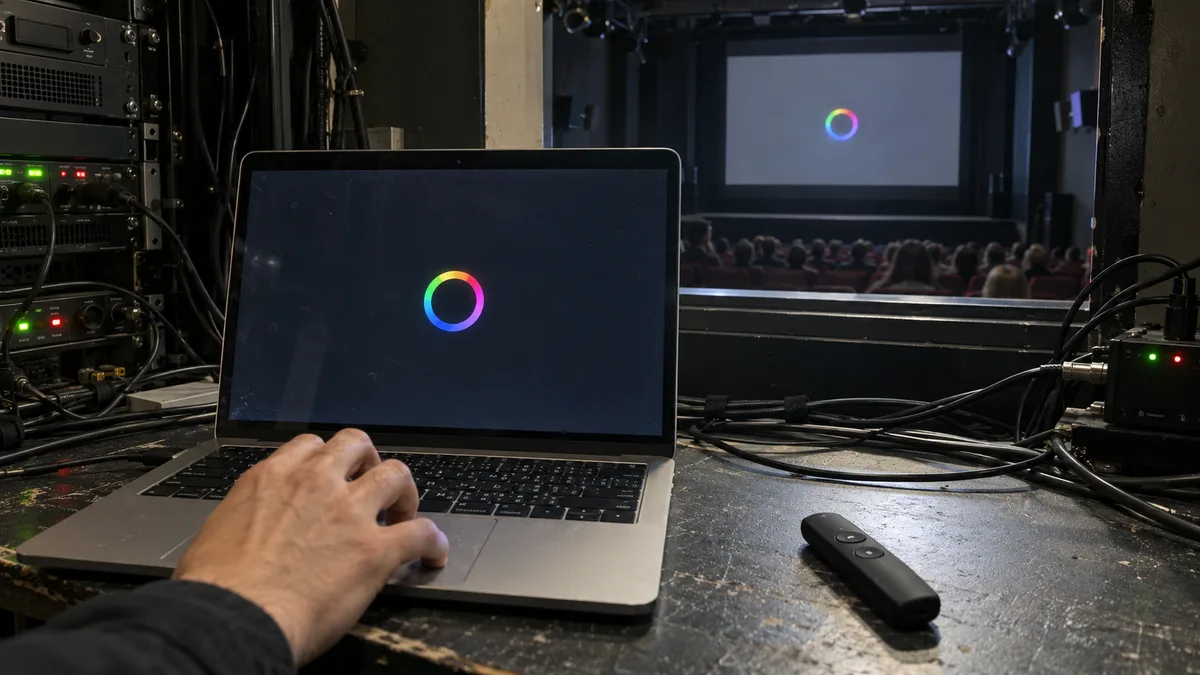
The short answer: If the spinning beach ball appears in just one app, press Option-Command-Esc and force quit the app. If the entire Mac is unresponsive and even the pointer will not move, press and hold the power button—or the Touch ID button on a MacBook with Touch ID—for about 10 seconds until it turns off, then turn it back on. If the freezing keeps returning, try Safe Mode and Apple Diagnostics. If the Mac freezes there too, back up your data and stop troubleshooting.
Three different situations, three different solutions
A “frozen MacBook” can refer to three quite different situations. Before trying anything, determine which one you are dealing with:
| What you see | What it usually means | First step |
|---|---|---|
| The spinning beach ball appears over one app, but you can click elsewhere | That app has frozen | Force quit the app |
| The beach ball appears everywhere and the pointer moves, but nothing responds | The system is overloaded or waiting for an app or storage operation | Wait briefly, then force quit the app or restart from the Apple menu |
| The screen is frozen and neither the pointer nor keyboard responds | The entire system has frozen | Force the Mac to shut down with the power button |
This article covers a Mac that starts normally but freezes while you are using it. If your MacBook restarts by itself, the troubleshooting process is different; see MacBook restarts under load. If the Mac will not turn on at all or has a black screen, continue with MacBook will not turn on or has a black screen. If it gets stuck during startup after installing a new version of macOS, see Mac will not start after a macOS update.
Force quit a frozen app
Apple provides two ways to open the Force Quit window:
- Press Option (Alt), Command, and Esc at the same time.
- Alternatively, choose Force Quit from the Apple menu in the corner of the screen.
Select the unresponsive app in the window and click Force Quit. Bear in mind that you will lose any unsaved work in that app. If the app cannot be closed, Apple recommends restarting the Mac from the Apple menu → Restart.
If the same app repeatedly freezes, Apple recommends the following sequence: quit and reopen it, restart the Mac, install updates for both the app and macOS, and finally delete and download the app again. Deleting an app may also remove data stored within it, so back up that data first.
Force a shutdown when nothing responds
If even the pointer will not move and the Mac does not respond to the keyboard, the remaining option is a forced shutdown. According to Apple, the procedure is:
- Press and hold the power button for about 10 seconds, until the Mac turns off. On MacBooks with Touch ID, hold the Touch ID button itself, which also serves as the power button.
- Then press and release the button to turn the Mac back on.
This abruptly stops the system. You will lose anything unsaved in every open app, and a file that was being written may become corrupted. It should therefore be the last resort, not your first response to a spinning beach ball. Doing it occasionally will not harm the Mac. If you have to shut it down this way every day, however, something is wrong and it is time to find the cause.
Activity Monitor: find out what is slowing down your Mac
If the spinning beach ball appears frequently but the Mac eventually recovers, open Activity Monitor (Applications → Utilities). An unresponsive process appears in red and is labelled (Not Responding). Select it and click the Stop button in the upper-left corner of the window. You will be offered two options:
- Quit is equivalent to choosing File → Quit. The process will end when it is safe to do so.
- Force Quit ends the process immediately. If it has files open, you may lose data.
The Memory tab contains the Memory Pressure graph. According to Apple, green means the Mac is using RAM efficiently, yellow means it may eventually need more memory, and red means there is not enough RAM. If the graph remains red during your normal work and the Mac freezes, identify the app or browser tab consuming the memory and reduce the number of programs open at the same time.
System Information will show whether your Mac’s memory can be upgraded: hold Option, choose System Information from the Apple menu, and look for Upgradeable Memory under Hardware → Memory. On MacBooks with Apple silicon, Apple says the unified memory is housed in the same package as the chip, so it cannot be upgraded later as it could on some older laptops.
Disk space and First Aid
Apple lists insufficient free space on the startup disk as one possible cause of a slow Mac. You can check the available space under System Settings → General → Storage in macOS Ventura 13 and later. You will also find recommendations there for freeing up space. Move large photo and video libraries to an external drive, empty the Downloads folder and Trash, and remove apps you do not use.
The next step is to check the disk in Disk Utility (Applications → Utilities). Choose View → Show All Devices, select the last volume, and click First Aid. Then work your way up the list to the physical device itself. If Disk Utility reports errors it cannot repair, do not format anything until your data has been backed up.
macOS updates and Safe Mode
You can find updates under System Settings → General → Software Update. Apple recommends backing up your Mac before installing them.
If the freezing continues, try Safe Mode (sometimes also called safe boot). According to Apple, the Mac does not load login items, extensions that macOS does not require, or fonts not installed by macOS in this mode. It also performs a basic check of the startup disk and clears some system caches. The procedure depends on the chip:
MacBook with Apple silicon (M1, M2, M3, or M4):
- Shut down the Mac.
- Press and hold the power button until the startup options appear.
- Select the startup disk, usually Macintosh HD.
- Hold Shift and click Continue in Safe Mode.
- Log in.
Intel-based MacBook:
- Turn on or restart the Mac, then immediately press and hold Shift.
- Release the key when the login window appears.
The words Safe Boot will appear in red in the upper-right corner of the login window. If the Mac runs for hours in Safe Mode without freezing but freezes in normal mode, the likely cause is a login item, extension, or third-party add-on. Gradually uninstall the items you added most recently.
Apple Diagnostics: test the hardware at home
Apple Diagnostics can help identify which hardware component may be faulty. Before starting it, disconnect all external devices except the keyboard, mouse, display, Ethernet connection, and power supply.
MacBook with Apple silicon: press and hold the power button until the Mac turns on and loads the startup options. Then hold Command-D until the Mac restarts.
Intel-based MacBook: turn on the Mac and immediately hold the D key. If that does not work, try holding Option-D during startup.
In older versions of macOS, the test runs automatically. Starting with macOS Tahoe 26, you choose which diagnostic test to run. If the test displays a reference code, take a photo of it and bring it to the repair shop. It will speed up the investigation. A result showing no problems does not necessarily mean the hardware is healthy, however, because the home test may not detect a fault that appears only after an hour of use.
Reset NVRAM and the SMC only on Intel Macs
On Intel-based MacBooks, you can try two resets:
- NVRAM: shut down the Mac, turn it on, and immediately hold Option, Command, P, and R. Release the keys after about 20 seconds.
- SMC (the controller that Apple says manages power and whose reset Apple also recommends for problems such as overheating or rapidly running fans): on a laptop with the T2 chip, first shut down the Mac, hold the power button for 10 seconds, release it, and turn the Mac on after a few seconds. If that does not help, shut down the Mac, hold Control on the left, Option on the left, and Shift on the right for 7 seconds, then add the power button and hold all four keys for another 7 seconds. On a laptop without the T2 chip, hold Shift, Control, and Option—all on the left—together with the power button for 10 seconds.
Do not do any of this on MacBooks with Apple silicon (M1–M4). Apple states that the NVRAM reset procedure does not apply to these models and is unnecessary. Their SMC resets automatically, so a normal restart or shutdown and power-on is enough. Instructions telling you to “hold Option-Command-P-R” on an M1 Mac are simply outdated.
Software or hardware?
The key question is where the freezing occurs:
| Where the Mac freezes | Likely cause |
|---|---|
| Only in one app | The app, an app update, or an add-on |
| In normal mode but not in Safe Mode | Login items, extensions, or third-party software |
| When the disk is full or Memory Pressure is red | Insufficient storage or memory for your workload |
| In Safe Mode or during Apple Diagnostics | More likely hardware: storage, memory, logic board, power, or heat |
| Under load, with a hot underside or loud fan | Cooling; see MacBook is overheating |
According to Apple, MacBooks with Apple silicon have their RAM in the same package as the chip, while their storage is not a separate removable drive but consists of chips on the logic board. If diagnostics indicate a memory or storage fault, you cannot simply replace a module as you could in some older laptops. The solution is at board level: either repairing the logic board or replacing the entire board. In both cases, the data on the original storage may not survive. Backing up therefore takes priority over everything else while the Mac can still run, even briefly.
When to stop troubleshooting
Stop troubleshooting at home and shut down the Mac if:
- the trackpad is lifting, the lid will not close properly, or the casing is bulging, which may indicate a swollen battery (see Swollen MacBook battery),
- liquid has been spilled on the Mac, even if it seems to work after drying,
- you smell burning or one area becomes unusually hot very quickly,
- it freezes in Safe Mode or during Apple Diagnostics,
- you have to force it to shut down repeatedly in a single day.
In these situations, every additional forced shutdown only increases the risk to data that has not yet been backed up.
What to prepare before servicing
If the Mac still runs, back it up to an external drive with Time Machine. Note the exact model and chip (Apple menu → About This Mac), the macOS version, what happens before it freezes, and any reference code from Apple Diagnostics. For instructions on handing over your Mac without sharing your password, see How to prepare a MacBook for servicing.
We provide out-of-warranty MacBook diagnostics and repairs through our Apple repair service in Brno. If the Mac is still under warranty, contact the seller or Apple first. If you decide to proceed with the repair, diagnostics are included in the final price. Otherwise, they are charged separately according to our price list.
Online enquiry: Contact us with the model, a description of the problem, and what matters most to you; we will get back to you with the next steps.
Rather not deal with it yourself?
Book a diagnosis in Brno — you get the price up front and we start only once you agree.
Where to find us
We are a PC and laptop repair shop in Brno-Židenice: diagnostics and repairs of computers and laptops, data recovery from drives, and out-of-warranty Apple repairs (iPhone 12 and newer, MacBook, iPad).
Viniční 3587/216, 615 00 Brno-Židenice, Czech Republic Mon–Fri 10:00–16:00
Call +420 774 777 774 Computer repair and laptop service in Brno
We put the repair price in writing after diagnostics and carry on only once you agree.


