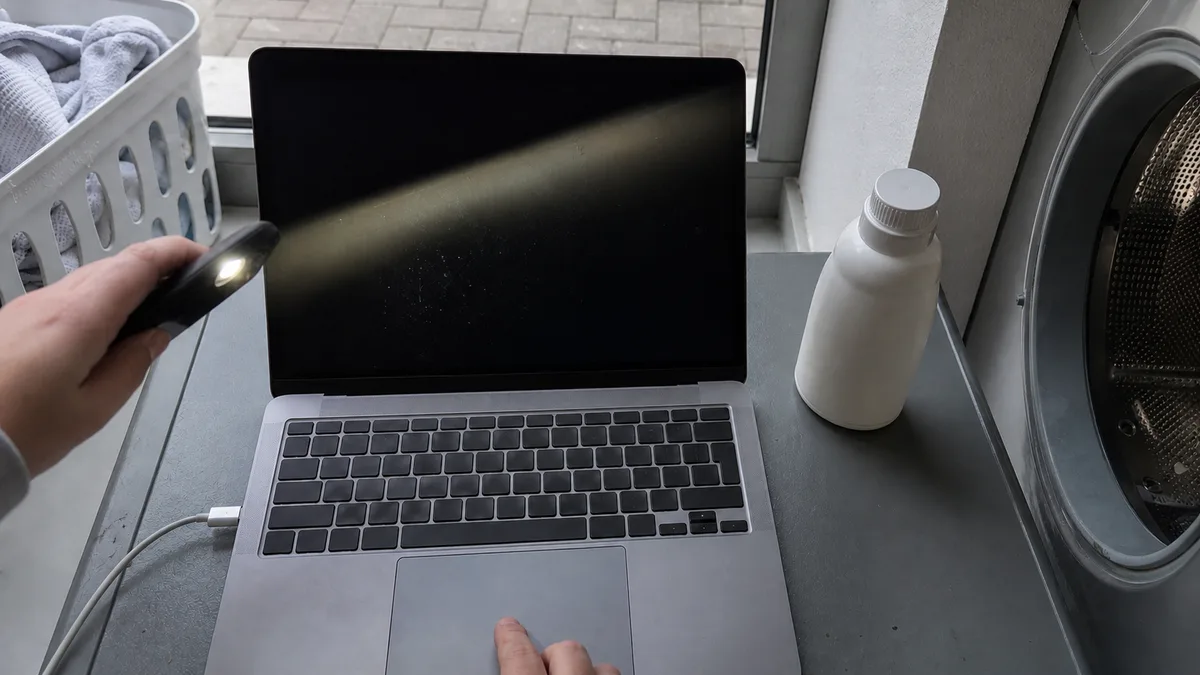
The short answer: First determine whether the Mac is completely unresponsive, running without displaying an image, or stopping during startup. Disconnect all accessories, use a known-compatible power source, and watch for sound, backlighting, trackpad response, and startup progress. The procedure also differs depending on whether your MacBook has an Intel processor or an Apple chip—there is no universal reset key combination for every Mac. After a fall, liquid exposure, a burning smell, or unusual heat, do not reconnect the power without further inspection.
Three States That Look Similar
“Won’t turn on” may mean a completely dead device. A “black screen” can also occur while the Mac is running—the image or backlight simply is not reaching the built-in panel. The third state is an incomplete startup: an Apple logo, progress bar, folder with a question mark, or restart loop. Each branch requires different next steps and should not be reduced to a diagnosis of a “faulty logic board” or “faulty display.”
| What you observe | Working description | What this alone does not prove |
|---|---|---|
| No sound, no keyboard lighting, trackpad does not click | no power | that the logic board is faulty |
| You hear startup sounds, the keyboard lights up, and the trackpad clicks, but the display is black | no image | that the display is faulty |
| Apple logo, progress bar, question mark, or restart loop | incomplete startup | that the storage drive is faulty |
A simple test helps distinguish the first two rows: in a darkened room, shine your phone’s flashlight onto the display at a sharp angle. If you can faintly see the desktop or login window, the image is being generated but the backlight is missing—which is different from a complete loss of power. Other clues in the same category include an illuminated keyboard and a trackpad that clicks differently from when the machine is switched off.
Identify the Exact Model, Not Just the Screen Size
“MacBook Pro 13-inch” describes several different designs. Before trying anything, identify the model, year, and chip type:
- On a working machine: Apple menu → About This Mac.
- For more details: hold the Option key and select System Information from the Apple menu.
- On a machine that will not turn on: the model number beginning with the letter A is etched into the bottom case and is often also shown on the packaging and purchase receipt.
These product families are most commonly confused:
- Intel-based MacBook Air (older models through 2020) and MacBook Air with an Apple chip—M1 (2020), M2 (2022 and 2023), M3 (2024).
- 13-inch and 15-inch MacBook Pro with Touch Bar (2016–2019) and 16-inch Intel model (2019).
- 13-inch MacBook Pro with an M1 chip (2020) or M2 chip (2022).
- 14-inch and 16-inch MacBook Pro with Pro- and Max-series chips (2021 and newer).
Apple’s official “Identify your MacBook Pro model” and “Identify your MacBook Air model” pages can help determine the exact generation (see Sources). Without this information, you cannot identify the correct power adapter or determine which procedure is appropriate for the machine.
A Safe Initial Test, Step by Step
You can perform the following steps at home without making anything worse—provided none of the conditions in the section about stopping the test apply.
- Disconnect everything except the power supply. Hubs, docks, drives, monitors, card readers, and printers. A faulty peripheral or dock can prevent startup.
- Check the entire power path. Try another outlet, a different known-good cable, and an adapter intended for your model. Apple specifies the appropriate adapter for each Mac; an underpowered charger from another model may appear to charge the battery but still be insufficient for startup. The article MacBook Is Not Charging covers the power-supply branch in detail.
- Leave the MacBook connected for a while, even for 15 minutes. A deeply discharged battery may not respond immediately to the first press.
- Force a shutdown: hold the power button for about ten seconds, release it, wait briefly, and then press it once more. Repeatedly pressing the button adds nothing.
- Watch for specific signs: a startup sound, keyboard illumination, and the indicator light on the MagSafe connector if the model has one.
- Write down exactly what happened. A repair technician needs a precise description, not a general impression.
Intel or Apple Chip: How the Procedures Actually Differ
Intel-based MacBooks support an SMC reset. The SMC is the controller responsible for power management, the power button, and some startup behaviour. Models with an Apple chip (M1 and newer) do not have an SMC reset; its role is fulfilled by completely shutting down the machine, leaving it without power briefly, and turning it on again. Guides presenting a single key combination as a universal “MacBook reset” are therefore describing the wrong type of machine in some cases.
Starting Apple Diagnostics also differs: on Intel Macs, you press a key while turning the machine on; on Macs with an Apple chip, you hold the power button to access startup options. Apple’s guide provides the exact procedure for each type (see Sources). The diagnostic tool can detect some hardware problems and display a reference code, but a negative result does not rule out a fault, while a positive result does not by itself determine which part needs replacing. Take a photo of the code or write it down.
Do not enter Recovery, erase the storage drive, or reinstall the operating system until you know you have a working backup. Reinstallation will not repair faulty hardware and will only complicate diagnostics on an unstable machine.
What an External Monitor Can—and Cannot—Tell You
Connect a known-working monitor directly to the MacBook with a compatible cable, without a dock or adapter. If the desktop appears, the system is running and generating an image; this effectively rules out the “no power” branch. It does not determine whether the fault lies in the panel, display cable, backlight, or video circuitry on the logic board. The opposite result proves nothing about the board: the number of external displays a model supports and the available display modes depend on its chip, port, and adapter. Entry-level M1 and M2 models have lower limits than 14-inch and 16-inch MacBook Pro models with Pro- and Max-series chips. Apple’s page about connecting displays explains the requirements for individual models.
Do not force the lid after a fall or when there is visible deformation, and do not repeatedly test whether the “picture comes back at a certain angle.” If the issue changes with the angle of the lid or the brightness setting, take a photo and stop. That is useful information for the repair technician, not a test worth repeating.
When to Stop Testing
Stop trying to turn the machine on after liquid exposure, a burning smell, crackling, smoke, significant localised heat, deformation of the bottom case, or damage to the power connector—and also if the machine behaves worse after each attempt. A lifting trackpad or bulging case is a separate safety issue: do not charge such a MacBook or press the case back into place. See the article on MacBook battery replacement for details.
What to Prepare and Bring
- The MacBook and the adapter and cable you normally use—the fault is often found in one of them.
- The exact model designation and year, or the model number from the bottom case.
- A brief timeline: when it last worked, what happened beforehand (an update, fall, liquid exposure, or new accessory), and what you have already tried.
- The Apple Diagnostics reference code, if you managed to run the tool.
- Information about whether you have a current backup.
Do not send your Apple Account password through a form or by email. If the device is under warranty or covered by a manufacturer programme, contact the seller or Apple first; we provide out-of-warranty repairs.
What an Honest Quote Should Include
The quote should be clear before any work begins: a description of the diagnosed condition, the exact model and year, the proposed repair, the type and origin of the replacement part, the scope of work, the post-repair testing procedure, and the repair warranty. The price should be approved in advance, not presented only when the machine is collected.
The reverse order is a warning sign—a specific part and price quoted over the phone before anyone has inspected the MacBook. A black screen may be caused by a peripheral, the power path, or the logic board, so we do not provide a fixed price or repair time for this service in advance.
What the Repair Shop Will Check
The repair shop records the machine’s response to power, startup progress, internal and, where appropriate, external video output, and diagnostic results. It also compares the machine’s behaviour without accessories and with a known-good power source. A hardware repair does not guarantee data preservation or recovery. We are an independent out-of-warranty repair shop, not an Apple Authorised Service Provider; the scope, price, and completion date can only be determined after identifying the model and diagnosing the fault. You can find an overview of common faults in the article about MacBook repairs and general information on the laptop repair page.
Arrange an inspection through Apple service in Brno, the booking form, or by calling 774 777 774. In the description, state whether the Mac makes any sound, responds to power, and whether the fault appeared after a fall or liquid exposure.
Sources
- Apple: If your Mac doesn’t turn on
- Apple: If your Mac starts up to a blank screen
- Apple: Use Apple Diagnostics
- Apple: Connect displays to your Mac
- Apple: Identify your Mac power adapter
- Apple: Identify your MacBook Pro model
- Apple: Identify your MacBook Air model
Rather not deal with it yourself?
Book a diagnosis in Brno — you get the price up front and we start only once you agree.
Where to find us
We are a PC and laptop repair shop in Brno-Židenice: diagnostics and repairs of computers and laptops, data recovery from drives, and out-of-warranty Apple repairs (iPhone 12 and newer, MacBook, iPad).
Viniční 3587/216, 615 00 Brno-Židenice, Czech Republic Mon–Fri 10:00–16:00
Call +420 774 777 774 Computer repair and laptop service in Brno
We put the repair price in writing after diagnostics and carry on only once you agree.


