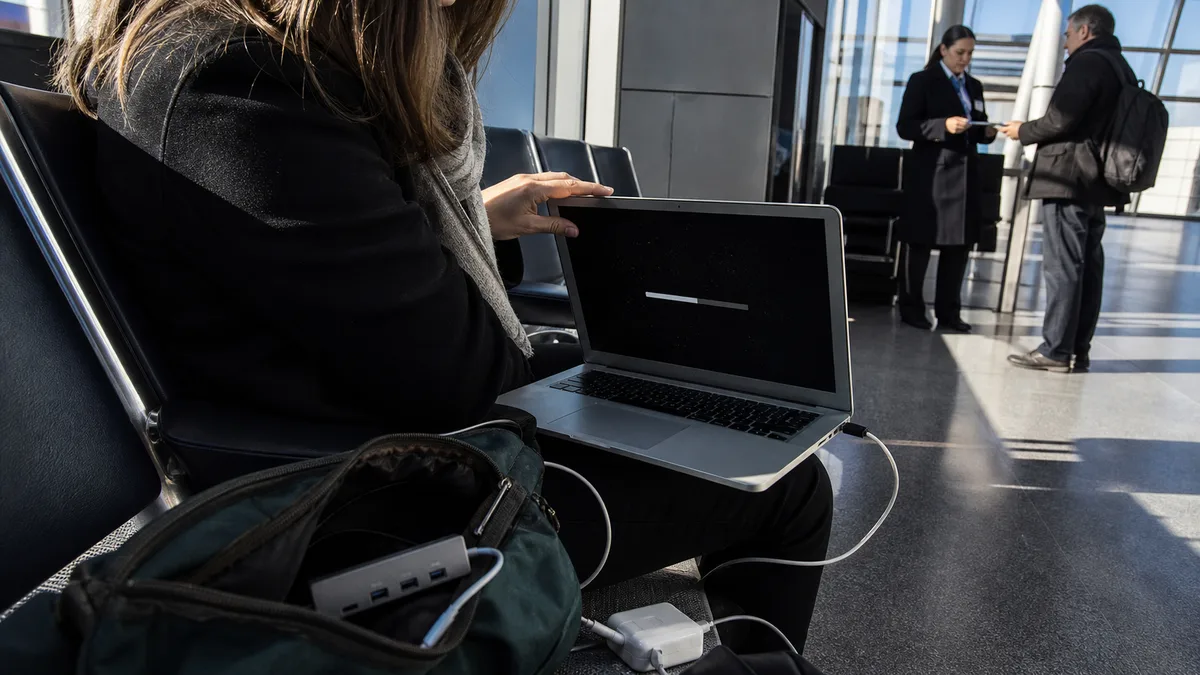
The short answer: An Apple logo that appears to be stuck after an update does not necessarily mean something is broken. Apple recommends letting the installation finish without putting the Mac to sleep or closing its lid — the computer may restart several times, and the screen may remain blank for an extended period. Only if nothing changes for a long time should you disconnect peripherals and try Safe Mode and macOS Recovery. According to Apple, reinstalling macOS from Recovery does not erase personal data; selecting Erase does — do not use that option without a verified backup.
First identify what you are actually seeing
Three similar-looking screens point to very different situations:
- Apple logo with a progress bar. This is normal during installation and disk checks. The bar may stop for a long time and then begin moving again.
- A blank or black screen between restarts. Apple explicitly describes this as normal during reinstallation — the installer restarts several times while it works.
- A restart loop. The Mac reaches the logo, the screen goes dark, and the process begins again repeatedly. Waiting will not resolve this.
Make a note of what happened before the update: how much free space was available, whether the Mac remained connected to power, whether you were upgrading to a new version of macOS or merely installing a security patch, and whether the computer had previously shut down normally. This description is more important for deciding what to do next than the image shown on the display itself.
If the Mac does not power on at all, does not respond to the power button, and shows no signs of life, a different procedure is required — see MacBook Won’t Turn On and Has a Black Screen. A flashing folder with a question mark is another separate symptom and has its own guide.
Let it finish and disconnect peripherals
Apple gives the same advice for both updates and reinstalls: let the installation finish, do not put the Mac to sleep, and do not close its lid. Keep it connected to power and allow it to work. Forcing it to shut down midway through an installation is the surest way to turn a recoverable situation into an unbootable system.
If absolutely nothing is happening, try this simple and safe step: disconnect everything. For Macs that fail to start or take a long time to boot, Apple recommends disconnecting all peripherals, including USB, USB-C, and Thunderbolt devices. Connect the keyboard and mouse directly to the Mac without hubs or extension cables, then reconnect the devices one at a time, restarting after each one. An external drive, dock, or card reader can block startup just as convincingly as an internal fault.
Safe Mode
Safe Mode prevents some software from loading during startup, performs a basic check of the startup disk, and clears certain system caches. It therefore serves as both a diagnostic test and a minor repair.
- Mac with Apple silicon — MacBook Air M1 (2020), M2 (2022 and 2023), and M3 (2024), 13-inch MacBook Pro with M1 or M2, and 14-inch and 16-inch models with Pro- and Max-series chips: shut down the Mac, then press and hold the power button until the startup options begin loading. Select the startup disk, hold Shift, and click Continue in Safe Mode.
- Intel-based Mac — MacBook Air models up to 2020 and MacBook Pro models with a Touch Bar from 2016 to 2020: hold Shift immediately after turning the Mac on and keep holding it until the login window appears.
You can confirm that Safe Mode is active by looking for the red Safe Boot label in the corner of the login window or checking Boot Mode in System Information. Apple notes that an Intel-based Mac with a firmware password cannot start in Safe Mode. If the Mac starts successfully this way, try completing all system and app updates while in Safe Mode — Apple recommends this as a step that resolves a wide range of problems.
macOS Recovery: different methods for different chips
Recovery is a built-in rescue system that includes Disk Utility, macOS reinstallation, and restoration from Time Machine.
- Mac with Apple silicon: make sure the Mac is turned off (if necessary, press and hold the power button for about ten seconds). Then press and hold the button again until the startup options load, click Options, and then Continue. On laptops with Touch ID, the Touch ID button is also the power button.
- Intel-based Mac: turn on the Mac and immediately hold Command-R until the Apple logo or a spinning globe appears. Apple also provides two Internet Recovery alternatives — Option-Command-R and Shift-Option-Command-R — which differ in the version of macOS they offer.
Use the built-in keyboard on a laptop; the Mac may not detect an external keyboard, particularly a wireless one, quickly enough during startup. According to Apple, error codes such as -2001F or -2003F displayed with the globe relate to the network, not the disk.
Reinstalling without erasing data
People are often unnecessarily afraid of this step, while others use it too readily because they confuse it with formatting the drive. Apple states that reinstalling macOS does not remove your apps or personal data. In Recovery, select the option to reinstall macOS, confirm it, and allow the installation to finish. If the installer asks you to select a disk, choose Macintosh HD, not Macintosh HD – Data.
Apple nevertheless recommends making a backup whenever possible. Reinstallation is not designed to be destructive, but it still modifies the system on a disk that has already been behaving unexpectedly — and a backup is the only safeguard that remains valid regardless of the outcome. Installing from Recovery also requires a broadband connection using DHCP over Wi-Fi or Ethernet. Networks with captive login pages, 802.1X security, or PPPoE may prevent it from working, which is common on hotel and corporate networks.
Where data can be lost
The dangerous options are Erase in Disk Utility and a factory reset. Apple presents them as a last resort when nothing else has worked, and that order matters. The Erase button is not a diagnostic tool, so this article deliberately provides no instructions for using it: anyone who needs the data stored on the Mac and does not have a verified backup should stop at this point.
Before that, Apple recommends other steps — checking the available storage space, verifying the internet connection, installing directly from Recovery, and repairing the startup disk with Disk Utility. For Macs with Apple silicon or the T2 Security Chip, Apple also mentions the exceptional option of reviving or restoring the firmware. This procedure requires a second Mac and a clear understanding of how each option affects the data.
On newer MacBooks, the storage is integrated into the logic board and its contents are encrypted. Repairing the device and recovering its data are therefore two separate issues. If the data is the only thing that matters, make that clear during the first contact — it changes the entire order of operations.
Decision table
| What the Mac does | What it usually means | Safe next step |
|---|---|---|
| logo and progress bar that does not move for a long time | installation or disk check is running | let it finish and keep it connected to power |
| several restarts and a blank screen | normal installation process | do not close the lid or turn it off |
| loop: logo, black screen, logo | startup cannot complete | disconnect peripherals and try Safe Mode |
| starts in Safe Mode | the problem involves software loaded during startup | complete updates and troubleshoot login items |
| neither Safe Mode nor Recovery starts | neither the system nor the recovery environment is accessible | stop trying and have the Mac diagnosed |
| Disk Utility does not detect the internal drive | the storage or logic board is not communicating | do not erase anything; consider the value of the data |
| the problem began after a fall or liquid spill | risk of physical damage | do not keep turning it on to test it |
What to bring to the repair shop
Provide the exact model and year, or the A-number from the bottom case, the version of macOS installed before the update, and whether it was a major version upgrade or a routine patch. Describe what you have already tried, whether the Mac started in Safe Mode, whether you could enter Recovery, and whether Disk Utility detected the internal drive there. Bring the power adapter and cable you normally use. If you have a backup, note its date and whether you have ever verified it by restoring a file. Do not provide your password or Apple Account credentials for an initial hardware assessment.
Servis PC Brno provides post-warranty MacBook diagnostics on a pilot basis and is not an Apple Authorized Service Provider; the scope of work, replacement-part option, and price can only be determined once we know the model and diagnostic findings. If the device is under warranty or covered by a manufacturer program, contact the seller or Apple first. Other common scenarios are summarized in MacBook Repair in Brno.
If the Mac cannot even enter Recovery, or you are unsure what you might risk with the next step, have it assessed before erasing anything. You can arrange an inspection through Apple Repair Brno, the booking form, or by calling 774 777 774. In the description, include the model, macOS version, and whether the device contains data that is not stored anywhere else.
Sources
- Apple: If an error occurred while updating or installing macOS
- Apple: How to start up from macOS Recovery
- Apple: How to reinstall macOS
- Apple: Start up your Mac in safe mode
- Apple: If your Mac pauses or takes a long time during startup
Rather not deal with it yourself?
Book a diagnosis in Brno — you get the price up front and we start only once you agree.
Where to find us
We are a PC and laptop repair shop in Brno-Židenice: diagnostics and repairs of computers and laptops, data recovery from drives, and out-of-warranty Apple repairs (iPhone 12 and newer, MacBook, iPad).
Viniční 3587/216, 615 00 Brno-Židenice, Czech Republic Mon–Fri 10:00–16:00
Call +420 774 777 774 Computer repair and laptop service in Brno
We put the repair price in writing after diagnostics and carry on only once you agree.


