The computer is almost new, or at least it was working normally — and suddenly opening a folder takes ten seconds, the browser stutters and Word starts up like it’s running on fumes. You open Task Manager and there it is, lit up: the Disk column at 100%, highlighted in red. Meanwhile the processor is practically asleep and there’s plenty of free memory.
This isn’t a “full disk”. You may have hundreds of gigabytes free. The disk is saturated — it can’t keep up with the requests the system is throwing at it. And until you find out who’s throwing them, the computer will keep crawling.
The short answer: Open Task Manager (
Ctrl+Shift+Esc), on the Processes tab click the Disk column header and sort the processes from the biggest hog down. The most common culprits: SysMain, Windows Search (indexing), background update installs, antivirus scans — these finish on their own after a while, and after a major update it can easily take a couple of hours. But if the disk runs at 100% permanently, transfers stay stuck in the hundreds of kB/s and the system freezes, a failing HDD is usually behind it. In that case, back up first and only then repair anything.
Full disk vs. saturated disk: two different illnesses
People confuse the two situations because both end in a slow computer. The difference is fundamental:
- Full disk = you’re running out of capacity. Windows has nowhere to write, reports low space, updates fail. The fix is a cleanup — we have a step-by-step guide in our article on how to free up disk space in Windows 11.
- Saturated disk = the drive can’t keep up with the reading and writing the system demands of it. Capacity has nothing to do with it — a drive that’s ten percent full can run at 100% usage.
The Disk column in Task Manager shows what’s called active time: what percentage of the time the disk is busy servicing requests. A hundred means the request queue never empties. On a modern SSD that’s a rarity — it handles tens of thousands of operations per second. On a traditional spinning HDD, which physically moves the read heads, it’s unfortunately a normal state of affairs. That’s your first clue too: a permanent 100% mostly affects computers with an HDD.
Find the culprit: Task Manager and Resource Monitor
Before you start switching anything off, take a look at who’s actually keeping the disk busy.
- Press
Ctrl+Shift+Escto open Task Manager. - On the Processes tab, click the Disk column header — the processes sort by how heavily they hit the disk.
- Watch it for a while. Short spikes are normal; what you’re after is a process holding tens of MB/s for long minutes.
- On the Performance tab click your disk — you’ll see active time and the actual transfer rate side by side.
Resource Monitor gives an even more precise picture: press Win+R, type resmon and confirm. On the Disk tab expand the Disk Activity section and watch the Response Time (ms) column. A healthy disk responds in single-digit to tens of milliseconds. Values in the hundreds of milliseconds, or even in seconds, mean the drive can’t handle the requests — either there are absurdly many of them, or the disk is physically on its way out.
Write down the names of the two or three biggest hogs. They determine what you do next.
The most common software culprits
| Process in Task Manager | What it is | What to do about it |
|---|---|---|
| Service Host: SysMain | Preloading frequently used data (formerly Superfetch) | On an HDD you can stop the service, on an SSD leave it alone |
| Microsoft Windows Search Indexer | Indexing files for fast search | Finishes on its own after a major update, leave the computer on |
| Windows Modules Installer Worker | Installing updates in the background | Don’t interrupt, it settles down once finished |
| Antimalware Service Executable | Microsoft Defender scanning | A scheduled scan, ends once it’s done |
| OneDrive | Syncing files with the cloud | Calms down after the first upload of large folders |
| Delivery Optimization | Sharing updates between computers | Can be limited in Settings → Windows Update |
Three notes that will save you unnecessary intervention:
After a major Windows update, give the system time. Indexing, optimization and finishing the install can keep the disk busy for several hours. Leave the computer on overnight and plugged in — by the next day the problem is usually gone. Switching off services because of it is pointless.
SysMain is only worth testing on an HDD. Press Win+R, type services.msc, find the SysMain service in the list, right-click it and choose Stop. If the computer visibly picks up within a few minutes, you can set Startup type: Disabled in the service properties. But let’s be honest: it’s a crutch. The real problem is that a spinning drive isn’t up to the system load of 2026.
Delivery Optimization can be tamed with no risk. Windows machines pass parts of updates to each other across the network and over the internet. In Settings → Windows Update → Advanced options → Delivery Optimization, turn off Allow downloads from other PCs — updates keep arriving normally, your disk just stops serving everyone else.
Constant load even when idle is suspicious. When the disk and the processor both run flat out even after a restart with no programs open, and you see process names among them that you can’t look up anywhere, it may be malware — a hidden miner, for instance. We describe how to run a proper scan in our article do I have a virus on my computer?
Low RAM: the disk does the memory’s work
The second common cause has nothing to do with the disk itself. When RAM fills up, Windows starts offloading data to the page file on the disk — and suddenly the disk is also handling work that RAM would normally take care of. On an HDD you notice it immediately.
You’ll spot it on the Performance tab in Task Manager: click Memory. If usage stays permanently above 85–90% — typically with a browser holding thirty tabs, email and Teams all at once — the disk is running at 100% precisely because of that offloading.
What to do about it:
- Don’t disable the page file. The internet keeps repeating this advice and it’s wrong — it won’t speed the computer up, and once RAM fills to the brim, applications crash and take your unsaved work with them.
- Close what you’re not using and go through the programs that start on their own — we cover the connections in our article slow computer: what to do.
- If RAM is permanently insufficient, the only clean solution is to add more. The work costs roughly from 600 CZK plus the price of the modules; on thin laptops with soldered memory an upgrade unfortunately isn’t possible, which we’ll check for you before ordering any parts.
When the disk itself is the culprit
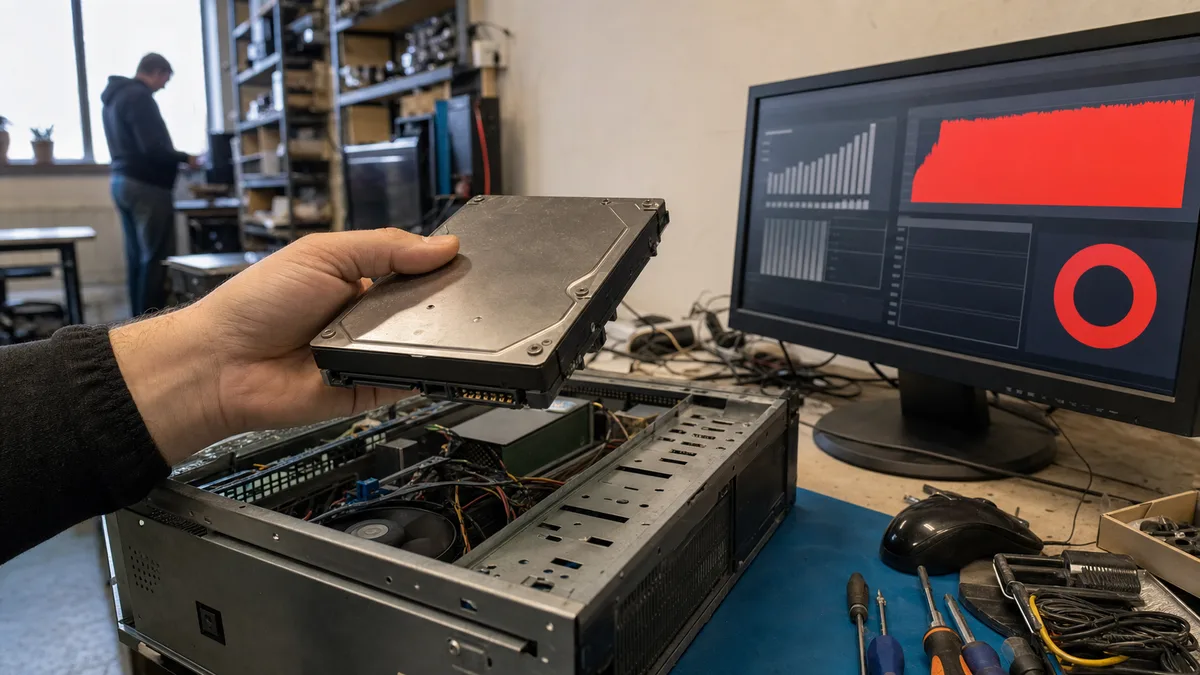
Now for the less pleasant scenario. If you’ve been through the processes, waited it out after an update, RAM is fine — and the disk still runs at 100% with miserable transfer rates, suspicion points at the drive itself.
The typical picture of a failing HDD:
- active time 100%, but actual speed only hundreds of kB/s,
- Response Time in Resource Monitor in the hundreds of milliseconds up to seconds,
- the system freezes for tens of seconds, the cursor spins, then it runs again for a while,
- clicking or repeated “re-clicking” noises on a spinning drive,
- file copying occasionally ends in an error.
You can verify the drive’s condition by looking at the SMART data — we go through what the individual values mean and when things are bad in our article on bad disk sectors. SSDs die with somewhat different symptoms; those are covered in SSD dying: signs of failure.
And one emphatic warning: on a suspect disk, don’t run chkdsk /r, defragmentation or “repair” tools until you have a backup. All of these operations hammer the whole disk for hours — and they can finish off a failing drive along with data that had been reading fine until then. The order is always the same: first copy what’s irreplaceable, and only then repair.
SSD instead of HDD: a repair that’s also an upgrade
If an old spinning drive is behind the hundred, the solution is clear-cut, and it’s one of the few repairs after which the computer will be faster than ever before: swapping the HDD for an SSD. Windows startup goes from minutes to seconds, programs open before your hand reaches the mouse — and the Disk column finally calms down.
At our workshop we do this as a complete service: a new drive, a clean Windows 11 install, drivers, and transferring your data from the old disk if its condition allows. Roughly from 2,990 CZK plus the price of the SSD itself — you’ll find the details on the SSD replacement in Brno page and in the price list.
Don’t feel like working out whether your laptop takes SATA or NVMe and how to get the data off it? That’s exactly what we’re here for — book online, we’ll assess the disk, quote the price up front and arrange a date. And if you’re not sure whether the culprit is the disk, the software or the memory, we’ll run diagnostics — roughly 600 CZK if no repair follows, and if we do repair it, it’s covered as part of the job.
Summary: the order to work through
- Task Manager → sort by the Disk column → identify the hog.
- After a major update, wait — overnight is fine; indexing and installs finish on their own.
- On an HDD, try stopping the SysMain service and watch the difference.
- Check RAM usage — permanently above 90% means the disk is doing the memory’s work.
- Scan suspicious processes with antivirus.
- Miserable transfers + long response times + freezing = suspect the disk → back up first, then SMART.
- An old HDD as the system drive has no defence these days — swapping it for an SSD solves the problem once and for all.
A disk at 100% isn’t a death sentence. It’s a symptom — and in most cases you can find the cause in a single afternoon and either quiet it down or fix it properly for good.
Rather not deal with it yourself?
Book a diagnosis in Brno — you get the price up front and we start only once you agree.
Where to find us
We are a PC and laptop repair shop in Brno-Židenice: diagnostics and repairs of computers and laptops, data recovery from drives, and out-of-warranty Apple repairs (iPhone 12 and newer, MacBook, iPad).
Viniční 3587/216, 615 00 Brno-Židenice, Czech Republic Mon–Fri 10:00–16:00
Call +420 774 777 774 Computer repair and laptop service in Brno
We put the repair price in writing after diagnostics and carry on only once you agree.