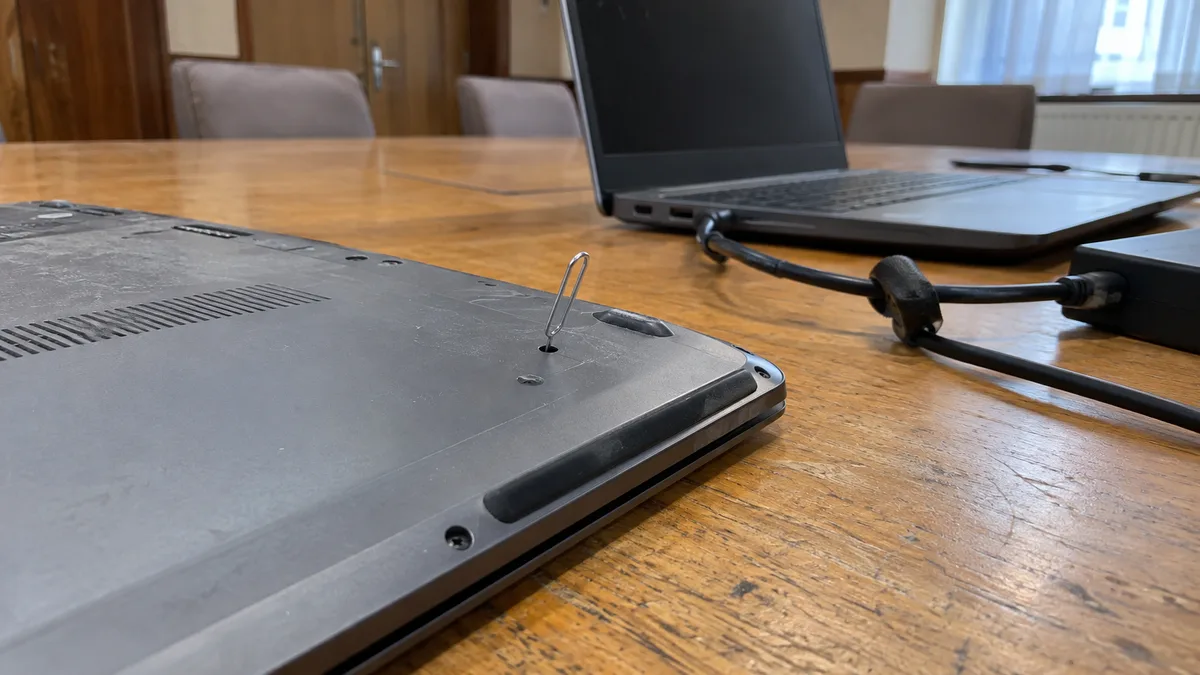
Quick answer: If your Asus or Acer laptop will not turn on, disconnect all attached devices and try a known-good power adapter. On an Asus, perform an EC reset: with the adapter connected, hold the power button for 40 seconds. On an Acer, look for a Battery Reset pinhole on the underside; if there is none, use the power-button reset procedure with the adapter disconnected. If neither works, the likely culprit is the adapter, power connector, or motherboard.
First determine what state the laptop is in
After pressing the power button, watch the power and battery indicators and listen for the fan. A completely unresponsive laptop calls for a different approach from one that powers on but displays no image.
Write down the exact model number from the label on the underside, not just a series name such as Vivobook, Zenbook, TUF, Aspire, or Nitro. On an Acer, this will be a code such as A515-56, which is one of the Aspire 5 models. Use it to find the correct manual and procedure. Reset pinholes and indicator behavior can vary even within the same series.
| What the laptop does | What it probably means |
|---|---|
| No lights and no fan movement | Power adapter, cable, power connector, battery, or the motherboard’s power circuitry |
| Power indicator flashes slowly (Asus) or flashes orange (Acer) | The laptop is probably just asleep |
| Battery indicator flashes orange while the laptop is running on battery | The battery is almost empty |
| Indicators are lit and the fan runs, but the screen is black | Power is working; check the display, memory, firmware, and motherboard |
| Black screen after a BIOS update | Follow the steps in Black screen after a BIOS update |
What to do before a reset
Disconnect USB drives, flash drives, memory cards, the mouse, docking station, and external monitor. ASUS explicitly recommends removing all external devices because they can prevent startup. If you recently added memory or an SSD, restore the original configuration.
Check the wall outlet, extension lead, and the entire adapter cable. Both manufacturers recommend using an adapter and cable that meet the manufacturer’s specifications, ideally the set supplied with the laptop. Acer notes that USB ports usually cannot provide enough power and that surge protection in an extension lead may interfere with charging, so temporarily bypass it.
Newer slim models charge via USB-C. A plug that fits is not enough. The charger must support USB Power Delivery at sufficient wattage, and you also need a suitable cable. A phone charger is therefore not a valid test.
Asus: EC reset using the power button
The EC (Embedded Controller) is a chip on the motherboard that controls some hardware and power-management functions. If it freezes, the laptop may stop responding to the power button even though the adapter is working. ASUS also recommends a reset for problems involving the battery, keyboard, touchpad, or startup. For laptops, all-in-one computers, and gaming handhelds, ASUS therefore recommends an EC reset, also known as a hard reset. The procedure also resets the real-time clock (RTC).
Procedure from the official ASUS FAQ:
- Disconnect all external devices.
- Save your work and shut down the laptop.
- Connect the power adapter.
- Hold the power button for 40 seconds.
- Turn the laptop on normally.
Some models use a shorter procedure. After holding the button for about 15 seconds, the power indicator starts flashing rapidly. It stops after approximately 3 to 5 seconds, at which point you release the button. ASUS does not specify which individual lines—Vivobook, Zenbook, ROG, or TUF—use each variation. If the indicator does not start flashing, hold the button for the full 40 seconds.
Be aware that the instructions conflict. The ASUS page about black screens on laptops says to disconnect the adapter before performing an EC reset. However, the dedicated EC reset procedure calls for the adapter to remain connected. If one method does not help, try the other.
Wait a while after the reset
ASUS warns that memory training takes place after disconnecting the battery, replacing memory, or updating the BIOS. The screen remains black during this process even though the power indicator is lit. One ASUS page gives a duration of 1 to 3 minutes, while another says 5 to 10 minutes. Do not turn the laptop off during this time.
Indicator lights on an Asus laptop
According to the general ASUS FAQ, the following applies to many models:
- the power indicator remains lit while the laptop is on and flashes slowly in sleep mode,
- the white battery indicator remains lit when the adapter is connected and the charge level is between 95 and 100 percent,
- orange means the battery is charging and is below 95 percent,
- flashing orange means the laptop is running on battery with less than 10 percent remaining,
- off means the laptop is running on battery with more than 10 percent remaining.
If the battery indicator does not light at all while the adapter is connected, power is probably not reaching the laptop. A particular model may behave differently, however, so check the indicators in its manual.
The lights are on, but there is no picture
If the indicators are lit but there is no image, ASUS recommends connecting an external monitor and trying Windows + P to switch the display output and Windows + Ctrl + Shift + B to restart the graphics driver. If an image appears on the external monitor, the laptop is running and the problem lies with the display panel, display cable, or graphics hardware. If neither screen shows an image, check the EC reset, memory, and motherboard next.
Acer: Battery Reset pinhole and power-button reset
Acer describes two methods in its official Acer Answers knowledge base. According to Acer, neither method erases files or the operating system.
Pinhole on the underside
Some Acer laptops have a small pinhole on the underside marked Battery Reset, often accompanied by a battery icon. Acer does not specify which series include it. It recommends inspecting the underside or consulting the “Your Acer Notebook Computer tour” section of the user manual.
Procedure according to Acer:
- Turn off the laptop and disconnect the adapter.
- Turn the laptop upside down and locate the Battery Reset pinhole.
- Carefully insert a straightened paper clip until you feel the button inside being pressed.
- Hold it for 10 to 15 seconds.
- Remove the paper clip and turn on the laptop.
The reset temporarily disconnects the built-in battery. The required hold time varies on older models, however. For example, Acer specifies five seconds for the TravelMate P645-S series and recommends updating the BIOS to version 1.10 or later after a successful reset. If your model’s manual specifies a different duration, follow the manual.
Do not insert a paper clip into microphone openings or ventilation grilles. If the manual does not show a Battery Reset pinhole, do not remove the feet or open the laptop in search of one. Opening the case can easily damage clips and ribbon cables.
Power-button reset for models without a pinhole
Acer provides the following procedure for most laptops:
- Hold the power button for 10 seconds until the laptop turns off completely.
- Disconnect the adapter.
- Disconnect USB devices, external drives, monitors, and docking stations.
- Hold the power button for at least 30 seconds.
- Connect the adapter and turn on the laptop.
If your older Acer has a removable battery, Acer recommends removing it for 10 seconds and then reinstalling it.
Indicator lights on an Acer laptop
According to Acer’s general indicator table:
- power indicator: off = powered down, blue = powered on, flashing orange = sleep (S3),
- battery indicator: flashing orange = low battery, orange = charging, blue = fully charged.
A flashing orange power indicator therefore does not usually indicate a fault. The laptop is asleep and can be woken by briefly pressing the power button or a key. If the battery indicator remains off even with the adapter connected, begin by checking the adapter and power connector.
For some Aspire 5 models (A515-56 and A514-54), Acer has published instructions for a battery that will not charge. It recommends unplugging the adapter from the wall outlet for 30 seconds and updating the BIOS to version 1.26 or later. If an Acer Nitro gaming laptop starts but the picture stutters or flickers, that is a different problem. The distinction between a settings issue and a faulty display is explained in Acer Nitro gaming laptop: image stuttering in games.
How to distinguish the adapter, connector, and motherboard
The most reliable test you can perform at home is to use another known-good adapter with the correct connector, voltage, and wattage. If the laptop wakes up with it, the original adapter or its cable is at fault.
If the laptop charges only when the connector is held in a particular position, or the indicator flashes when the cable moves, the problem is usually in the cable or a loose power connector. The way this connector is repaired depends on its design, as explained in Laptop power connector repair.
If neither the correct adapter nor a reset helps, this does not automatically mean the motherboard is faulty. A damaged connector, battery, input fuse, or charging circuit can produce the same symptoms. The motherboard can only be declared faulty after its power rails and current draw have been measured.
If the adapter has its own indicator and it goes out when connected to the laptop, there may be a short circuit at the input. Do not keep reconnecting the adapter.
When to stop and try nothing else
Disconnect the laptop immediately and do not turn it on if:
- the battery is swollen or the touchpad or bottom cover is lifting; see Swollen laptop battery for more information,
- liquid has been spilled on the laptop; the steps to take are described in Liquid spilled on a laptop,
- you smell something burning or one area heats up rapidly,
- the laptop only flashes briefly and turns off after every reset.
A reset will not fix corrosion, a short circuit, or a cracked connection. Repeated attempts may make the damage worse.
What a repair service should handle
A faulty power connector, charging circuit, built-in battery that will not charge, or a motherboard that does not respond even to a verified adapter should be handled by a repair service. The technician should test the adapter under load, inspect the connector, check the battery response, and measure the motherboard’s current draw. With USB-C, the power profile negotiated between the laptop and adapter must also be checked. A verdict of “replace the motherboard” is premature without these steps.
Your Asus or Acer laptop can be inspected by our laptop repair service in Brno, while the testing process is described on our PC and laptop diagnostics page. If the repair is carried out, diagnostics are included in the repair price. If you decide not to proceed with the repair, diagnostics are charged separately according to the price list. You can find indicative labor prices in our price list. For general instructions covering other brands, see Laptop won’t turn on.
Your Windows password is not required for power diagnostics. If your data is more important than getting the laptop running again, say so in advance. For an encrypted company laptop, check where your BitLocker recovery key is stored.
What to bring
Bring the laptop together with its adapter and prepare:
- the exact model number from the label,
- a video of the indicator lights after pressing the power button,
- what happened before the fault appeared: a completely discharged battery, a fall, a liquid spill, a BIOS update, or new memory,
- which reset procedures you have already tried.
Online enquiry: Contact us with the model, a description of what happens, and what matters most to you; we will get back to you with the next steps.
Rather not deal with it yourself?
Book a diagnosis in Brno — you get the price up front and we start only once you agree.
Where to find us
We are a PC and laptop repair shop in Brno-Židenice: diagnostics and repairs of computers and laptops, data recovery from drives, and out-of-warranty Apple repairs (iPhone 12 and newer, MacBook, iPad).
Viniční 3587/216, 615 00 Brno-Židenice, Czech Republic Mon–Fri 10:00–16:00
Call +420 774 777 774 Computer repair and laptop service in Brno
We put the repair price in writing after diagnostics and carry on only once you agree.


