The first twenty minutes the game runs beautifully. Then the frame rate falls from eighty to thirty, the fans howl and smooth action turns into a stuttering slideshow. Or the other scenario: no warning at all — the screen goes black, the fans die for a moment and the computer boots up again. Right at the point a new map was loading.
The two situations get lumped together, but they have different culprits. The first is almost always temperature. The second is usually the power supply.
The short answer: Turn on an overlay with temperatures and clocks while you play — quickest via the Windows Game Bar (Win+G, Performance widget), NVIDIA App (Alt+R), AMD Software: Adrenalin Edition (Ctrl+Shift+O) or MSI Afterburner. Then watch how it unfolds. FPS drop gradually, the GPU temperature sits at the limit and clocks go down → the card is throttling itself, most often because of dust and dried-out paste. The screen goes black without warning or the machine restarts, typically as a scene loads in, and the temperatures look fine → suspect number one is the power supply. Coloured squares and stripes are a third, separate chapter — covered in the article on artefacts and a black screen. Switch it off immediately and leave it off if something clicked inside the case, you can smell burning or one of the fans is grinding.
Three symptoms, three different culprits
Gaming is one of the few activities that runs the CPU, GPU and power supply flat out at the same time. That is why these faults show up in games and stay quiet while you write e-mails. Depending on exactly what the failure looks like, the list of suspects narrows before you ever pick up a screwdriver.
| What exactly happens | Most likely cause |
|---|---|
| FPS drop after a few minutes and never recover, the case radiates heat | Throttling — clogged GPU heatsink, dried-out paste |
| Instant black screen and restart, typically as a scene loads in | Power supply — protection tripping, ageing capacitors, not enough output |
| Shutdown with no restart at all, runs again once it cools down | Thermal protection on the CPU or power delivery |
| Coloured squares, stripes, scrambled textures | GPU chip or memory — different article, see above |
| Blue screen with a code (e.g. VIDEO_TDR_FAILURE) | Graphics driver, less often hardware |
| Freeze with the sound stuck in a loop | Driver, unstable overclock, more rarely the motherboard |
If the machine shuts down outside games too — at startup, while idle, at random — read the general breakdown of overheating and spontaneous shutdowns instead; there are more culprits there and games play no part in it.
Why FPS halve after fifteen minutes
Modern graphics cards do not have one fixed frequency. They hold their clocks as high as temperature and power draw allow — as long as the heatsink keeps up, the card runs flat out. The moment the heat stops leaving, the card starts stepping down. No error message, no warning. Just a game that was running at eighty frames suddenly running at forty.
That is why the “after fifteen minutes” drop is so typical: a cold card runs at full speed for a while and throttling only shows once the heatsink is saturated with heat.
What causes it, most common first:
- Dust in the GPU heatsink. The card sucks it in for years and the fins clog exactly like a CPU cooler — you just cannot see it from the outside, because the dust sits between the fans and the fins.
- Dried-out paste and thermal pads. Routine on cards three years old and up. It gives itself away through a large gap between the average chip temperature and the hotspot reading — the heatsink no longer seats properly on the die.
- Airflow through the case. Clogged dust filters, a tangle of cables in front of the intake fans, or a case shut inside a cabinet under the desk. The card then keeps recycling its own hot air.
- Summer. A room ten degrees warmer means ten degrees less headroom. A machine that worked fine in winter starts throttling in August — and nobody changed a thing on it.
On a gaming laptop the same applies, only sharper: the cooling is smaller and the CPU shares it with the GPU. What you can manage at home without taking anything apart, and when the machine has to be opened, is covered in the guide to cleaning dust out of a laptop.
How to measure it instead of guessing
Open the overlay and leave it running through the game where the problem shows up. Five readings matter:
- GPU temperature — and if your tool supports it, the hotspot (the hottest point on the chip) and the memory temperature as well. The limits apply to those, not to the average.
- GPU clock in MHz — this is where throttling gives itself away: temperature at the top, clocks stepping down, FPS following.
- Card fan speed — zero under load is a diagnosis in itself; some cards stop their fans at idle, but under load they have to spin.
- GPU utilisation — when FPS fall while the card loafs along at fifty percent, something else is holding it back: the CPU, or software in the background.
- CPU temperature — games can load it too, and a throttled CPU will pull FPS down even when the graphics card is perfectly happy.
And when temperatures and clocks are fine and FPS still fall? Check Task Manager (Ctrl+Shift+Esc) for what is running alongside the game: background recording (switch it off in Settings → Gaming → Captures), a browser with thirty tabs, a Windows update downloading, an antivirus scan. Brief stutters after a game or driver update are usually shader compilation — annoying, but they clear up on their own. And if you have ever overclocked the card, put it back to stock; it takes a minute and it is one variable less.
A hard shutdown mid-scene: look at the power supply
The power supply is the most underrated part of a gaming PC — and its failure looks nothing like overheating. No gradual slowdown. A PSU has overload and short-circuit protection, and when that trips it is instant: black, a relay click, restart. The temperatures in the log look innocent, because temperature is not to blame.
Why it happens precisely while gaming:
- Modern graphics cards have peak power draws. Brief current spikes go well above the average consumption — and those are exactly what topples a power supply that is enough “on paper” but has no headroom.
- Capacitors age. A PSU five years old and up genuinely will not deliver what it delivered when new. A build that ran fine for a year starts shutting down without anything in it having changed.
- A GPU upgrade without a PSU upgrade. The most common scenario in practice: a new, more powerful card into an old build, the power supply left as it was. It holds for the first few weeks, then the restarts start.
- Adapters and splitters on the power cables. Feeding a powerful card through cheap adapters is asking for trouble — the connectors get hot and the joints fail.
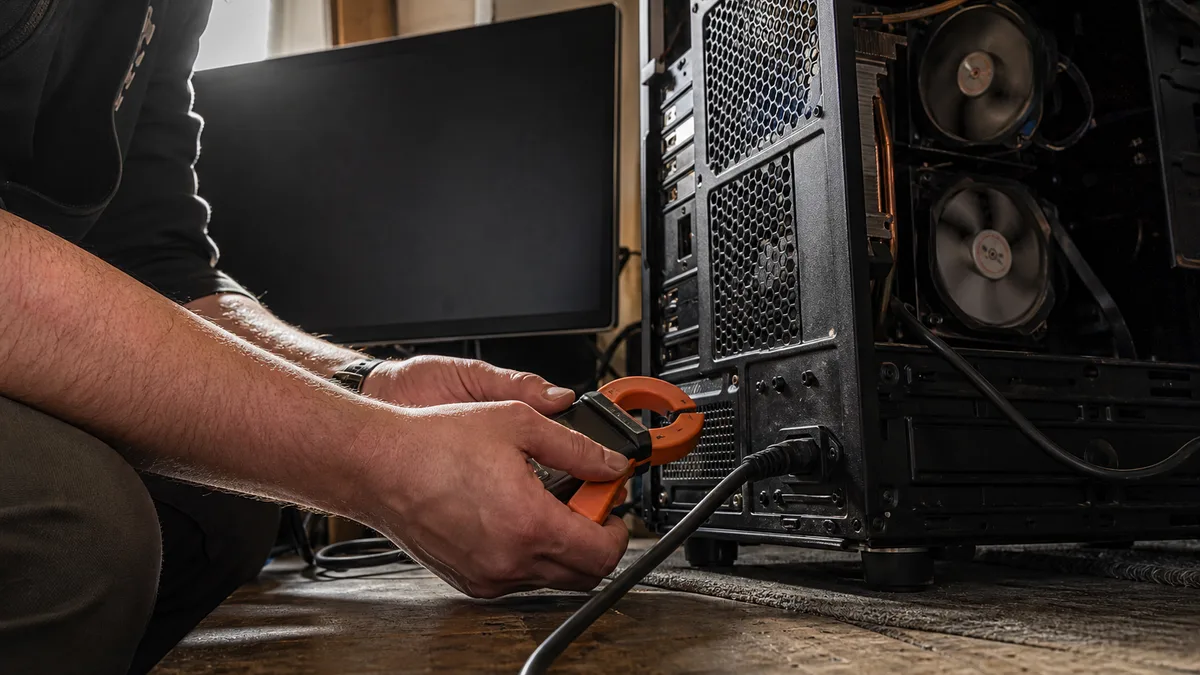
Never go inside a power supply, not even an unplugged one — the capacitors hold dangerous voltage long after it comes out of the socket. And buying the cheapest PSU from an e-shop blind “just to try” is not diagnostics, it is a new fault in a box. In a service shop the power supply is measured under controlled load: whether it holds the voltage on each rail and when the protections trip. That is exactly what diagnostics is for — roughly 600 CZK if no repair follows; with a repair it is handled as part of the job.
When the shutdowns are joined by freezes unrelated to load, crashes from cold, or a refusal to start at all, the motherboard may be in play as well — how to spot that is described in the article on motherboard failure.
What you can manage at home
Without taking the card apart there is plenty:
- clean the dust filters on the case and check that every fan spins freely (machine switched off and unplugged),
- tidy the cables so they do not stand in the way of the front intake, and give the case a few centimetres of clear space around it,
- do a clean reinstall of the graphics driver — the DDU procedure is laid out step by step in the article on artefacts,
- cap the FPS at your monitor’s refresh rate (in the game or in the driver) — there is no point in the card producing frames the monitor will never show, and both power draw and temperature come down,
- close background software and switch off the recording you may never have knowingly turned on.
What not to do at home: do not spin the fans up with compressed air without holding the blades, do not vacuum electronics with a household vacuum cleaner, and do not take the heatsink off the graphics card unless you have fresh paste, the right pads and certainty about the warranty.
When to hand it over to a service shop and what it costs
If FPS keep falling even after the software clean-up, or the machine shuts down hard and you do not want to buy a power supply by trial and error — and honestly, almost nobody wants to take apart a graphics card that is still under warranty — book an appointment and bring the whole case, not just the card. Shutdowns are almost always solved in context: cooling, power supply and airflow together.
You will speed up the diagnosis by writing down with your booking: which game and after how many minutes it happens, whether it is an FPS drop or a hard shutdown, the model and age of the power supply, whether the graphics card in the build was ever swapped — and feel free to attach a photo of the overlay with the temperatures from the moment it went wrong. Every one of those details cuts off one branch of the search.
Prices in Brno, roughly: dust cleaning of a desktop PC from 1,200 CZK, for a laptop cleaning with a repaste from 1,800 CZK, diagnostics 600 CZK where no repair follows. A GPU repaste and pad replacement is quoted according to the specific card — you get the price up front, before any work begins. The full overview is in the price list.
An honest result does not look like “blew it out, should be fine now”. The technician should show you the temperatures and clocks under load before the work and after it — with throttling the difference is there in black and white. And if the measurements show the card and the cooling are not to blame, you will be told that too: you pay for the diagnostics, not for a repair that was never needed.
Rather not deal with it yourself?
Book a diagnosis in Brno — you get the price up front and we start only once you agree.
Where to find us
We are a PC and laptop repair shop in Brno-Židenice: diagnostics and repairs of computers and laptops, data recovery from drives, and out-of-warranty Apple repairs (iPhone 12 and newer, MacBook, iPad).
Viniční 3587/216, 615 00 Brno-Židenice, Czech Republic Mon–Fri 10:00–16:00
Call +420 774 777 774 Computer repair and laptop service in Brno
We put the repair price in writing after diagnostics and carry on only once you agree.


