You start a video call in Teams, with screen sharing on, the fan spins up like a hairdryer — and five minutes later, it’s black. Not sleep mode, not a blue screen. Just off, as if someone pulled the plug. Ten minutes later, the computer turns on and acts like nothing happened.
That “nothing happened” is precisely the trap. The thermal protection did its job and saved the machine. But it’s doing it more and more often, and next time it might not be in the middle of a call, but in the middle of an unsaved invoice.
Quick answer: Turn off the computer and let it cool down on a hard surface — not on a sofa or lap. Back up your data; repeated hard shutdowns can corrupt an accounting database or a Windows profile. Then download HWiNFO and, during normal work, watch three things at once: the processor temperature, its clock speed, and whether the exhaust is blowing air at all. You’ll know it’s overheating if the temperature skyrockets to the limit, the clock speed plummets, and the machine shuts down. If it shuts down even when cold and without load, it’s not the temperature — look at the adapter, battery, or PSU. Immediately disconnect and do not turn on if you smell burning, the fan is grinding, or the machine shuts down within minutes even when idle.
What a real thermal shutdown looks like
Overheating follows a readable scenario, and you can check it off yourself.
The fan gradually speeds up, not in a sudden jump. After a few minutes of load, the computer noticeably slows down — the cursor stutters, the video in a call tears. And only then does it shut off. After cooling down, it starts up and works normally for a while. That last sentence is crucial: a machine with faulty memory or a dying drive will not fix itself after cooling down. Cooling will.
For laptops, the problem is reliably brought to light by a Teams video call with the camera on (video is encoding, the processor runs full throttle for long minutes), exporting a large PDF, recalculating an Excel sheet with macros, installing a large Windows update, or connecting a second monitor via a USB-C dock. For desktop PCs, it’s gaming, rendering in Photoshop or Blender, or compiling — anything that keeps the processor and graphics card under load for a long time.
Symptoms pointing to cooling:
- the fan runs at full speed even in a browser and Word,
- performance drops after a few minutes and never recovers,
- lukewarm air or almost nothing flows from the exhaust, even though the fan is audible,
- the bottom of the laptop or the area around the exhaust is burning to the touch,
- it always shuts down during the same activity,
- after cooling down, everything is fine again.
And now, what is most often confused. A hard shutdown can also be caused by a faulty power adapter, a degraded battery, a desktop PC power supply, a cracked motherboard, or faulty RAM. The difference is that these faults don’t follow the scenario above — they shut down even when cold, right after startup, or completely randomly. And if you see a blue screen with an error code instead of a black screen, it’s almost certainly not temperature; the path leads elsewhere, see Windows 11 Won’t Start and Automatic Repair Appears. If colored squares or stripes also appear on the screen, address the graphics according to the article screen artifacts.
What to measure before you call anyone
In Windows, HWiNFO (in Sensors-only mode), HWMonitor, or Core Temp is sufficient. For the graphics card, use GPU-Z, or directly the NVIDIA App or AMD Software: Adrenalin Edition.
But don’t look at just one number. A number by itself means nothing — you need context. Open the sensors on a second monitor or your phone and run whatever causes the shutdown. Watch four lines:
- CPU Temperature (for AMD Ryzen and newer Intels, also look for the “hotspot” or “Tjunction” item — it’s always higher than the core average, and the limit applies to it).
- Processor clock speed in MHz — this tells you if the machine is throttling.
- GPU temperature if the problem is related to games or rendering.
- Fan speed in RPM — zero under load is a diagnosis in itself.
A high-performance laptop running around 90 °C under load does not, in itself, indicate a fault. Modern processors are designed to reach their limit on their own and stay there — it’s their operating mode, not a warning. What matters is what’s happening around it.
The alarm is triggered only by this combination:
- the temperature soars to the limit within a few tens of seconds from the start of the load,
- the clock speed simultaneously drops far below the base frequency and doesn’t recover,
- the fan is screaming, but no air blows from the exhaust,
- the machine shuts down or restarts,
- high temperatures appear even when typing emails.
There is no universal table of “safe temperatures.” The limit varies depending on the specific processor and how robust the cooling system the manufacturer installed is — a thin ultrabook and a gaming laptop with the same chipset behave completely differently.
What you can handle at home without a screwdriver
Start with the boring stuff. A laptop belongs on a hard desk, not on a blanket, sofa, or lap — for the vast majority of laptops, the air intake is on the bottom cover, and a soft surface blocks it. A cooling pad helps a design that has too little air from the factory. It won’t fix a clogged heatsink or a dead fan; it only postpones the deadline.
Open Task Manager and on the Processes tab, sort by CPU. Sometimes the culprit is indexing, a running update, OneDrive synchronization, or a stuck browser process holding the processor at 100% all day. Be careful with the logic: load can explain noise and heat, but a healthily cooled computer should not shut down because of a normal program. If it shuts down, there is a cooling problem, even if the load is legitimate.
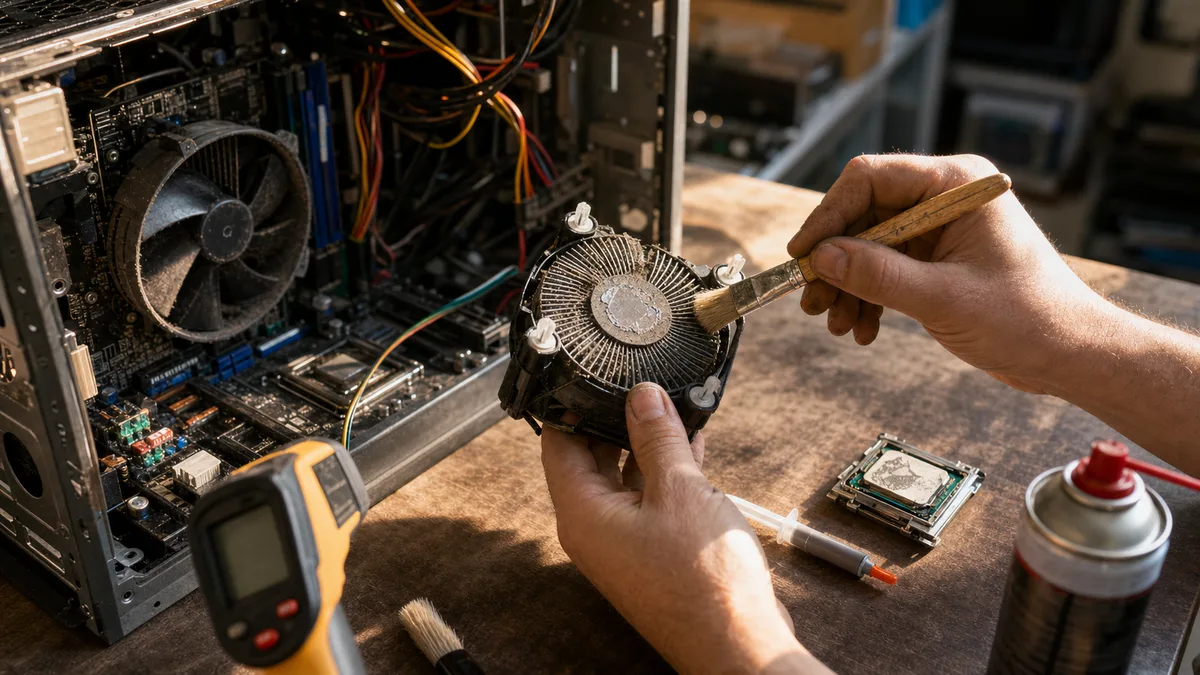
On a desktop PC disconnected from the mains, a lot can be determined by a visual inspection — dust filters, the processor heatsink fins, and whether the fans spin freely at all. Do not open the power supply. The capacitors inside hold a dangerous charge long after it’s unplugged, and opening it is not a job for a layperson.
What to avoid at home:
- do not vacuum the motherboard with a regular vacuum cleaner (the nozzle generates static electricity),
- do not spin fans with compressed air — without blocking the blades with your finger, you’ll overspeed them past their operational RPM and destroy the bearing,
- do not blow dust into the exhaust of a closed laptop; you’ll only push it deeper inside,
- do not remove the heatsink if you don’t have new paste and know how to tighten it properly,
- do not replace thermal pads with paste; it won’t fill a millimeter-wide gap.
A detailed procedure, symptoms of a clogged heatsink, and deciding whether you can handle it yourself are discussed in the article laptop dust cleaning in Brno.
Cleaning, repasting, or a fan? Three different faults
These three things are often sold as one package, but they solve completely different causes — and should be charged based on what the machine actually needs.
| Intervention | What it solves | When it’s not enough on its own |
|---|---|---|
| Cleaning the heatsink and exhaust | Dust felt between the fan and the fins | The fan has a worn bearing or won’t spin |
| Repasting the CPU or GPU | Dried-out or poorly applied paste, worsened heat transfer | The heatsink doesn’t make proper contact, or the heatpipe is punctured |
| Fan replacement | Grinding, fluctuating RPM, noise, complete stoppage | The heatsink fins remain clogged |
| Thermal pad replacement | Heat transfer from memory, VRMs, and other chips | The wrong pad thickness is used |
| Power diagnostics | A faulty adapter, battery, or PC PSU | The shutdown is genuinely caused by temperature |
“Repasting” means removing the heatsink, cleaning old residue from the core and the copper plate, and applying a reasonable amount of new paste. It’s not a miracle upgrade to be done preventively every year. It makes sense when the heatsink is being removed anyway, when measurements show a large difference between the core temperature and heatsink temperature, or for an older machine as part of a proper service. By itself, it doesn’t solve a clogged heatsink — and vice versa: cleaning the heatsink and putting it back on dried-out paste is a half-finished job.
A laptop and a desktop PC are not the same
In a laptop, the fan, heatpipe, and densely stacked aluminum fins sit under the bottom cover. Dust compacts into a solid felt in front of the fins, which you can’t see from the exhaust — that’s why the exhaust can look clean while almost no air passes through the heatsink. Disassembly varies significantly from model to model: sometimes removing the bottom cover is enough, other times you need to disconnect the battery, remove the keyboard, or disconnect several ribbon cables. Blind prying ends with broken clips or a torn display connector.
A desktop PC offers more places where things can go wrong. Besides the CPU cooler, you have to consider the airflow direction in the case (whether the front and rear fans are fighting each other), the graphics card with its own cooling, and the power supply. With AIO water cooling, the pump can fail — and it’s insidious because the fans on the radiator keep spinning merrily, so the machine looks functional while the processor hits its limit in seconds.
And the power supply: it can protectively shut down due to its own degradation or because someone added a more powerful graphics card it can’t handle. Swapping it “on a trial basis” for the cheapest unbranded unit isn’t diagnostics; it’s a new problem. When freezing and strange behavior unrelated to temperature are also present, it could be the motherboard — that’s covered in the article motherboard failure.
When to hand it over to a service center
A service center makes sense as soon as the shutdowns repeat, the fan makes a mechanical noise, or cleaning the accessible filters didn’t help. For a work computer, don’t wait until it happens three times a day — every hard shutdown is a risk to open files.
Prepare a specific description when you hand it over. This saves on diagnostics time and therefore your money:
- how long after the start of the load it happens,
- in which program or activity,
- whether it shuts down completely or restarts,
- whether a blue screen is visible and what code,
- whether the behavior differs on battery and on AC power,
- what temperatures and clock speeds you measured,
- whether anyone has disassembled the machine before.
The result should not be “blown-out laptop.” After the intervention, the technician should verify the fan speed, airflow, and temperature behavior under a controlled load — and should be able to say why they replaced the fan, paste, or pads specifically.
How much it costs and what to ask
The price depends on the machine’s design, the depth of disassembly, whether the heatsink is removed, and the parts needed. An office desktop is in a different league than a thin ultrabook where half the insides have to be taken out to reach the fan. Laptop cleaning starts orientationally from [to be added] CZK, the exact amount is given only by the specific model — promising a final price without knowing the machine is dishonest.
Before you order, verify:
- what exactly the base price includes,
- whether it includes disassembly and a stress test after the intervention,
- whether repasting is charged separately,
- whether the service will inform you before buying a new fan,
- how much the diagnostics cost if you decline the repair.
For an older machine, weigh the cost of the intervention against the computer’s value and the cost of downtime. Cleaning and repasting are routine maintenance and are almost always worth it. The situation is different if disassembly reveals a motherboard, graphics card, or PSU fault — in that case, ask for a quote in advance and decide according to the article reinstall or replace.
So it doesn’t cripple your business
Back up your work documents, accounting, email, and login credentials before you take the machine anywhere — while its condition still allows it. Cleaning itself does not require reinstalling Windows or deleting data, but a backup before any hardware intervention is basic hygiene; how to do it sensibly is described by the 3-2-1 rule.
Also, prepare a spare machine or at least access to cloud services from another device. And most importantly: don’t rely on having weeks of peace just because the computer started up after cooling down. Thermal protection is not an operating mode.
If your laptop or desktop PC in Brno is repeatedly overheating and shutting down, bring it in for cleaning, repasting, or diagnostics, depending on what the measurements show. And take the power adapter with you — if it turns out that temperature isn’t to blame, it will be the first thing to check.