Quick answer: If your PC is noisy, first check CPU usage in Task Manager and see whether the sound changes with the program you are running. A loud rush of air usually means high fan speeds, rattling may point to a worn bearing or a loose part, and rhythmic clicking may indicate a cable touching the fan blades. A high-pitched tone that changes with graphics load could be coil whine. Unplug the computer if you notice a burning smell, crackling, overheating or unexpected shutdowns. Never open the power supply.
The sound is your first clue
A desktop computer has more than one fan. Fans on the CPU, graphics card, case and power supply may all move air. Mechanical hard drives, a liquid-cooling pump and the power circuitry on the graphics card, motherboard and power supply can also make noise.
Before opening the case, note when the sound occurs and whether it changes as you use the computer:
| What the PC sounds like | When the sound occurs | Likely clue |
|---|---|---|
| A loud rush of air | After launching a game, an update or a demanding program | High fan speed |
| Growling or rattling | Constantly or only at certain fan speeds | Fan bearing, vibrating panel or grille |
| Rhythmic clicking | The rhythm follows the fan speed | A cable or another obstruction near the blades |
| High-pitched whining or buzzing | During gaming, rendering or changes in frame rate | Coil whine from power circuitry |
| Repeated metallic clicking | Alongside freezing or problems with files | A possible mechanical hard drive problem |
| Crackling, a burning smell or shutdowns | Under load or at idle | A fault you should stop testing |
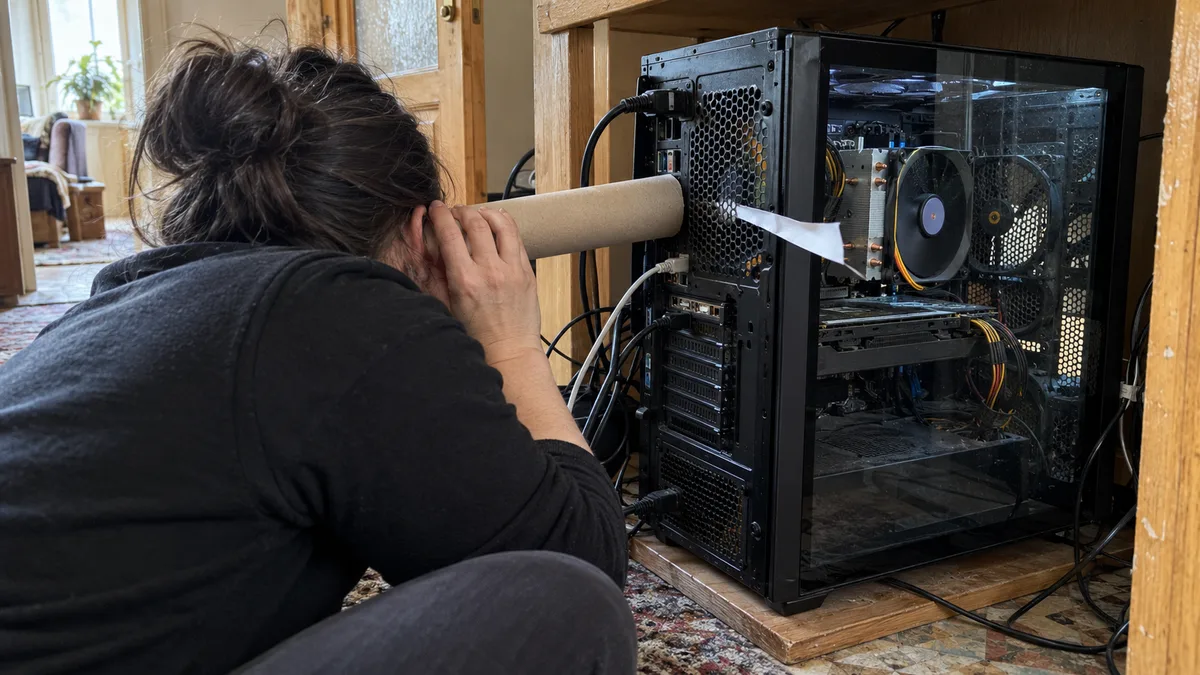
Do not put your hands or tools inside a running computer, and do not stop fans with your finger. Try to locate the sound only by listening from outside the case: near the front or rear fan, CPU cooler, graphics card or power supply grille.
When to stop troubleshooting yourself and how we can help
Shut down the computer and unplug it from the wall if you smell burning, hear crackling or notice overheating and unexpected shutdowns alongside the noise. We also advise against attempting repairs at home if the power supply is rattling, the CPU cooler may not be securely mounted or a mechanical hard drive is clicking repeatedly. Further testing could worsen the fault or put your data at risk. If a mechanical hard drive is clicking and your files matter to you, put data recovery before repairs: do not turn the computer on again, and follow the guidance on the ITHOPE data recovery page.
Do not open the power supply, even after unplugging it. It operates at mains voltage, and some components can remain dangerous. Likewise, do not dismantle a graphics card to replace thermal paste or pads unless you know the correct procedure.
Our service process has three steps:
- We try to reproduce the sound and link it to a specific workload, fan speed or temperature.
- We check the fans, heatsinks, wiring, fan controls and power components without replacing parts unnecessarily.
- We explain the cause we have identified and propose the next steps; only after your approval do we clean, repair or replace the faulty component.
If you cannot safely identify the source of the noise, you can book desktop PC diagnostics and repair in Brno.
Check CPU usage first
A loud rush of air does not necessarily mean a fan is faulty. Fan controls increase speed in response to temperature, which may rise because of a program running in the background.
In Windows, open Task Manager with Ctrl + Shift + Esc. On the Processes tab, sort the entries by the CPU column and watch for a few minutes to see what is putting the computer under load. Examples include:
- Windows update installation;
- an antivirus scan;
- a browser with a demanding page or many tabs;
- OneDrive syncing;
- a Teams video call;
- data exports, compilation, rendering, CAD or a game.
Do not end unfamiliar system processes. For an application you recognise, save your work first and close it normally. If the noise decreases as CPU usage falls, the fan was probably responding to a real workload.
When fans stay noisy at idle
If CPU usage is low, focus on cooling. Dust on filters and between heatsink fins restricts airflow. The fan controller then increases fan speed to remove the same amount of heat.
Shut down the computer, disconnect the power cable and let it cool. Inspect filters and vents from the outside. When cleaning with compressed air, prevent the fan from spinning freely and hold the can as instructed by the manufacturer. Do not place a household vacuum cleaner directly against electronic components.
Other reasons the noise may persist include:
- a worn fan bearing;
- a cable touching the fan blades;
- a loose filter, side panel or grille;
- dust clogging the heatsink beneath the fan;
- an incorrectly seated CPU cooler;
- the wrong fan control mode;
- dried-out or incorrectly applied thermal paste.
High fan speeds accompanied by rising temperatures and shutdowns are covered in more detail in Laptop or desktop PC overheating and shutting down.
Coolers and thermal interface materials
A fan can be noisy even when it is mechanically sound. If the cooler does not make proper contact with the CPU, or the thermal interface material between the surfaces is not working effectively, the temperature rises quickly and the controller keeps the fan running at high speed.
When reinstalling a cooler, follow its mounting procedure and tighten the fasteners evenly. Thermal paste cannot compensate for insufficient mounting pressure.
Graphics cards are more complicated. In addition to thermal paste, they may use thermal pads for the memory chips and power circuitry. A pad of the wrong thickness can reduce contact elsewhere in the cooling assembly. The difference between these materials is explained in Thermal pads, not just paste.
Check fan controls in the BIOS or UEFI
Motherboards use names such as Fan Control, Smart Fan or Q-Fan for their fan settings. Make a note of the original values before changing them.
Common fans generally use one of two control methods:
- a four-pin fan is usually controlled by a PWM signal;
- a three-pin fan is usually controlled by varying the voltage in DC mode.
Selecting the wrong mode can limit the control range or leave the fan running unnecessarily fast. On prebuilt systems such as the Dell OptiPlex, HP ProDesk, HP EliteDesk or Lenovo ThinkCentre, the manufacturer may restrict the available settings.
Do not lower the fan curve based on sound alone. First make sure the heatsink is clean, the fan is connected correctly and temperatures remain stable under load. A quiet computer that overheats has not been fixed.
Take power supply noise seriously
The power supply fan sits behind a metal casing. Rattling near the rear grille next to the power cable may come from its bearing, but without measurements, another part of the system cannot be ruled out.
Do not open the power supply or try to replace its fan at home. The only safe external check is to see whether dust or a foreign object is blocking the grille. Further diagnostics are carried out without accessing the inside of the power supply.
Do not turn the computer on again if you also notice:
- a burning smell;
- crackling or irregular electrical noises;
- problems starting up;
- random restarts or shutdowns;
- visible sparks or smoke.
How to distinguish between power supply, motherboard and power button faults is explained in Desktop PC will not turn on.
Coil whine changes with load
Coil whine sounds different from a fan. It is a high-pitched tone, electrical buzz or chirping sound that changes pitch as you move through a game menu, change the graphics load or change the frame rate.
The sound can come from mechanical vibrations in power circuit components. In a desktop computer, it is often audible from the graphics card, power supply or the area around the CPU power circuitry on the motherboard. Listening from outside may not pinpoint the source because the case reflects sound.
As a safe test, you can enable vertical sync in a game or cap the maximum frame rate. If the tone changes immediately, that is a useful diagnostic clue. It does not mean every electrical whine is automatically harmless.
Stop putting the computer under load if you also experience crashes, performance drops, visual artefacts, a burning smell or shutdowns. The relationship between cooling, power delivery and instability under graphics load is explained in PC shuts down while gaming or FPS drops.
What to note before diagnostics
A precise description helps identify the cause more than simply saying the computer is “making a noise”. Note:
- whether the sound starts immediately after switching on or only once the computer warms up;
- which program or game triggers it;
- whether it changes with frame rate or CPU usage;
- roughly which part of the case it comes from;
- whether the computer also slows down, freezes or shuts down;
- whether the sound has become worse over the past few days.
A short recording made with your phone can also help. Do not open the case while the computer is running to make the recording, and keep the phone away from fans.
What to do based on the symptoms
| Symptom | Safe first step | When to shut down the computer |
|---|---|---|
| A loud rush of air under load | Check processes, temperatures and vents | If the temperature keeps rising or the computer shuts down |
| Growling or rattling | Shut down and inspect fans and panels from the outside | If the sound comes from the power supply or gets worse quickly |
| Rhythmic fan clicking | Shut down, unplug and check the wiring | If a blade is hitting something or the fan is damaged |
| High-pitched whining during gaming | Cap FPS and listen for a change in pitch | If accompanied by a burning smell, instability or shutdowns |
| Repeated hard drive clicking | Stop further testing and shut down the computer | Immediately if there are problems accessing files or detecting the drive |
| Crackling or a burning smell | Do not carry out any further tests | Unplug from the wall immediately |
Noise is a symptom, not a diagnosis. First identify the type of sound and how it relates to the workload. Only then does it make sense to clean the cooling system, adjust fan controls or replace a specific part.
Rather not deal with it yourself?
Book a diagnosis in Brno — you get the price up front and we start only once you agree.
Where to find us
We are a PC and laptop repair shop in Brno-Židenice: diagnostics and repairs of computers and laptops, data recovery from drives, and out-of-warranty Apple repairs (iPhone 12 and newer, MacBook, iPad).
Viniční 3587/216, 615 00 Brno-Židenice, Czech Republic Mon–Fri 10:00–16:00
Call +420 774 777 774 Computer repair and laptop service in Brno
We put the repair price in writing after diagnostics and carry on only once you agree.