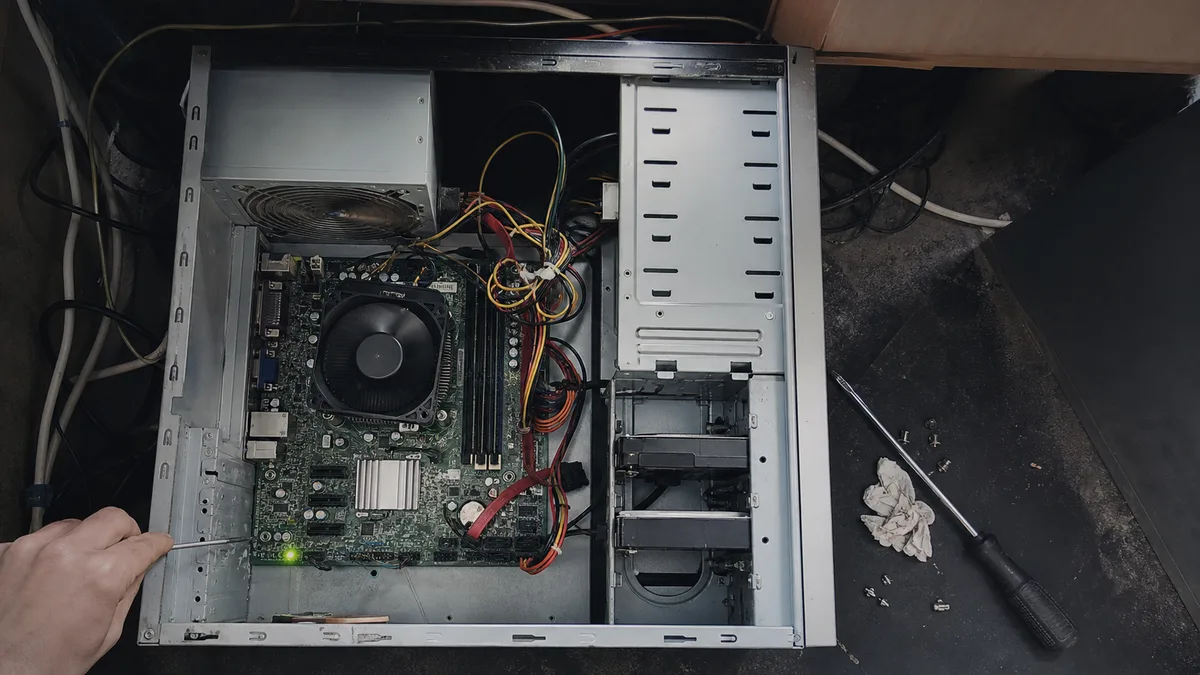
The short answer: “It won’t turn on” actually describes three different faults, each pointing in a different direction. Either nothing happens at all (check the power path from the wall socket to the case button), the fans spin and the PC shuts down after a few seconds (POST does not complete — memory, CPU power, graphics card, or a short circuit), or the computer keeps running normally but the monitor displays nothing (a different diagnosis altogether). Before buying any parts, work through the checks that cost nothing: try another wall socket and power strip, check the switch on the power supply, firmly seat the power connectors, test with one memory module, and disconnect peripherals. This article covers desktop PCs — laptops have a completely different power path and are covered in laptop won’t turn on.
First, identify what is actually happening
Turn the computer on, then spend ten seconds simply watching and listening. The difference between the following three states determines where you should start looking:
- Nothing happens. No fans spin, no LEDs flash, and there is no click. Either power is not reaching the motherboard, or the motherboard has not instructed the power supply to start.
- It starts and shuts down, possibly repeating the cycle. Power is available, but startup stops before the initial hardware test can finish.
- It keeps running — the fans spin, the drive activity light flashes, and the keyboard lights up — but not even a logo appears on the monitor. This is not a power-on fault; it is covered in the computer is running, but the monitor says No Signal.
One more distinction: if the display comes on normally, you see the logo and Windows, and the screen goes black only after you sign in, the problem has nothing to do with power and must be diagnosed elsewhere.
If the desktop keeps misbehaving, desktop PC repair in Brno will take it in.
If nothing happens: trace the power path from the outside in
The order is deliberate — starting with the cheapest and most common causes:
- Power strip and wall socket. Surge protectors and extension leads often have their own switch and can fail without warning. Plug the computer directly into another wall socket that you know works.
- Power-supply switch. There is usually an I/O rocker switch on the back of the case next to the power-cable socket. It must be set to I.
- Power cable. Firmly insert the C13 connector (the common “kettle lead”) at both ends and, to rule it out, try another cable — the same type is used by many printers.
- Motherboard standby LED. Most motherboards have a small LED that lights up whenever the board is receiving power. If it is off, the problem is still in the power path rather than elsewhere inside the PC.
- Case power button. The power button connects to the motherboard through a thin two-wire cable in the front-panel header, labelled F_PANEL, JFP1, or PANEL depending on the manufacturer. It is often disconnected or fitted to the wrong pins after moving or rebuilding the PC. Do not short random pins based on an online video — use only the diagram in your motherboard manual.
- Motherboard power connectors. In its troubleshooting guide, ASUS recommends connecting all power connectors provided on the motherboard: the main 24-pin connector, the 8-pin connector near the CPU, and any additional 4-pin connector. The 8-pin CPU connector is the one most often forgotten after cleaning the PC or replacing the cooler.
It starts and shuts down: POST did not complete
A short power-on and shutdown cycle means that the computer did not pass its initial hardware checks. The most common causes, in the order in which we encounter them, are:
- An improperly seated memory module. After the computer has been moved or cleaned, a module may only look as though it is fully inserted.
- Missing CPU power — specifically, the 8-pin connector.
- An auxiliary graphics card power connector that has not clicked fully into place (a 6- or 8-pin connector, or a single 12V-2x6 connector on newer cards). Spinning fans on the card prove nothing.
- A short caused by a motherboard standoff left underneath the board where there is no mounting hole after rebuilding the PC.
There is one more potential trap: on systems with DDR5 memory, the first startup after replacing the modules or resetting the settings can take tens of seconds with no visible response while the motherboard “trains” the memory. Let the process finish and do not switch the computer off midway through it.
Beeps and diagnostic LEDs: what the motherboard is really telling you
A startup beep is a message, but there is no common language for these messages. The BIOS vendor (AMI, Award/Phoenix) defines the beep codes, and the motherboard manufacturer documents them for each specific model. The same pair of beeps can therefore mean something different on an ASUS board than on an MSI or Gigabyte board. Universal beep-code tables have circulated online for years, and many people have replaced perfectly functional parts because of them — consult the manual for your exact motherboard model instead.
Newer motherboards also often have no speaker connected and report their status through LEDs. ASUS calls these Q-LEDs and distinguishes between CPU, DRAM, VGA, and BOOT: the LED that remains lit indicates the stage at which startup stopped. MSI offers similar EZ Debug LEDs, while higher-end ASRock models use a two-digit Dr. Debug code. Look for the LEDs near the 24-pin power connector or the memory slots. On prebuilt business PCs such as the Dell OptiPlex, HP EliteDesk, and Lenovo ThinkCentre, diagnostic codes are conveyed through flashes of the power button, and each manufacturer uses its own system. The same rule applies here: the code identifies the area to investigate, not the part you should order.
Minimal configuration and reconnecting components one at a time
Before reaching inside: switch off the power supply at the rear, unplug the cable from the wall socket, and then press the power button for two seconds to discharge residual power. Take a photo of the original configuration before changing anything. For this situation, ASUS recommends testing with the minimum number of components: leave the CPU, cooler, and one memory module installed, disconnect USB devices, expansion cards, drives, and LAN and audio cables, and leave only the monitor connected. If the computer starts in this configuration, reconnect the components one at a time and restart after each one — the culprit will reveal itself.
A cross-test can also help with memory: test one module in the slot recommended by the motherboard manual, then test the other module in the same slot. Hold each module by its edges, do not touch the gold contacts, and insert it until the retaining clips genuinely click into place. Disconnect both cables from each drive — data and power — because a failing drive can block startup just as effectively as faulty memory.
When it makes sense to check the CR2032 battery
The coin-cell battery on the motherboard preserves its settings and clock. In PCs that are eight years old or more, the battery can run flat. Typical symptoms include the date and settings being lost after the computer is unplugged, a CMOS error message, or the computer starting only on the second attempt. Replacing a CR2032 battery is manageable at home, but the computer must always be switched off and unplugged first. Bear in mind that the settings will return to their defaults, including the boot order, memory profile, and Secure Boot options. On an encrypted drive, such a change can trigger a request for the BitLocker recovery key, so locate it beforehand. A word of caution: a completely dead computer usually has a different fault — an exhausted battery alone does not normally prevent startup.
Decision table
| What is happening | What it points to | Safe next step |
|---|---|---|
| nothing lights up, including the motherboard LED | power path or power supply | try another socket, check the PSU switch, and use another cable |
| motherboard LED is on, but the button does nothing | case button or its connection | check the front-panel header against the manual |
| it starts and shuts down within a few seconds | POST did not complete | test one memory module and firmly seat the CPU and graphics card power connectors |
| it keeps running, but the monitor displays nothing | a different diagnosis | follow the no-signal troubleshooting procedure |
| one CPU/DRAM/VGA LED remains lit | the motherboard indicates where startup stopped | consult the manual for the exact motherboard model |
| the clock and settings keep resetting | CMOS battery | replace the CR2032 and have the BitLocker key ready |
| you smell burning or hear the drive clicking | risk of further damage | unplug the computer and do not try again |
What is not worth doing
Do not reinstall Windows — if even the BIOS screen does not appear, the operating system is not involved at all. Do not open the power supply; its capacitors can retain a dangerous charge long after it has been unplugged. And do not update the BIOS “just in case”: without a specific reason, you risk adding a second fault. If you would rather not tackle the problem yourself, a more serious issue is often indicated by the motherboard — the symptoms are summarised in how to identify a faulty motherboard.
What to bring to the repair shop
Bring the complete computer case together with its power cable, and describe exactly what happens: whether the fans spin, how many seconds the computer runs, which motherboard LED remains lit, and whether you hear any beeps. Include the model of the motherboard or the complete PC, when the problem first occurred, and what happened immediately beforehand — moving the computer, cleaning it, replacing a component, or a power outage. If you have already tried anything, write it down; this avoids repeating the same tests.
We cannot promise the scope or price of the work in advance — we will confirm the diagnosis and repair cost only after inspecting the computer. You can book through the appointment form or by calling 774 777 774. In the description, specify which of the three situations applies: nothing happens, it starts and shuts down, or it runs without displaying an image.
Order online: Desktop PC repair — tell us the model and what happens, and we will come back with the next step.
Sources
- ASUS: Cannot power on / will not boot / no display — troubleshooting
- ASUS: Troubleshooting with Q-LED indicators
Rather not deal with it yourself?
Book a diagnosis in Brno — you get the price up front and we start only once you agree.
Where to find us
We are a PC and laptop repair shop in Brno-Židenice: diagnostics and repairs of computers and laptops, data recovery from drives, and out-of-warranty Apple repairs (iPhone 12 and newer, MacBook, iPad).
Viniční 3587/216, 615 00 Brno-Židenice, Czech Republic Mon–Fri 10:00–16:00
Call +420 774 777 774 Computer repair and laptop service in Brno
We put the repair price in writing after diagnostics and carry on only once you agree.


