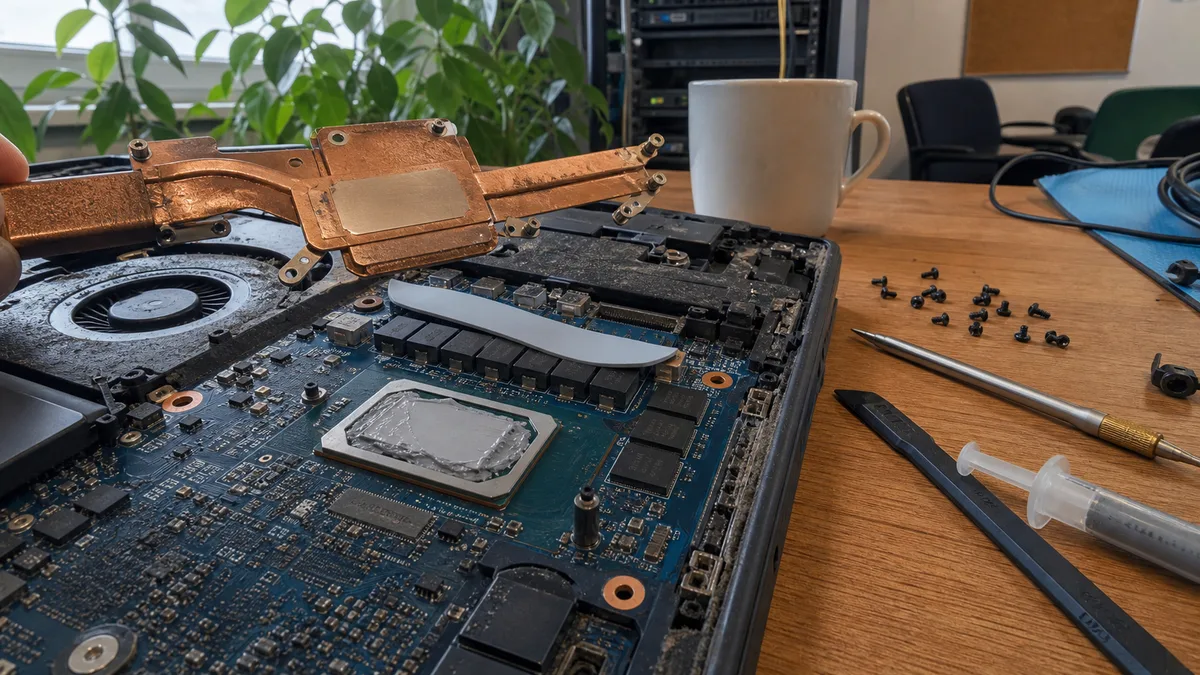
The short answer: If your laptop still overheats after replacing the paste, look beyond the processor. Paste only fills microscopic imperfections between the chip and heatsink. The gap above the VRM power delivery circuitry, graphics memory and other components of different heights must be filled with a thermal pad or thermal putty of the correct thickness, which is specific to the laptop model and motherboard revision. Other common causes include loss of heatsink mounting pressure, the pump-out effect (paste gradually migrating away from the centre of the chip), clogged heatsink fins or a damaged heat pipe. Measurements are what matter: temperature, clock speed and the point at which performance drops—both before and after the repair, under the same workload.
Why new thermal paste did not solve the problem
Paste only helps when the problem lies at the interface between the processor or graphics chip and the heatsink. A laptop, however, dissipates heat from several areas: the VRM power delivery circuitry, graphics memory and, in some machines, even the storage controller. There is a deliberate gap between these components and the heatsink, which the manufacturer fills with a different material—a thermal pad or thermal putty.
Paste is not a substitute for either of them. In a gap of around half a millimetre or more, mounting pressure spreads it out towards the edges; it gradually leaks away and cannot maintain reliable contact. A laptop can therefore be freshly cleaned and have new paste on its processor, yet still lose performance, run its fans at full speed or shut down after a few minutes under load.
This article picks up where the general guide to an overheating computer leaves off: the dust is gone, the paste is new, but the problem remains.
Paste, pads and putty are designed for different gaps
A laptop cooling assembly is not a single flat surface. The processor and dedicated graphics chip may sit higher or lower than the memory modules and power delivery components, so manufacturers combine several materials, each intended for a different gap height.
| Material | Where it is used | What it fills | What happens when it is used incorrectly |
|---|---|---|---|
| Thermal paste | CPU and GPU in direct contact with the heatsink | microscopic imperfections between two mating surfaces | a thick layer gets squeezed out and worsens heat transfer |
| Thermal pad | VRMs, VRAM and other components of varying heights | a precisely defined gap of a specific thickness | a thin pad fails to make contact; a thick one lifts the heatsink away from the CPU |
| Thermal putty | groups of components with different heights | an uneven gap, as specified by the manufacturer | an unsuitable amount prevents the rest of the heatsink from seating correctly |
| Liquid metal | selected high-performance laptops, including some ASUS ROG models | a very thin interface between the CPU/GPU and heatsink | it conducts electricity, so leakage onto nearby components causes a short circuit |
You cannot choose pad thickness from a generic video. It varies not only between laptop models but also between motherboard revisions of the same model. A 1 mm pad and a 1.5 mm pad are not “almost the same”—that half-millimetre determines whether the heatsink seats on the processor at all or whether the pad above the VRM lifts it, making temperatures worse after you replace the paste.
Why temperatures drop after repasting but return a month later
The most common explanation for this scenario is the pump-out effect. The chip expands under load and contracts again afterwards. Repeated thermal cycles gradually push the paste from the centre of the package towards its edges, leaving poorer contact precisely where the most heat is generated.
In a desktop computer, the heatsink is held firmly in place by a mounting system with a backplate behind the motherboard. In a laptop, it is often secured by a thin spring-loaded bracket and four screws, where the tightening order and evenness also matter. The assembly moves more, allowing the paste to migrate faster.
The practical consequence is that a temporary improvement does not prove the repair was performed correctly. What matters is a test after the entire machine has warmed up, not the temperature during the first minute after launching a program.
Dell XPS 15 9560 and 9570: the processor was not the only problem
The Dell XPS 15 9560 and its successor, the 9570, provide a well-documented example. Their cooling systems use two heat pipes shared by the processor and graphics chip, and some of their issues had nothing to do with contact between the CPU and heatsink. Insufficiently cooled power delivery circuitry could limit performance before the processor reached its thermal limit.
In addition to new paste, a community modification for the 9560 therefore used thermal pads to connect the VRMs thermally to the laptop’s metal bottom cover, allowing it to serve as an additional cooling surface. The modification commonly specified several layers of approximately 1.5 mm pads cut into strips to match the component layout.
This is not a procedure that can be applied to another Dell model. Three layers of 1.5 mm pads only make sense where they match the actual gap between the motherboard and the cover. On a different model, the same approach may lift the heatsink and worsen the processor temperature.
The community solution also frequently included reducing the processor voltage, known as undervolting. For these configurations, reported values were commonly in the low hundreds of millivolts for both the core and cache. However, you cannot simply copy a particular figure, even between two units of the same model: every processor has a different stability margin, and excessive undervolting causes crashes and blue screens. More importantly, undervolting does not repair poor mechanical contact; it only shifts the point at which the problem becomes apparent.
How to determine what is actually overheating after repasting
The number shown beside “CPU Temperature” is not enough on its own. Intel specifies the maximum junction temperature for each processor model; for mobile processors, it is typically 100°C. When that temperature is reached, the processor automatically reduces its clock speed and power consumption. Seeing 100°C on the display therefore does not automatically indicate a fault—it shows that the protection mechanism is working.
It is this combination that should raise concern:
- the temperature remains at approximately 90–100°C under sustained load;
- the clock speed drops significantly after several minutes and does not recover;
- performance returns after the laptop cools down, then falls again under the next load;
- the fans run at full speed, but the temperature does not decrease;
- the problem persists even after cleaning the vents and fans.
HWiNFO sensor logging is sufficient for recording the behaviour. Monitor four things at once: temperature, clock speed, power draw in watts and thermal or power limit warnings. Take measurements before and after the repair under the same workload and at a similar room temperature. Otherwise, you are comparing two different tests, not two states of the same laptop.
One limitation must be acknowledged: the VRM often has no accessible temperature sensor. A drop in clock speed while the processor temperature remains relatively acceptable can point to overheating in the power delivery section, but it does not prove it. A configured power limit, an underpowered or incorrect power adapter and the Windows power management profile can produce the same symptoms. If performance drops mainly in games, first read why a computer shuts down while gaming and its FPS drops—some cases have a cause unrelated to cooling.
Temperatures themselves are handled by laptop cleaning and repasting, thermal pads included.
What a repair shop should check besides the paste
“Replacing the paste” describes a material. “Repairing the cooling system” describes an outcome that should be demonstrated by measurements. A properly handled repair should include at least the following steps:
- Record the exact laptop model, processor and graphics configuration and, where necessary, the motherboard revision.
- Measure temperatures, clock speeds and the point at which performance is limited before disassembly.
- Check the fans, heatsink fins, heatsink mounting pressure and condition of the heat pipes.
- Document the position, thickness and imprint of the original pads or putty.
- Replace each material with the appropriate type instead of substituting paste for everything.
- After reassembly, repeat the same workload and compare the result with the baseline measurement.
Ask specific questions: does the repair shop merely replace the paste, or does it inspect the entire thermal interface, including the VRMs and graphics memory? A good answer will mention the model, the materials used and the final testing procedure. If you are not comfortable disassembling the laptop or two attempts at repasting have not helped, we can clean and repair your laptop cooling system in Brno—including measurements before and after the repair, so you can see whether the work actually made a difference.
How much the repair costs and what the quotation should include
It is impossible to determine the final price fairly without knowing the exact model and disassembling it. Routine cleaning, replacing pads, fitting a faulty fan and replacing a deformed heatsink that must be ordered are all different jobs. Some pad thicknesses can be found in service documentation; in other cases, the original material and the imprint it leaves after seating must be assessed.
The quotation should list diagnostics, cleaning, materials and any replacement parts separately. Basic cleaning and repasting typically starts at approximately CZK 1,200. Renewing pads or putty, or replacing a fan, increases the price according to the scope of work and part availability. Any advance price can only be an approximate “starting from” figure, and it must be clear what it includes. An offer to “repaste any laptop for a fixed price” says nothing about whether anyone will inspect the pads and mounting pressure or test performance after the repair.
When it is better not to open the laptop at home
Postpone the work if you do not know the original pad thicknesses, if any of the pads disintegrated during removal or if the heatsink does not sit evenly after reassembly. Do not add new paste on top of the old layer, and do not replace a missing pad with a heap of paste. That is the fastest way to end up with worse temperatures than you had before the repair.
Gaming laptops in which the manufacturer used liquid metal require particular care; this typically includes some ASUS ROG models. The material conducts electricity, and leakage onto nearby components causes a short circuit. The cooling module therefore includes a protective barrier, and the manufacturer does not recommend user replacement of the thermal interface material. Automatically replacing liquid metal with conventional paste may also fail to preserve the intended thermal performance, so “cleaned and repasted” can mean permanently reduced performance in this context.
When repasting again makes no sense
Repeating the same procedure is pointless when the cause is incorrect pad thickness, an overheating VRM, a worn fan, loss of mounting pressure or a damaged heat pipe. In that situation, you keep replacing material in an area that is not causing the problem. If the main symptom is noise rather than heat, first read why your laptop fan keeps running loudly—the cause may lie in the settings or background processes.
Take the exact model designation to the repair shop and explain what has already been done, including when, by whom and with which material. Also mention whether the problem only returns after a prolonged workload and whether performance drops. For diagnostic purposes, that is far more useful than saying, “The processor reaches 95 degrees.”
Order online: Laptop cleaning and repasting — tell us the model and what happens, and we will come back with the next step.
Rather not deal with it yourself?
Book a diagnosis in Brno — you get the price up front and we start only once you agree.
Where to find us
We are a PC and laptop repair shop in Brno-Židenice: diagnostics and repairs of computers and laptops, data recovery from drives, and out-of-warranty Apple repairs (iPhone 12 and newer, MacBook, iPad).
Viniční 3587/216, 615 00 Brno-Židenice, Czech Republic Mon–Fri 10:00–16:00
Call +420 774 777 774 Computer repair and laptop service in Brno
We put the repair price in writing after diagnostics and carry on only once you agree.


