On 28 September 2026, Apple released macOS 27.0.1 with a fix for a specific corporate sign-in issue: after a managed Mac woke from sleep, the Platform SSO user name and password fields might not appear on the Lock Screen. Apple lists the fix in its enterprise release notes for macOS 27. The Eclectic Light Company also reported the release that day.
The practical conclusion is narrow: if a managed Mac running macOS 27.0 displays the Lock Screen without the Platform SSO fields after waking, check the system version and install macOS 27.0.1 or later. Erasing the Mac, bypassing corporate management, or replacing hardware should not be the first step.
The short answer: Confirm that macOS 27.0.1 or later is actually installed—it is not enough for the update merely to have been downloaded. If the sign-in fields are still missing after the update, record the version, model, and exact circumstances of the issue, then refer the case to the MDM administrator. Do not erase the Mac without a verified backup.
How to identify this specific Platform SSO issue
The fix applies to a precisely defined combination of circumstances:
- the Mac is managed by a company through MDM,
- the company uses Platform SSO,
- the issue occurs after the Mac wakes from sleep,
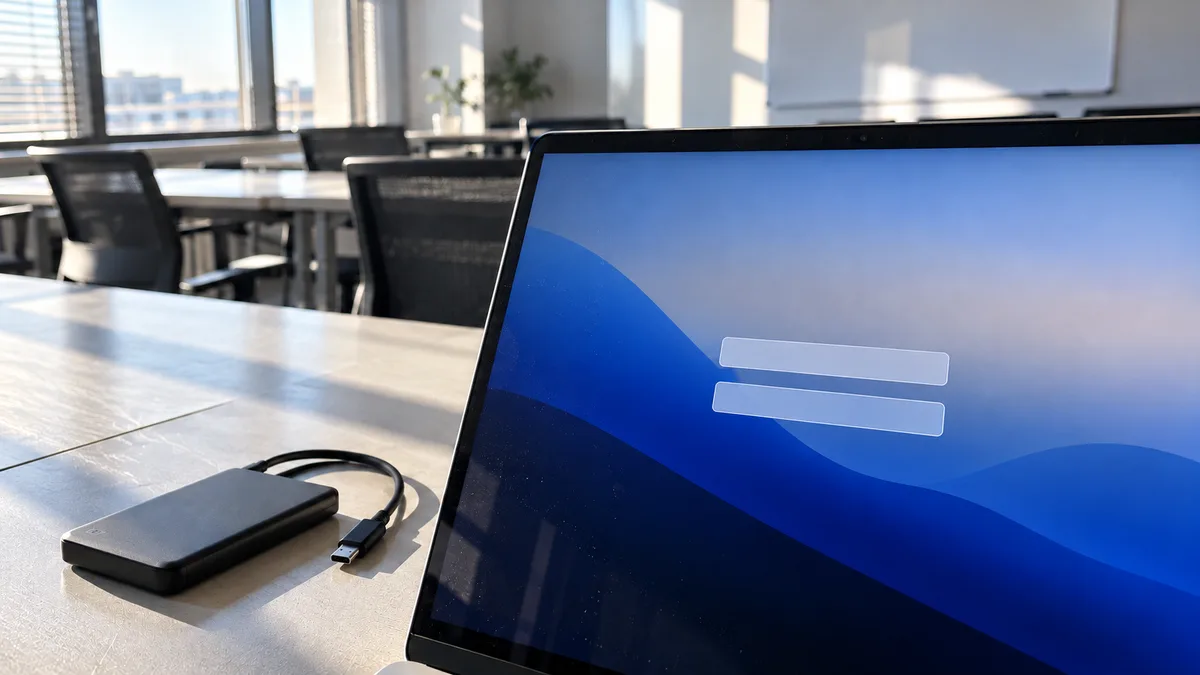
- the Lock Screen appears, but the user name and password fields are missing.
Platform SSO links Mac sign-in to a corporate identity provider. It is not a general term for the password to a personal Apple Account. If the Mac is privately owned, is not managed through MDM, or uses a different sign-in method, the described fix may not apply.
| What you see | Does it match the described issue? | Next step |
|---|---|---|
| The Platform SSO user name and password fields are missing after wake | Yes, this is the symptom listed by Apple | Check the version and update to 27.0.1 or later |
| The fields are visible, but the password is rejected | This is not the symptom addressed by the fix | Record the error message and contact the account administrator |
| The keyboard or trackpad does not respond | Apple does not associate this symptom with the fix | Check the input devices separately |
| The screen remains completely black | This is not a case of missing sign-in fields | Diagnose the display, power supply, or Mac startup |
| The issue occurs after a full startup, not after wake | This does not match the described timing of the issue | Record the startup sequence and investigate another cause |
Apple does not limit the fix to a particular MacBook line, year of manufacture, or processor. Without further evidence, it therefore cannot be claimed that the issue affects only the MacBook Air, MacBook Pro, or a particular chip generation.
When not to try fixing it yourself and what we will do
Stop attempting to resolve the issue yourself in these three situations:
- The Mac belongs to a company and you do not know its MDM policies. Do not remove the enrolment profile or attempt to bypass corporate sign-in. You could disrupt device management and make it harder for the administrator to identify the original cause.
- The Mac cannot find its internal storage or contains the only copy of important data. Restoring or erasing the system could remove the data. First determine whether the problem involves sign-in, the operating system, or the storage device.
- The display is black instead of showing the Lock Screen, or the keyboard and trackpad do not respond. This no longer matches the narrowly defined Platform SSO issue and may indicate a separate hardware or startup fault.
If the corporate account administrator cannot resolve the problem, you can book Mac diagnostics in Brno. We follow three steps:
- At intake, we record the model, macOS version, when the issue occurs, and any available information about the corporate sign-in.
- We distinguish a macOS or account-management problem from a fault involving the keyboard, storage, display, power supply, or logic board.
- We recommend the next steps and carry out any repair only after you approve its scope.
We do not interfere with the corporate account or MDM management beyond the scope agreed in advance. Before handing over the device, it is also helpful to follow our guide on how to prepare a MacBook before servicing.
How to check the installed macOS version
If you can access the system, open the Apple menu and select About This Mac. Check the version number, not only the system name. The difference between 27.0 and 27.0.1 matters for this fix.
You can also find the version in Terminal:
sw_vers -productVersion
A result of 27.0 means that the described fix is not yet included in the installed system. A result of 27.0.1 confirms that the release in which Apple fixed the issue is installed. According to The Eclectic Light Company, this release has build number 26A434, which you can display with the sw_vers -buildVersion command. If the Mac is running a later version, do not downgrade it to 27.0 because of this issue.
If you cannot sign in at all, do not bypass corporate management. The administrator may be able to see the version in the MDM inventory. Prepare the following information:
- the exact Mac model,
- the macOS version and build, if known,
- a photo of the Lock Screen without a name, email address, or other sensitive information,
- whether the issue occurred after wake or after a full startup,
- the approximate time of the last successful sign-in,
- the name of the sign-in or MDM system in use, if known.
“MacBook Pro” is too general to distinguish a hardware fault. Copy the exact model from the system information or corporate inventory.
How to install the update
If the Mac is accessible, open System Settings → General → Software Update. Install macOS 27.0.1 or a later version offered for the device by corporate management.
On a managed Mac, MDM may control the update’s availability and installation date. If you cannot see or start the update, give the administrator the current version number. Do not remove the enrolment profile because of this.
After updating, perform a controlled test:
- Confirm the newly installed version in the system.
- Sign in using the usual corporate method.
- Save any work in progress.
- Put the Mac to sleep.
- Wake it again and check the Platform SSO sign-in fields.
This tests the exact situation described by Apple. Reinstalling applications, changing your personal Apple Account, or taking apart the MacBook is unrelated to this check.
If a different system-interface issue appeared after the update, do not assume it has the same cause. For example, window overview problems are covered separately in our article on macOS 27 and a black Mission Control background.
What to do if the fields are still missing after the update
First, check the version that is actually installed once again. A downloaded or prepared update is not the same as a completed installation.
Then record:
- the macOS version and build number,
- whether the fields are completely missing or visible but unresponsive,
- whether the issue recurs after every wake,
- whether the built-in keyboard and trackpad work,
- whether another company-approved sign-in method works,
- whether other managed Macs exhibit the same issue.
Then refer the case to the MDM administrator or the company’s identity provider administrator. The available release notes do not reveal the cause of a similar condition that persists after installing 27.0.1. Without checking the configuration, there is no basis for identifying it as the same issue or as a new macOS fault.
If even the Lock Screen does not appear and the Mac remains black, follow the guide MacBook will not turn on and has a black screen. Erasing the system without distinguishing between these conditions could remove local data while also destroying useful diagnostic evidence.
How to proceed with multiple corporate Macs
When several devices are involved, first compare the affected Macs with those that work correctly. A simple table listing the model, macOS version and build, MDM management status, Platform SSO method, and post-wake test result is sufficient.
If the issue occurs only on Macs running version 27.0 and disappears after installing 27.0.1, the result matches the fix described by Apple. If it remains on only one device, its configuration, sign-in process, and hardware need to be checked separately.
The correct order is to check the macOS release first, then the corporate account and MDM, and only then investigate a hardware fault. This avoids unnecessarily erasing the system or replacing components that may have nothing to do with the missing Platform SSO fields.
Rather not deal with it yourself?
Book a diagnosis in Brno — you get the price up front and we start only once you agree.
Where to find us
We are a PC and laptop repair shop in Brno-Židenice: diagnostics and repairs of computers and laptops, data recovery from drives, and out-of-warranty Apple repairs (iPhone 12 and newer, MacBook, iPad).
Viniční 3587/216, 615 00 Brno-Židenice, Czech Republic Mon–Fri 10:00–16:00
Call +420 774 777 774 Computer repair and laptop service in Brno
We put the repair price in writing after diagnostics and carry on only once you agree.